Deploying updates for Office 365
 |
| Learn how to deploy Microsoft Office 365 updates with Content Distribution and Microsoft Configuration Manager using peer-to-peer delivery, byte-range downloads, and Alternate Content Provider (ACP) integration. This guide covers Office 365 update behavior, bandwidth optimization, cache management, Microsoft Update integration, Content Distribution elections, and monitoring update downloads across enterprise Windows environments.
-
Downloading the following types of updates is enabled by default in the 1E Client. Downloading from Microsoft Update is also enabled by default.
-
The settings are defined in CompatibilityFlags and you will need to ensure the relevant bits remain set if you are using that registry value to configure other options, refer to Downloading content for CM Software Updates from Microsoft Update for more details.
-
Refer to Deploying Office 365 updates for details about Content Distribution and Office 365 including, how it works, Content Distribution app integration for Office 365 and other supported Content Distribution features.
You can use the Content Distribution app, powered by the Platform to get a visual snapshot of download activity in your environment. The Content Distribution app will be available after you install the Platform and can be accessed using the 1E DNS Alias FQDN, for example https://tachyon.acme.local/Tachyon.
The section Monitoring Content Distribution on this page provides an overview of how you can use the app to view download progress for large and small scale deployments.
Deploying Office 365 updates
We will start by installing an update that is not cached locally on one Content Distribution client and therefore all download activity is from the Distribution Point. After that, we initiate an installation of the update on the second Content Distribution client and walk through the download from the first Content Distribution client's cache.
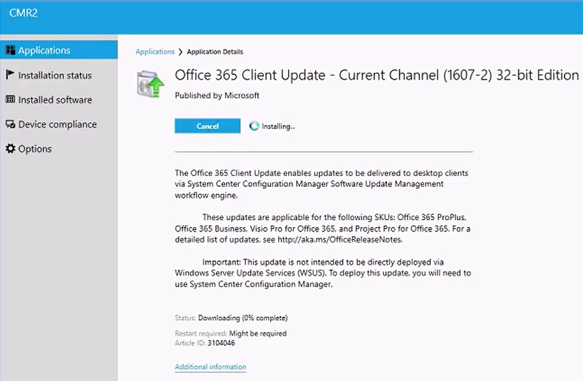
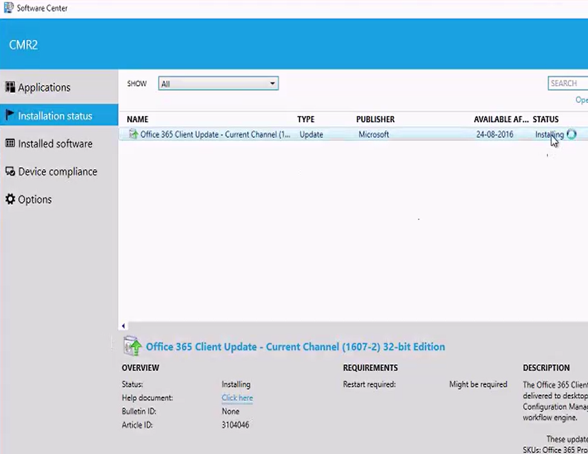
From Software Center, the Installation of the Office 365 update is initiated. During the download, its status is displayed at the bottom of the screen.
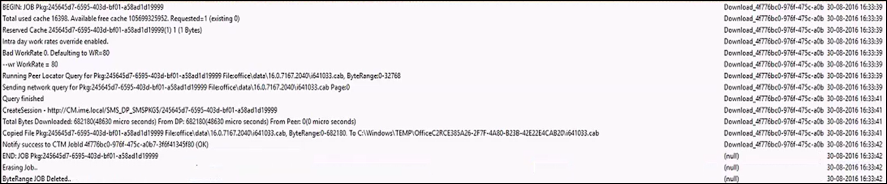
Browsing to the NomadBranch.log location (typically, located with Configuration Manager agent logs). When Content Distribution receives the download request (job) and manifest file from the Configuration Manager agent:
-
It checks its query results store (QRS) to see if any peer has broadcast that it is already downloading the content.
-
If the broadcast is not found, an election (network query) is initiated in an attempt to obtain the content from a peer.
-
If no peer responds, a download is initiated from a DP (4).
-
Once the download is complete, the data is copied into the location described in the manifest file.
The log extract below shows all five events with the successful download (i641033.cab) from a DP. Office 365 downloads can be either a file or part of a file (byte-range). Our example illustrates a download for an entire file.
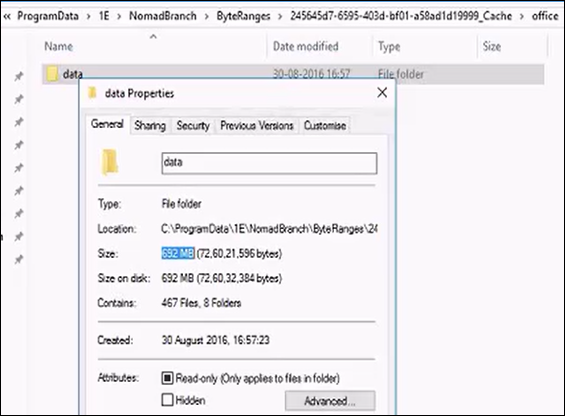
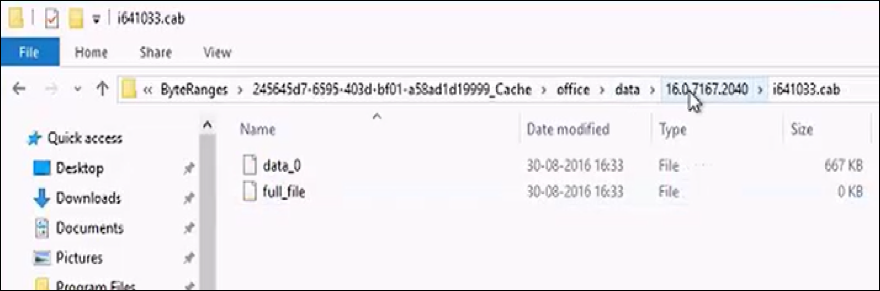
The downloaded data is copied to the CTR location described in the manifest and is also retained in the Content Distribution cache. Our example illustrates the location of the Content Distribution cache with the file downloaded and a marker (full_file) to indicate that this is not a byte-range.
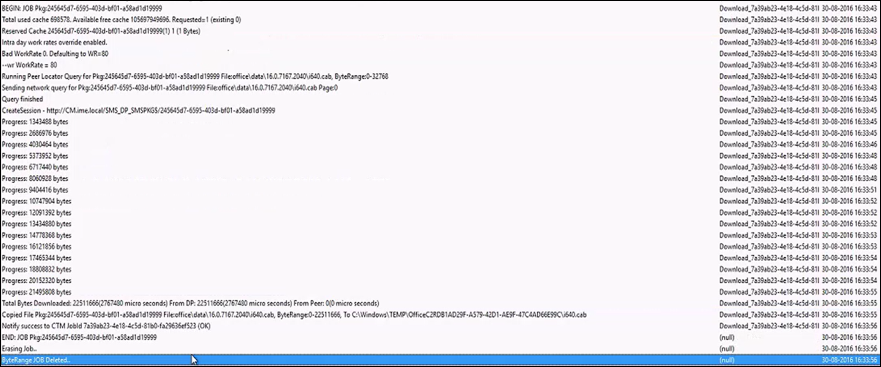
For an Office 365 Update deployment, multiple jobs are passed to Content Distribution by the Configuration Manager agent. Once the downloaded job is completed, another BEGIN JOB appears in the log for the same update deployment.
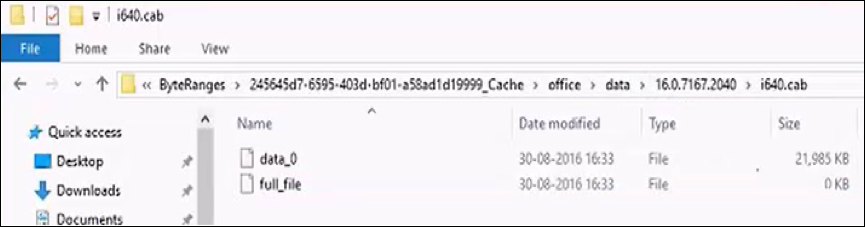
The same process is followed in the attempt to obtain the content locally. Our example illustrates a larger i640.cab file being downloaded.
And the Content Distribution cache when the job completes.
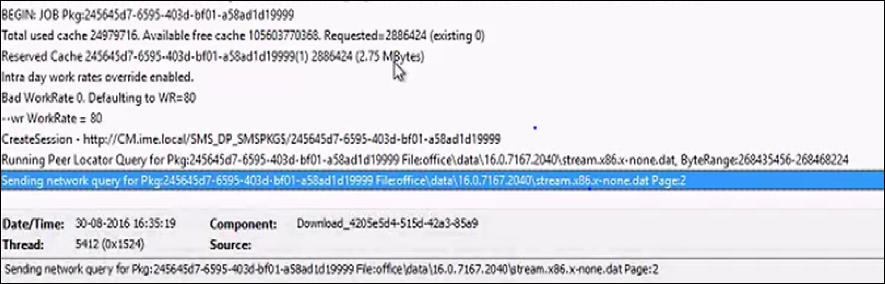
The third job to be passed to Content Distribution contains an instruction to download a byte-range for Stream.x86.x-none.dat.
An entry in the log describes the range (the byte-range is 268435456-268468224, a 32KB chunk that must reside in the second page file. Update files are broken down into 128MB page files.) and the subsequent election request attempting to locate it.
When the download completes and copied to the CTR location, more byte-range jobs related to the same file are logged.

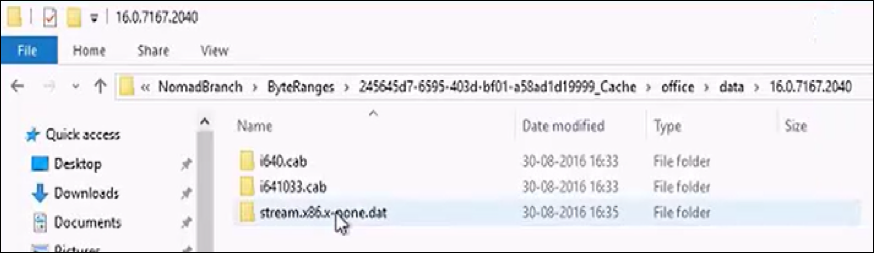
Successive byte-range jobs are passed to the Content Distribution client, downloaded into the cache and copied to the CTR location. Once byte-range downloads are complete, Content Distribution copies them into the CTR update location at:
C:\ProgramData\Microsoft\ClickToRun\ProductReleases\<ProductCode>\<ProductCode>.<FileName>.tmp
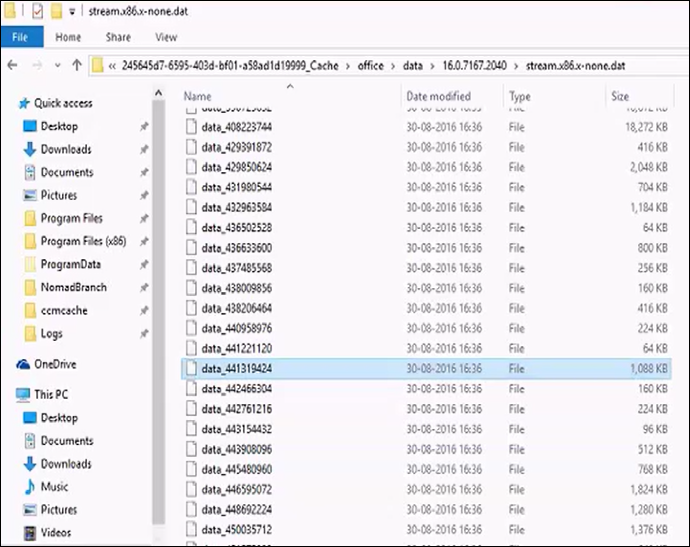
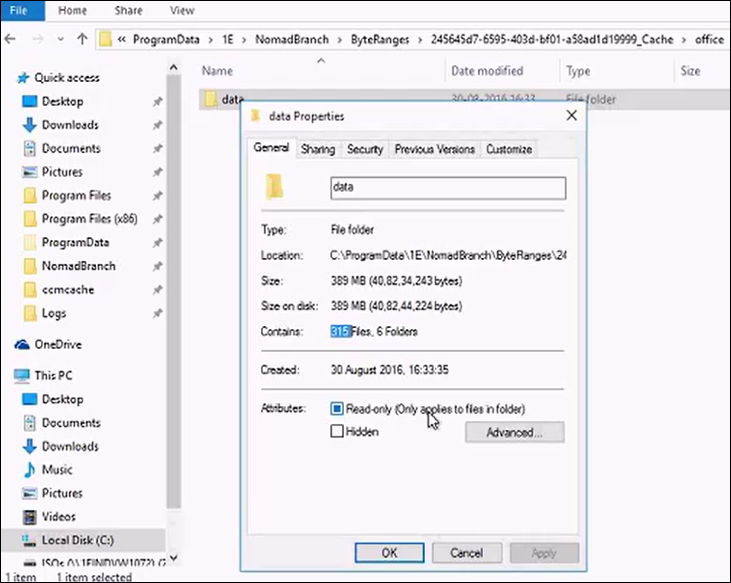
It will be likely that hundreds of jobs are passed to Content Distribution for a single Office 365 update download. In our example, a total of 315 download jobs were requested by the Configuration Manager agent.
When a job completes, Content Distribution monitors the CTR agent interface to determine if actual update installation is successful. Once the CTR agent has all the files and byte-ranges that it needs, it merges the byte-ranges, performs a hash check on the contents and attempt to install the update.
The status indicates Installing at this point and changes Installed when it is done.
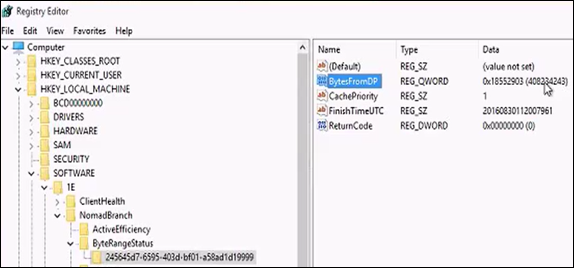
For an Office 365 Update download, you can verify the total amount of data downloaded from the DP by inspecting the registry. If you do not see a BytesFromPeer value, it means that all your downloads were from the DP.
Log on to the second Content Distribution client and initiate the update installation from Software Center.
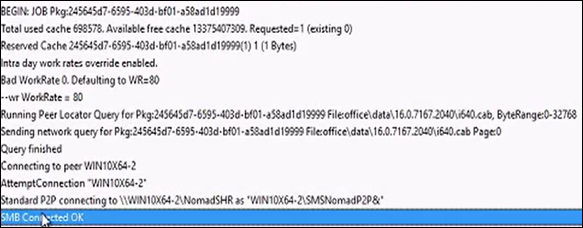
Browse to NomadBranch.log. The Standard P2P connecting to… and SMB Connected OK log entries indicates that it is initiating a download from the first Content Distribution client. Initially, the Content Distribution client registry does not display BytesFromDp as the second Content Distribution client is able to obtain content from the first Content Distribution client.
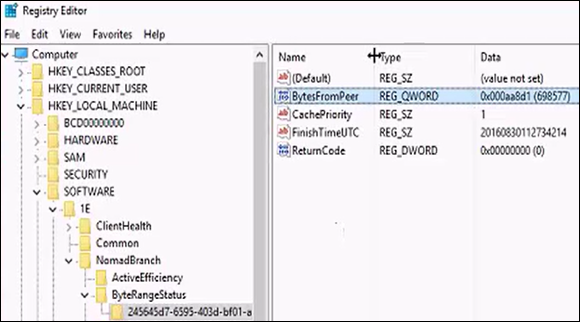
Due to differences in the state of the Office 365 installation on the second host, the CTR agent requested content that is not present on the first Content Distribution client. Consequently, it switches to download from the DP. Our example illustrates this event in the second Content Distribution client's registry.
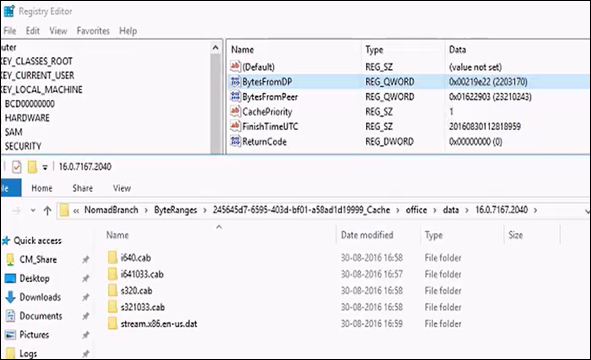
When the download is complete, the values in the registry are updated.
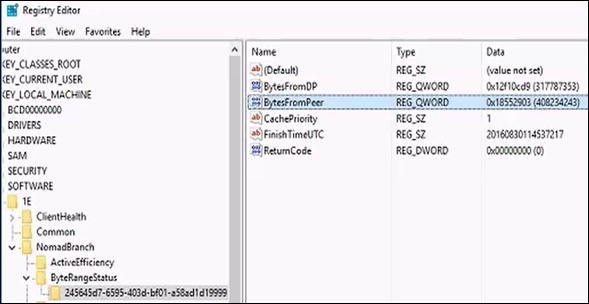
We can see the extent of the differences in the update installation on the two Content Distribution clients if we inspect the total downloads on the second Content Distribution client; 467 downloads compared to 315 on the first Content Distribution client.