BigFixInv connector
 |
|  |
| 
The BigFixInv connector connects to a BigFix Inventory database server.
Prerequisites
Before adding this connector, you will need the following:
-
A domain user account or SQL login to connect to the BigFix Inventory database
-
Access rights configured in the BigFix Inventory database
Adding the connector
-
Navigate to Settings > Configuration > Connectors.
-
Click Add.
-
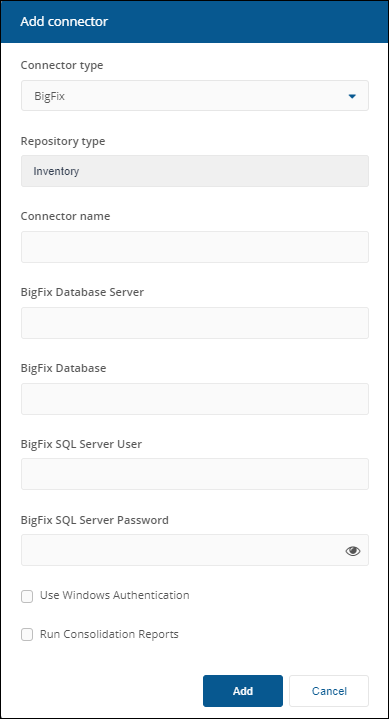
In the Add Connector pop-up window, select BigFixInv as the connector type.
-
In Connector name, enter a logical name for this connector.
Use a naming convention for connector names, for example, <connector type> <scope> <RCR>. Scope describes where data is coming from or what it's being used for, for example, Demo, Test, Lab, Q2 Audit. Include RCR in the name if the Run Consolidation Reports option is available and you have enabled it.
-
In BigFix Inventory Database Server, enter the name of the server where the inventory database is hosted. If there is a database instance, append it to the server name, for example Server_Name\Instance. Use the location of the inventory database server rather than the server itself. For example, if your application server is located on device A, and its database is located on device B, use the location (hostname or IP address) for device B.
-
In BigFix Inventory Database, enter the name of the database you want to connect to.
-
If you are authenticating with Windows, note the following:
-
Ensure the Use Windows Authentication checkbox is selected.
-
You do not need to populate the BigFix Inventory SQL Server User or BigFix Inventory SQL Server Password fields.
If you are using an SQL account, note the following:
-
Ensure the Use Windows Authentication checkbox is not selected.
-
In BigFix Inventory SQL Server User, enter the name for the account you want to use to connect to the database.
-
In BigFix Inventory SQL Server Password, enter the password associated with this account.
If the Use Windows Authentication checkbox is selected, the SQL Server User and SQL Server Password fields are ignored. With Windows authentication, the connector is using the SLA Platform Integrate Agent service account. This service is configured to use Network Service, which is the 1E server's computer$ account on a remote server.
-
-
Select the Run Consolidation Reports checkbox if you want consolidation actions to be processed each time the Sync Data action is executed for the connector.
If you enable this on more than one connector, it can lead to unnecessary processing. The recommended method of processing consolidation actions is to schedule the action Generate Report - Basic Inventory Consolidation to execute after the Sync Data actions have run for all connectors. This will execute the remaining consolidation actions. Alternatively, select the Run Consolidation Reports checkbox on one of your connectors. You can view action processes in Settings > Process log.
-
Click Add.
For information on how to test or delete a connector, and how to sync data into a repository, refer to Connectors page.