ServiceNow connector
 |
|  |
| 
The ServiceNow connector connects to a ServiceNow instance to import basic inventory data into the Software Lifecycle Automation (SLA) Platform. This connector is compatible with the ServiceNow Zurich release.
For a list of ServiceNow terms, refer to Glossary.
Prerequisites
Before adding this connector, you will need the following:
-
A ServiceNow application with defined tables populated with data
-
A ServiceNow user with read permission on application scope
Creating an application in ServiceNow
-
Create a new application in your ServiceNow instance and configure the application scope.
-
Under the new application, create tables with fields using the schema shown in Table fields.
-
Map/populate inventory data in the table fields.
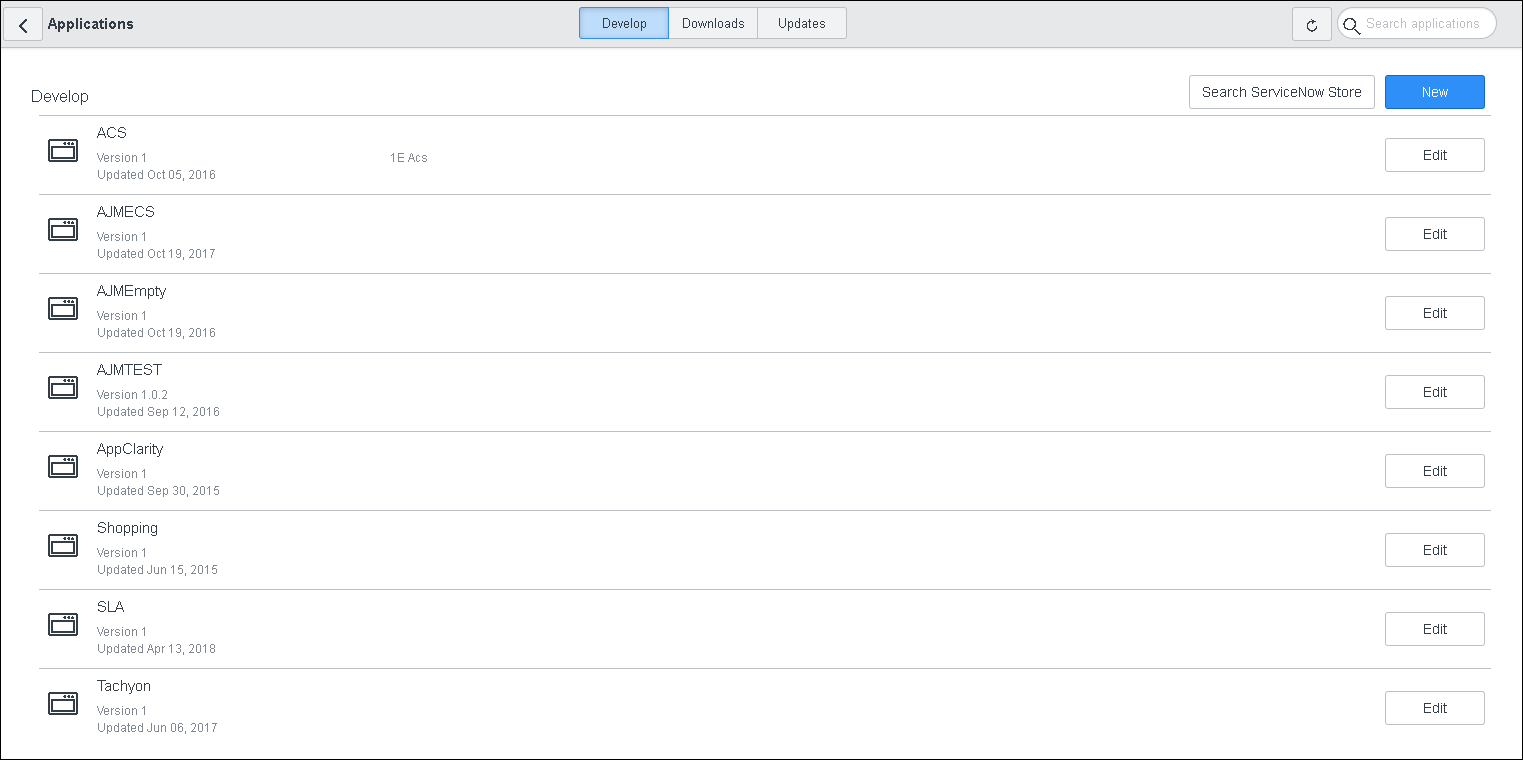
 Table fields
|
Table |
Field name |
Data type |
|---|---|---|
|
Device |
DeviceIdent |
String |
|
ComputerName |
String |
|
|
Vendor |
String |
|
|
Model |
String |
|
|
Serial |
String |
|
|
SocketCount |
Int |
|
|
IsVirtual |
Boolean |
|
|
IsClustered |
Boolean |
|
|
InventoryDate |
DateTime |
|
|
PurchaseDate |
DateTime |
|
|
LastLogonDate |
DateTime |
|
|
DomainName |
String |
|
|
ADSiteName |
String |
|
|
NetbiosName |
String |
|
|
NetbiosDomainName |
String |
|
|
DeviceClassification |
DeviceIdent |
String |
|
Classification |
String |
|
|
DeviceVirtual |
DeviceIdent |
String |
|
HostDeviceIdent |
String |
|
|
Technology |
String |
|
|
VMLabel |
String |
|
|
IsHostAffinityEnabled |
Boolean |
|
|
IsCPUAffinityEnabled |
Boolean |
|
|
MaxAssignedCores |
Int |
|
|
CPUPoolName |
String |
|
|
CPUPoolSize |
Int |
|
|
File |
FileIdent |
String |
|
Name |
String |
|
|
Version |
String |
|
|
Size |
Int |
|
|
Hash |
String |
|
|
MapDeviceFile |
DeviceIdent |
String |
|
FileIdent |
String |
|
|
LastUsedDate |
DateTime |
|
|
Path |
String |
|
|
MapDeviceOU |
DeviceIdent |
String |
|
OUIdent |
String |
|
|
MapDeviceSoftware |
DeviceIdent |
String |
|
SoftwareIdent |
String |
|
|
InstallDate |
DateTime |
|
|
InstanceName |
String |
|
|
IsClustered |
Boolean |
|
|
Path |
String |
|
|
PurchaseDate |
DateTime |
|
|
IsUsed |
Boolean |
|
|
IsPublicFacing |
Boolean |
|
|
LastUsedDate |
DateTime |
|
|
MapDeviceSoftwareUser |
DeviceIdent |
String |
|
SoftwareIdent |
String |
|
|
UserIdent |
String |
|
|
InstanceName |
String |
|
|
LastLogin |
DateTime |
|
|
IsEnabled |
Boolean |
|
|
InventoryDate |
DateTime |
|
|
MapDeviceUser |
DeviceIdent |
String |
|
UserIdent |
String |
|
|
LastLogin |
DateTime |
|
|
IsEnabled |
Boolean |
|
|
InventoryDate |
DateTime |
|
|
IsTopConsoleUser |
Boolean |
|
|
MapSoftwareOU |
SoftwareIdent |
String |
|
OUIdent |
String |
|
|
InstanceName |
String |
|
|
OU |
OUIdent |
String |
|
Name |
String |
|
|
ParentOUIdent |
String |
|
|
IsExternal |
Boolean |
|
|
Location |
String |
|
|
Department |
String |
|
|
Processor |
DeviceIdent |
String |
|
Vendor |
String |
|
|
Family |
String |
|
|
Model |
String |
|
|
Name |
String |
|
|
CoreCount |
Int |
|
|
ThreadsPerCore |
Int |
|
|
SpeedMHz |
Decimal |
|
|
InventoryDate |
DateTime |
|
|
Software |
SoftwareIdent |
String |
|
Vendor |
String |
|
|
Title |
String |
|
|
Version |
String |
|
|
ColloquialVersion |
String |
|
|
Edition |
String |
|
|
User |
UserIdent |
String |
|
UserName |
String |
|
|
|
String |
|
|
FirstName |
String |
|
|
LastName |
String |
|
|
IsExternal |
Boolean |
Adding the connector
-
Navigate to Settings > Configuration > Connectors.
-
Click Add.
-
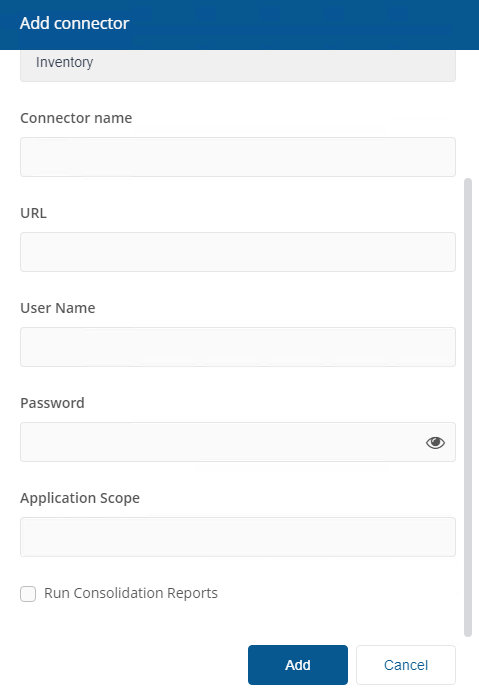
In the Add Connector pop-up window, select ServiceNow as the connector type.
-
In Connector name, enter a logical name for this connector.
Use a naming convention for connector names, for example, <connector type> <scope> <RCR>. Scope describes where data is coming from or what it's being used for, for example, Demo, Test, Lab, Q2 Audit. Include RCR in the name if the Run Consolidation Reports option is available and you have enabled it.
-
In URL, enter location of ServiceNow.
-
In User Name, enter the name of the account you want to use to connect to ServiceNow.
-
In Password, enter the password associated with the account.
-
In Application Scope, enter the scope used in ServiceNow.
-
Select the Run Consolidation Reports checkbox if you want consolidation actions to be processed each time the Sync Data action is executed for the connector.
If you enable this on more than one connector, it can lead to unnecessary processing. The recommended method of processing consolidation actions is to schedule the action Generate Report - Basic Inventory Consolidation to execute after the Sync Data actions have run for all connectors. This will execute the remaining consolidation actions. Alternatively, select the Run Consolidation Reports checkbox on one of your connectors. You can view action processes in Settings > Process log.
-
Click Add.
For information on how to test or delete a connector, and how to sync data into a repository, refer to Connectors page.