ServiceNow integration with Exoprise
This video covers the benefits of the ServiceNow integration and walks you through the configuration process. This integration enables automatic incident creation and resolution based on alarms triggered in Exoprise. With incidents sent directly to ServiceNow, you can automatically assign them to the appropriate teams based on specific criteria or escalate unresolved issues.
About the integration
This article walks you through understanding and configuring the ServiceNow integration, additional options available, and assigning alarms to the integration. Once configured, the integration will automatically create (open) and resolve (close) incidents in ServiceNow.
ServiceNow account
In ServiceNow, create an account for the integration setup. The Incident Manager role should provide the integration account enough permissions to create and resolve incidents.
Customized permissions and environments may require additional security roles.
Configuring the integration
-
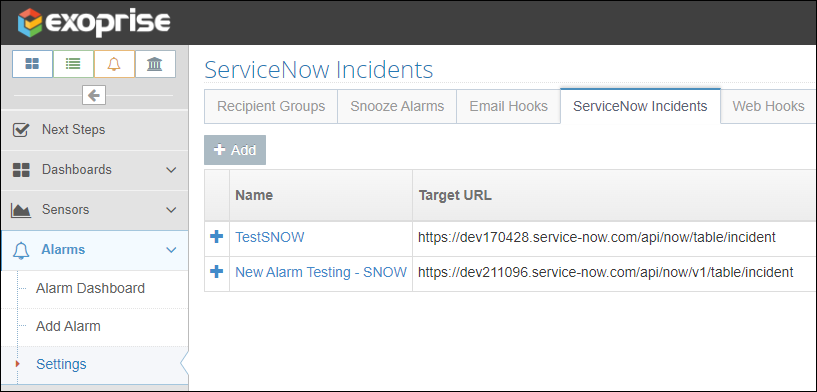
Once you have created the integration account in ServiceNow, log in to Exoprise, navigate to Alarms > Settings and click the ServiceNow Incidents tab.
-
Click Add and fill in the following fields:
-
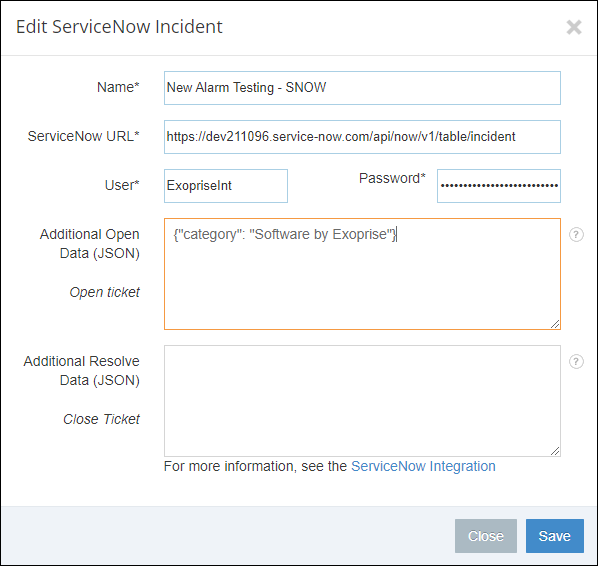
Name: Enter a name for the integration. Use a name to distinguish the information that is recorded with the alarm.
-
ServiceNow URL: Copy your ServiceNow URL up to .com and add the following: /api/now/v1/table/incident. Copy and paste the URL into the ServiceNow URL field. It should look something like this: https://yourinstance.service-now.com/api/now/v1/table/incident.
-
User and Password: Enter the username and password of the ServiceNow integration account you created in step 1.
-
-
Click Save.
Testing the integration
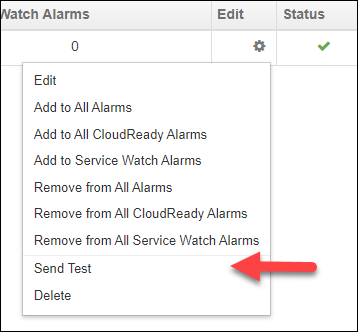
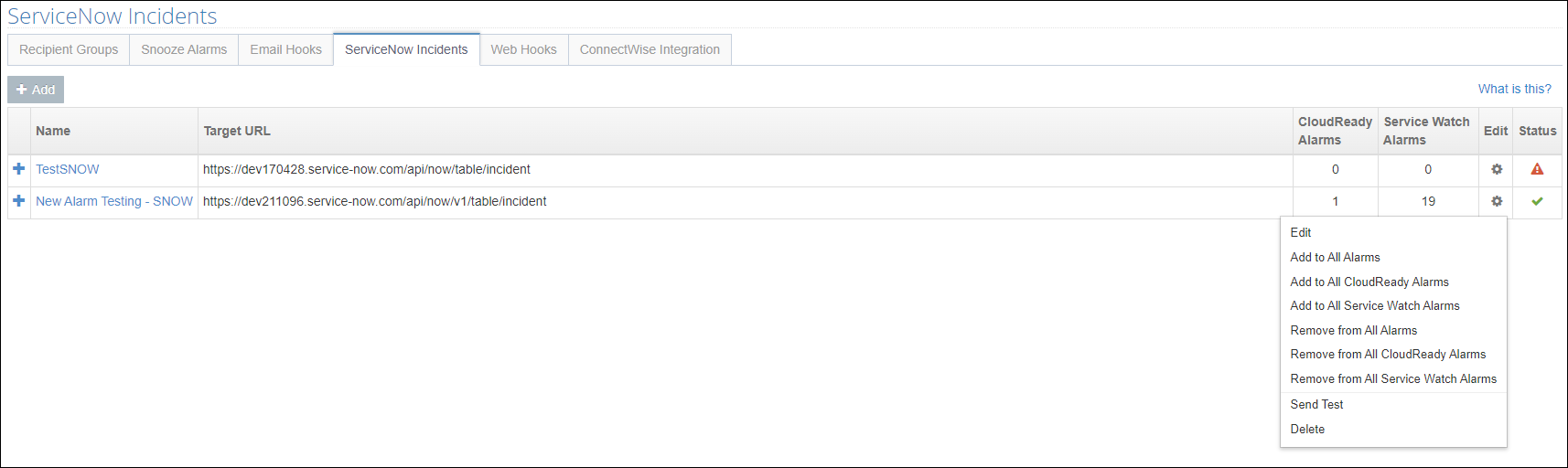
Once the integration has been configured, click the gear icon under the Edit column, and click Send Test to test the integration.
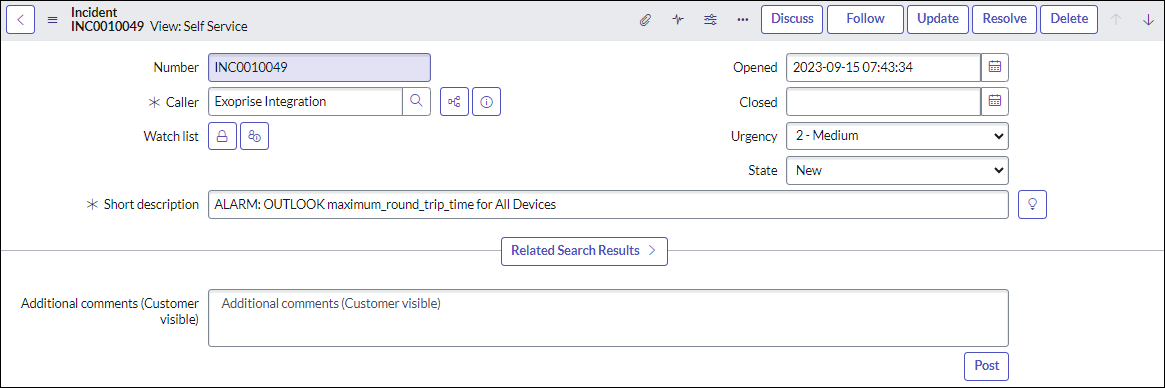
In ServiceNow, a new incident should be created and resolved. The incident should have the same information as what's shown in the screenshots below.
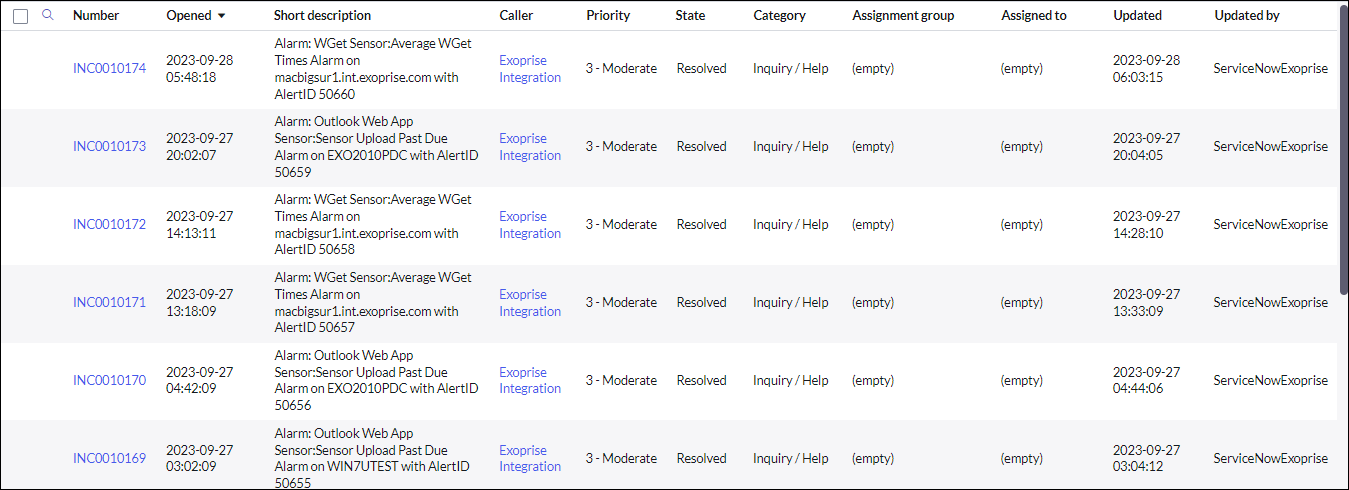
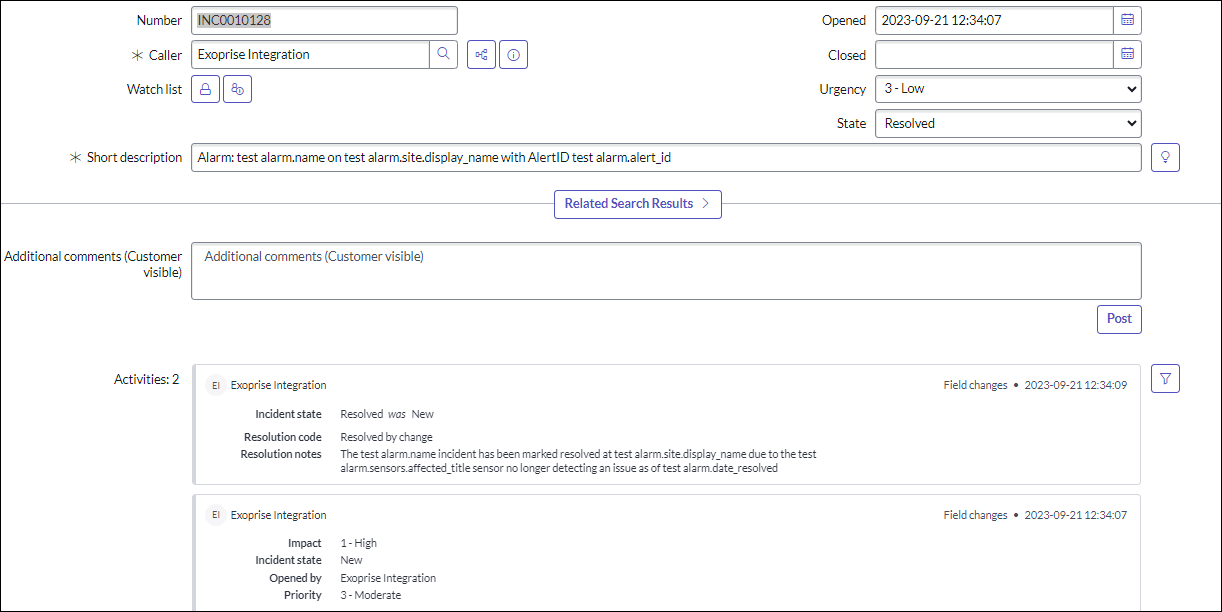
This is just simple test data. When a real alarm is generated and a ServiceNow ticket opened, more information will be available.
Generating ServiceNow incidents for Exoprise alarms
Once the integration has been configured and tested, you can assign it to the alarms that you want to generate incidents in ServiceNow.
Bulk assignment
To assign the integration to alarms in bulk, click the gear icon under the Edit column on the integration configuration screen, and you will be prompted to assign the integration to CloudReady alarms, Service Watch alarms, or all alarms.
Manual assignment
-
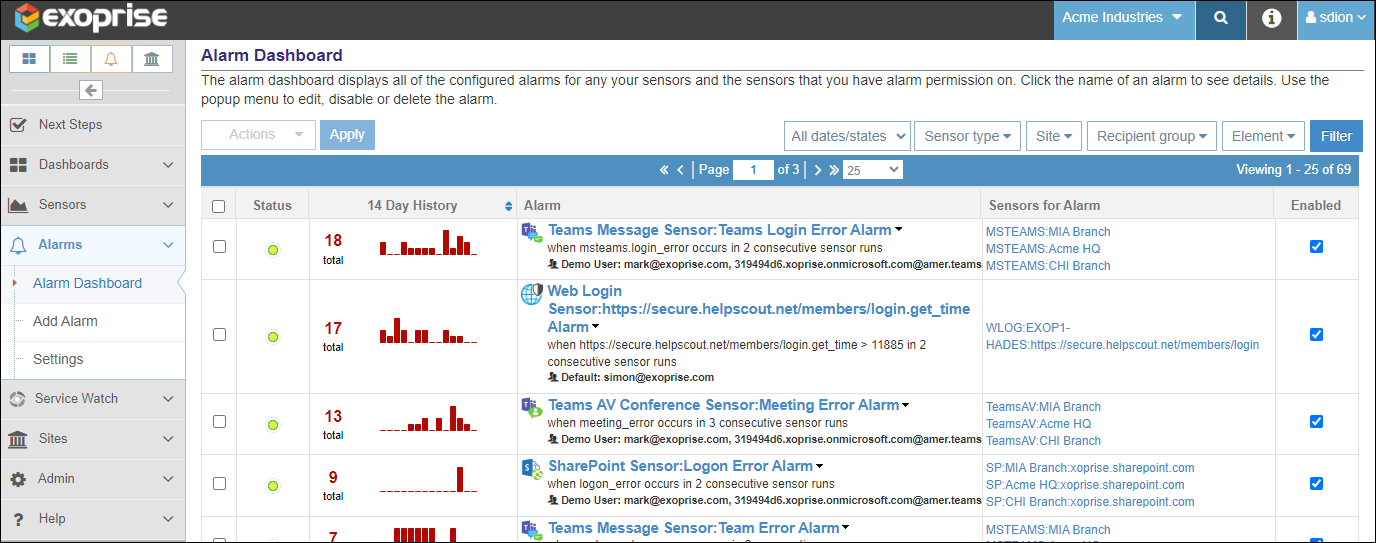
To manually assign the integration to alarms, navigate to Alarms > Alarm Dashboard in the left navigation menu.
-
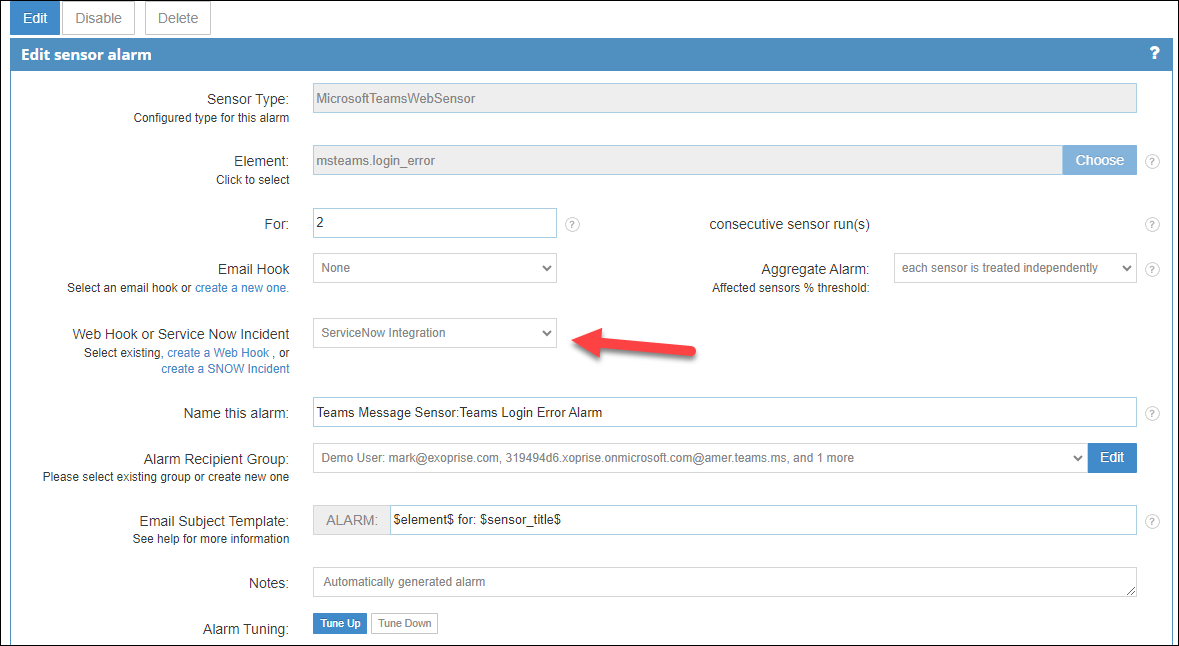
Click one of the alarms you want to generate incidents in ServiceNow, and click the Edit option to see the Edit sensor alarm page.
-
Select your ServiceNow integration from the ServiceNow Incident drop-down list.
-
To save the change, click Update Alarm at the bottom of the page. The next time this alarm is triggered, an incident will be created in ServiceNow.
Default incident fields
The following fields are automatically populated during incident creation. They can be overridden using JSON if you are familiar with the fields.
|
Field |
Description |
Example |
|---|---|---|
|
short_description |
Alarm name, site it was detected on, and the Exoprise alert ID. |
Alarm: $alarm.name$ on $alarm.site.display_name$ with AlertID $alarm.alert_id$ |
|
description |
Alarm name, site it was detected on, failure periods, and a URL to get to the alarm with. |
$alarm.name$ detected at $alarm.site.display_name$ and has failed for $alarm.consecutive_periods$ amount of runs at $alarm.date_fired$. Click here to view the Alarm status $alarm.url$ |
|
impact |
Default value of 1. |
1 |
|
urgency |
Default value of 3, which creates a ticket with moderate priority. |
3 |
|
caller_id |
Uses the username you specify for the integration. |
YourIntegrationAccount |
The following fields are automatically populated during incident resolution. They can be overridden with JSON if you are familiar with the fields.
|
Field |
Description |
Example |
|---|---|---|
|
close_notes |
Alarm name, site it was detected on, sensor affected, resolution date and time. |
The $alarm.name$ incident has been marked resolved at $alarm.site.display_name$ due to the $alarm.sensors.affected_title$ sensor no longer detecting an issue as of $alarm.date_resolved$ |
|
close_code |
Resolved by change. |
Resolved by change |
|
state |
Default value of 6, which sets the incident to the resolved status. |
6 |
Additional open data (JSON)
The ServiceNow integration allows for populating additional or even custom fields in ServiceNow. The example provided in the field ("category": "Software by Exoprise") populates the Category of an incident with Software by Exoprise but this can be changed to any field and acceptable value for that field.
The additional data is merged into the JSON data that is sent to ServiceNow through the integration. This allows the configuration to change field values such as Impact and Urgency for controlling different incident priority.
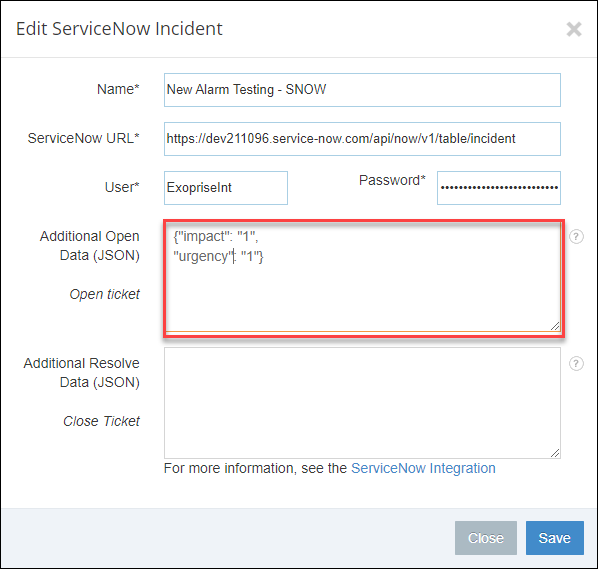
The option to send additional data is available for both creating and resolving an incident. For a list of alarm variable substitutions, refer to Alarm hook templates.