Inspect end-user device
1E CMDB Connect integrates between ServiceNow CMDB module and Tachyon1E. Its main purpose is to provide support service desk personnel with real-time and reliable information. It populates a list of all your end-user devices and displays the attributes stored in CMDB.
The Computers page
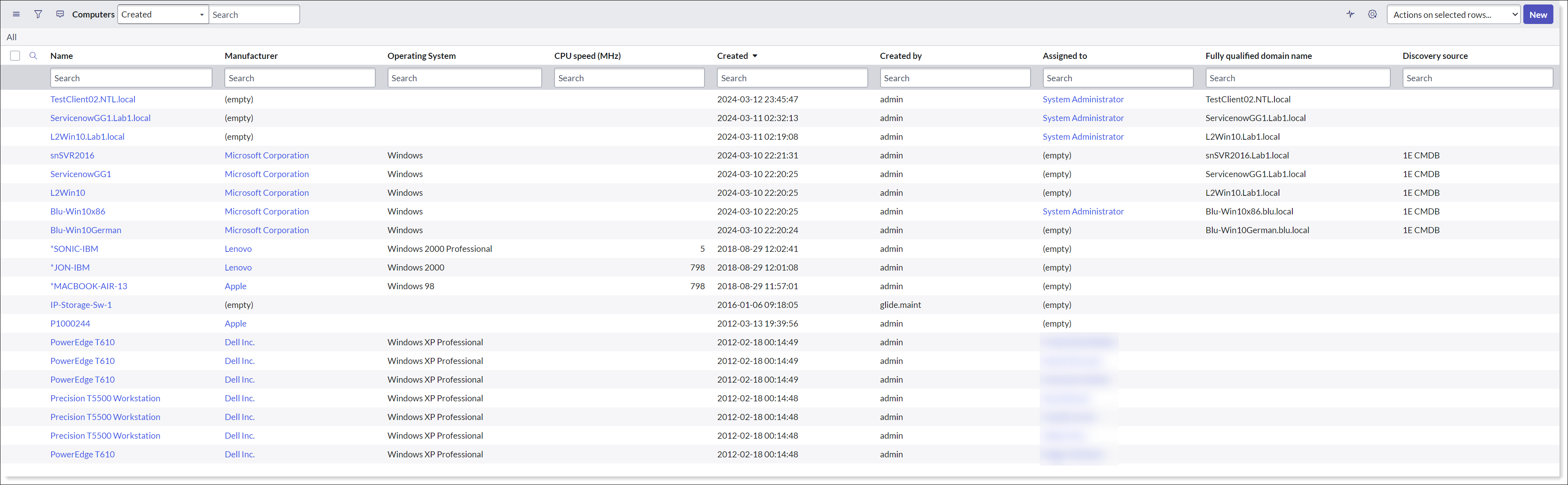
To navigate to the Computers page, type cmdb_ci_computer.list table name in the filter navigator and press enter. This opens up the Computers page.
The Computers page provides useful information like end-user devices details.
The table has defined fields that display details of the end-user devices like:
-
Name (name of the device)
-
FQDN (Fully qualified domain name)
-
Assigned to (user to which this device is assigned)
-
Discovery source
-
Manufacturer
-
MAC Address
-
Serial number
-
Model ID
-
Asset and
-
Class
Device details
End user device details are stored in ServiceNow in the form of a record. You can view device details by clicking on the information preview icon displayed at the start of the device's entry in the Computers table and allows you to view records specific to that device.
1E CMDB Connect displays the device details from CMDB, as shown in the picture below.
The Configuration tab
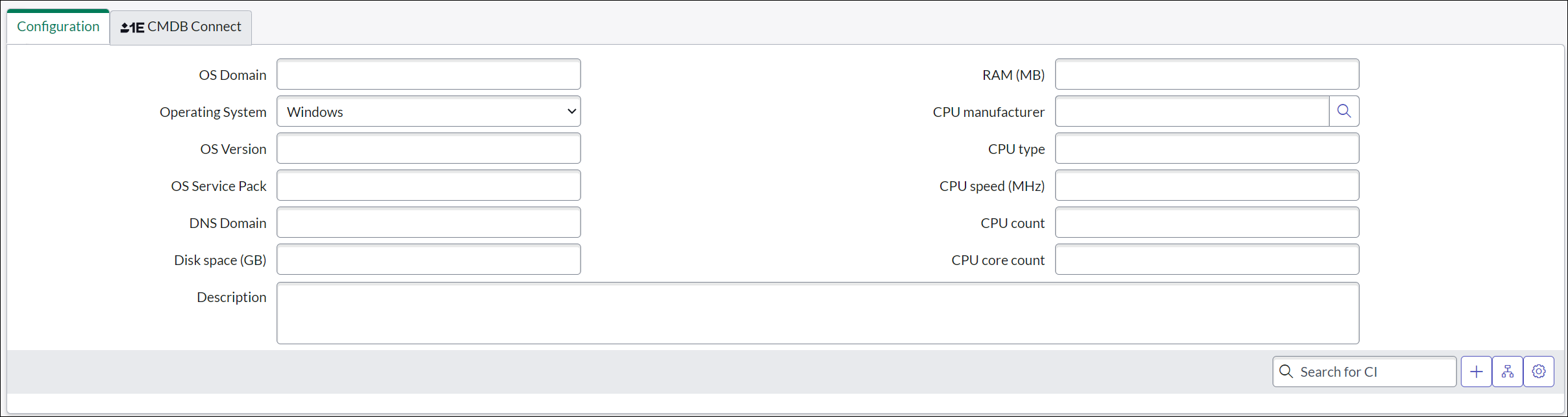
The Configuration tab provides further details related to the device, such as the Operating System, domain, type, version and service pack, all of which can be useful when attempting to manage the device remotely.
The 1E CMDB Connect tab
The 1E CMDB Connect tab displays real-time status information of a device with the help of 1E. When you click the 1E CMDB Connect tab, it opens the existing record for the device from the cmdb_ci_computer table. It specifies the current status of the device, i.e. online or offline. Other displayed details are as shown below:
|
Fields |
Description |
|---|---|
|
IP Address |
It shows the IP address of the device. |
|
Last Reboot |
Shows the time when the device was last rebooted. |
|
Domain |
Domain the current device belongs to. |
|
Operating System |
Operating system information of the current device. |
|
Last Seen |
When the device was last seen online. |
|
Timezone |
Time-zone selected/applied on the device. |
1E CMDB Connect tab captures real-time information, so the details provided in this section might differ from some details provided under the configuration tab.

Related Lists
Related lists represent the extended support provided by 1E CMDB Connect, where you can capture real-time information about a device like:
-
CI IP
-
File Systems
-
Installed Software
-
RAM Usage
-
Running Processes
-
TCP Connections
Related lists given on Computer page depend on the App configuration completed as part of Post-installation tasks. The buttons displayed on this page directly relate to how you have configured your app.
Buttons with the 1E logo are provided by 1E CMDB Connect.
Clicking Get on a particular tab triggers the related 1E instruction to fetch associated data and quickly displays the results, as you can see in the following examples:
CI IPs
Clicking Get CI IPs fetches IP details of the selected device, like:
-
IP Address
-
Last Refreshed
-
MAC Address

File Systems
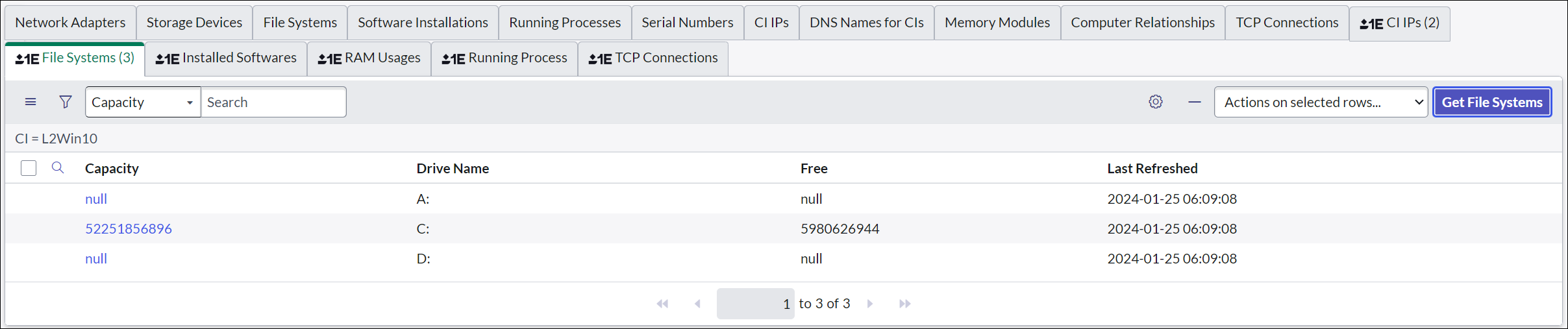
Clicking Get File Systems, fetches related device specific details, including:
-
Capacity
-
Drive name
-
Free
-
Last Refreshed
Installed Software
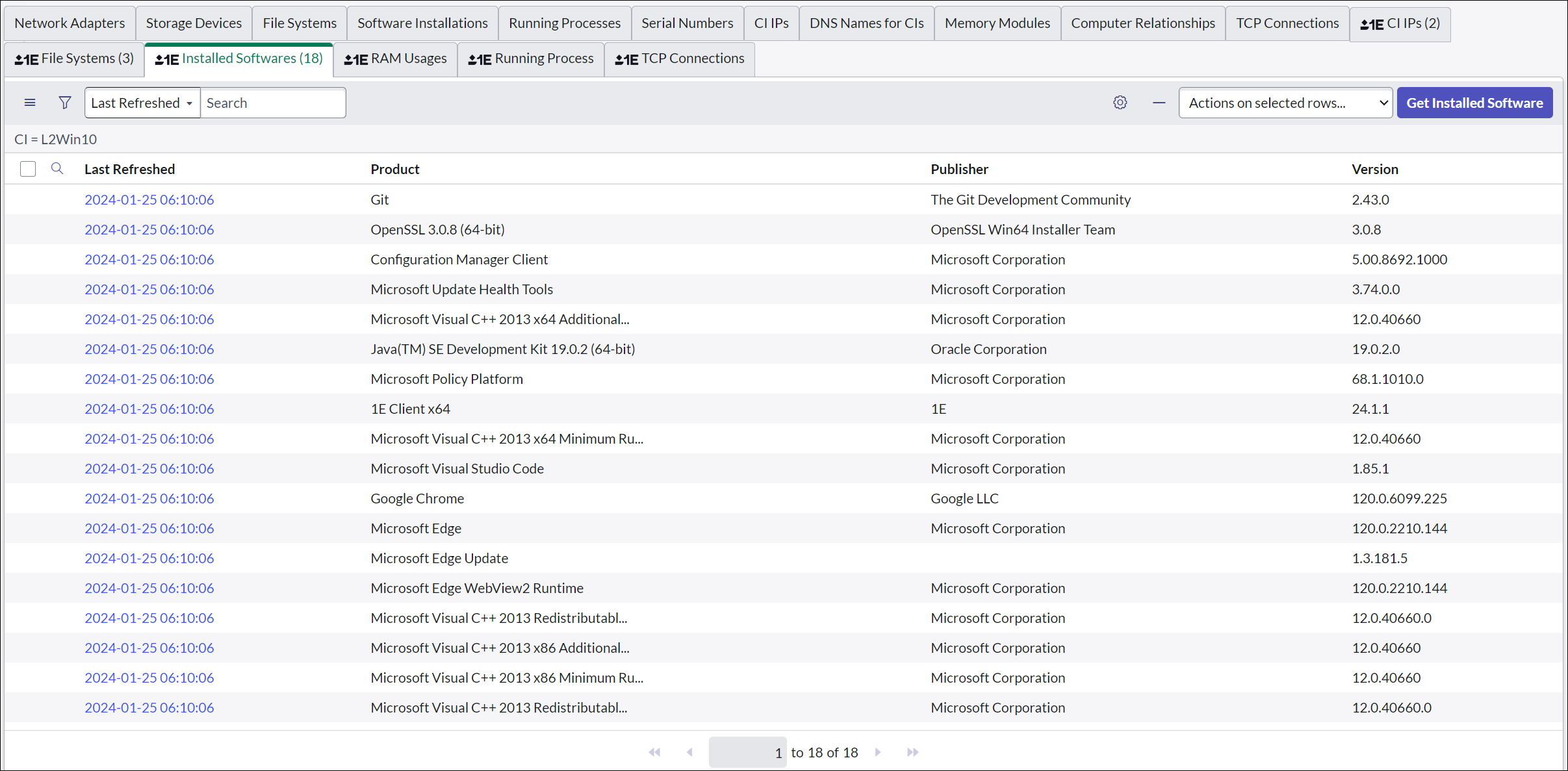
Clicking Get Installed Software fetches a list of software installed on the selected device, including:
-
Last Refreshed
-
Product
-
Publisher
-
Version
RAM Usage
Clicking Get RAM Usage, fetches RAM details of the selected device, including
-
Last Refreshed
-
Free
-
Total
-
Used

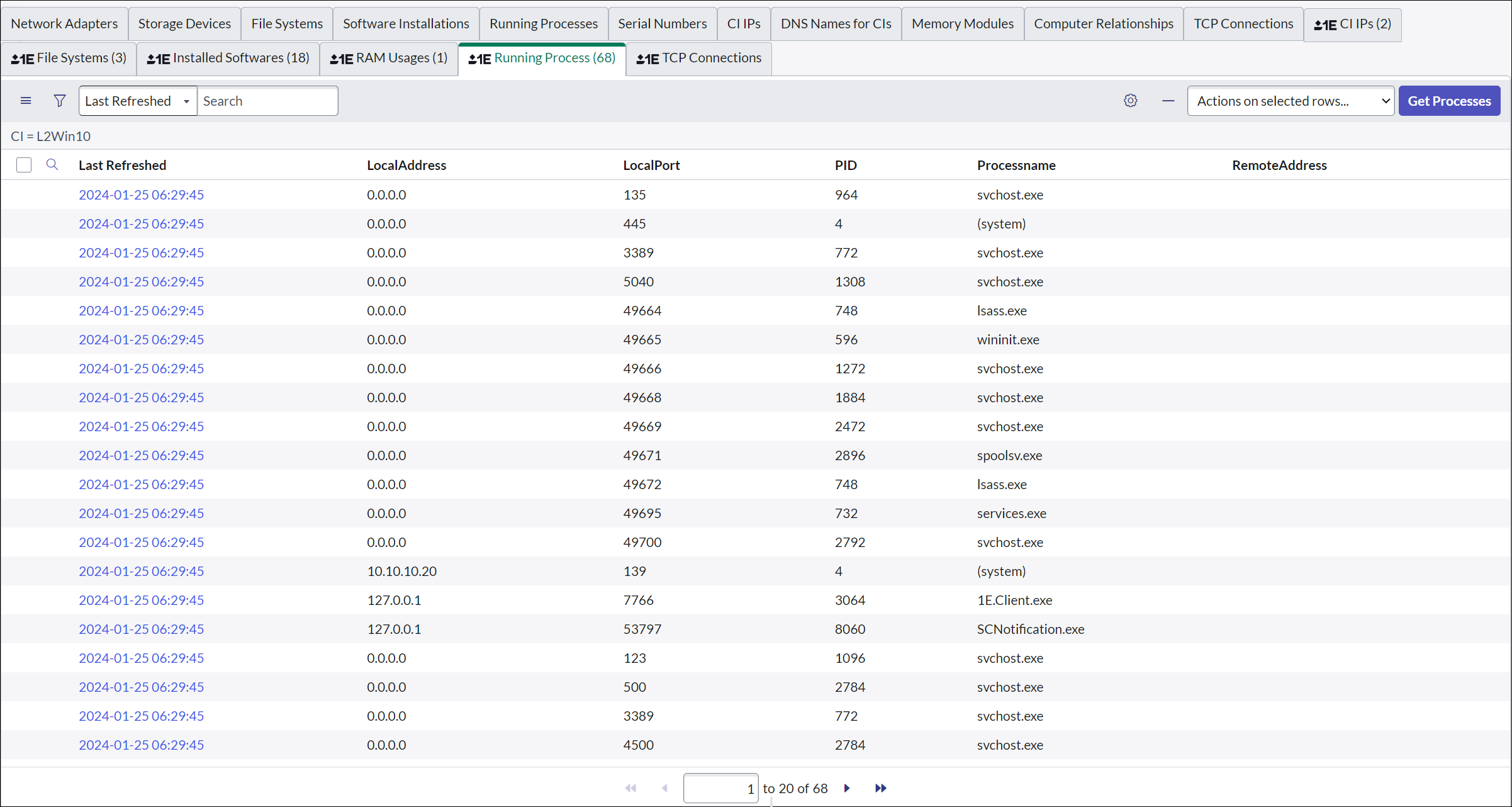
Running Processes
Clicking Get Processes displays details related to the processes running on the selected device
-
Last Refreshed
-
Local Address
-
Local Port
-
PID
-
Process name
-
Remote Address
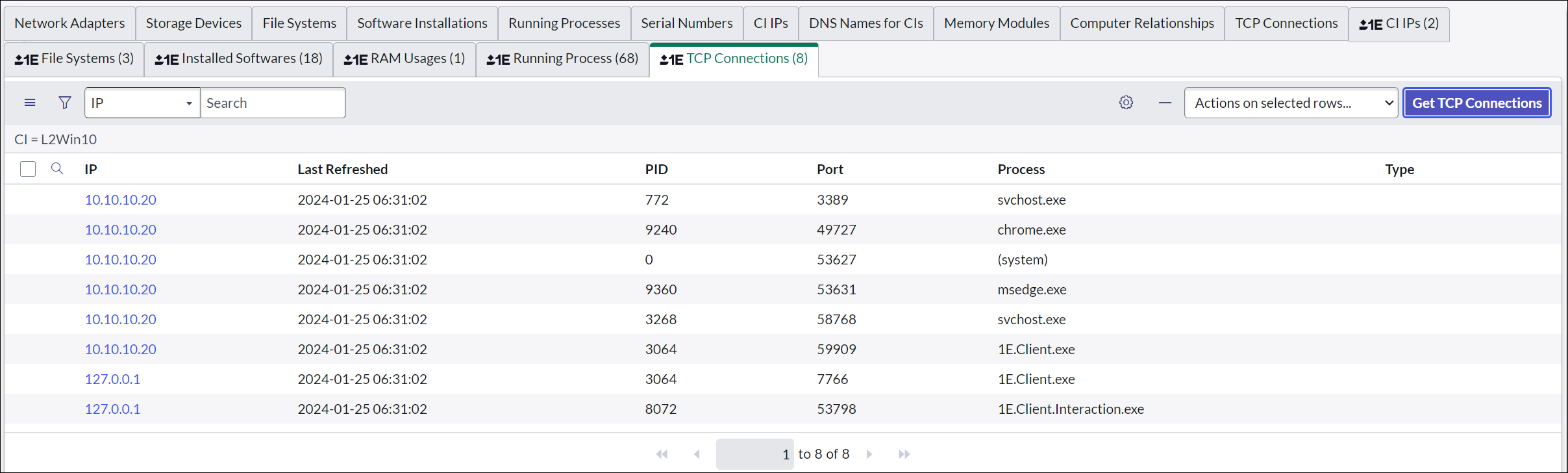
TCP Connections
Clicking Get TCP Connections fetches details of the selected device, including:
-
IP
-
Last Refreshed
-
PID
-
Port
-
Process
-
Type
The Windows Server Page
To navigate to the Windows Server page, type cmdb_ci_win_server.list table name in the filter navigator and press enter. This opens up the Windows Server page.
The Windows Server page provides useful information like devices details similar to Computers page.

Windows Server device details are stored in ServiceNow in the form of a record. You can view device details by clicking on the information preview icon displayed at the start of the device's entry in the Windows Server table and allows you to view records specific to that device.
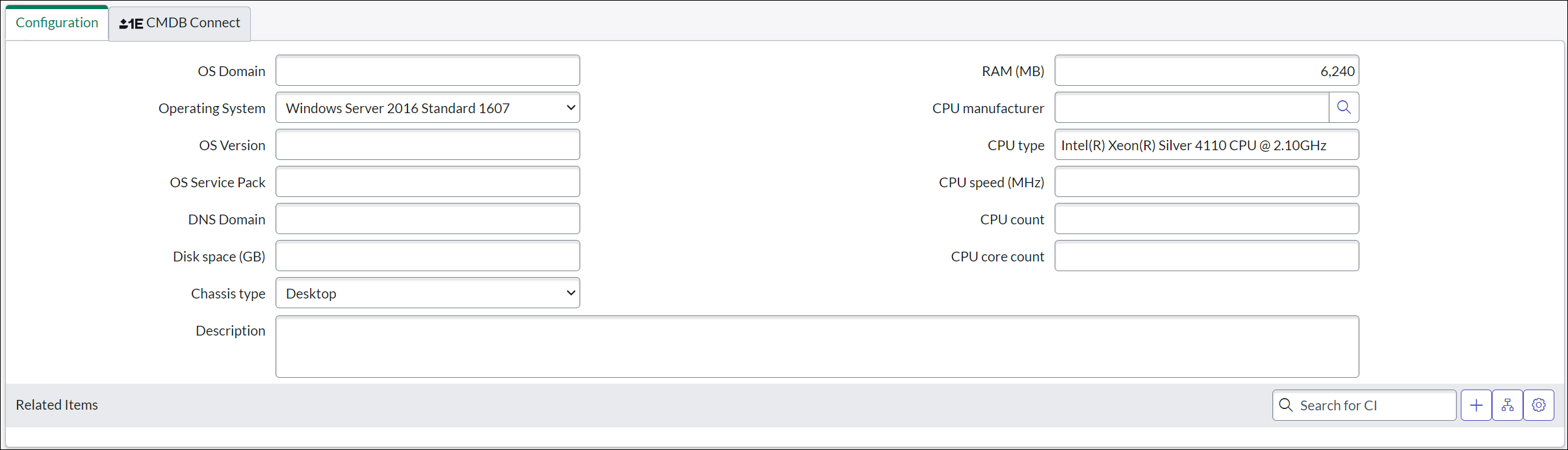
The Configuration tab
The Configuration tab provides further details related to the device, such as the Operating System, domain, type, version and service pack, all of which can be useful when attempting to manage the device remotely.
1E CMDB Connect tab
The 1E CMDB Connect tab displays real-time status information of a device with the help of 1E. When you click on the 1E CMDB Connect tab, it opens the existing record for the device from the cmdb_ci_win_server table. It specifies the current status of the device, i.e. online or offline.

Related Lists
Related lists represent the extended support provided by 1E CMDB Connect, where you can capture real-time information about a device like:
-
CI IP
-
File Systems
-
Installed Software
-
RAM Usage
-
Running Processes
-
TCP Connections
