Post-installation tasks
There are certain tasks that must be completed post-installation, in order for your TeamViewer DEX Platform and ServiceNow integration to work correctly. These tasks include both mandatory and optional configuration steps.
The TeamViewer DEX Core application communicates with the Platform system hosted in your production network. Configuration settings must be applied to manage how the TeamViewer DEX Core application operates.
App Menu
ServiceNow offers an application navigator that allows administrators to easily switch between different screens. To use the TeamViewer DEX Core application, first install it from the ServiceNow App Store, then search for TeamViewer DEX Core in the application navigator. Non-administrators (end users) do not have access to TeamViewer DEX Core.
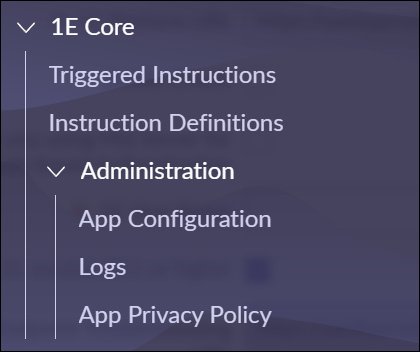
|
Item |
Description |
Roles needed to view the Item's page |
|
|---|---|---|---|
|
TeamViewer DEX Core app roles |
ServiceNow roles |
||
|
Triggered Instructions |
Displays a list of instructions that have been run. |
x_1e_core_connect.admin |
admin (System Administrator) |
|
Instruction Definitions |
Displays a list of available instructions. |
x_1e_core_connect.admin |
admin (System Administrator) |
|
Administration |
Displays a menu containing all the Administration functions for the TeamViewer DEX Core app. |
x_1e_core_connect.admin |
admin (System Administrator) |
|
App Configuration |
Displays the App Configuration screen where users can update the configuration settings. |
x_1e_core_connect.admin |
admin (System Administrator) |
|
Logs |
Displays the application specific logs. |
n/a |
admin (System Administrator) |
|
App Privacy policy |
Displays policy information explaining data handling practices to ensure transparency and regulatory compliance. |
x_1e_core_connect.admin |
admin (System Administrator) |
App Configuration
The App Configuration node is in the Administration section of the TeamViewer DEX Core application, where administrators can configure various application settings.
This page is only accessible to a ServiceNow user that is a member of TeamViewer DEX Core app role x_1e_core_connect.admin. If the user is also a ServiceNow admin the page will only be accessible after setting the scope to TeamViewer DEX Core.
All the fields on the App Configuration page are mandatory with default values except the MID Server. The domain separation feature (single-tenant or multi-tenant) will be autopopulated based on whether the Domain Separation plugin is activated. It can also be configured from the x_1e_core_connect.multi_tenant_instance system property.
Due to the limitations of ServiceNow property pages, there are no validation checks applied to any of the settings. You should take extra care to ensure that all the fields are filled out correctly.
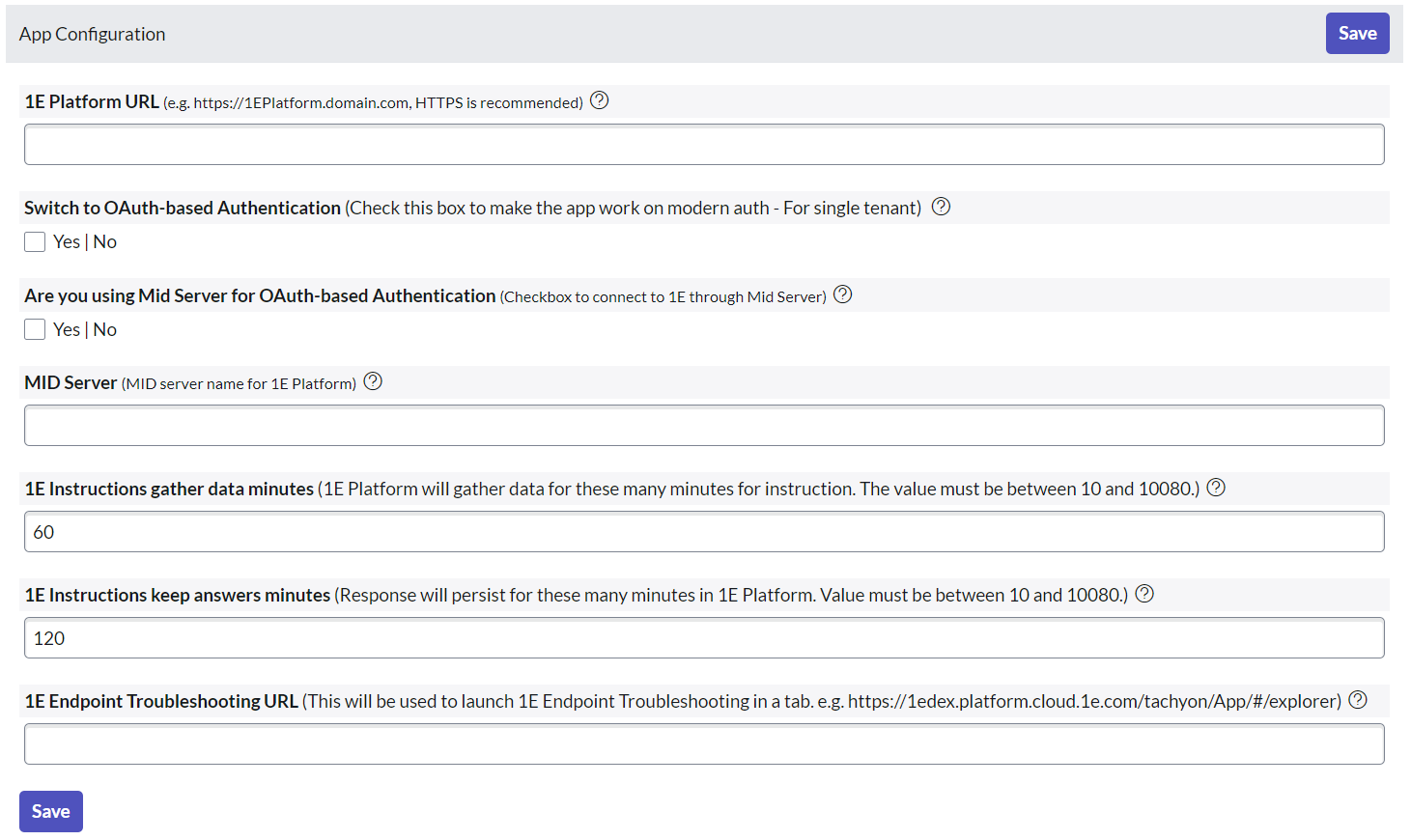
Below is a list of the fields available on this page:
|
Field |
Description |
|---|---|
|
TeamViewer DEX Platform URL |
The base URL for the 1E server (specifically, the server that hosts the Consumer API component of the 1E Master Stack). |
|
Switch to OAuth-based Authentication |
This checkbox determines the authentication method used by the business application to connect to the Platform. When selected, the application uses Modern Authentication; if not selected, it uses Basic Authentication. |
|
Are You Using MID Server for OAuth-based Authentication |
This checkbox determines whether the application will use the MID Server with OAuth on-premises. It has no effect if the application uses Basic Authentication with the MID Server, as the functionality remains the same. If selected, the application will use the MID Server for OAuth; if not selected, it will not. The decision to use OAuth is controlled by this checkbox. |
|
MID Server |
Name of the MID Server used for connecting Platform on-premises, if applicable. |
|
TeamViewer DEX instructions gather data minutes |
This setting is specific to the Platform and determines the duration, in minutes, that Platform will continuously collect responses for an instruction when ServiceNow sends an execution request. The unit for this setting is minutes, with a default value of 60 minutes and a valid range from 10 to 10,080 minutes |
|
TeamViewer DEX instructions keep answers minutes |
This setting is specific to the Platform. The value is used when ServiceNow sends an instruction execution request to Platform and controls the number of minutes that Platform should keep the instruction responses active. The unit for this setting is minutes, with a default value of 120 minutes and a valid range from 10 to 10,080 minutes. |
|
TeamViewer DEX Endpoint Troubleshooting URL |
This optional setting enables the TeamViewer DEX Endpoint Troubleshooting link, under the related links header on an incident page. If this value is empty, then users will see an error message if they click on the TeamViewer DEX Endpoint Troubleshooting link. |
|
Save |
This button saves all the modifications made to the fields on the App Configuration page. |
Configuring multi-tenant
The TeamViewer DEX Core application now supports domain separation for TeamViewer DEX ITSM Connect, TeamViewer DEX CMDB Connect, and TeamViewer DEX Virtual Assistant applications.
The domain separation feature is automatically populated based on whether the Domain Separation plugin is activated, but it can also be configured manually using the system property.
This feature is only available in TeamViewer DEX Core 4.0.18 or later.
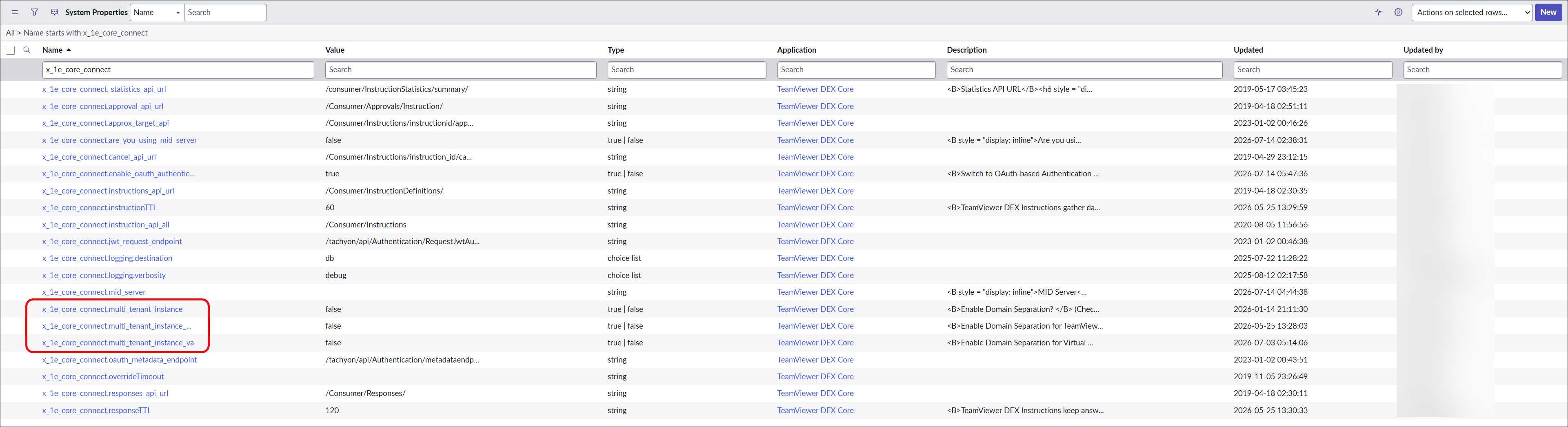
To enable this functionality, you have to set the value for system properties x_1e_core_connect.multi_tenant_instance (for TeamViewer DEX ITSM Connect and TeamViewer DEX CMDB Connect) and x_1e_core_connect.multi_tenant_instance_va (for TeamViewer DEX Virtual Assistant) to true. Once you have updated this value to true, it now allows you to create new configuration records for different domains.
To view and configure the values of the system properties, follow the below steps:
-
Login to your ServiceNow instance.
-
Open the System Properties table by typing sys_properties.list in the filter navigator and press enter.
-
The System Properties table opens up into a new page. Now look for the details of x_1e_core_connect.multi_tenant_instance (for TeamViewer DEX ITSM Connect), x_1e_core_connect.multi_tenant_instance_va (for TeamViewer DEX Virtual Assistant), or x_1e_core_connect.multi_tenant_instance_cmdb property in the table as shown below.
-
Edit the value of the system property to True.
-
Click Update to save the changes.