Inspect end user device
SGC for TeamViewer DEX integrates between ServiceNow CMDB module and TeamViewer DEX Platform. Its main purpose is to support service desk personnel with real-time and reliable information. It populates a list of all your end user devices and display the attributes stored in CMDB.
Computers page
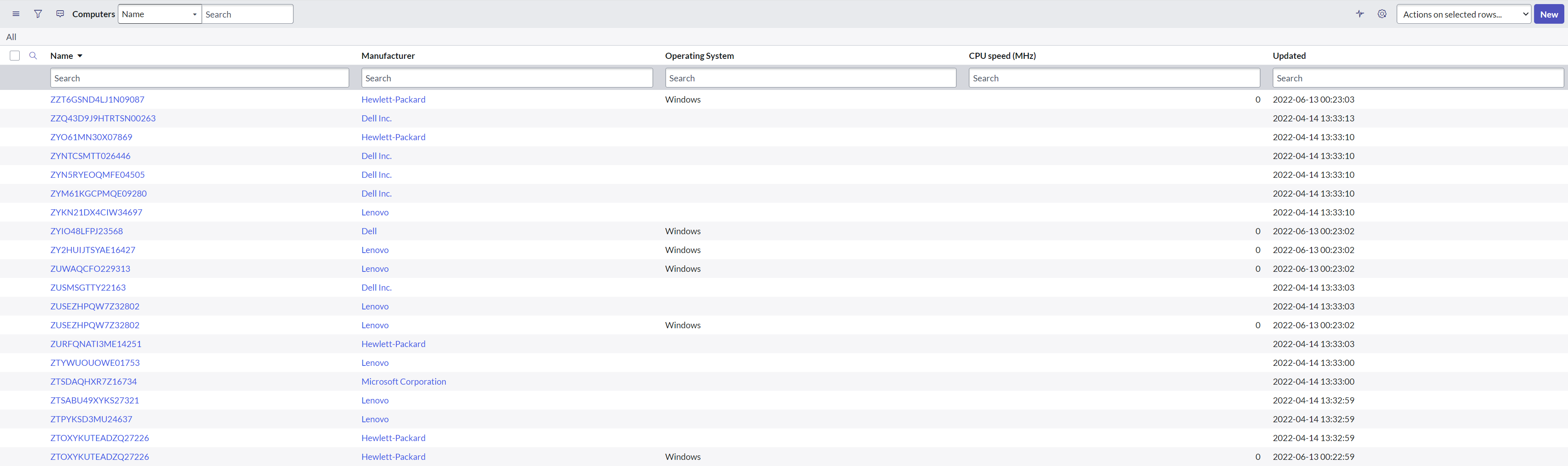
To navigate to the Computers page, type cmdb_ci_computer.list table name in the filter navigator and press enter. This opens up the Computers page in a new tab. The Computers page provides useful information like end user devices details.
The table has defined fields that display details of end user devices like:
-
FQDN (Fully qualified domain name)
-
Name (name of the device)
-
Serial number
-
Manufacturer
-
Operating System
-
OS Version
-
OS Service Pack
-
OS Domain
-
OS Address Width(bits)
-
CPU speed(MHz)
-
CPU name
-
CPU type
-
CPU count
-
CPU core count
-
CPU core thread
-
CPU manufacturer
-
Updated
-
Model ID
-
Most recent discovery
-
Chassis Type
-
Class
-
RAM(MB)
-
Assigned to (user to which this device is assigned)
Device details
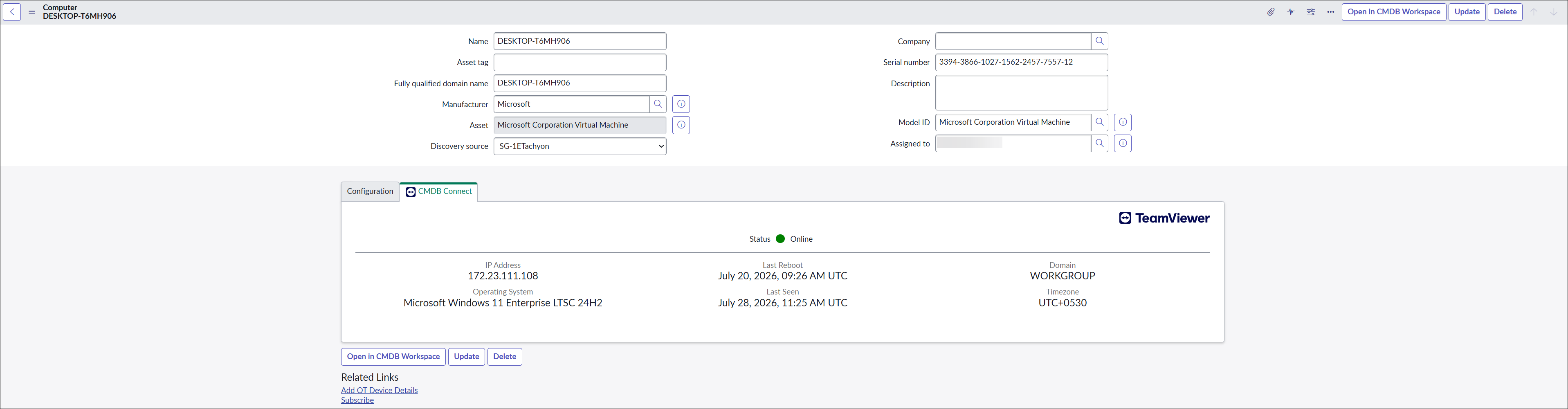
End user device details are stored in ServiceNow in the form of a record. You can view device details by clicking the information preview icon displayed at the start of the device's entry in the Computers table and allows you to view records specific to that device.
SGC for TeamViewer DEX displays the device's asset details from CMDB, as shown in the picture below.
Configuration tab
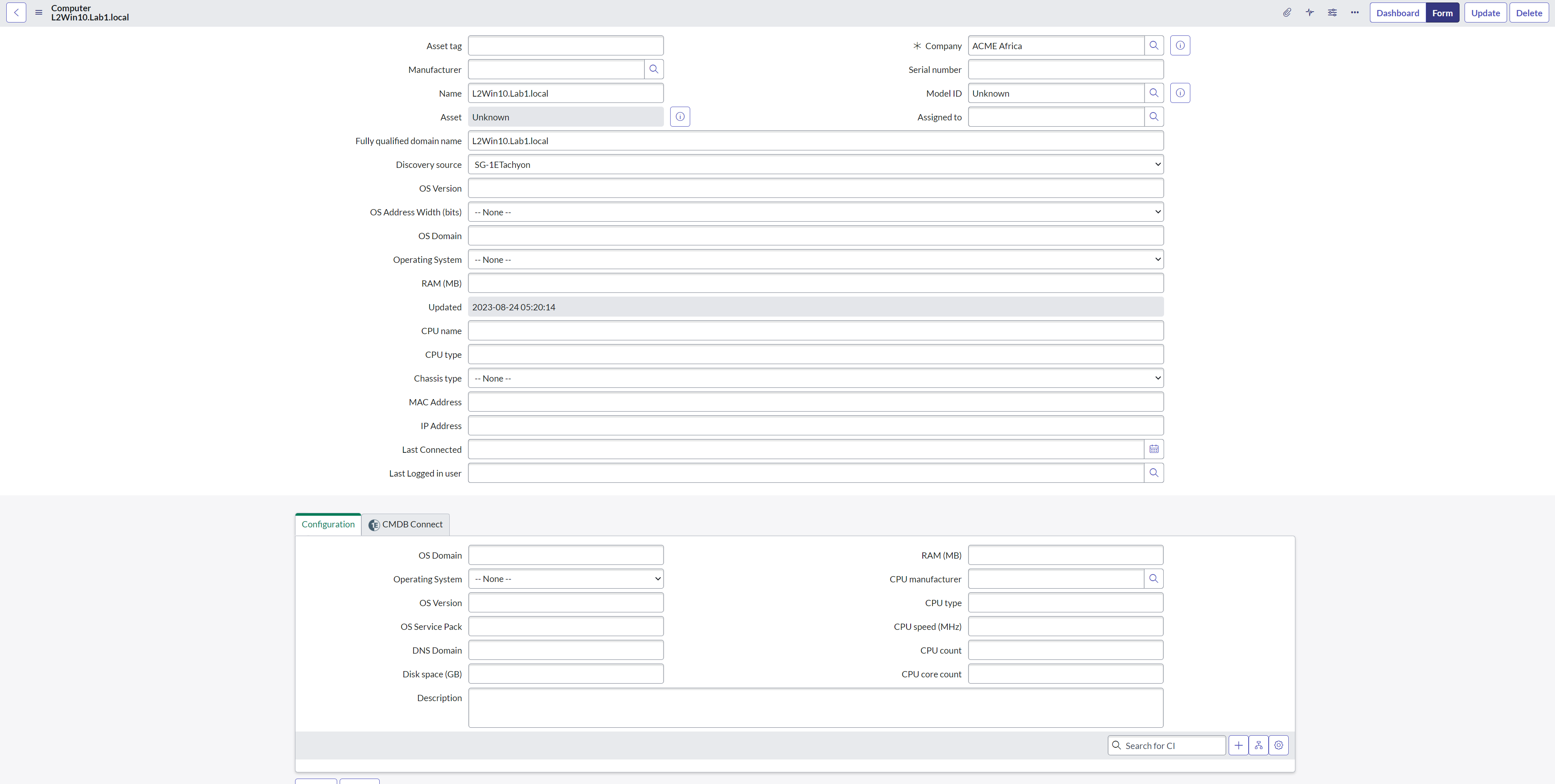
The Configuration tab provides further details related to the device, such as the Operating System domain, type, version and service pack, all of which can be useful when attempting to manage the device remotely. The information displayed here is fetched from ServiceNow CMDB.
CMDB Connect tab
The SGC for TeamViewer DEX tab displays real-time status information of a device with the help of Platform. When you click the CMDB Connect tab, it opens the existing record for the device from the cmdb_ci_computer table. It specifies the current status of the device, for example online or offline.
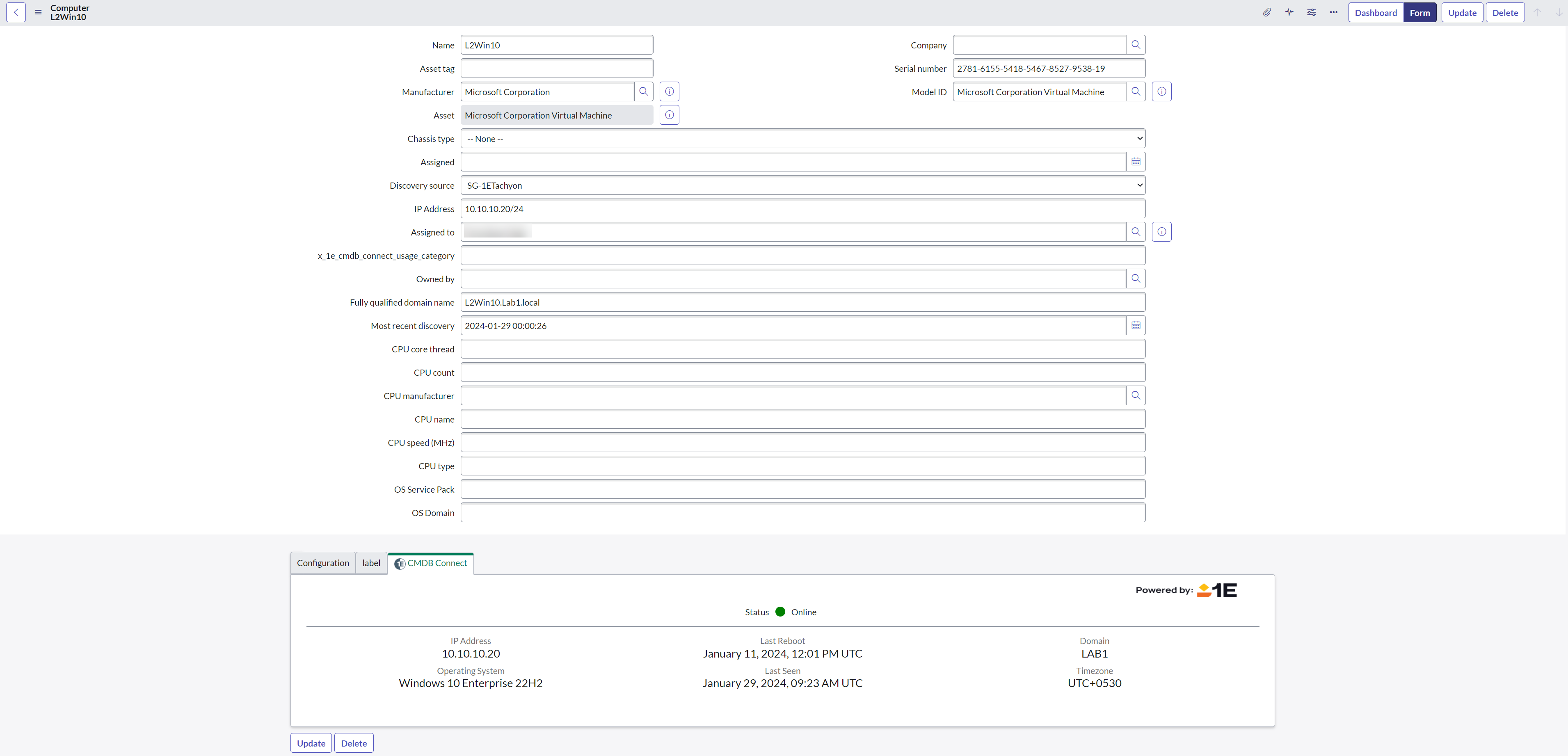
Other displayed details are as shown below:
|
Fields |
Description |
|---|---|
|
IP Address |
It shows the IP address of the device. |
|
Last Reboot |
Shows the time when the device was last rebooted. |
|
Domain |
Domain the current device belongs to. |
|
Operating System |
Operating system information of the current device. |
|
Last Seen |
When the device was last seen online. |
|
Timezone |
Time-zone selected/applied on the device. |
SGC for TeamViewer DEX captures real-time information, so the details provided in this section might differ from some details provided under the configuration tab.
Related lists
Related lists represent the extended support provided by SGC for TeamViewer DEX, where you can capture real-time information about a device like:
-
IP
-
File Systems
-
Installed Software
-
RAM Usage
-
Running Processes
-
TCP Connections.
On Computers, page, Related Lists depend on App configuration being completed as part of the Post-installation tasks. The buttons displayed on this page directly depending on how you have configured your application.
The relative details of Related Lists are displayed only when the device is online.
Buttons with the TeamViewer logo are provided by SGC for TeamViewer DEX.
Clicking the associated Get button on a particular tab triggers the related instruction to fetch associated data, as you can see in the following examples.
Get CI IPS
Clicking Get CI IPs fetches IP details of the selected device, like:
-
IP Address
-
MAC Address
-
Last Refreshed

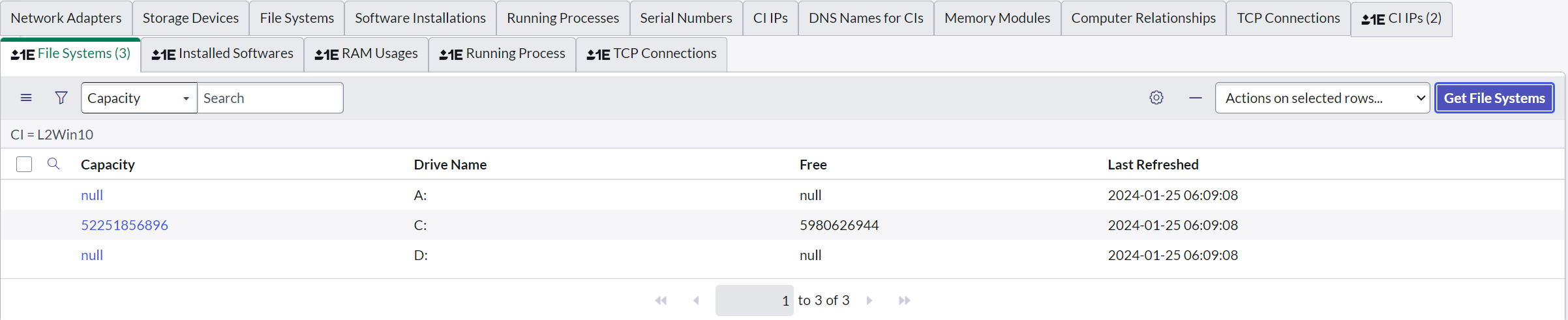
File Systems
Clicking File Systems, fetches related device specific details, including:
-
Capacity
-
Drive name
-
Free space
-
Last Refreshed
Installed Software
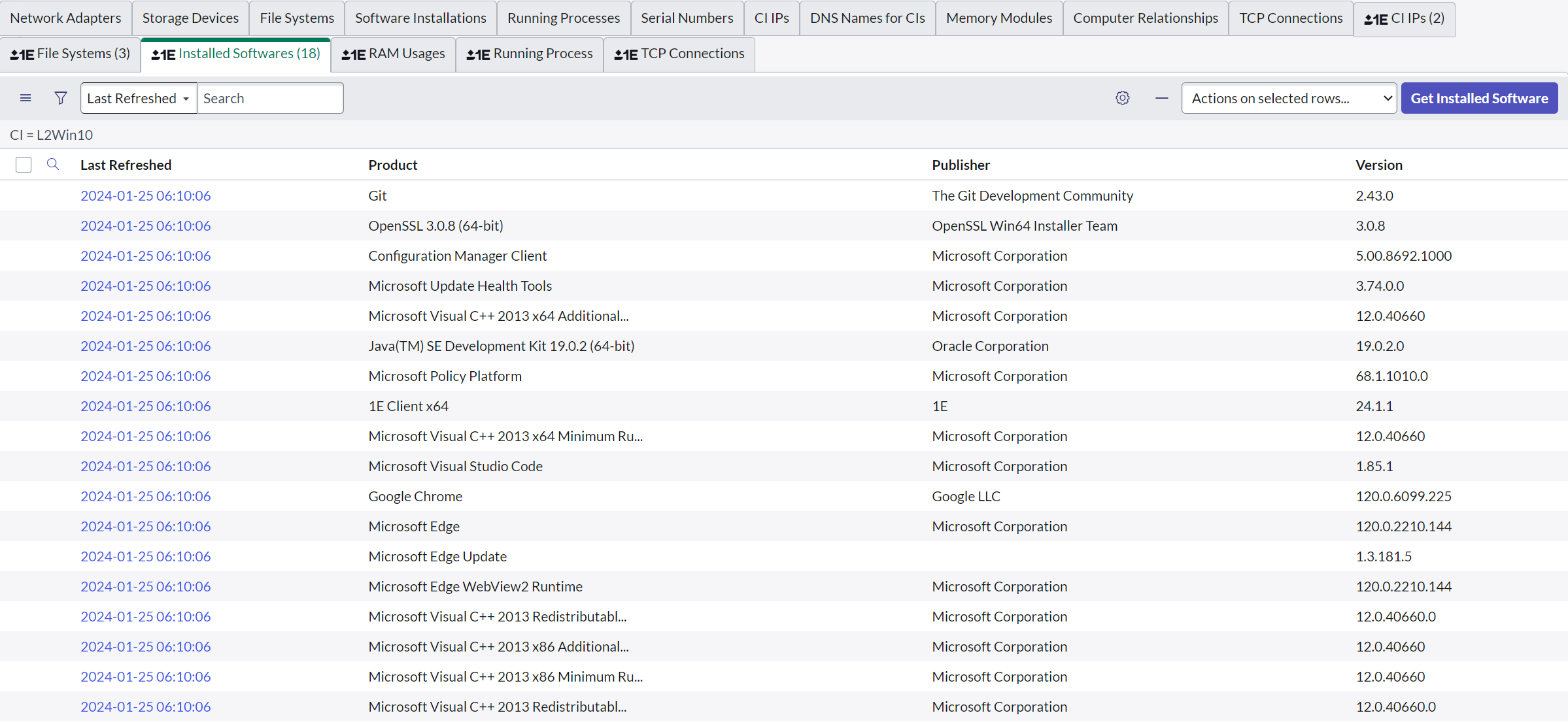
Clicking Installed Software fetches a list of software installed on the selected device, including:
-
Product details
-
Publisher
-
Version
-
Last Refreshed
RAM Usage
Clicking RAM Usage, fetches RAM details of the selected device including:
-
Total
-
Used
-
Free
-
Last Refreshed
Running Processes
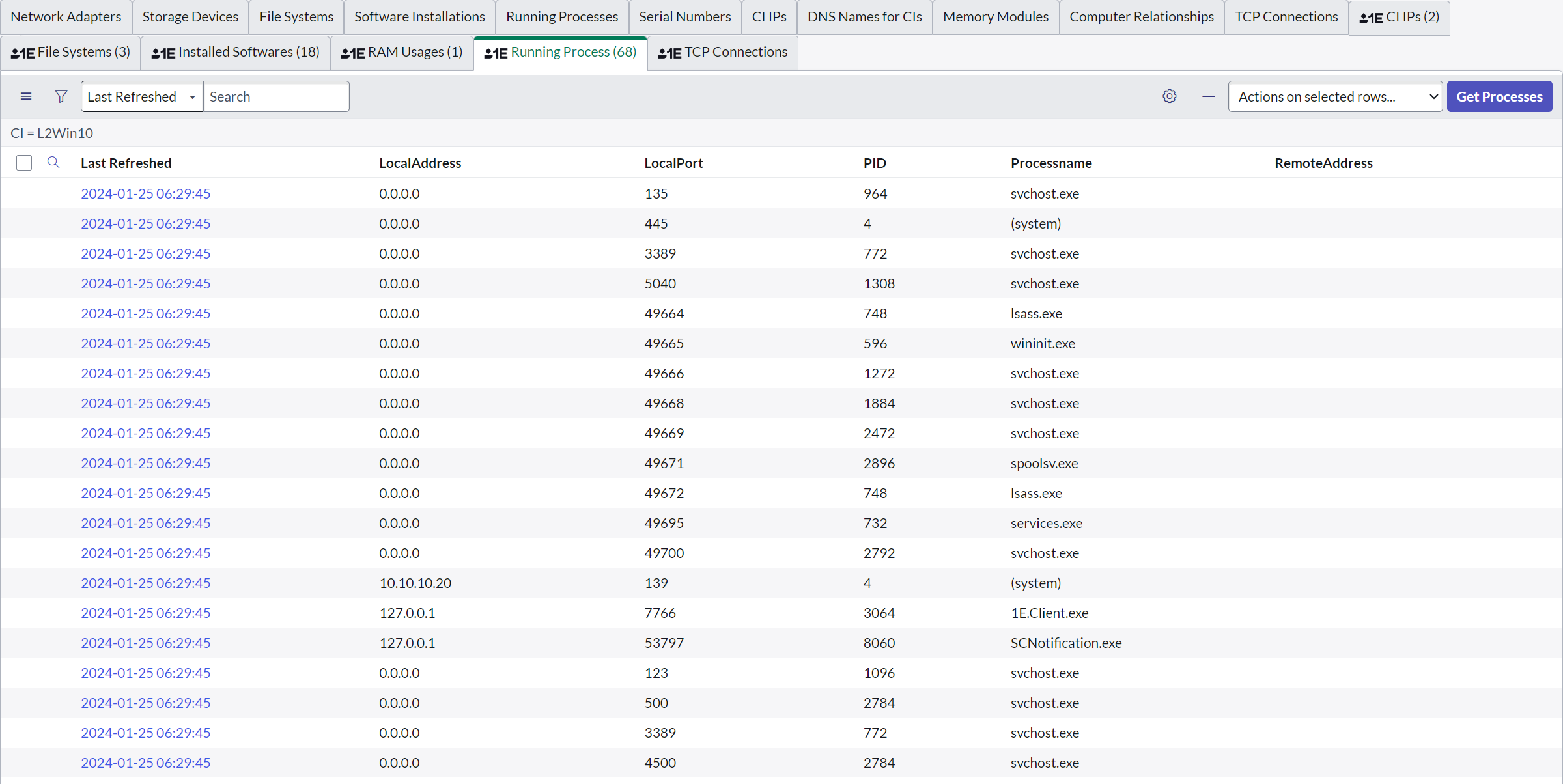
Clicking Running Processes displays details related to the processes running on the selected device:
-
Local Address
-
Local Port
-
PID
-
Process name
-
Remote Address
-
Last Refreshed.
TCP Connections
Clicking TCP Connections fetches details of the selected device, including:
-
Port
-
PID
-
IP
-
Process
-
Last Refreshed.
Software Installations page
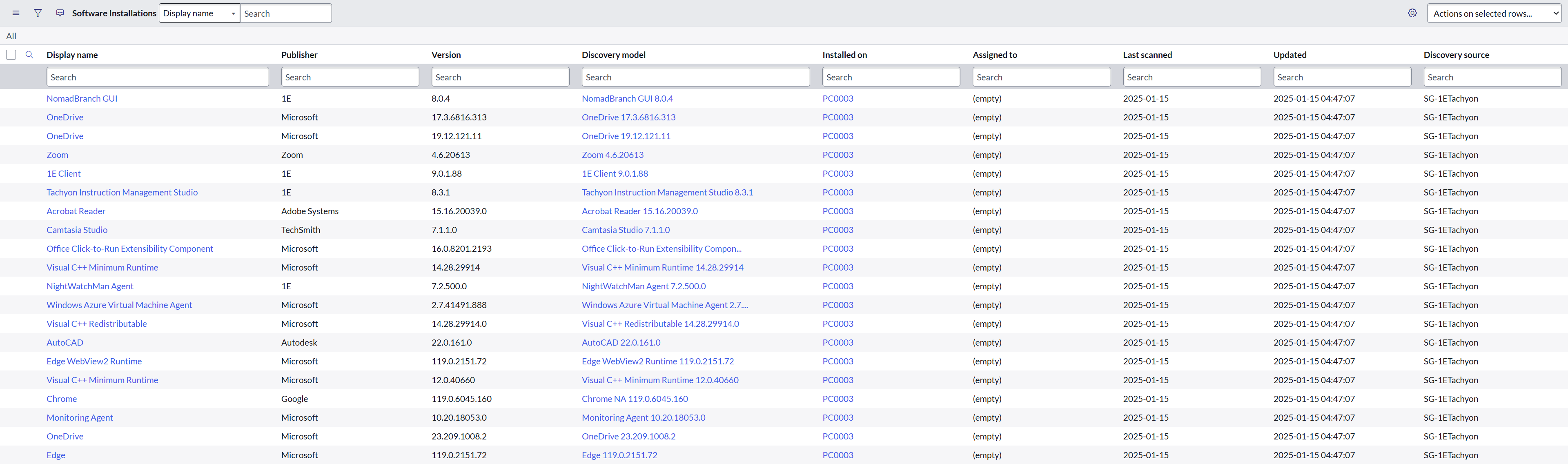
To navigate to the Software Installations page, type cmdb_sam_sw_install.list table name in the filter navigator and press enter. This opens up the Software Installations page in a new tab, as shown in the picture. This page displays details about the software installed on end user devices.
The table has defined fields that display details of the software installed, like:
-
Display Name
-
Publisher
-
Version
-
Discovery Model
-
Installed on
-
Assigned to
Network Adapters page
To navigate to the Network Adapters page, type cmdb_ci_network_adapter.list table name in the filter navigator and press enter. This opens up the Network Adapters page in a new tab, as shown in the picture. This page displays details about network adapters on end user devices.
The table has the following defined fields:
-
Name
-
MAC Address
-
IP Address
-
Netmask
-
Configuration Item
-
Mac manufacturer
-
DHCP Enabled
-
Status

Disks page
To navigate to the Disks page, type cmdb_ci_disk.list table name in the filter navigator and press enter. This opens up the Disks page in a new tab, as shown in the picture. This page has information about disk space on the end user devices.
The table has the following defined fields:
-
Name
-
Computer
-
Interface
-
Size
-
Free disk space (GB)
-
Manufacturer
-
Model ID

Windows Server page
To navigate to the Windows Server page, type cmdb_ci_win_server.list table name in the filter navigator and press enter. This opens up the Windows Server page.
The Windows Server page provides useful information like devices details similar to Computers page.
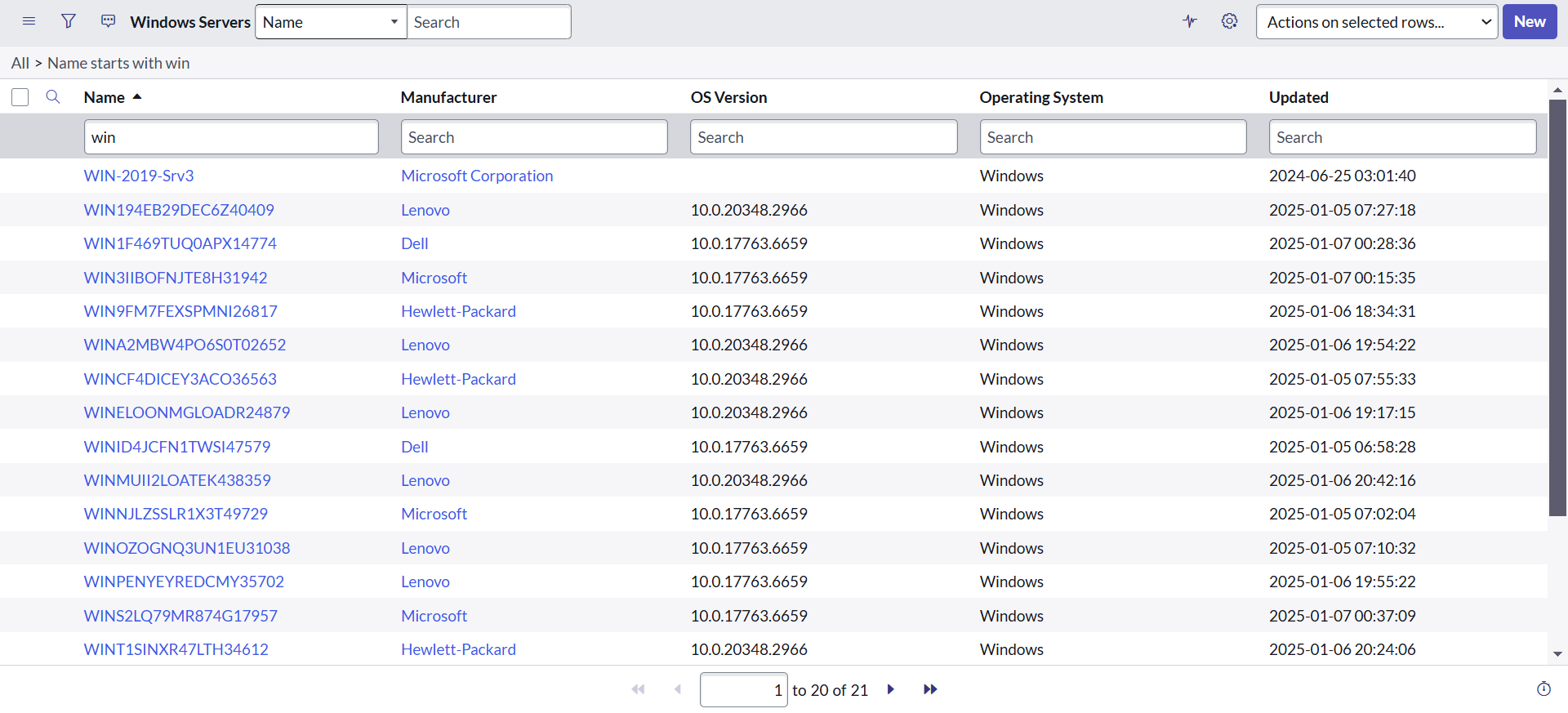
Windows Server device details are stored in ServiceNow in the form of a record. You can view device details by clicking the information preview icon displayed at the start of the device's entry in the Windows Server table and allows you to view records specific to that device.
Configuration tab
The Configuration tab provides further details related to the device, such as the Operating System, domain, type, version and service pack. This information can be useful when attempting to manage the device remotely.
CMDB Connect tab
The CMDB Connect tab displays real-time status information of a device with the help of Platform. When you click the CMDB Connect tab, it opens the existing record for the device from the cmdb_ci_win_server table. It specifies the current status of the device, i.e. online or offline.
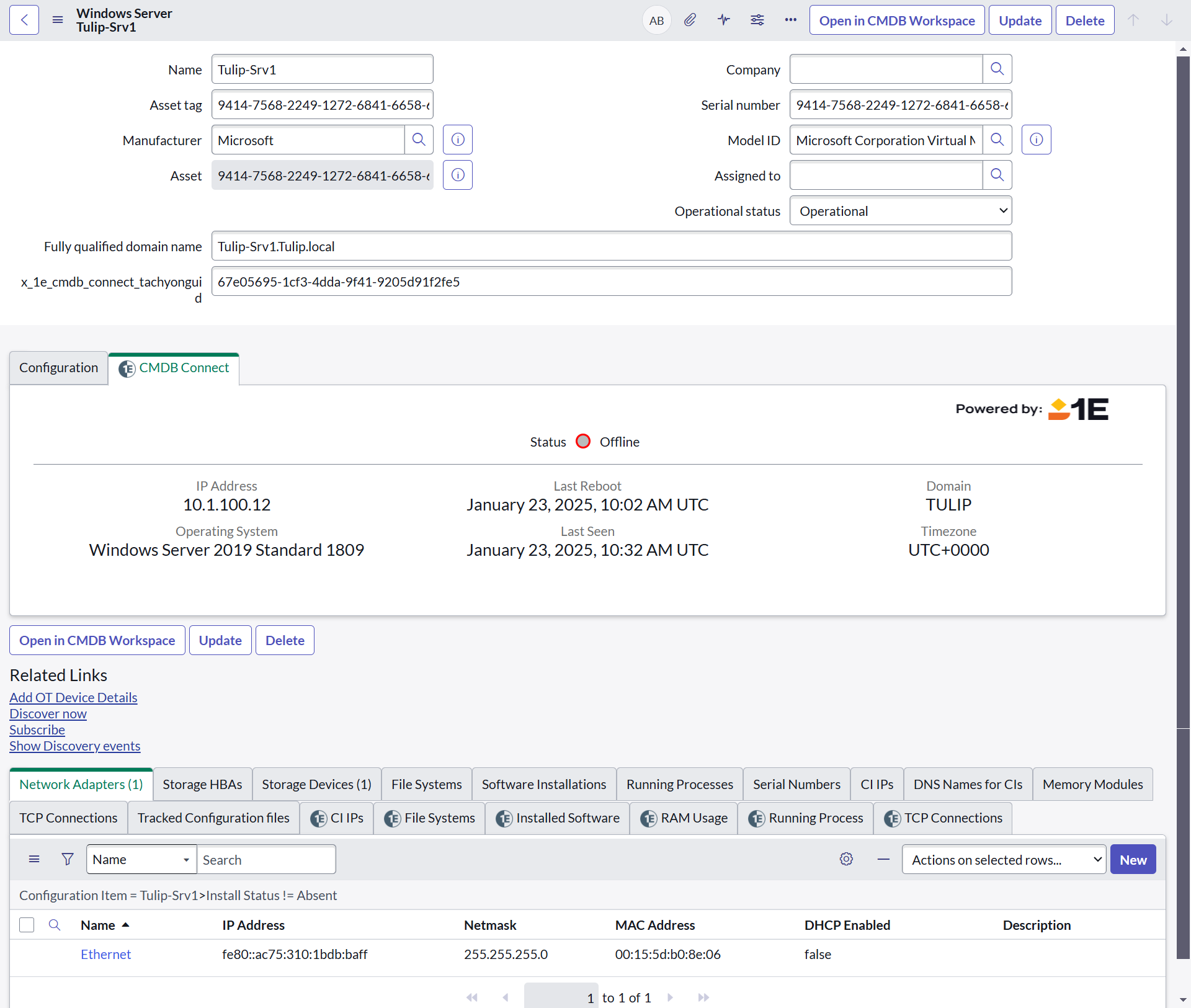
Related lists
Related lists represent the extended support provided by SGC for TeamViewer DEXF, where you can capture real-time information about a device like:
-
CI IP
-
File Systems
-
Installed Software
-
RAM Usage
-
Running Processes
-
TCP Connections