Working with Platform tables
 |
| 
This section explains how to use table controls to filter results, sort records, export data, and choose which columns to display.
Choosing displayed columns
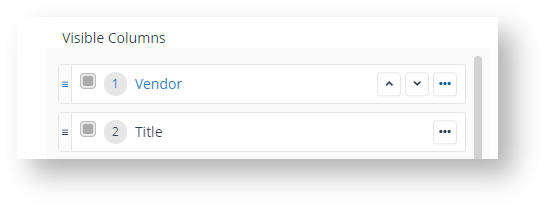
On the pages where you can pick the displayed columns you'll see a control like the one highlighted in this example from AppClarity.

When you click on the Choose columns control it opens a popup displaying every column on the current screen, the controls are:
|
Control |
Explanation |
|---|---|
|
Available Columns |
Columns which are by default hidden from display on screen. You can still include any of them to display on screen. |
|
Visible Columns |
Displays the list of columns displayed on screen. Mandatory Columns cannot be excluded, the selection controls for these items are disabled. They can still be moved up or down. Tip Some pages have mandatory columns and a set of default hidden columns. |
|
Arrow buttons |
To move up or move down, exclude or include any column, clicking on the ellipsis displays these additional controls.
|
|
Drag and drop |
You can drag and drop columns to change how they are displayed. |
|
Exclude columns |
Exclude column button allows you to select columns to exclude from the current display. |
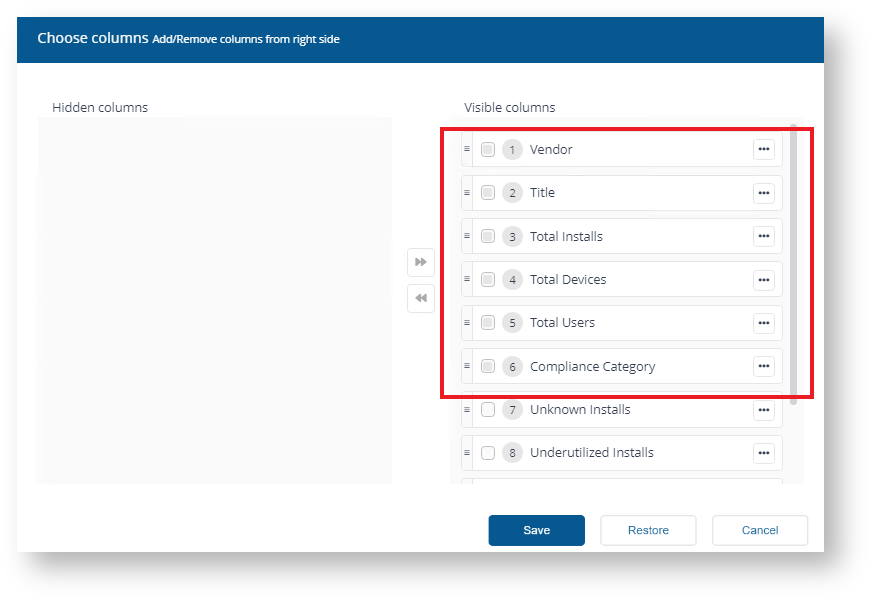
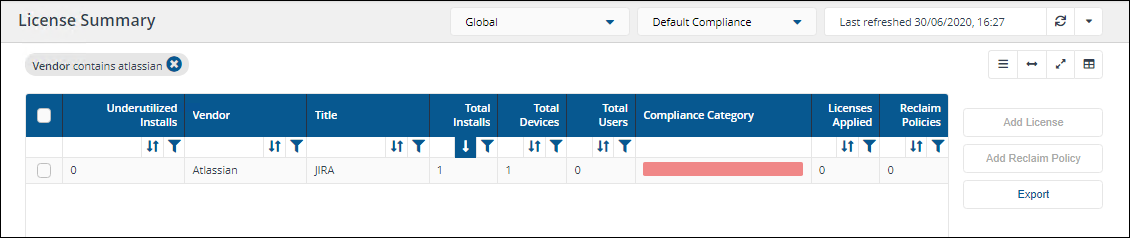
For example, in Viewing Compliance License details we viewed the License Summary, using the Choose columns control you can pick which columns are displayed in the table. On this page, the default columns are:
-
Vendor
-
Title
-
Total Installs
-
Total Devices
-
Total Users
-
Compliance Category
-
Unknown Installs
-
Underutilized Installs
-
Licenses Applied
-
Reclaim Policies
Each page also has some mandatory columns which cannot be excluded from display. When you click the Choose columns icon the excluded columns are greyed out and cannot be removed.
For example, in License Summary you cannot remove these columns:
-
Vendor
-
Title
-
Total Installs
-
Total Devices
-
Total Users
-
Compliance Category
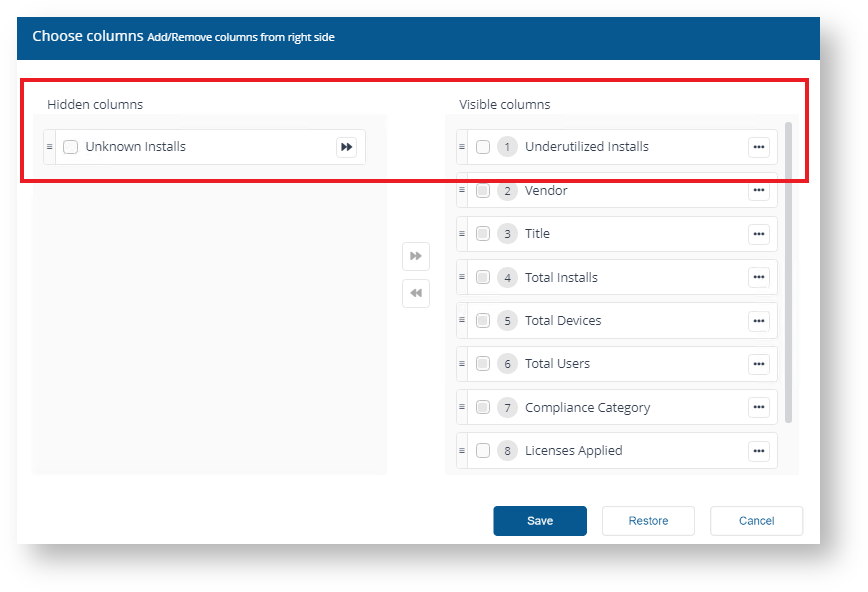
From this screen we chose to exclude Unknown Installs and move Underutilized Installs to the top of the list.
To apply this view to the current report, click Save.
You can also choose Restore to reset the column chooser UI or Cancel to cancel your changes and exit the Choose columns control.
When you refresh reports on a page where you have amended the displayed columns, the report view will reset back to its default view once the refresh completes and the page reloads.
Exporting data
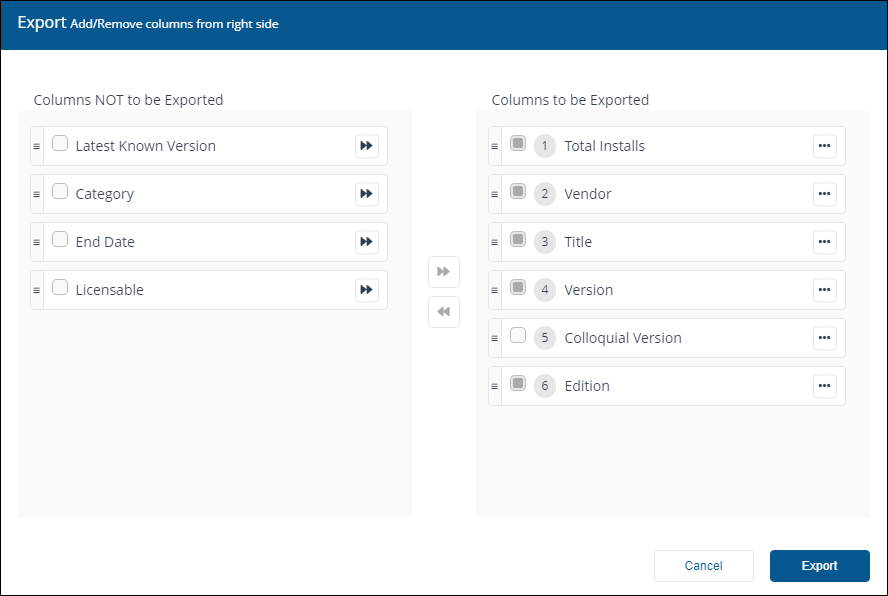
You can use Export to the right of a table to export currently displayed data in a downloadable report. In some areas of the Platform you can also choose which columns you want to export.
When you click on Export you'll see the Export pop-up window. You can choose which columns to export in the same way you can choose columns to display in the main report panel.
The report is exported in a .TSV format, for example, AggregatedSoftwareInventory_20200813095415.tsv. The file is exported and downloaded to the default location for the browser you are using.