Nomad OS Deployment task sequence actions
 |
|  |
| 
Explore how Nomad enhances Configuration Manager OS deployments with custom task sequence actions. Learn about pre-staging content, cache handling, and optimizing network efficiency during Windows imaging.
Nomad task sequence actions are described in greater detail in the following pages.
1E Nomad PBA task sequence actions
Click the link for more information about a custom task sequence action and its configuration.
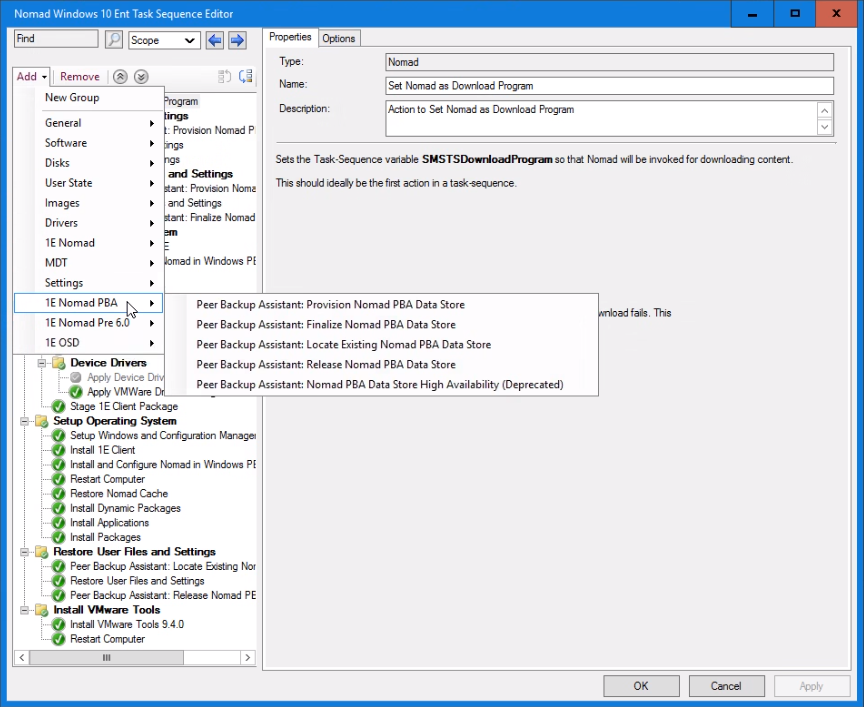
 Peer Backup Assistant: Provision Nomad PBA Data Store
Provisions a PBA data store prior to saving user state using USMT. It is the first step of the Peer backup assistance sequence (USMT Capture User State follows).
PBA supports the use of multiple backup data stores, for more details see High Availability PBA (HAPBA). If the task sequence variable form of the Cache space parameter is used (see below) then the variable referenced must be set before running this action.
This custom action is available in the 1E Nomad PBA task sequence actions. For more details, see Redirect Content Location to the Nomad Cache (deprecated)Redirect Content Location to the Nomad Cache (deprecated)
|
Actions |
Notes |
|---|---|
|
This task:
|
This task sequence action:
If the task sequence variable 1EWSA_USMTSizeInMB is set, the step will use its assigned value when polling. |
Configurable parameters
|
Parameter |
Default value |
Description |
|---|---|---|
|
Name |
Peer Backup Assistant: Provision Nomad PBA Data Store |
Name for the custom task sequence action. |
|
Description |
Action to find a PBA data store for saving user state |
Description for the custom task sequence action. |
|
Use Nomad's size estimation |
Disabled by default. |
If enabled, the estimation is passed to NMDS_POLL. |
|
Static cache space |
100 |
Estimated cache space in MB required to store the user state. This can either be a number, the default being 100, or the name of a task sequence variable holding the value delimited by '%', e.g. " %USMTEstimate%. |
Peer Backup Assistant: Finalize Nomad PBA Data Store
Closes the connection to the PBA data store after user state is saved with USMT Capture User State.
This step replaces the Peer Backup Assistant: Close Nomad PBA Data Store (deprecated) and the Peer Backup Assistant: High Availability (deprecated) steps. You can continue using the deprecated steps if you have already deployed them, but you cannot modify them. Going forward, we recommend you migrate to this new task sequence step.
This custom action is available in the 1E Nomad PBA task sequence actions. For more details, see Enable Run from Distribution Point
|
Actions |
Notes |
|---|---|
|
When run, this task:
|
This task sequence action:
|
Configurable parameters
|
Parameter |
Default value |
Description |
|---|---|---|
|
Name |
Peer Backup Assistant: Finalize Nomad PBA Data Store |
Name for the custom task sequence action. |
|
Description |
Action to close the connection to the Nomad PBA data store after saving the user state. |
Description for the custom task sequence action. |
|
Enable HA |
False |
Enable high availability. If the task sequence variable 1EDisablePBA_HA = True, then High Availability is disabled. This variable is automatically set for Remote WSA deployments. |
|
Minimum |
1 |
The minimum number of PBA data store backups. The number of data stores must be available when PBA-HA starts the backup, else if fails.
|
|
Maximum |
1 |
The maximum number of PBA data store backups.
|
|
Synchronous |
1 |
The number of successful backups to create before moving on to the next task sequence action.
|
Peer Backup Assistant: Locate Existing Nomad PBA Data Store
Finds saved user data, prior to restoring user state using the USMT Restore User State action.
Peer Backup Assistant: Close Nomad PBA Data Store (deprecated) and (usually) OS refresh or OS install on bare-metal actions must be run first. If saving user data was run as a separate task, insert an action in the current task sequence that sets the PBAComputerName TS variable to the same value that is set in the saving task sequence. This identifies the Nomad cache in the network where the user data is saved.
This custom action is available in the 1E Nomad PBA task sequence actions.
|
Actions |
Notes |
|---|---|
|
When run, this task:
|
This task sequence action:
|
Configurable parameters
|
Parameter |
Default value |
Description |
|---|---|---|
|
Name |
Peer Backup Assistant: Locate Existing Nomad PBA Data Store. |
Name for the custom task sequence action. |
|
Description |
Action to locate cached data prior to restoring user state. |
Description for the custom task sequence action. |
Peer Backup Assistant: Release Nomad PBA Data Store
Releases saved user data in the Nomad cache, after restoring user state with USMT Restore User State.
The USMT Restore User State action must have been run successfully.
This custom action is available in the 1E Nomad PBA task sequence actions.
|
Actions |
Tasks |
|---|---|
|
When run, this task:
|
This task sequence action:
|
Configurable parameters
|
Parameter |
Default value |
Description |
|---|---|---|
|
Name |
Peer Backup Assistant: Release Nomad PBA Data Store. |
Name for the custom task sequence action. |
|
Description |
Action to release the Nomad PBA data store after restoring user state. |
Description for the custom task sequence action. |
Peer Backup Assistant: Close Nomad PBA Data Store (deprecated)
This step has been replaced by Peer Backup Assistant: Finalize Nomad PBA Data Store. Existing deployments will still work, but you cannot modify them. Going forward, we recommend using its replacement.
This step closes the connection after user state is saved by USMT Capture User State. The Peer Backup Assistant: Provision Nomad PBA Data Store and USMT Capture User State actions must have been run.
|
Actions |
Notes |
|---|---|
|
When run, this task:
|
This task sequence action:
|
Configurable parameters
|
Parameter |
Default value |
Description |
|---|---|---|
|
Name |
Peer Backup Assistant: Close Nomad PBA Data Store. |
Name for the custom task sequence action. |
|
Description |
Action to close the PBA data store connection after saving user state. |
Description for the custom task sequence action. |
Peer Backup Assistant: High Availability (deprecated)
This step is deprecated, and you should use the Peer Backup Assistant: Finalize Nomad PBA Data Store instead. Existing deployments will still work, but you cannot modify them. Going forward, we recommend using its replacement.
This step stores additional backup copies of the PBA data store, after the primary data store has been created with Peer Backup Assistant: Provision Nomad PBA Data Store and after the USMT data has been saved andc losed with Peer Backup Assistant: Close Nomad PBA Data Store (deprecated).
The following actions must have been run successfully:
-
Peer Backup Assistant: Provision Nomad PBA Data Store
-
USMT Save User State
-
Peer Backup Assistant: Close Nomad PBA Data Store (deprecated).
This custom action is available in the 1E Nomad PBA task sequence actions.
|
Actions |
Notes |
|---|---|
|
When run, this task:
|
This task sequence:
|
Configurable parameters
|
Parameter |
Default value |
Description |
|---|---|---|
|
Name |
Peer Backup Assistant: High Availability. |
Name for the custom task sequence step. |
|
Description |
Action to find additional PBA data stores for saving user state. |
Description for the custom task sequence action. |
|
Minimum |
1 |
The minimum number of PBA data store backups. Must be at least 1 and not greater than 6. The specified number (minimum) of data stores must be available when PBA-HA starts backing up the data. If the minimum number of data stores will not respond, then the PBA-HA task sequence step will fail. The minimum should be greater than or equal to the Synchronous value. If the minimum number is less than the Synchronous value, the task sequence may fail even though the minimum number of backups have been done. |
|
Maximum |
1 |
The maximum number of PBA data store backups. Must be at least equal to the minimum and not greater than 6. |
|
Synchronous |
1 |
The number of backups that must be performed successfully before moving onto the next action in the task sequence. Must be 0 or more and not greater than the value set for the maximum. It is possible, but not recommended, to set this value to 0. If this is done, the next action in the task sequence will start immediately, but there will be no guarantee that any backups have been successful. |
1E Nomad Pre 6.0 task sequence actions
Click a link for more information about a custom task sequence action and its configuration.
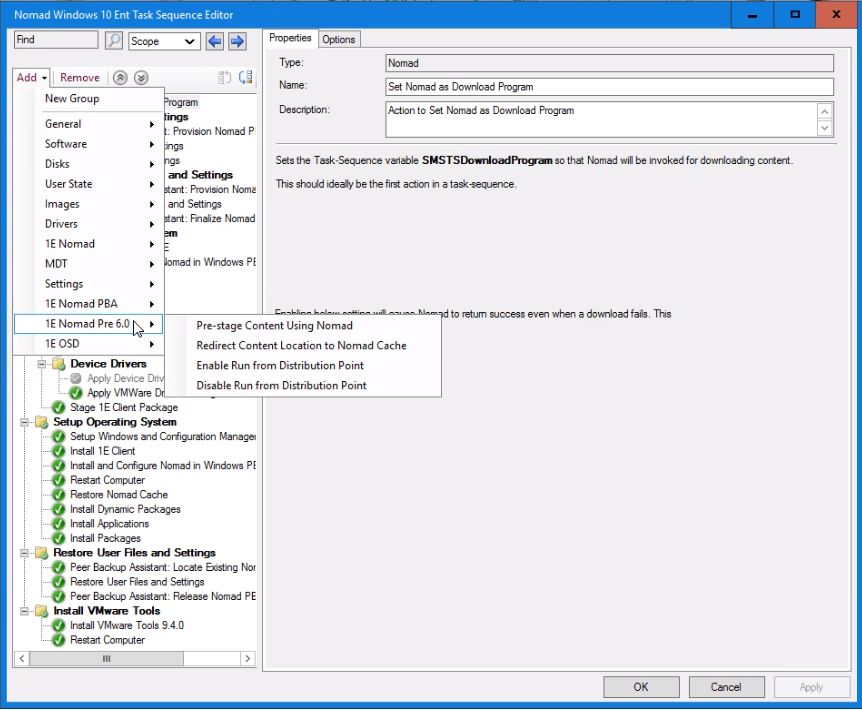
Pre-stage Content Using Nomad
Pre-stages content using Nomad, either in WinPE or a full Microsoft Windows operating system. It uses the NomadPackageLocator.exe command-line switches tool to locate any locally available copies of content, as set in the References in the custom task sequence action properties. If no local copies are available, it will download the content from the DP and store it locally. It then configures the Task Sequence to use this locally stored content.
We recommend, when using the Pre-stage Content Using Nomad step, that the content is downloaded to the local branch and the task sequence is pointed to the Nomad cache that contains it. When using Redirect Content Location to the Nomad Cache (deprecated) this is a requirement as it cannot make use of all the Nomad download functionality.
Use Pre-Stage content Using Nomad in preference to Redirect Content Location to the Nomad Cache (deprecated) to make use of all the Nomad features. Use the Redirect Content Location to the Nomad Cache (deprecated), if you want to have exactly the same NomadPackageLocator functionality provided in earlier releases of Nomad.
While Pre-stage content Using Nomad is running, a progress bar is displayed on the Installation Progress dialog on the target machine.
When used in WinPE, the Install and Configure Nomad in WinPE action must be run first.
This custom action is available in the 1E Nomad Pre 6.0 task sequence actions. Refer to Pre-stage Content Using Nomad.
|
Actions |
Notes |
|---|---|
|
When run, this task:
|
The following points should be taken into account when using this task sequence action:
|
Configurable parameters
|
Parameter |
Default value |
Description |
|---|---|---|
|
Name |
Pre-stage Content Using Nomad. |
The name for the custom task sequence action. |
|
Description |
Action to pre-stage content in WinPE using Nomad. |
Sets the description for the custom task sequence action. |
|
Require Nomad |
Enabled by default. |
When this checkbox is checked, it sets a requirement for another Nomad client on the same subnet to have the content, if this is not the case the task sequence step will fail. When this checkbox is not checked the task sequence will attempt to continue without using Nomad if there is no Nomad client on the same subnet with the content. |
|
Show error dialog |
Disabled by default. |
When this checkbox is checked, an error dialog is displayed to the Configuration Manager administrator when the NomadPackageLocator download fails. |
|
Use HTTP |
Enabled by default. |
When this checkbox is checked, NomadPackageLocator uses the HTTP location for the content if it is not available locally. In Configuration Manager 2012, if this option is not enabled when using this task sequence step, all selected packages must be copied to the SMB share on the DP using the Data Access > Copy the content in this package to a package share on distribution points option in the properties of each package, otherwise the download fails. |
|
Use Multicast |
Disabled by default. |
When this checkbox is checked, NomadPackageLocator invokes NomadBranch with multicast enabled. |
|
All references |
Disabled by default. |
When this checkbox is checked, all referenced content is selected (and any added subsequently to the task sequence will be automatically selected). When it is unchecked, all referenced content is deselected. |
|
References |
This field is pre-filled with all content set for downloading in the task sequence. |
This field is pre-filled with all content set for downloading in the task sequence. Checking the checkbox next to each item will set the use of NomadPackageLocator for that content. There is a limit of 255 characters on a task sequence action's command line. If this was exceeded because there are many selected references, a pop-up dialogue will appear saying so when the Apply or OK button is pressed. Either reduce the number of references by creating more, separate, task sequences to pre-stage content, or select the All references checkbox which will use a wild card for the references. |
Redirect Content Location to the Nomad Cache (deprecated)
This action is deprecated and is currently provided for backwards compatibility only, use Pre-stage Content Using Nomad instead.
This custom task sequence action redirects the task sequence's content location to the Nomad cache on another host. Used in either WinPE or a full Microsoft Windows Operating System, it used the Nomad NomadPackageLocator.exe command-line switches tool to locate the content on a Nomad cache on the local subnet.
The NomadPackageLocator program sends out a Nomad package status request for each of the packages listed in the OSD task sequence it is running within. If any of the content is available on other Nomad clients on the local subnet, it updates the path variables in the task sequence to point at the folder location (usually located in the local or remote Nomad cache folder). If not, the default path (i.e. the path to the distribution point) is left intact.
Both the Redirect Content Location to Nomad Cache and Pre-stage Content Using Nomad rely on the fact that the content has been downloaded to the local branch and point the task sequence to the Nomad cache that contains the content. Use Pre-stage Content Using Nomad in preference to Redirect Content Location to Nomad Cache to make use of all the Nomad features. Use the Redirect Content Location to Nomad Cache if you require exactly the same NomadPackageLocator functionality provided in earlier releases of Nomad.
When used in WinPE, the Install and Configure Nomad in WinPE action must be run first.
This custom action is available in the 1E Nomad Pre 6.0 task sequence actions. Refer to Redirect Content Location to the Nomad Cache (deprecated).
|
Actions |
Notes |
|---|---|
|
When run, this task:
|
This task sequence action:
|
Configurable parameters
|
Parameter |
Default value |
Description |
|---|---|---|
|
Name |
Redirect Content Location to Nomad Cache. |
Name for the custom task sequence action. |
|
Description |
Action to redirect content location to Nomad cache. |
Description for the custom task sequence action. |
|
Require Nomad |
Enabled by default. |
When this checkbox is checked, the task sequence action fails if the NomadPackageLocator download fails. If this is not checked, the task sequence attempts to download the content by other means if the NomadPackageLocator download fails. |
|
Failover to DP(s) |
Disabled by default. |
When this option is checked, the content download can failover to downloading from the DPs if the NomadPackageLocator fails to find the content cached on the local subnet. |
|
Show error dialog |
Disabled by default. |
When this checkbox is checked, an error dialog is to the Configuration Manager administrator if the NomadPackageLocator download fails. |
|
Force Nomad client |
Blank by default. |
Set the name for a specific Nomad client whose cache you want to use. This prevents NomadPackageLocator from polling for a Nomad client whose cache contains the content. |
|
Nomad share name |
Blank by default. |
Should only be used if the Nomad clients where OSD content has been pre-cached are configured with the Hidden Nomad share option set to 0x10. Refer to SpecialNetShare. When the pre-cache Nomad client is set to use the hidden share, set the value to NomadSHR$. |
|
Multicast scope |
|
Should only be set if you want the NomadPackageLocator requests to span subnets when trying to locate a package. In this instance, the request is will be multicast and the scope must be set here. This will only work if the network has been configured to allow multicast across subnets. |
|
All references |
Disabled by default. |
When this checkbox is checked, all referenced content will be selected (and any added subsequently to the task sequence will be automatically selected too). When it is unchecked, all referenced content will be deselected. |
|
References |
Pre-filled with all content set for downloading in the Task Sequence. |
Pre-filled with all content set for downloading in the task sequence. Checking the checkbox next to each item will set the use of NomadPackageLocator for that content. There is a limit of 255 characters on a task sequence action's command line. If this was exceeded because there are many selected references, a pop-up dialogue will appear saying so when the Apply or OK button is pressed. Either reduce the number of references by creating more, separate, task sequences to redirect content, or select the All references checkbox which will use a wild card for the references. |
Enable Run from Distribution Point
Used in the following instances:
-
In conjunction with the Pre-stage Content Using Nomad action to avoid making a local copy of the Nomad share.
-
It is used during the provisioning phase, prior to any package being installed, to enable classic packages to run from the DP. This is so that SMSNomad.exe can be used as an alternative download provider during OSD.
When the Run from distribution point property is no longer required, remove it using the Disable Run from Distribution Point custom task sequence.
This custom action is available in the 1E Nomad Pre 6.0 task sequence actions. For more details, see Disable Run from Distribution Point.
|
Actions |
Notes |
|---|---|
|
When run, this task:
|
This task sequence action:
|
Configurable parameters
|
Parameter |
Default value |
Description |
|---|---|---|
|
Name |
Enable Run from DP. |
The name for the custom task sequence step. |
|
Description |
Action to Enable Run from the DP. |
The description for the custom task sequence action. |
Disable Run from Distribution Point
Reverts the task sequence variables that were set using the Enable Run from Distribution Point custom task sequence action back to their default values.
This custom action is available in the 1E Nomad Pre 6.0 task sequence actions.
|
Actions |
Notes |
|---|---|
|
When run, this task:
|
This task sequence action:
|
Configurable Parameters
|
Parameter |
Default value |
Description |
|---|---|---|
|
Name |
Disable Run from the DP. |
The name for the custom task sequence step. |
|
Description |
Action to Disable Run from Distribution Point. |
Description for the custom task sequence step. |
Peer Backup Assistant - PBA
The Peer Backup Assistant (PBA) feature enables files and settings data to be backed-up to a peer device so that they can be maintained when the device is being migrated to a new Operating System. Using PBA, you can avoid the cost of State Migration Point servers to hold the backup data, as peer devices can be used to provide this storage. The risk of losing user data through the migration process is also greatly reduced in the process.
Note the following:
-
Nomad PBA Task Sequence steps are not designed for use with offline USMT or WinPE
-
-NMDS_POLL command-line option for the NomadPackageLocator.exe tool cannot be used in WinPE
-
-NMDS_<command> command-line options for NomadBranch.exe have not been tested in WinPE, so their behavior may be unpredictable in that environment
An overview of PBA
There are two types of devices involved in the PBA feature:
-
PBA hosts – devices running Nomad that have been configured to host a data store
-
PBA clients – devices running Nomad that ask for PBA data stores by broadcasting a request on the local subnet for suitable hosts. Local PBA hosts respond to these requests and the winner is chosen according to its suitability.
The host aspect is disabled by default but can be enabled by a Nomad administrator, whereas the client aspect is always available.
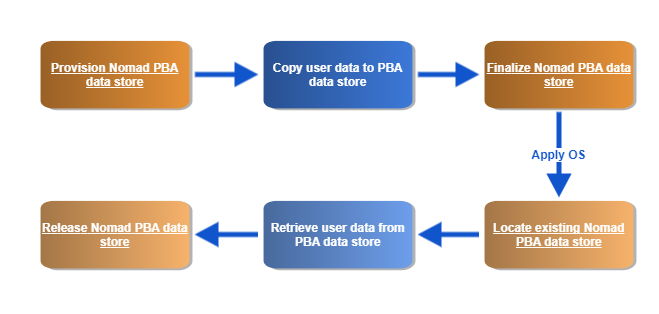
The PBA feature is implemented in the Configuration Manager OS deployment process using custom Task Sequence steps that complement the built-in Capture User State and Restore User State steps. This completely automates the migration of user data and settings using available storage on peers during an OS refresh or device replacement.
The initial step in the process initiates a local election to request the required amount of storage space from peers. Peers that are configured to act as PBA Hosts will respond to this election if they match the administrator-defined criteria (Is there enough disk space on a system to store the data? Are there other connections already in place? Are disk quotas enforced?) to store the User State Migration Tool (USMT) data.
The requesting system will then evaluate the responses and select the best candidate. The selected host then reserves the storage space. When the Capture User State step has completed, PBA transfers the migration data to the selected host, where it is stored ready to be restored later in the Task Sequence. Data can be encrypted using the built-in encryption capability of the User State Migration Tool in the Capture User State step. At this stage, Nomad can transfer copies of the data to other peers (High Availability feature) to increase the availability of the data should any of the hosts go offline before the data has been restored.
The OS deployment proceeds until the state restore phase takes place, at which point PBA locates the backed-up data using a broadcast query, restores the data to the device and deletes it from the host. The diagram below illustrates the PBA task sequence actions (in orange) and the data flow (in blue). If for any reason the restore step is not executed or fails, the migration data will remain available on the host(s) for 7 days (configurable), after which it will be deleted.
Single Site PBA
Peer Backup Assistant (PBA) enables Nomad clients to use local storage on peers to temporarily store user state data during an OS deployment, removing the need for Configuration Manager State Migration Points. By default, it uses network broadcasts to identify peers with available storage on the local subnet. Single Site Peer Backup Assistant (SSPBA) uses Single Site Download features to enable Nomad to use storage available on PBA hosts in adjacent subnets. This enables you to:
-
Designate appropriate devices to provide the Nomad PBA data store for all devices on the site, not just the local subnet
-
Avoid the issue where clients on particular subnets do not have sufficient disk space to offer the role of a Nomad PBA data store
To set up SSPBA, you need to ensure the following:
-
1E Platform is installed and running successfully
-
The Content Distribution database is populated with information about sites and their associated subnets
High-level overview of how to enable SSD
The following information applies to both new and existing installations of Nomad:
-
Make sure that 1E Platform is installed in your environment and is used as a content location meta-data repository, for more information refer to Introducing 1E
-
Within Content Distribution, populate the SSD sites and subnet information. A sample PowerShell script called PostADSitesandSubnets.ps1 is included in the Nomad installation files, which reads sites and subnets from AD
-
Nomad captures a list of background channels from the 1E Client in the BackgroundChannelUrl and uses the first working URL as the PlatformURL by appending /Proxy/ContentDistribution/ if this PlatformURL is unreachable it attempts to connect to the next BackgroundChannelUrl, for details about BackgroundChannelUrl refer to 1E Content Distribution architecture
-
Enable SSD on all Nomad agents, by modifying HKLM\Software\1E\NomadBranch\ SSDEnabled to 3, this enables SSD for both Provide and Consume modes, specifically Nomad will provide content to other peers and consume content from other peers
-
If you already have Nomad installed and are only now enabling SSD, then ensure HKLM\Software\1E\NomadBranch\Platform ContentRegistration is set to 1, in other words, Nomad will register downloaded content with Content Distribution, this is automatically enabled for new installations of Nomad and SSD.
If you have clients on networks where broadcasts are disabled (for example wireless) then enable local SSD by setting SSDEnabled=7. Also set ContentProviderOnWifi=1.
Building a subnet profile in Content Distribution
For Content Distribution to build a subnet profile for SSD and the peer backup assistant feature, Nomad must communicate with its web service. When the Nomad service starts, it connects and registers the hosting device by name with Content Distribution, which returns a device ID in the form of a GUID that enables it to uniquely identify the Nomad client and its default subnet. If it is unable to communicate with Content Distribution, it retries every 5 minutes until it succeeds (as long as SSD is enabled). An attempt to communicate with Content Distribution is also made prior to a package download to register its status.
Refer to Enabling SSD in WinPE to make use of Nomad SSD in OS Deployment.
The following points should be noted:
-
On a multi-NIC host, only one NIC gets registered, and a wired interface takes precedence over a wireless interface during registration
-
If Nomad fails initially to register an adapter, it retries every 5 minutes (for as long as SSD is enabled) until it succeeds
-
Wireless adapters can be configured to act as SSD content providers and consumers. Use the ContentRegistration registry setting to do this
-
If the initial device registration was successful when the Nomad service started, but Content Distribution later becomes unavailable, when Nomad subsequently downloads and caches a package it will not be able to register the package with Content Distribution (see below for details). Nomad does not re-attempt package registration, so Content Distribution will not know that this particular Nomad host has the package.
Example PowerShell scripts
You can get information about sites and subnets from AD, or by other means. Example PowerShell scripts can be used for retrieving information about sites and their associated subnets from the AD and updating the Content Distribution database.
-
Example Active Directory Single Site script — Sample script that scans the Active Directory (AD) environment for all sites and subnets and stores the information in the Content Distribution locations table.
-
— Sample script that provides two functions to update sites and subnets in the Content Distribution locations table: DeleteAllLocations and AddLocation().
-
Example Location Discovery script — Sample script to enable and disable the location discovery feature, along with the option to run it and load site, subnet and information in Content Distribution.
-
Content Distribution purge configuration script — Sample script to view or update Purge Configuration in the Content Distribution Service defined in the ContentDistribution PurgeSettings table if it is configured.
Enabling SSPBA
SSPBA can be enabled at install time using the MODULE.NOMAD.SSPBAENABLED installer property. Post-installation SSPBA can be enabled by setting the following registry values:
-
Update the SSPBAEnabled registry value to 1.
-
Update the SSDEnabled registry value to 0x3 to enable Content Distribution integration required for this feature to work.
When SSPBA is enabled, PBA will initially attempt to find suitable PBA data stores on the local subnet. If it does not find one, it will send the request to neighboring subnets using the information held in Content Distribution.
High Availability PBA (HAPBA)
High Availability PBA is implemented with the custom finalize Nomad PBA store task sequence action and requires no configuration of the underlying Nomad system, for details refer to Peer Backup Assistant: Finalize Nomad PBA Data Store.
HAPBA ensures that USMT data is stored and made available on multiple devices during the migration process to minimize risk and maximize success. Implementing HAPBA enables you to save USMT data:
-
In multiple locations (up to a maximum of 6) to help mitigate risk during migration
-
Without the need to regenerate it using the USMT save action.
Backups can be created synchronously or asynchronously. The administrator can set a value in the task sequence action that specifies the number of backups that must be successfully implemented synchronously before the task sequence continues; the remainder of the backups will be performed asynchronously while the other task sequence actions are running. This helps you manage the balance between enabling the task sequence to run promptly while ensuring sufficient backups are in place to maximize the chances of success.
HAPBA also works with SSPBA to enable the backups to reside on devices local to the site but external to the subnet of the device being migrated.
If the task sequence variable 1EDisablePBA_HA = True, then High Availability is disabled. This variable is automatically set for Remote WSA deployments.
Configuring PBA hosts
To configure a suitable Nomad client in the local branch to be a potential Peer Backup Assistant (PBA) host:
-
Under the NomadBranch\NMDS registry key, update the MaximumMegaByte registry value to the maximum combined size of the caches you want the PBA host to support. The default value is 0 which means that Nomad client will not reply to PBA requests.
-
Modify other NMDS registry values to suit your environment and usage.
You can configure a number of devices in a branch to be PBA hosts for scalability.
Using PBA with HTTP and HTTPS P2P
By default, Nomad uses Windows file shares to share content and PBA storage with peers over SMB. You can configure Nomad to use HTTP or HTTPS to avoid the use of file shares and SMB, for details refer to Peer copy over HTTP or HTTPS. When Nomad is configured to use Peer copy over HTTP or HTTPS, a file share is not created. In this scenario the storage is exposed to peers through the HTTP server implemented in Nomad for sharing its cache. A local user account is created to secure access to the migration data store through Windows authentication.
Certificate-based Client Authentication
When Nomad is configured to use HTTPS for peer-to-peer communication, you can optionally enable Certificate-based authentication. In this scenario a local user account is not created. Access to the user state store is authenticated using a client certificate.
Using PBA with Configuration Manager task sequences
To integrate PBA into a Configuration Manager migration task sequence for a device targeted to get a new OS:
-
Choose Nomad's estimation or provide a static estimate to reserve a minimum amount of disk space for user data retrieved with the User State Migration Tool (USMT) on the target device. USMT is a Microsoft command-line utility program that integrates with Configuration Manager task sequences to transfer user files and settings between devices.
-
Use the Peer Backup Assistant: Finalize Nomad PBA Data Store task sequence action to provision a data store with the name of the device being migrated and the estimated size of the USMT data. It broadcasts a request on the local subnet, and any of the locally configured PBA hosts will respond if they have the estimated space available in their PBA store. The task sequence also stores the location of the winning PBA host and share using the %NMDS_REMOTE% variable into the OSDStateStorePath task sequence variable.
-
Backup the USMT data to the stored share, using the USMT Capture User State task sequence action.
-
Use the Peer Backup Assistant: Finalize Nomad PBA Data Store task sequence action to close the data store. This tells the PBA host that the copy is completed and disconnects from it.
-
For increased availability, create extra copies of the backed-up USMT data using HA features of the Peer Backup Assistant: Finalize Nomad PBA Data Store task sequence action.
-
Migrate the target device to the new OS.
-
Use the Peer Backup Assistant: Locate Existing Nomad PBA Data Store task sequence action to locate an existing data store with the name of the device being migrated. This finds the PBA host that holds the named data store on the local subnet and creates a connection to it for retrieving the data.
-
Restore the USMT data from the data store on the located PBA host, using the USMT Restore User State task sequence action.
-
Use the Peer Backup Assistant: Release Nomad PBA Data Store task sequence action to release the data store with the name of the device being migrated.
PBA NMDS commands
The PBA task sequence actions use some underlying NomadBranch.exe command-line arguments to implement their actions which are invoked using a NomadPackageLocator.exe wrapper to set task sequence variables that NomadBranch.exe relies on. So of the two Command-Line Interfaces, NomadPackageLocator.exe is the preferred and safer interface to use.
We recommend that you implement PBA using the custom PBA task sequence steps described above. For reference, the table below identifies commands executed by these steps.
|
Task sequence step |
NomadBranch command-line arguments |
|---|---|
|
N\A |
In addition to these commands, the following registry values can be updated in HKLM\Software\1E\NomadBranch\NMDS to define the behavior of PBA on the devices that are to be used as hosts for PBA data stores. These registry values are only required on PBA hosts where the data store resides and not on PBA clients requesting the store.
Enabling NMDS
The MaximumMegaByte registry value is set to 0 by default which means the Nomad clients will not reply to PBA requests.
To enable a Nomad client to be a PBA host:
-
On the host, update the MaximumMegaByte registry value to the maximum amount of space in MB that can be used for all the PBA data stores combined.
-
Restart the NomadBranch service.
Disabling NMDS
To disable PBA:
-
Update the MaximumMegaByte registry value to 0.
-
Restart the NomadBranch service.
NMDS registry values
The following registry values relate to PBA and are set in HKLM\Software\1E\NomadBranch\NMDS, refer to Alphabetic NomadBranch registry values:
-
CachePath
-
EnforceQuotas
-
MaxAllocRequest
-
MaxConcurrency
-
MaximumMegaByte
-
PostCompleteTimeoutHours
-
PreCompleteTimeoutHours
Nomad installer command-line arguments
The following installer arguments can be set on the Nomad installer command-line to configure NMDS:
Using PBA from a client
The following illustrates the high-level order that the PBA process is initialized, used and completed during task sequence execution.
-
Run the NMDS_POLL command from the PBA client that requires a network share to store its data. This requests a named PBA share on the local subnet. The locally configured PBA hosts will hold an election to decide the PBA host for this request.
-
Copy files to the network share created on the winning PBA host.
-
Run the NMDS_COMPLETE command from the PBA client that requested the share. This tells the PBA host that the copy to the named share is been completed and disconnects from it.
-
Optionally, create extra backups by running NMDS_HA.
-
Perform the OS refresh.
-
Run the NMDS_FIND command from the PBA client that requested the share. This locates the PBA host that holds the named share on the local subnet.
-
Copy files from its share.
-
Run the NMDS_COMPLETE command from the PBA client that requested the share. This deletes the named share from the PBA host.
For details on the NomadBranch.exe commands refer to NomadBranch.exe command-line switches. NomadPackageLocator.exe can also accept the PBA NMDS commands, but it invokes NomadBranch.exe to do the work.
Secondary PBA backup data store
Support for this configuration is deprecated and is currently provided for backwards compatibility only. The PBA task sequence dialogs do not support this option, therefore some scripting would be required to achieve the same functionality. Use Peer Backup Assistant: Finalize Nomad PBA Data Store instead.
Note the following:
-
Nomad PBA Task Sequence steps are not designed for use with offline USMT or WinPE
-
-NMDS_POLL command-line option for the NomadPackageLocator.exe tool cannot be used in WinPE
-
-NMDS_<command> command-line options for NomadBranch.exe have not been tested in WinPE, so their behavior may be unpredictable in that environment
The implementation of the secondary cache uses an optional third parameter available in the NMDS_POLL command:
NomadBranch.exe -NMDS_POLL,<name>,<size>[,<ignore_offer>]Where <ignore_offer> is used to specify the name of a NMDS host that already has the user data cached. Thus, when NMDS_POLL is run a second time with the same <name> and <size> values as on the first call, it effectively allows a second NMDS host to offer its services as a cache. In this way user state can be saved to two caches, for increased resilience. On restore, the first cache that responds to the NMDS_FIND request will be the one used.
A typical task sequence to use this feature looks something like this:
...
(First save)
-
Peer Backup Assistant: Provision Nomad PBA Data Store (which runs NomadPackageLocator.exe -NMDS_POLL,%COMPUTERNAME%,<cache_space_in_MB> behind the scenes)
-
Capture User State (using USMT)
-
Peer Backup Assistant: Close Nomad PBA Data Store.
...
(Second save)
-
Run Command Line action to execute a script that will extract the hostname of the NMDS host used for the first save and set an environment variable, e.g. PBAFirstHost.
-
The value to be used can be extracted from the OSDStateStorePath environment variable set by the "Provision" step in the first save.
-
The OSDStateStorePath value is of the form "\\hostname\sharename ", and PBAFirstHost should be set to the hostnamepart. See example scripts below.
-
Run Command Line action to execute "NomadPackageLocator.exe -NMDS_POLL,%COMPUTERNAME%,<cache_space_in_MB>,%PBAFirstHost%". This replaces the Peer Backup Assistant: Provision Nomad PBA Data Store step used in the First save.
-
Note that using NomadPackageLocator.exe rather than NomadBranch.exe additionally sets key environment variables, specifically OSDStateStorePath.
-
Capture User State (using USMT), again
-
Peer Backup Assistant: Close Nomad PBA Data Store (again).
...
(After applying or refreshing O/S, restore user state in the usual PBA way)
-
Peer Backup Assistant: Locate Existing Nomad PBA Data Store (One of the caches will be selected.)
-
Restore User State (USMT)
-
Peer Backup Assistant: Release Nomad PBA Data Store.
...
Only one NMDS_DELETE call, invoked by the Release Nomad PBA Data Store action will have any effect, and it will delete the cache on only one host (the one that responded to the Locate Existing Nomad PBA Data Store request). The other cache will expire automatically after 7 days (default setting), but this may be a problem if space is tight on the Nomad cache hosts.
To get round the problem, append these actions to the task sequence above:
-
Peer Backup Assistant: Locate Existing Nomad PBA Data Store (This will find the second cache, now that the first has been deleted.)
-
Peer Backup Assistant: Release Nomad PBA Data Store (To delete the second cache).
Example scripts
Here are two example scripts to implement PBA secondary backup data store:
VBS
Option Explicit
Dim oTSEnv, arrTemp
Set oTSEnv = CreateObject("Microsoft.SMS.TSEnvironment")
'Get Hostname from OSDStateStorePath
arrTemp = Split(oTSEnv("OSDStateStorePath"),"\")
'Set PBAFirstHost Variable
oTSEnv("PBAFirstHost") = arrTemp(2)
Powershell
$tsenv = New-Object -COMObject Microsoft.SMS.TSEnvironment
#Get Hostname from OSDStateStorePath
$arrTemp = $tsenv.value("OSDStateStorePath").Split("\")
#Set PBAFirstHost Variable
$tsenv.value("PBAFirstHost") = $arrTemp[2]