Upgrading Content Distribution


The product formerly referred to as Nomad has been rebranded as Content Distribution. Although the new name is implemented in the majority of documentation and user interfaces, references to Nomad may still appear in specific tools, scripts, or contexts.
Overview
This article provides guidance on the following:
-
Upgrading to the latest version of Content Distribution within a Configuration Manager operating environment
-
Additional guidance on upgrading ActiveEfficiency to Content Distribution
-
Upgrading Configuration Manager with Content Distribution in use
 Supported upgrade scenarios
Below is an overview of three basic upgrade and migration scenarios for customers who already have ActiveEfficiency Server:
-
In-place upgrade of ActiveEfficiency Server to 1E Platform
-
In-place upgrade of 1E Platform
-
Installation or upgrade of 1E Platform alongside an existing ActiveEfficiency Server
The overall objectives are as follows:
-
Continued support of the following Content Distribution features that were supported by ActiveEfficiency Server:
-
Single Site Download (SSD)
-
Pre-caching
-
Single Site Peer Backup Assistant
-
Content Distribution Download Pause
-
ConfigMgr Computer Association
-
-
Continued support of downlevel (old) clients during the phased upgrade of clients as Content Distribution upgrades from an existing ActiveEfficiency Server.
Upgrading Content Distribution only
In this scenario, Content Distribution is upgraded separately from any Configuration Manager Current Branch upgrade. This is the simplest and most common scenario that typically occurs when you want to keep your software current, take advantage of new features and improvements in the latest versions, or your current version is nearing end of support. In some cases, new features in Content Distribution may require your ActiveEfficiency Server to be upgraded or additional solutions such as 1E to be implemented.
You can find more details about the support lifecycle for each 1E product in the TeamViewer Support Portal.
Upgrading Content Distribution involves upgrading the server, tools, and console components first before upgrading Distribution Points and finally clients. Content Distribution is generally backward compatible and unless otherwise stated in the product documentation, existing features will be supported by the new version. 1E realizes the importance of compatibility to maintain client operations during the upgrade process.
Content Distribution 7.1 onwards uses the 1E Platform to provide Content Distribution and Dashboard features. Content Distribution replaces ActiveEfficiency Server. Content Distribution continues to support legacy features for pre-7.1 Content Distribution clients, which operate independently alongside the newer clients.
To upgrade clients, 1E recommends using the 1E Client Deployment Assistant (CDA). The CDA creates Packages, Applications, empty Collections, and Deployments with custom Windows Installer transforms to simplify the installation and initial configuration of the 1E Client and its modules. You can then simply add devices into the Collections to upgrade Content Distribution on those devices. CDA is required if you are installing or upgrading PXE Everywhere. Refer to Client Deployment Assistant.
If previous versions of Content Distribution have been deployed as an Application in Configuration Manager, you should define supersedence on the Application that installs the new version so that it supersedes the previous versions. This is very important as it prevents attempts at downgrading Content Distribution through Application Deployment Enforcement if there are still active deployments for the previous versions.
Upgrading Content Distribution may also require updates to existing Task Sequences. Existing Content Distribution Task Sequence steps will continue to work after upgrade, but it may be necessary to remove and replace them after upgrade to implement any fixes or improvements included in the new version.
Upgrading Configuration Manager
Configuration Manager (CM) Current Branch (CB) is updated three times a year. In most cases, updates to CM do not affect core Content Distribution functionality. 1E endeavors to test all supported versions of all products and releases a support statement within 30 days of general availability ("slow ring") of a CM CB release. If any issues are identified, 1E will endeavor to fix the issue within the 30-day period, provide a workaround, or communicate when the issue is expected to be resolved. Such fixes are usually implemented as hotfixes (which will be included in future versions) rather than as upgrades.
Before upgrading Configuration Manager, refer to Support for Microsoft Rapid-Release Cycle in the TeamViewer Support Portal to confirm that your currently installed versions of Content Distribution and ActiveEfficiency are supported on the new CM CB version.
If your currently installed versions of Content Distribution and ActiveEfficiency support the version of CM that you are upgrading to, you can go ahead and upgrade CM. Even though your currently installed versions are supported, you may like to take this opportunity to upgrade to the latest versions or at least apply the latest hotfixes to keep your software current. In that case, upgrade CM first, then update / upgrade Content Distribution and ActiveEfficiency accordingly, following the process for upgrading Content Distribution only.
If your currently installed versions of Content Distribution or ActiveEfficiency do not support the version of CM that you are upgrading to, you will need to update (hotfix) or upgrade them before upgrading CM.
CM upgrades are likely to overwrite the OSDInjection.xml file that defines the files that are injected into Windows PE boot images. Content Distribution Branch Tools updates OSDInjection.xml to include the Content Distribution binaries that need to be added to the boot image. After upgrading CM, you should uninstall and reinstall Content Distribution Branch Tools on the CM site server and any remote SMS Providers to ensure the Content Distribution binaries are included next time the boot image is redistributed.
Side-by-side migration of Configuration Manager and Content Distribution
If you are implementing a new Configuration Manager hierarchy with the intention of migrating devices from a separate hierarchy to the new hierarchy, Content Distribution Branch Tools and Content Distribution Admin Console Extensions would need to be installed in the new hierarchy. If the devices to be migrated already have a version of Content Distribution installed that is supported on the CM version of the new hierarchy, they can be migrated to the new hierarchy with no further changes needed to Content Distribution. If the currently installed version of Content Distribution is not supported on the new hierarchy's CM version, you will need to upgrade Content Distribution before migrating clients to the new CM hierarchy.
If ActiveEfficiency is being used in the old hierarchy, you have two options.
-
Reconfigure the existing ActiveEfficiency Server to synchronize with the new CM hierarchy. This option has the benefit of retaining SSD site definitions and historical data for content distribution and pre-caching. If package objects have been migrated from the old hierarchy, thereby retaining their content ID, this option will also enable clients that have not been migrated to share content with those that have across subnets (using SSD). However, once ActiveEfficiency is synchronizing with the new CM hiearchy, you will no longer be able to manage pre-cache jobs from the old hierarchy and the dashboard will only be updated with activity from clients reporting into the new CM hierarchy.
-
Implement a new ActiveEfficiency Server configured to sync with the new hierarchy. As clients are migrated to the new hierarchy, they should be reconfigured to report to the new ActiveEfficiency Server. Pre-caching, SSD, and dashboard reporting can be managed independently from each hierarchy until all clients are migrated to the new hierarchy.
Preparing for the upgrade
You should include the following steps in your preparation for upgrading.
Step 1
Review how you are currently using Content Distribution.
-
The new Content Distribution client is a module of 1E Client, which also includes clients for 1E, PXE Everywhere, Shopping/WSA, and WakeUp.
-
Confirm which components you have implemented and where (clients, Content Distribution Branch Tools, Content Distribution Admin Console Extensions, and ActiveEfficiency).
-
Confirm which features you are currently using (SSD, FanOut, PBA, etc.) and ensure your current configuration settings are recorded. Be aware that newer versions of Content Distribution may change the default values of some configuration settings. In most cases, the original settings will be preserved when Content Distribution is upgraded; however, it is important that new clients are deployed with a configuration that is compatible with existing (upgraded) clients.
-
Identify any clients that have a special Content Distribution configuration. For example, you might consider some clients to be sensitive and consequently have adjusted their Content Distribution election weighting so that they never become Content Distribution masters. You should review whether there are any such exceptions and incorporate them in your plan accordingly.
-
Identify if you are using PXE Everywhere.
Step 2
Familiarize yourself with the features that have been introduced and other differences between your currently installed version and the new version.
-
Check the release notes pages.
-
Check the Preparation and Requirements pages in the Content Distribution documentation as there may be new requirements and some versions of Windows, CM, and SQL Server may no longer be supported.
-
Determine how the new features can benefit your organization and then learn the details to make them effective. You may prefer to wait for the upgrade to complete and settle down before enabling new features.
Step 3
Check if any hardware upgrades or new hardware are required for any new features you intend to implement and plan for these in advance. (For example, 1E is required for the Content Distribution Download Pause feature.)
Step 4
Obtain the latest software versions and hotfixes from the TeamViewer Support Portal portal.
Step 5
Review CM health. You will be using CM to deploy the upgrade to clients, so any effort in ensuring CM is functioning well will ease the upgrade.
Step 6
Plan your upgrade.
-
You should have a lab or pre-production environment that closely reflects your production environment to test your upgrade process before going into production.
-
Document an upgrade plan and validate it in the lab or pre-production environment. Validation should include all features that you are currently using.
-
Where practical, upgrade all clients on a subnet at the same time. This minimizes the potential for version-specific issues such as hash or election differences (specifically when taking advantage of newer Content Distribution features such as the Cloud DP and CMG support functionality). Content Distribution elections are subnet based, so any Content Distribution client on the subnet could respond to another Content Distribution client, regardless of Content Distribution version or Configuration Manager differences. If the Configuration Manager clients that Content Distribution is installed on are the same version and reporting to the same hierarchy, then issues related to Configuration Manager differences are avoided.
-
Start small. Build Collections for pilots. The wider upgrade can be deployed to a Collection of all clients with the old version installed. As clients are upgraded, they will move out of the Collection.
-
Validate each stage before progressing to the next stage. Things to check:
-
The correct versions are now in place. Configuration Manager hardware and software inventory reports can confirm this
-
Core functionality is working: Downloads over the WAN and peer-to-peer content distribution. Manual inspection, including log reviewing, is ideal to confirm this in the early stage. The Content Distribution Dashboard can confirm it on a broader scale.
-
Core scenarios are working: Deployment of the various content types you use, representative operating systems, and hardware. Content Distribution Dashboard can be used for this.
-
No negative side effects. Thorough lab testing is important. Stay alert to help desk incidents and other means of reporting anomalous behavior.
-
All components are upgraded: Clients, Content Distribution Configuration Manager Admin Console UI components, and ActiveEfficiency as appropriate to your environment. Configuration Manager hardware and software inventory reports can confirm this as well.
-
Secondary functionality and scenarios are working as desired. Status reporting for OSD deployments or similar efforts provide this.
-
Server workloads do not change unexpectedly, and the server performance continues to be acceptable at all times. Standard server monitoring and alerting.
-
After all clients are targeted with your Content Distribution client upgrade, the targeting collection will become smaller (since it is targeting clients that are not the correct version). It may take some time to become empty due to clients that are offline. A few collections will be involved, so use manual inspection in the Configuration Manager console.
-
Step 7
Follow your upgrade plan in the production environment.
Upgrade sequence
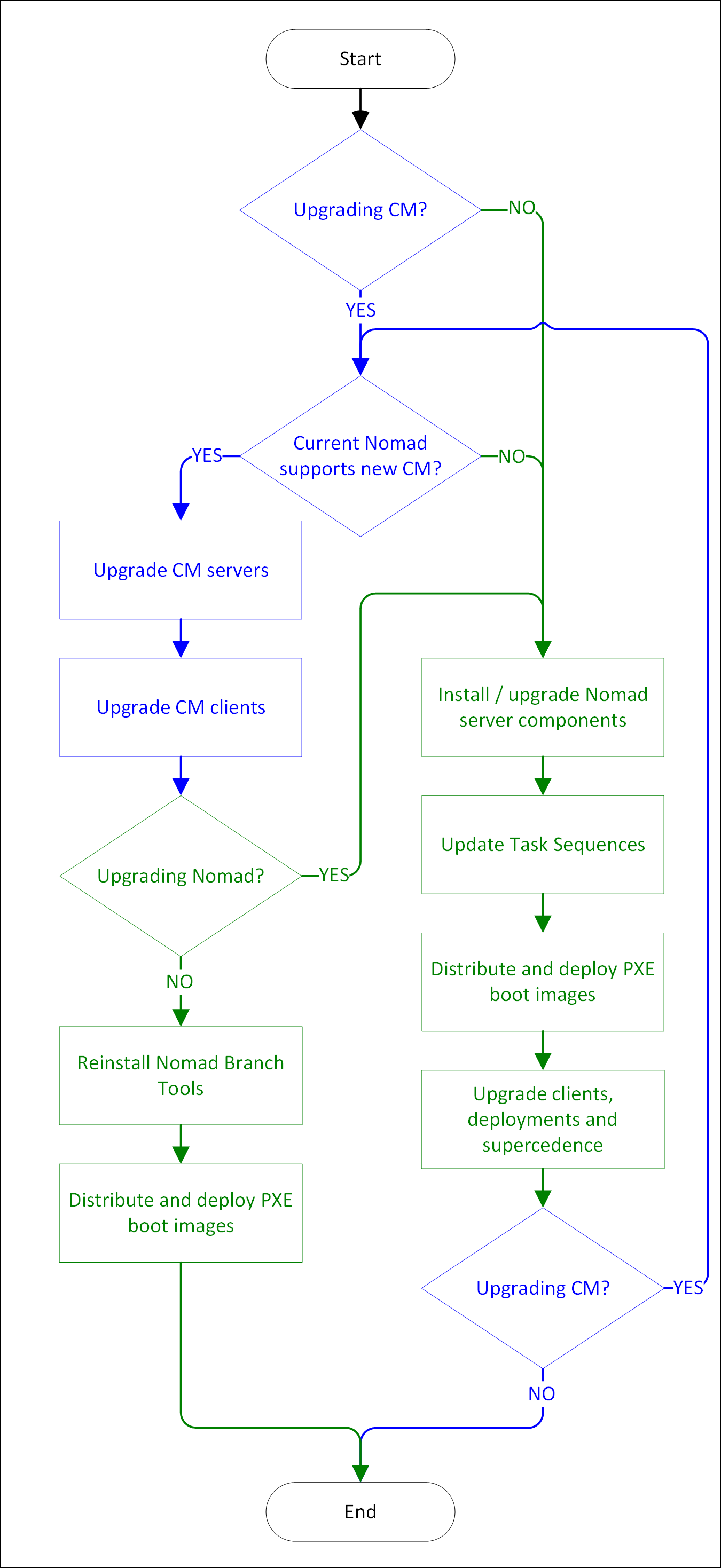
The upgrade process presented within this document implements three simple maxims.
-
If you are upgrading Configuration Manager and your currently installed versions of Content Distribution or ActiveEfficiency are not supported on the new CM version, you must upgrade these before upgrading CM.
-
If you are upgrading Configuration Manager and Content Distribution at the same time, and your currently installed versions of Content Distribution and ActiveEfficiency are supported on the new version of CM, upgrade CM first, then upgrade Content Distribution and ActiveEfficiency.
-
Upgrade server components before clients.
Below you will find the description of the principal processes and the sequence of steps involved when performing an upgrade. They illustrate the logical progression of an upgrade process based upon the following possible scenarios:
-
Content Distribution only upgrade
-
Configuration Manager only upgrade
-
Configuration Manager and Content Distribution upgrade
-
Side-by-side migration of Configuration Manager and Content Distribution
Upgrading Content Distribution and/or Configuration Manager
If you are only upgrading CM and your currently installed versions of Content Distribution and ActiveEfficiency support the new version of CM, follow Microsoft's documentation to upgrade CM, then reinstall the Content Distribution Branch Tools, and redistribute the boot images.
If you are upgrading CM and your currently installed versions of Content Distribution or ActiveEfficiency are not supported on the new version of CM, follow the process below for upgrading Content Distribution first, then follow Microsoft's documentation to upgrade CM.
Use the process below to upgrade Content Distribution.
Installing or upgrading Content Distribution server components
If you are going to introduce features that require additional infrastructure (for example, SSD, Dashboard, and pre-caching require ActiveEfficiency; Download Pause requires 1E), install these first as you will need to specify the server names when upgrading the Content Distribution Admin UI extensions and 1E Client.
Upgrade the existing Content Distribution server components as follows:
-
ActiveEfficiency (optional component for SSD, Dashboard, and pre-caching)
-
1E (optional component for real-time client management)
-
Content Distribution Admin UI extensions (on Site Servers and remote CM consoles)
-
Content Distribution Branch Tools (on Site Servers and SMS Providers)
-
Content Distribution on Distribution Points. Use the 1E Client installer to upgrade to Content Distribution 8.1 on DPs.
If you are using ActiveEfficiency, Content Distribution 8.1 requires ActiveEfficiency 1.10 (or later) with the latest accumulated hotfix.
Updating Task Sequences
Existing Task Sequence steps will continue to work after upgrading Content Distribution. However, the following steps should be updated in due course after upgrading the Content Distribution Admin UI extensions and Content Distribution Branch Tools.
|
Current step |
Changes |
|---|---|
|
Before 7.1
7.1 and onward
|
|
|
Stage Content Distribution Package Only if you are upgrading from a version of Content Distribution 23.11. |
Remove the step and replace it with Stage 1E Client Package. Reference the 1E Client package created earlier. |
|
Install Content Distribution Only if you are upgrading from a version of Content Distribution earlier than Content Distribution 23.11. |
Remove the step and replace it with Install 1E Client. Before you remove the old step, make a note of any Additional installation commands in the existing step properties and decide if you need to add them to the new step. The installer property names in the 1E Client installer that relate to Content Distribution are different from the property names in previous versions of the Content Distribution installer. Generally, the original property name is prefixed with MODULE.NOMAD, but some have changed, and there are new properties available since Content Distribution 7.0. Refer to Content Distribution installer properties for full details. If you are using CDA to deploy the 1E Client, you should check to see if that has already configured your settings for you. |
Distributing and deploying PXE boot images
Content Distribution Branch Tools updates the Content Distribution files that are injected into Windows PE boot images. After upgrading Content Distribution Branch Tools, right-click existing boot images and select Update Distribution Points. CM will then generate an updated boot image, incorporating the updated Content Distribution files, and update it on DPs the boot image was previously distributed to. You will then need to deploy the updated boot image to any PXE Everywhere clients. Refer to Preparing and deploying PXE Everywhere boot images.
Upgrading clients
1E recommends using the CDA to create deployment objects (Applications, Packages, Collections, and Deployments) in CM that can be used to roll out the client upgrade. The Applications and Packages created by CDA include Windows Installer transforms (.MST files) that configure the 1E Client according to options selected in the CDA. Refer to Client Deployment Assistant.
If you use Configuration Manager Applications (rather than Packages) to deploy Content Distribution and still have active Application deployments for previous versions of the Content Distribution client, be sure to do one of the following:
-
Delete those deployments.
-
Define supersedence on the 1E Client Application so that it supersedes all Applications that install older versions of Content Distribution.
This will prevent Configuration Manager from attempting to downgrade Content Distribution, which can leave the client in an unstable state.
Side-by-side Configuration Manager migration
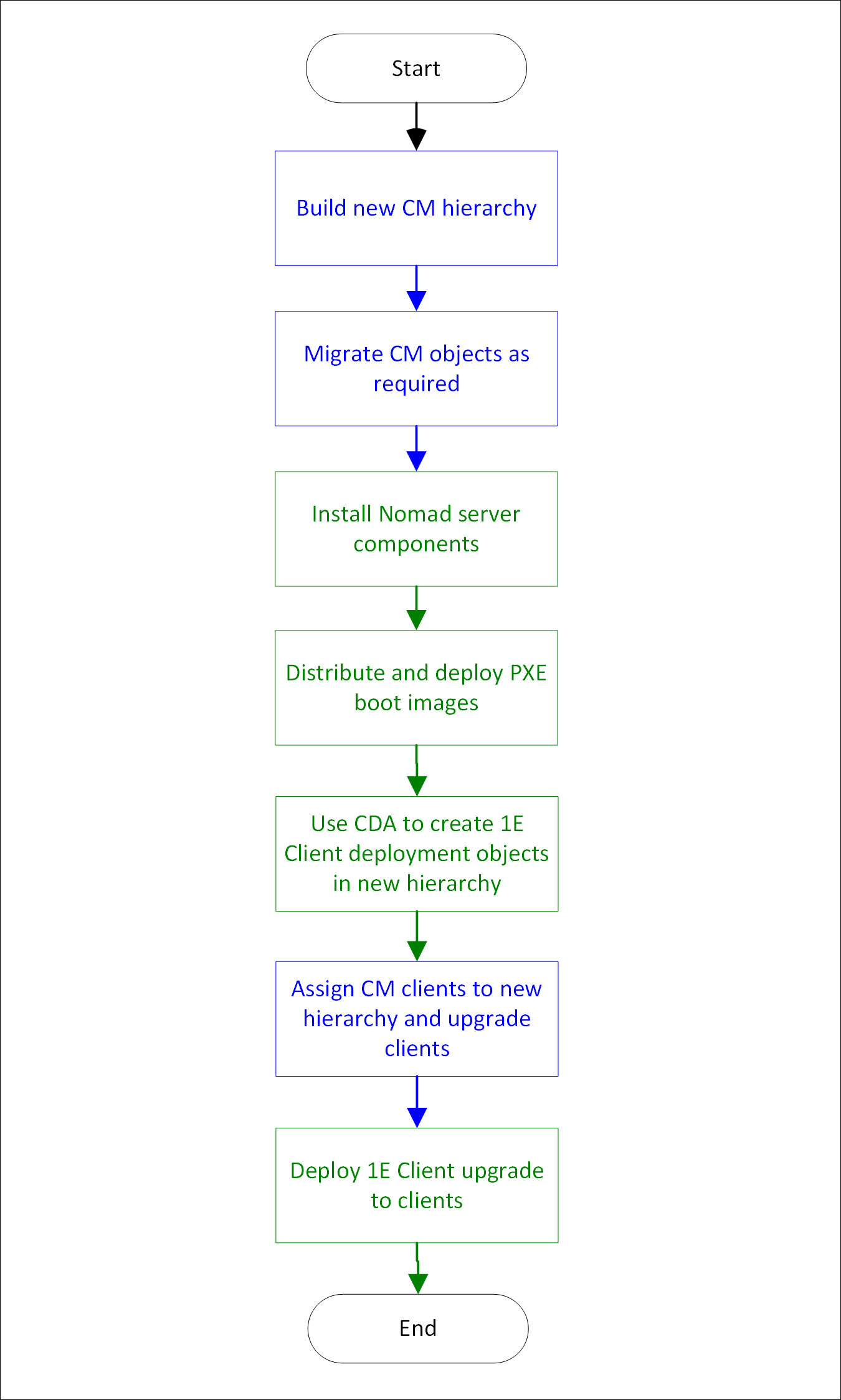
When performing a side-by-side Configuration Manager migration, you will need to perform a number of tasks in the new hierarchy to get Content Distribution up and running. The steps below summarize the process.
Building a new CM hierarchy
Follow Microsoft's documentation to build the new CM hierarchy.
Migrating CM objects as required
This is an optional step. You may choose to migrate some or all of your packages and other objects from your old hierarchy rather than recreating them manually in the new hierarchy. This has the added benefit of retaining content IDs, which means that Content Distribution clients assigned to the new hierarchy will be able to source content for those migrated packages from peers still assigned to the old hierarchy.
Installing Content Distribution server components
You will need to install the Content Distribution server components in the new hierarchy as if installing Content Distribution for the first time.
-
ActiveEfficiency (optional component for SSD, Dashboard, and pre-caching). Refer to Side-by-side migration of Configuration Manager and Content Distribution for options with ActiveEfficiency.
-
1E (optional component for real-time client management)
-
Content Distribution Admin UI extensions (on Site Servers and remote CM consoles)
-
Content Distribution Branch Tools (on Site Servers and SMS Providers)
-
Content Distribution (1E Client) on Distribution Points
Distributing and deploying PXE boot images
Content Distribution Branch Tools updates the Content Distribution files that are injected into Windows PE boot images. After upgrading Content Distribution Branch Tools, right-click existing boot images and select Update Distribution Points. CM will then generate an updated boot image, incorporating the updated Content Distribution files, and update it on DPs the boot image was previously distributed to. You will then need to deploy the updated boot image to any PXE Everywhere clients. Refer to Preparing and deploying PXE Everywhere boot images.
Using the Client Deployment Assistant to create 1E Client deployment objects in the new hierarchy
1E recommends using the CDA to create deployment objects (Applications, Packages, Collections, and Deployments) in CM that can be used to roll out the 1E client to new clients in the new hierarchy, and also to upgrade existing clients. The Applications and Packages created by CDA include Windows Installer transforms (.MST files) that configure the 1E Client according to options selected in the CDA. If you chose to implement a new ActiveEfficiency Server in the new hierarchy, remember to specify the new server when running the CDA in this environment. Refer to Client Deployment Assistant.
Assigning CM clients to the new hierarchy and upgrading clients
Follow Microsoft's documentation to assign CM clients to the new hierarchy and upgrade the CM client if appropriate.
Deploying the 1E Client upgrade to clients
If you are upgrading Content Distribution as you migrate clients to the new hierarchy, deploy the 1E Client application to upgrade them. If you used the CDA to create the deployment objects, simply add devices to the Collection created by CDA to upgrade them.
FAQs
Client upgrade
Common questions and answers related to upgrading the Content Distribution client.
If you use Configuration Manager Applications (rather than Packages) to deploy Content Distribution and still have active Application deployments for previous versions of the Content Distribution client, be sure to do one of the following:
-
Delete those deployments.
-
Define supersedence on the 1E Client Application so that it supersedes all Applications that install older versions of Content Distribution.
This will prevent Configuration Manager from attempting to downgrade Content Distribution, which can leave the client in an unstable state.
What versions of Configuration Manager does Content Distribution support?
Refer to Supported Platforms - Content Distribution.
You can find more details about the support lifecycle for each 1E product in the TeamViewer Support Portal.
How do I upgrade?
Follow the process described above.
Do I need a new license key when I upgrade Content Distribution?
No. Old versions of Content Distribution required a license key, but a license key is not required to install 1E Client with Content Distribution enabled. However, your organization must still buy a license to use Content Distribution.
Why should I use the 1E Client Deployment Assistant during the upgrade?
The Client Deployment Assistant (CDA) was developed to allow easy installation and configuration of all 1E Client modules and the PXE Everywhere client. CDA includes all the client installation packages and is updated and released alongside new client releases.
CDA is an installation wizard that guides you through the configuration creation and deployment of Applications and Packages that install the 1E Client modules (Content Distribution, WakeUp, Shopping, and 1E), as well as the PXE Everywhere and NightWatchman clients. The CDA is designed to speed up client deployment and ensure consistency of their configuration with the CDA providing a set of recommended configuration settings that can be changed either through the wizard or by editing the AppImport.xml file and running CDA in unattended mode. Refer to Client Deployment Assistant.
During an upgrade, are my customized registry settings preserved?
Yes, all upgrades will preserve the Content Distribution registry settings, as well as any content that exists in the Content Distribution cache. However, it is recommended that users always deploy the upgrade using their desired transform (MST) in order to ensure that any existing clients that may be misconfigured are brought into line. Users should consult new release documentation in order to understand the settings related to implementing new features present in the release.
Do I need to upgrade my clients at once?
It is recommended that you endeavor to upgrade clients by subnet where practical. Mobile clients moving from on-premises to Cloud DP locations should be upgraded as soon as possible.
For customers not using Cloud DPs and mobile clients, it is generally not necessary to upgrade a set of particular clients at once. 1E always makes sure Content Distribution clients are backward compatible in terms of being able to download and share new and existing content between clients of different versions.
If you need to upgrade both the Configuration Manager and Content Distribution clients, which is done first?
The best practice is to upgrade the Configuration Manager client prior to the Content Distribution client. The exception is when the currently installed Content Distribution agent does not support the new version of CM.
Under normal operation, Content Distribution is designed to instantly recognize and remediate if it is not configured as the Alternate Content Provider (ACP) for the Configuration Manager client. When upgrading the Configuration Manager client or Content Distribution client, no additional steps are required to make sure Content Distribution remains configured as the ACP.
The one exception is when the Content Distribution client installation is run on a host that does not have the Configuration Manager client installed. In this case, if you install the Configuration Manager client after installing Content Distribution, you will need to restart the Content DistributionBranch service for a successful ACP registration.
As a precaution, if you reinstall both agents clients, it is recommended that the Configuration Manager client is always installed/upgraded before Content Distribution.
Content
Common questions and answers related to Content Distribution content during a 1E Content Distribution upgrade.
What happens to my existing cached content when I upgrade?
An upgrade of the Content Distribution client does not delete content from the Content Distribution cache. Similarly, an upgrade to the Configuration Manager client will not result in content being deleted from its cache. The new Cache Optimization (CO) feature introduced in Content Distribution 6.3 is turned off by default. CO allows content to be automatically purged from the cache based upon the last time it was copied by a peer or downloaded, whichever came last.
Does Content Distribution support the use of shared DPs during a side-by-side migration?
Yes, for a shared environment, provided the content version is consistent between the old and new site/hierarchy, the content locations will be supplied to the Content Distribution client by the Configuration Manager client and accessed by Content Distribution in the usual way.
This is true for native Configuration Manager deployments as well as Content Distribution pre-caching when the Content Distribution client performs its own content request. The Content Distribution client installed on the shared DP will continue to function as normal.
For a side-by-side migration, can existing cache content be used in the new infrastructure?
Yes, migrating objects in Configuration Manager is performed using migration jobs, and content identifiers are maintained after migration. This means all content metadata gathered by the Content Distribution client in the old hierarchy will be valid in the new.
When performing a side-by-side migration, will Content Distribution reuse cached software updates?
Yes, the software update identifiers and metadata generated by Content Distribution in the source site remains valid in the new hierarchy.
When performing a side-by-side migration and executing Configuration Manager migration jobs, are Content Distribution settings preserved on migrated content?
For packages, no. Users must manually configure the Content Distribution settings on their migrated content in the new site. This can be automated by running a post migration script in order to set the required Content Distribution properties. Because of this, it is recommended that deployments are set to disabled in the package migration jobs.
For applications and software updates, this is not a concern since the setting to use Content Distribution is made in the Configuration Manager Client Settings policy rather than against individual pieces of content.
ActiveEfficiency
Common questions and answers related to ActiveEfficiency and Content Distribution when upgrading Content Distribution.
When upgrading ActiveEfficiency, are custom configuration settings preserved?
No, it is recommended to take note of any customizations prior to upgrading. If you have customized settings such as IIS bindings or changed the service.exe.config file, then these will need to be reapplied after the upgrade.
Operating System deployments
Common questions and answers related to OSD when upgrading Content Distribution.
Is there a new version of PXE Everywhere released with Content Distribution 8.1?
No. PXE Everywhere 4.0 is the latest version, released earlier in 2019.
Do I need to recreate my PXE boot images after the upgrade?
Unless you are upgrading the Windows ADK, you do not need to recreate your Content Distribution enabled PXE boot images. However, Admins do need to update and deploy their boot images to include updated Content Distribution 8.1 program files when upgrading the Configuration Manager site server, SMS provider components, or the Content Distribution Branch Tools. Updating is achieved by simply redistributing the boot image package using the Configuration Manager console. The PXE boot image must then be re-deployed to your PXE Everywhere endpoint agents.
Do I need to update my OSD task sequences after the upgrade?
We are always looking for ways to simplify and enhance our customers' OSD experience and will often release new built-in task sequence steps as part of a Content Distribution release. 1E recommends that whenever possible, users take advantage of any new task sequence steps and update their task sequences accordingly.
If users wish to retain the configuration of their existing task sequences, then the older steps will typically remain supported, unless otherwise stated in the release documentation. Where existing steps are supported into the latest release, no action is required on existing task sequences once the Content Distribution Branch Tools and Configuration Manager Admin Console UI extensions have been upgraded. Configuration Manager admins are then able to open and edit their existing task sequences, and they will continue to function in the same way.