Installation guide
TeamViewer DEX Service Catalog Connect (SCC) is a ServiceNow application that can be installed from ServiceNow App Store. This section provides details on how to install and upgrade TeamViewer DEX SCC application.
App Installation
TeamViewer DEX SCC app is available on the ServiceNow app store and can be installed onto your ServiceNow instance using the following steps:
-
Browse to the ServiceNow App store.
-
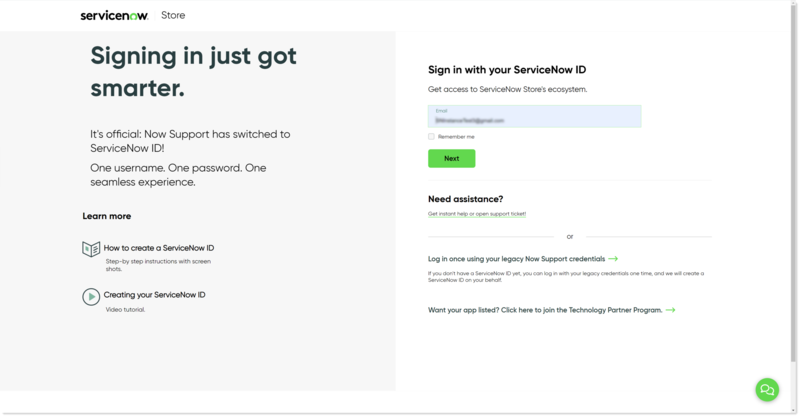
Click Log In at the top-right of the ServiceNow Store to log in.
-
In the login pop-up, you will be prompted to enter your credentials. The username and the password should be the ones provided when you created your ServiceNow support account.
You can also reset your account password and raise a support ticket from here.
-
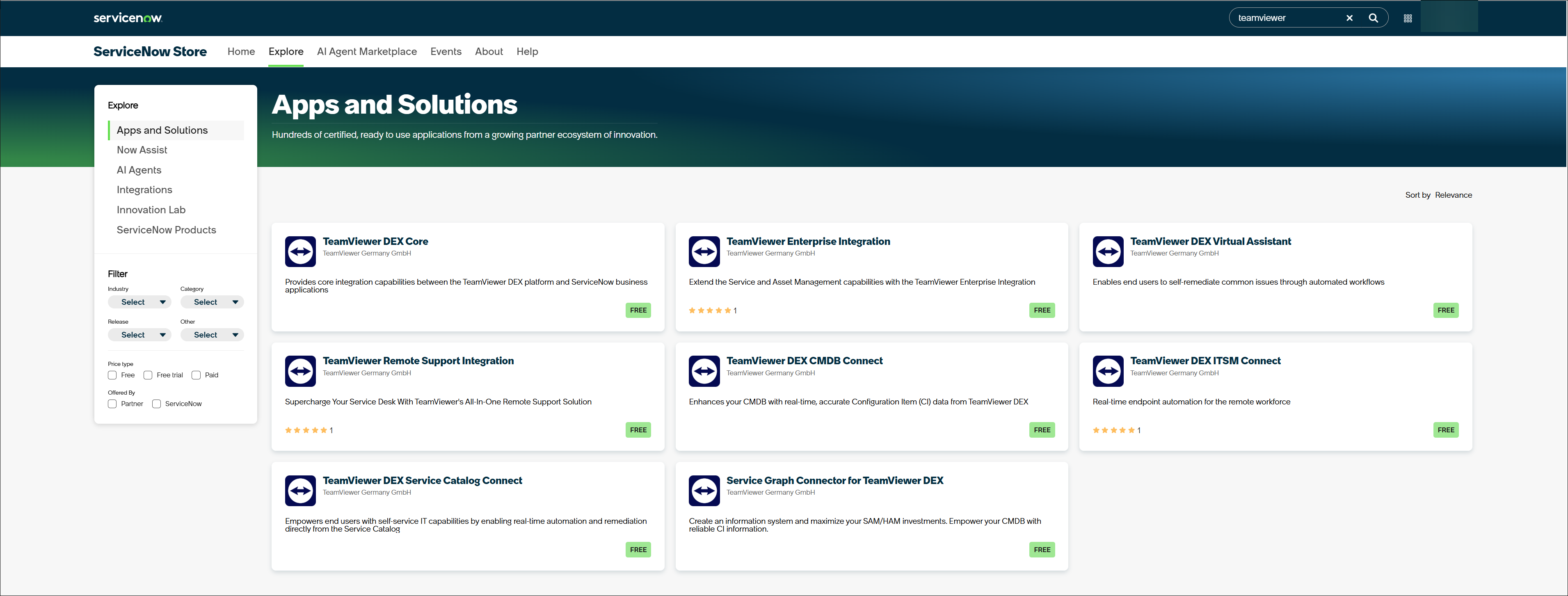
After you've logged in, find the TeamViewer DEX Service Catalog Connect app from the list of available apps and click on the application.
-
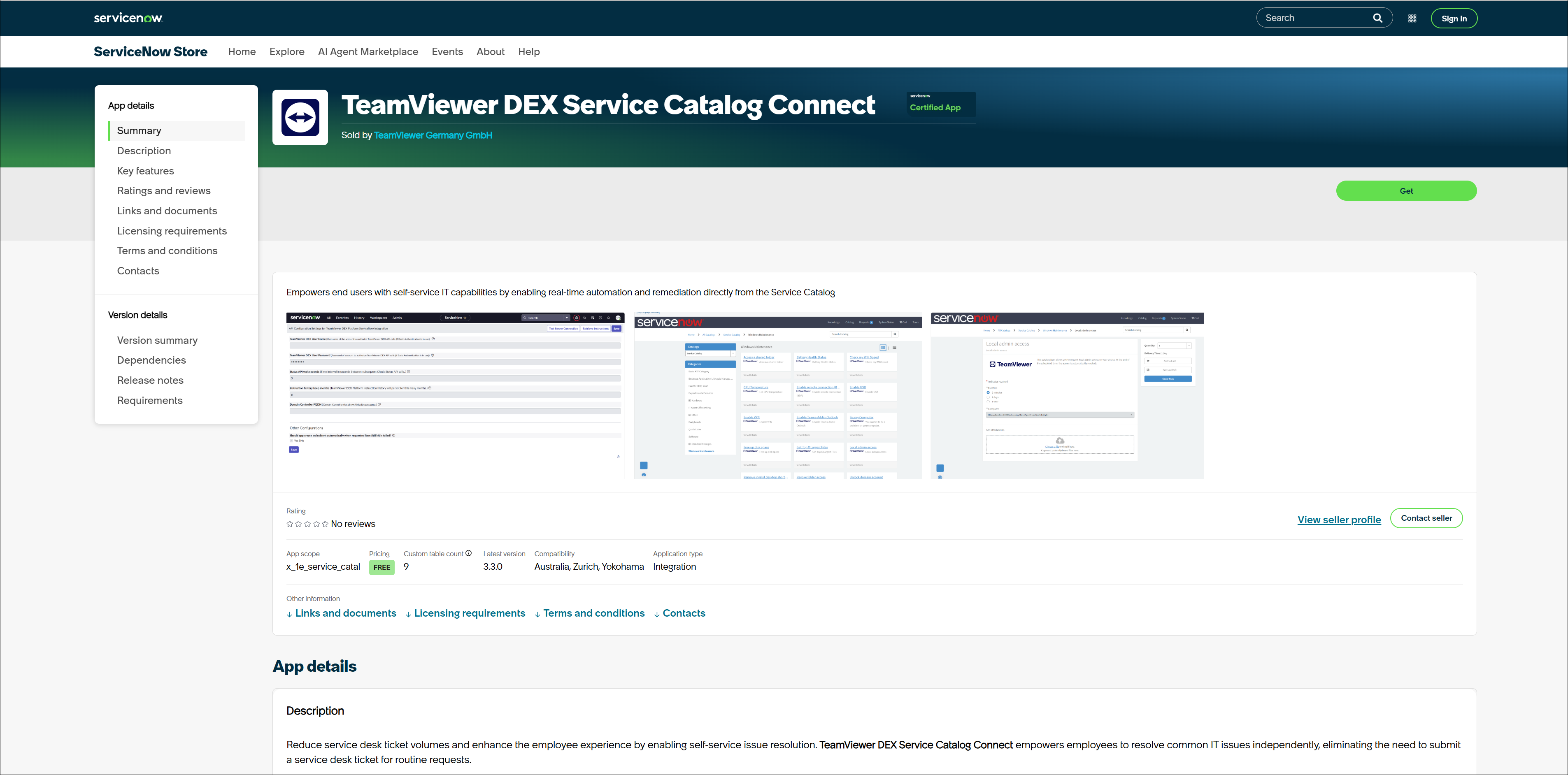
Click Get to install the application on your ServiceNow instance.
-
The TeamViewer DEX Service Catalog Connect app will install automatically on your ServiceNow instance. The ServiceNow Instance details are already available in ServiceNow because they are part of your TPP credentials.
Upgrading
If you have an older version of the TeamViewer DEX SCC application installed on your ServiceNow instance, it is recommended to upgrade to the latest version.
Before upgrading your application, ensure that the following tables have been backed up:
-
Triggered Instructions
-
Instruction definitions
-
x_1e_service_catal_shopping_order
-
x_1e_service_catal_shopping_sync
-
x_1e_service_catal_instruction_response
You can upgrade your application in ether ways as given below:
- My Company Applications
- Plugins/All Available Applications
Using My Company Applications
Follow the steps below to upgrade your application:
-
In ServiceNow, navigate to My Company Applications. This opens up an Application Manager page as shown in the picture below.
-
Click the Installed tab on Application Manager page to see the list of installed applications.
-
Select TeamViewer DEX Service Catalog Connect from the list, choose the latest version from the drop-down list and click Update.
Using Plugins/All Available Applications
Follow the steps below to upgrade your TeamViewer DEX SCC application:
- In your ServiceNow instance, navigate to the Application manager page. Using either of the below:
- System Definitions > Plugins > Application Manager or
- System Applications > All Available Applications > All
- Search for TeamViewer DEX applications using the search field.
- Click the Installed tab on Application Manager page to see the list of installed applications.
- Select TeamViewer DEX Service Catalog Connect from the list, choose the latest version from the drop-down list and click Update.