Reclaim rules
 |
|  |
| 
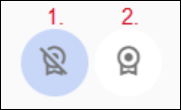
The default view in Rule Management is software-centric and shows rules associated with Relevant Non-Licensable Software. You can switch between this view and Relevant Licensable Software using the icons at the top of the page.
-
Relevant Non-Licensable Software: Focuses on your software that is not licensable and is identified as relevant.
-
Relevant Licensible Software: Highlights licensable software that has not been manually marked as non-relevant.
Refer to Using Software Reclaim and Using Software Reclaim for an explanation of these features.

Clicking the following panels changes the focus of the page:
-
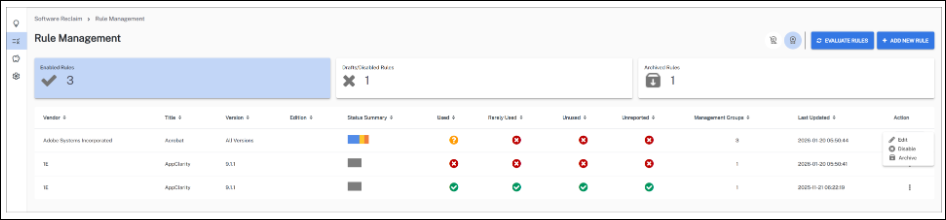
Enabled Rules: Displays all rules you have created and enabled.
-
Drafts/Disabled Rules: Displays rules that are in draft or you have set to disabled.
-
Archived Rules: Displays rules you have archived.
By default, the Rule Management table view is Enabled Rules and displays a summary of Vendor, Title, Version, Edition (VTVE), highlighting details for Used, Rarely Used, Unused, and Unreported software. This view includes the Management Groups associated with a title and gives you the option to Edit, Disable, or Archive the rule associated with that software title by clicking the Action column's three vertical dots.
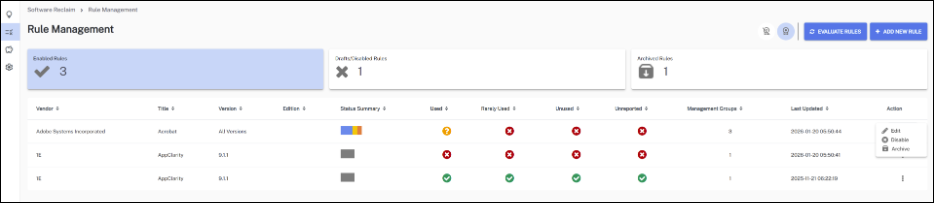
To uninstall any application, you can either create a new reclaim rule or modify an existing one by selecting a rule condition and option. After evaluating the reclaim rules, policies will be created based on the selected action, such as Mandatory or Optional.
-
If you disable a rule, you can enable it by clicking the Draft/Disabled Rules panel and clicking Enable for that rule in the displayed table.
-
If you archive a rule, you can recover it by clicking Archived Rules, selecting the rule and choosing Unarchive from the Action column.
Adding a new rule
The rules determine the following:
-
Which software titles are eligible for reclamation.
-
Whether the action is optional (requires user approval) or mandatory (silent uninstall).
-
Which management groups or device collections the policies apply to.
Clicking Add New Rule opens the Create Reclaim Rule page that guides you through the process of creating a new Reclaim rule for Relevant Non-Licensable Software. You can switch between this view and Relevant Licensable Software using the icons at the top of the page.
Example:
-
Use default reclaim function - MSI installs only. Uses the msiexec uninstall string command line from the Windows registry.
-
Define custom uninstall string: For custom uninstalls, Software Reclaim allows you to set custom uninstall strings. Enter the custom uninstall string in the text field directly below this option.
-
Run an instruction: Software Reclaim allows an admin (Solutions admin or Full admin) to uninstall software using a specific instruction from the DEX Platform. The DEXPacks related to the Run an instruction option are available in Software Reclaim - DEXPack. A specific instruction must be created for each software title. The admin must code-sign the instructions using their own code-signing certificate. Once completed, the instruction should be uploaded to the Software Reclaim instruction set.
-
Software Reclaim uses a wizard to guide you through creating a new rule.
The DEXPacks related to the Run an instruction option are available in the Software Reclaim - DEXPack. Custom uninstall instructions can be added to the Software Reclaim - DEXPack using the available uninstall template. A specific instruction must be created for each software title. The user must code-sign the instruction using their own code-signing certificate. Once completed, the instruction should be uploaded to the Software Reclaim instruction set.
Click Create Reclaim Rule. The default rule status Enable rule is selected. Deselect this option if needed.
Our new rule is now listed on the Rule Management page, which is sorted by Last Updated.
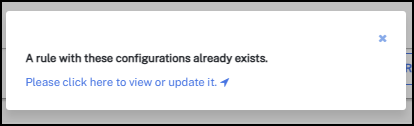
While creating a new rule, if a rule with the same configuration already exists in any of the drafts or archived states, the following message is displayed. The link in the message redirects you to the respective rule, where you can edit or unarchive it as required.
Evaluating rules
Clicking Evaluate Rules runs all enabled Software Reclaim rules against their targeted software using the rule scope and conditions you have set. Doing this enables Software Reclaim to identify reclaim opportunities across your estate.
Editing a rule
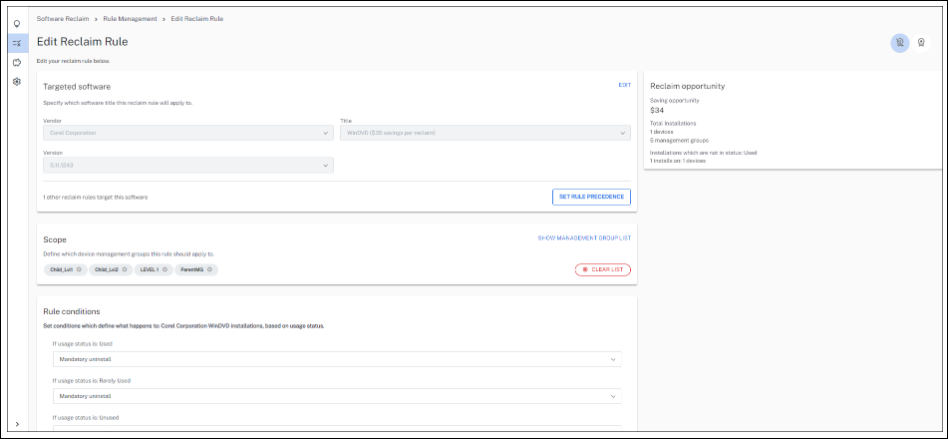
To edit a rule, click the three dots under the Action column. Once you have made your changes, click Update Reclaim Rule at the bottom of the page.
Disabling a rule
To disable a rule, click the three dots under the Action column.
Once you click disable, the entry for this title will be listed on the Draft/Disabled Rules page.

Archiving a rule
To archive a rule, click the three dots under the Action column. Once you click archive, the entry for this title will be listed on the Archived Rules page.

To recover an archived rule, click the three dots under the Action column for the software title and select Unarchive.
Rule behavior
The behavior of the user interaction depends on the rule options selected.
Use default reclaim function and Define custom uninstall strings.
-
Optional uninstall: The user can choose any of the options below.
-
Dismiss or no response: The user is prompted within 6 hours.
-
Remove software: The user can choose to uninstall the software immediately.
-
Remove software later: The user can choose to ignore the notification (for example, if they are in a meeting) by selecting the Remove Later option. The system will send a reminder every seven days for up to 28 days. After 28 days, an automated uninstallation will be initiated.
-
I still need this: If the user selects this option, they can keep the software by providing a reason, which will be sent to the administrator. The system will check again in 28 days to prompt for uninstallation.
-
-
Mandatory uninstall: The user will not be consulted before the software is removed.
The Reclaim popup is not available for macOS.
Run an instruction
-
Optional uninstall: The reclaim rule is triggered within 6 hours to execute the instruction specified in the reclaim rule on the designated devices. The admin can customize the title, description, and reason label directly from the Software Reclaim settings.
-
Dismiss or no response: The instruction associated with the reclaim rule is rerun within 6 hours.
-
Remove software: Converted to a Mandatory reclaim rule and functions as a mandatory uninstall.
-
Remove software later: The reclaim rule will run 7 days later.
-
I still need this: The reclaim rule will rerun 28 days later.
-
-
Mandatory uninstall: The reclaim rule is triggered within 6 hours to execute the instruction specified in the reclaim rule on the designated devices. If the instruction fails, the instruction is rerun within 6 hours.
The Reclaim popup is available for macOS.