Using Software Reclaim
 |
|  |
| 
Software Reclaim is for software administrators, security managers, financial officers, and end users. This article covers the core functionality in Software Reclaim.
You can access Software Reclaim under the Solutions tab when you log in to the DEX Platform. Platform Modules and Solutions visibility depends on your license agreement. To find out more about licensing and get the complete Digital Employee Experience Platform, contact your account Team.
If you experience issues with missing software from the software reclaim process, you will need to normalize the software using the Catalog. This normalization step ensures that all software entries are standardized and accurately represented, which can help resolve discrepancies and improve overall software management. Refer to Catalog for more details.
 Savings Opportunities
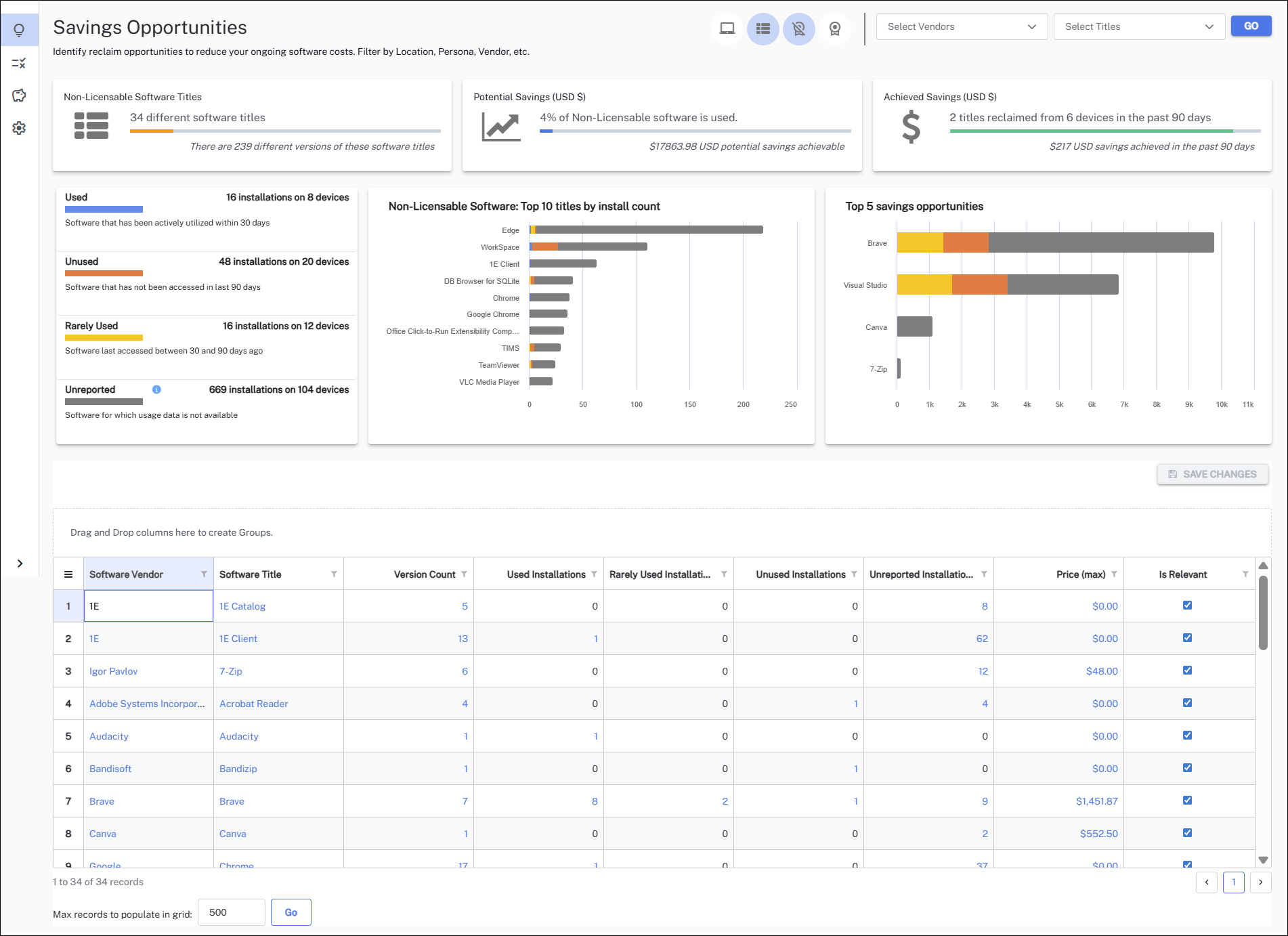
The Savings Opportunities page provides an overview of what software titles are being used and identifies reclaim opportunities that will reduce your software costs.
Page view options
The default page view is a software-centric view showing you every relevant software title in your estate. whether licensable or non-licensable.
The Relevant Software list includes a Usage tracked column that indicates whether usage data is being collected for each software title. Usage is tracked from the executable linked to the software title.
If you mark a software title as Relevant and its usage count is 0, a warning pop-up is displayed. This indicates that no usage data is being received for that title. Check that the executables for the software title are correctly mapped before proceeding.
You can configure the Savings Opportunities page using the top toolbar to show either a device or software-centric view based on either relevant licensable or non-licensable software only by clicking the following icons as indicated:

-
Device Centric View: Updates all fields to display device-centric data.
-
Software Centric View: Updates all fields to display software-centric data.
-
Select Vendors: A dropdown list of all software vendors represented across your estate. You can select one or more vendors at a time.
-
Select Titles: A dropdown list of all software titles represented across your estate. The list is auto-populated based on the selected vendors.
For example, if you filter the page to a device-centric view showing all software titles in your estate, whether relevant licensable or non-licensable, you may want to find data for a specific vendor and title. Selecting Microsoft Corporation as the vendor, choosing Edge from the software dropdown, and clicking Go displays data for the selected vendor and associated software title.
Summary tiles
The summary tiles reflect your selected page view options.

- No License Required Software Titles or Licensable Software Titles: The total number of variations across all software titles in your environment.
-
Potential Savings (USD $): The total potential savings if you remove all software that does not have the status Used.
-
Achieved Savings (USD $): The value of software automatically removed due to Software Reclaim policies since the start of the year. Clicking this panel takes you to Savings Achieved.
Device Centric View
When you select Device Centric View, the following tiles are displayed:

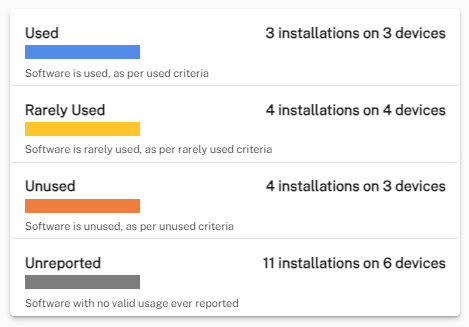
This tile shows the distribution of installations in the three usage categories: Used, Rarely Used and Unused. Clicking on a category updates your page view to match your selection.
- Used (blue): Software that has been actively utilized withing 30 days.
- Unused (red): Software that has not been accessed in last 90 days.
- Rarely Used (orange): Software last accessed between 30 and 90 days ago.
- Unreported (gray): Software for which usage data is not available. The information icon provides the possible reasons for why the software is unreported:
No Device Usage: Device not reporting software usage.
No Product Usage: Catalog mapping for .exe and normalized inventory missing or incorrect.
No Usage Reported: No product activity detected on the device since reclaim has been enabled.
Administrators who want to reclaim unused software to recycle licenses can use this information to set their reclaim policies.
Location
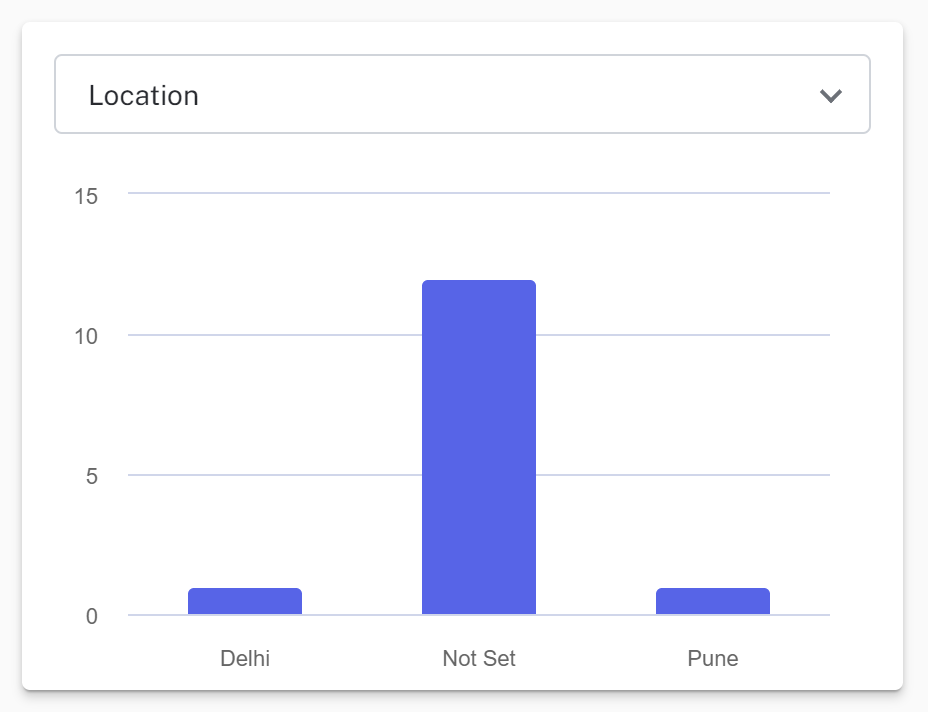
The bar chart shows software installations by location. You can filter this view by clicking the location bar or by using the dropdown menu.
Management Groups
This chart displays Management Groups configured in the DEX Platform in descending order according to their device membership. You can focus on a specific Management Group by either choosing it from the dropdown menu or by clicking it in the bar chart.
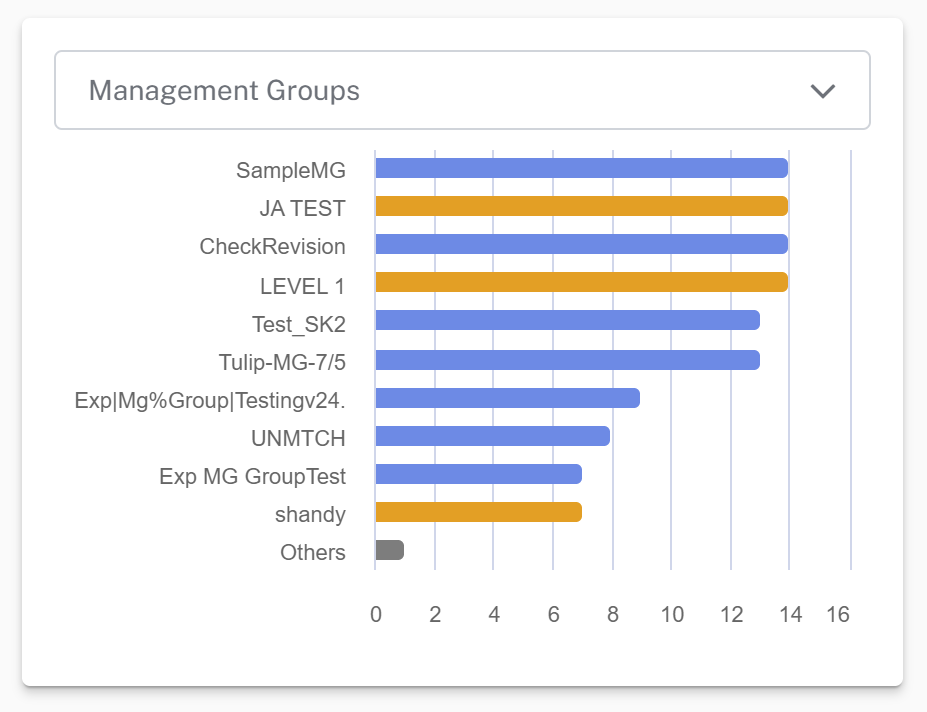
The bar at the bottom shows the total number of devices in each Management Group. For details about Management Groups and how to use them in the DEX Platform, refer to Management Groups.
Department
This tile allows you to filter your view according to the Persona Types and/or Work Style you have created by using the dropdown menu or clicking a column in the bar chart.
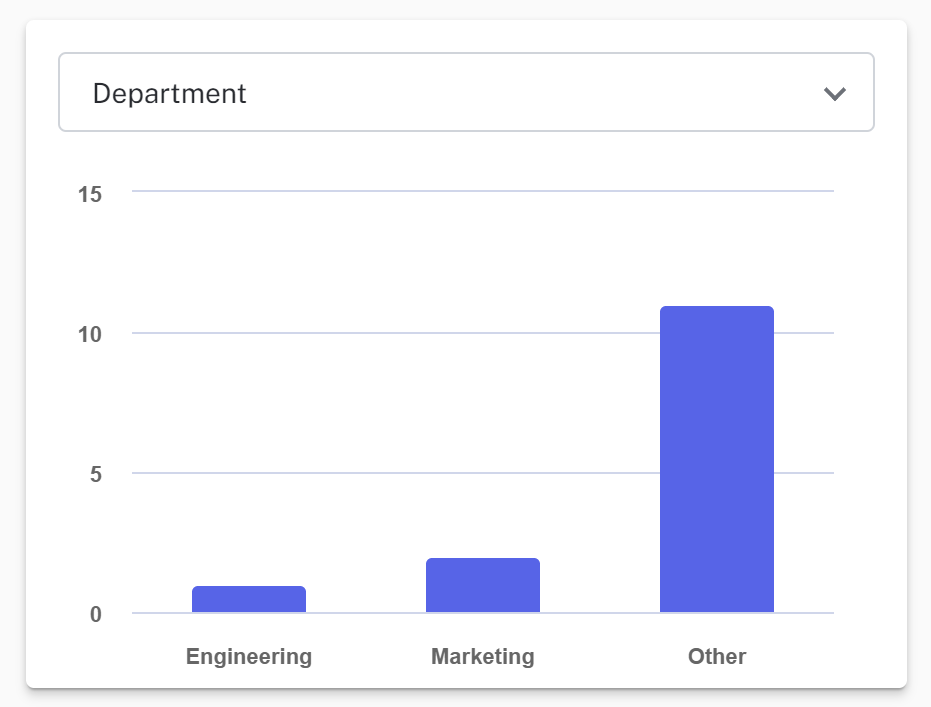
To add and configure Personas and Work Style, navigate to Solution Settings > Configuration > Persona Management. Refer to Solutions Core configuration for more information.
Software Centric View
When you select Software Centric View, the following tiles are displayed:

Used and unreported
For further details, refer to Used and unreported.
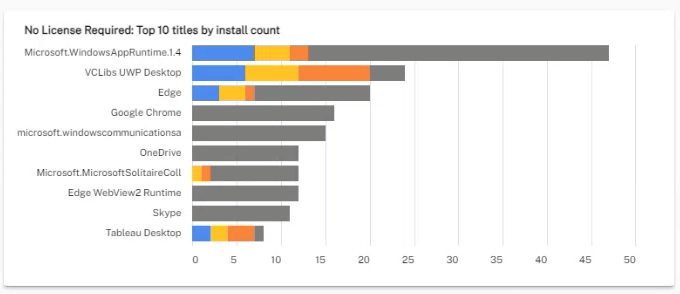
Licensable Software: Top 10 titles by install count
This chart displays licensable software in descending order according to install count. You can filter the page on a specific title by clicking it in the bar chart. By hovering your mouse over each colored section of the bar chart, you can see the reclaim value for each category of software, from Used, Rarely Used, and Unused.
Top 5 savings opportunities
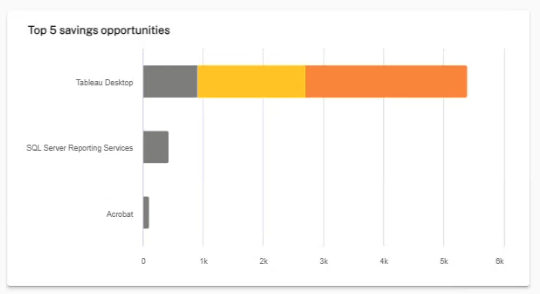
This chart displays the top five savings opportunities in descending order according to dollar saving. You can filter the page on a specific title by clicking it in the bar chart.
Summary table
It displays a summary of devices or titles based on the how you have filtered the Savings Opportunities page. Clicking on elements on each page tile allows you to focus on areas of interest.
Items highlighted in blue allow you to filter and explore the results further. For example, viewing the Savings Opportunities page using the Software Centric view with Relevant Non-Licensable Software shows there are six results of unreported installations of .NET Core Host from Microsoft Corporation. Clicking the total displays a drawer showing you six installations of three different version/architecture combinations across six devices.
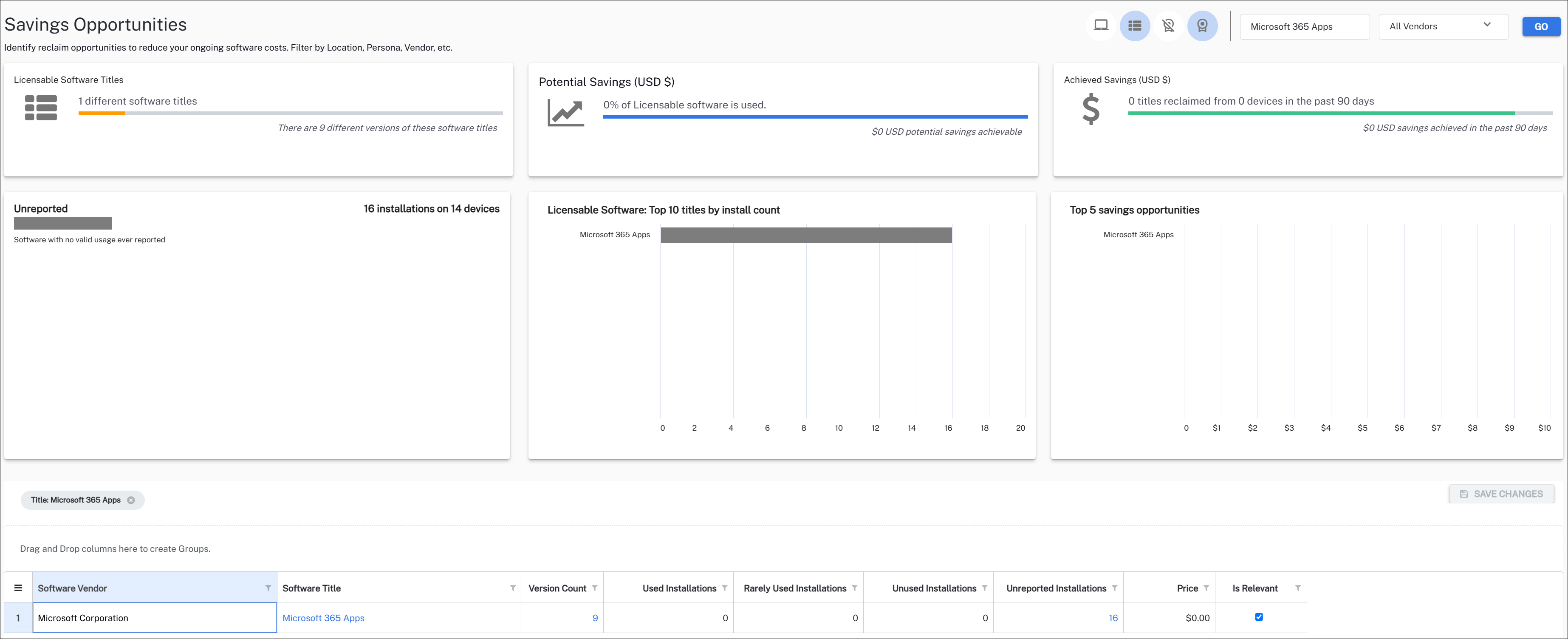
The dashboard data will be refreshed after twenty four hours.
Savings Achieved
Savings Achieved provides details on savings achieved in the selected time period. For each report, you can choose which status you want to view by clicking the status listed at the bottom of each panel.
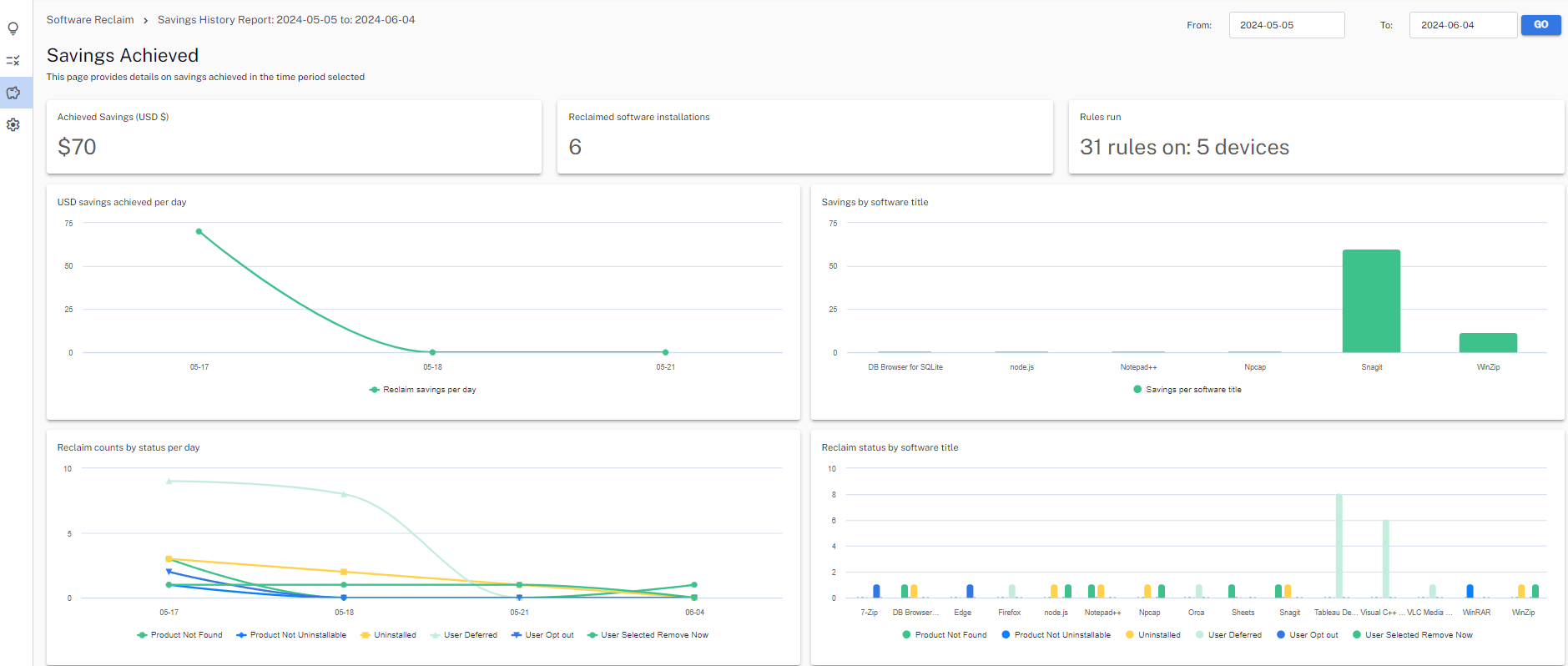
Reclaim History
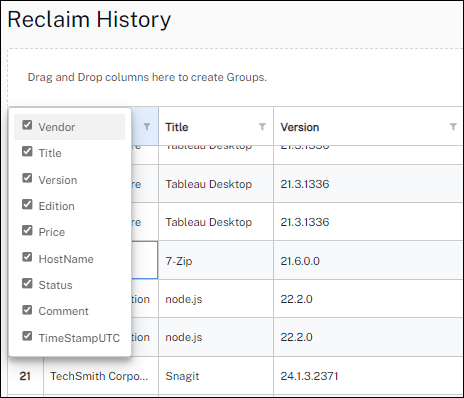
The Reclaim History table can be customized using the filter and by clicking the three lines in the first column and choosing which columns to display.
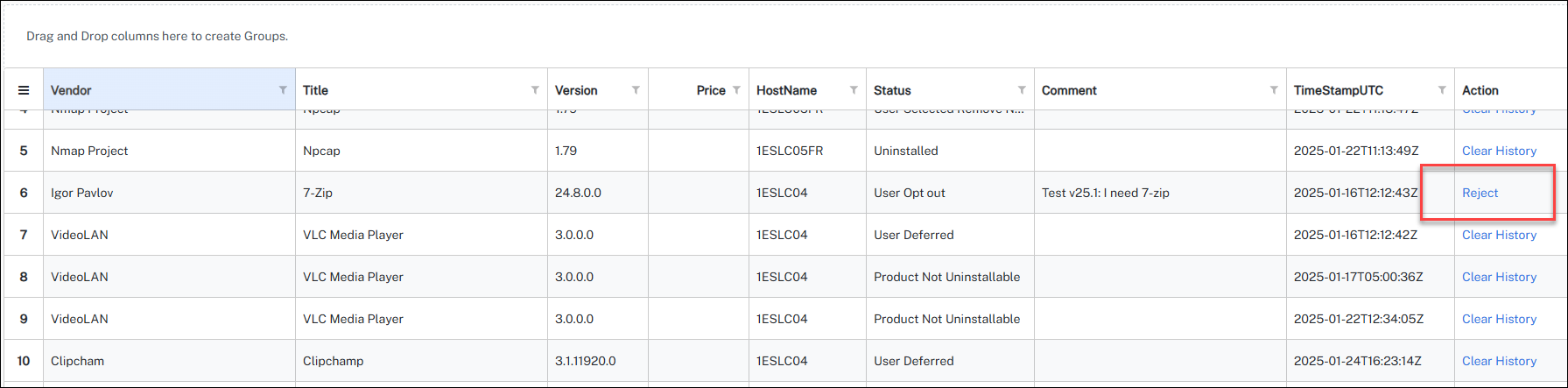
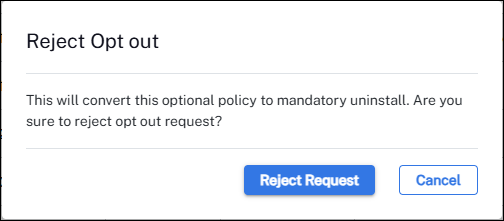
Once a reclaim rule has been created and sent to the end user, you can asses the reasoning provided by the end user for wanting to keep their software. Additionally, you have the option to reject the reasoning and initiate an uninstall event.
Solution Settings
Most settings are common to all Solutions. For these common settings, refer to Solutions getting started.
Only settings specific to this Solution are covered here.
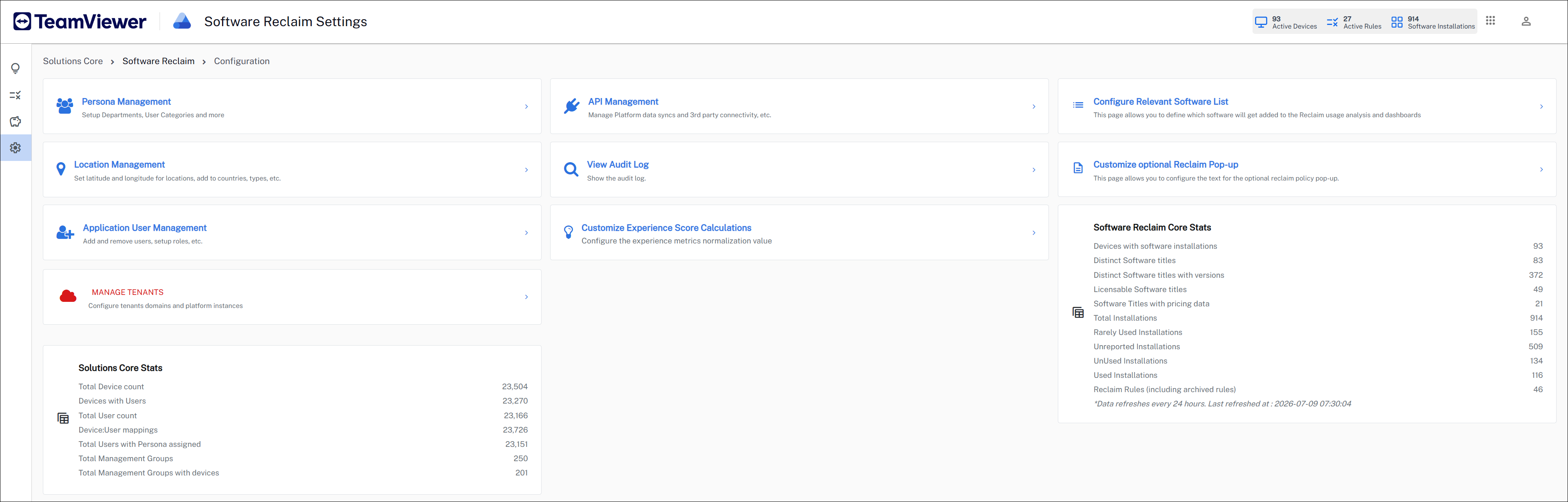
It also includes summary cards for Active Devices, Active Rules, and Software Installations.
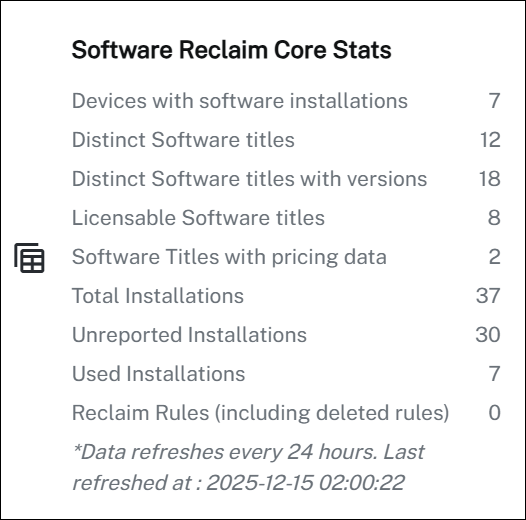
Specific Software Reclaim Core Stats are available to view on this page.
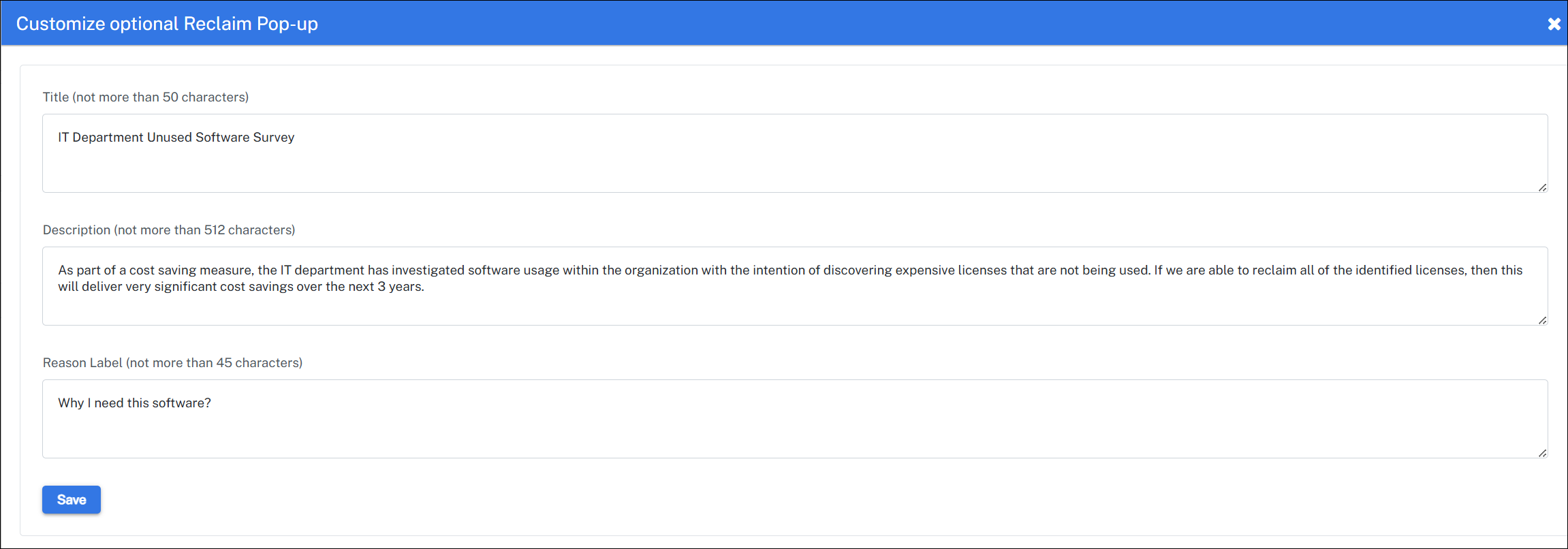
Customize optional Reclaim Pop-up
This setting allows you to customize the text displayed in the optional reclaim policy pop-up when executing the selected instruction after choosing Run an instruction rule option while creating a rule. Refer to Run an instruction.
Enabling a software title for Software Reclaim
Before a software title can be reclaimed, you must enable it for Software Reclaim in Normalized Software. You can do this from the DEX Platform.
To enable a software title for Software Reclaim:
-
Navigate to DEX Platform > Software > Normalized Software.
-
Search for the software title you want to enable for reclaim.
-
Click the title to open it, then click Edit details.
-
In the Edit details panel, enable the Reclaim software toggle.
The Reclaim software toggle cannot be saved unless at least one executable is mapped to the software title. If the Executables section is empty, a prompt will appear. Map an executable before proceeding.
-
Click Save.
The software title is now enabled for Software Reclaim and will appear in the Savings Opportunities page.
License attributes
To ensure accurate cost reporting for Software Reclaim, add license attributes for the software title. Navigate to the License Attributes section in Edit details and note the following requirements:
-
Licensing Metric must be set to Client Device.
-
License Term must be set to Perpetual.
Add license attributes for different versions and editions of the software to enhance licensing insights.
If you are upgrading from a previous release, software titles previously marked as Is Relevant in Software Reclaim Settings will be automatically migrated to have Reclaim software enabled in Normalized Software. No manual action is required.
Software Reclaim uninstall
Uninstall software using an instruction
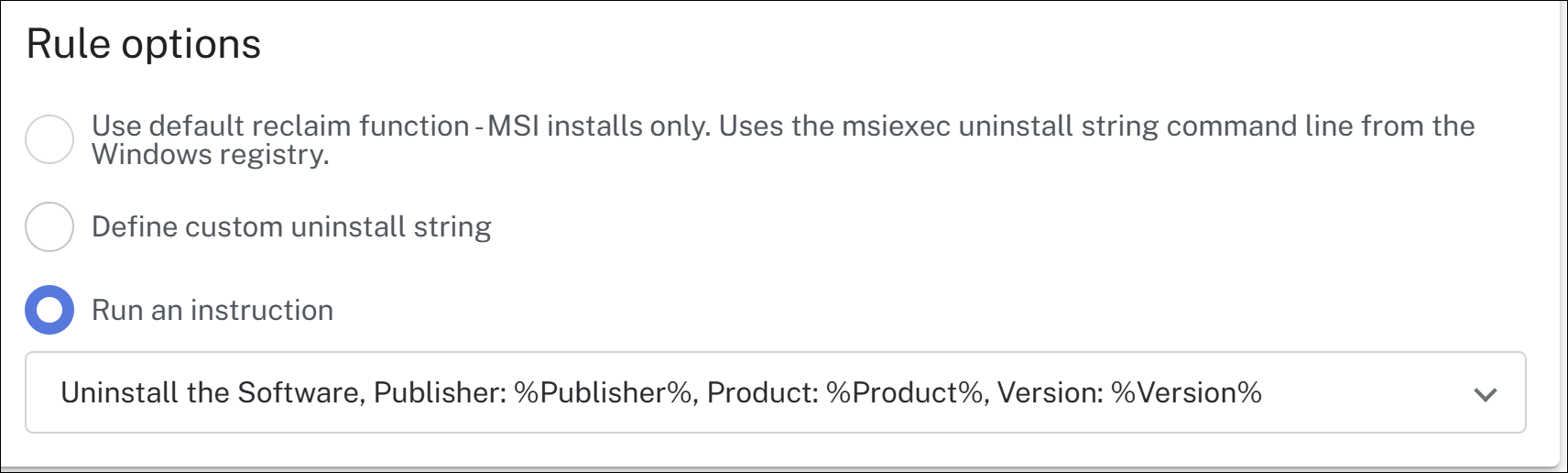
A reclaim rule can run an instruction to uninstall the software it targets. There is a ready-made uninstall instruction in the Software Reclaim pack on the Hub, so you don't have to create one yourself.
-
In the Hub, go to Solutions.
-
Open the Software Reclaim pack.
-
Deploy and add the instruction to the Software Reclaim Instruction Set.
-
In the Reclaim rule, select the instruction as in below image: