Device information
1E ITSM Connect lets you view the following device information:
-
Device information
-
Online/offline status of device
-
Experience scores
-
Remediation options
-
Instructions UI refresh
 Device information
Device information in Native UI
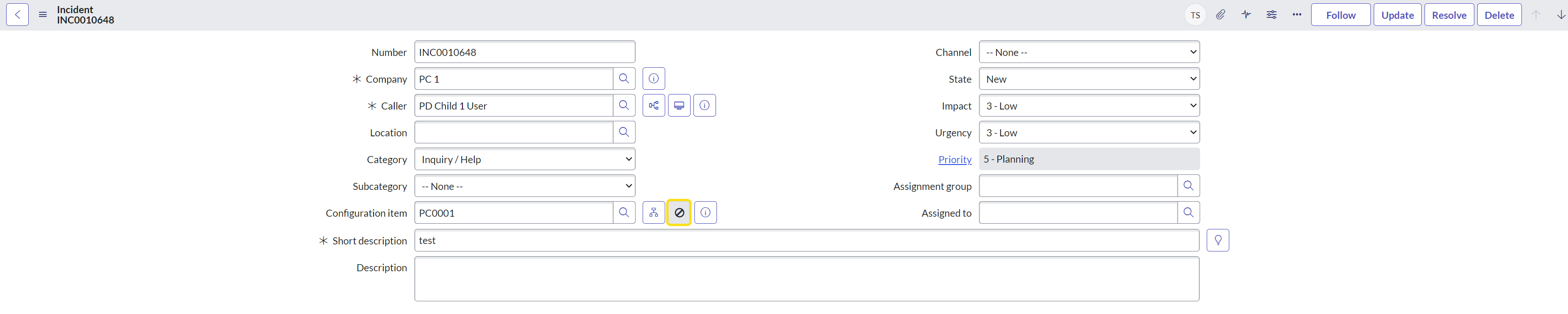
Device information shows the details of the selected device retrieved from 1E. It is the icon (dot) next to the Configuration Item (CI) field. The status of the device can be identified by looking at the color of the Device Info icon. When it is green, it means the device is online and when it is red, it means the device is offline. If you hover over the icon, it shows the last connected date and time stamp of the device. To see the device information, click the status icon shown as a green dot in the picture below.

If the device is not found by 1E, then the status of the device can be identified as shown in the below picture:
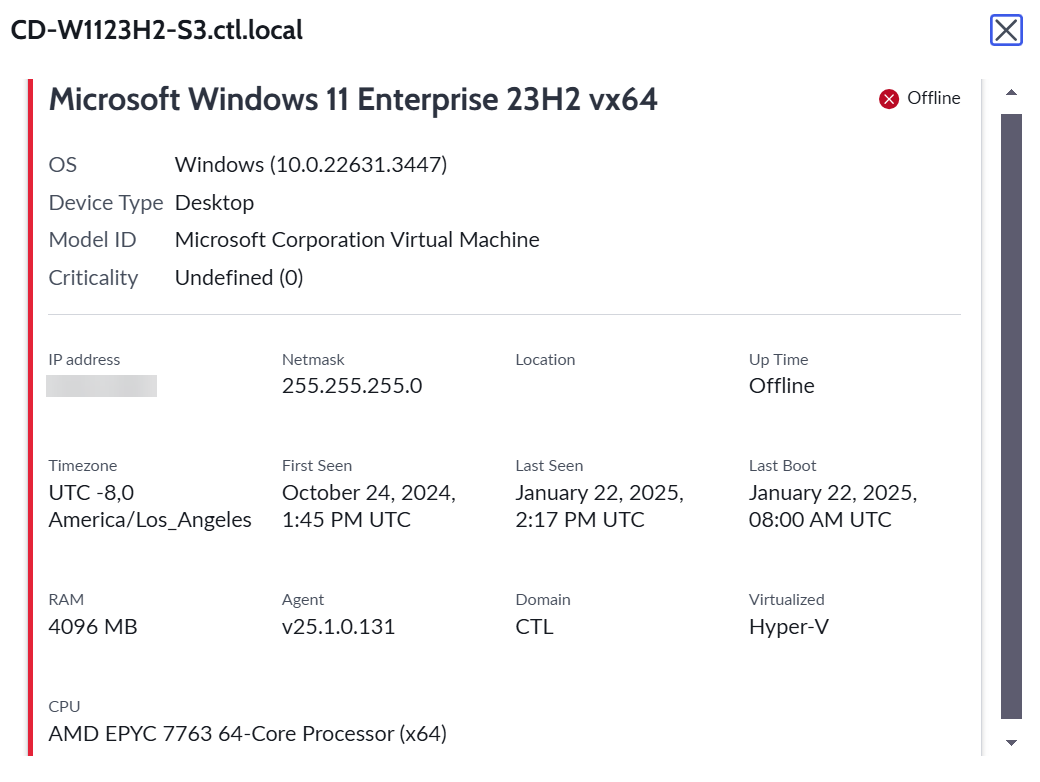
Click the icon and a pop-up window appears with the detailed information about the selected device, as shown in the picture below. The pop-up window shows details collected for the device by 1E such as CPU, RAM, Last Boot, Last Connected and Status. The information of the device will get refreshed when the data changes.
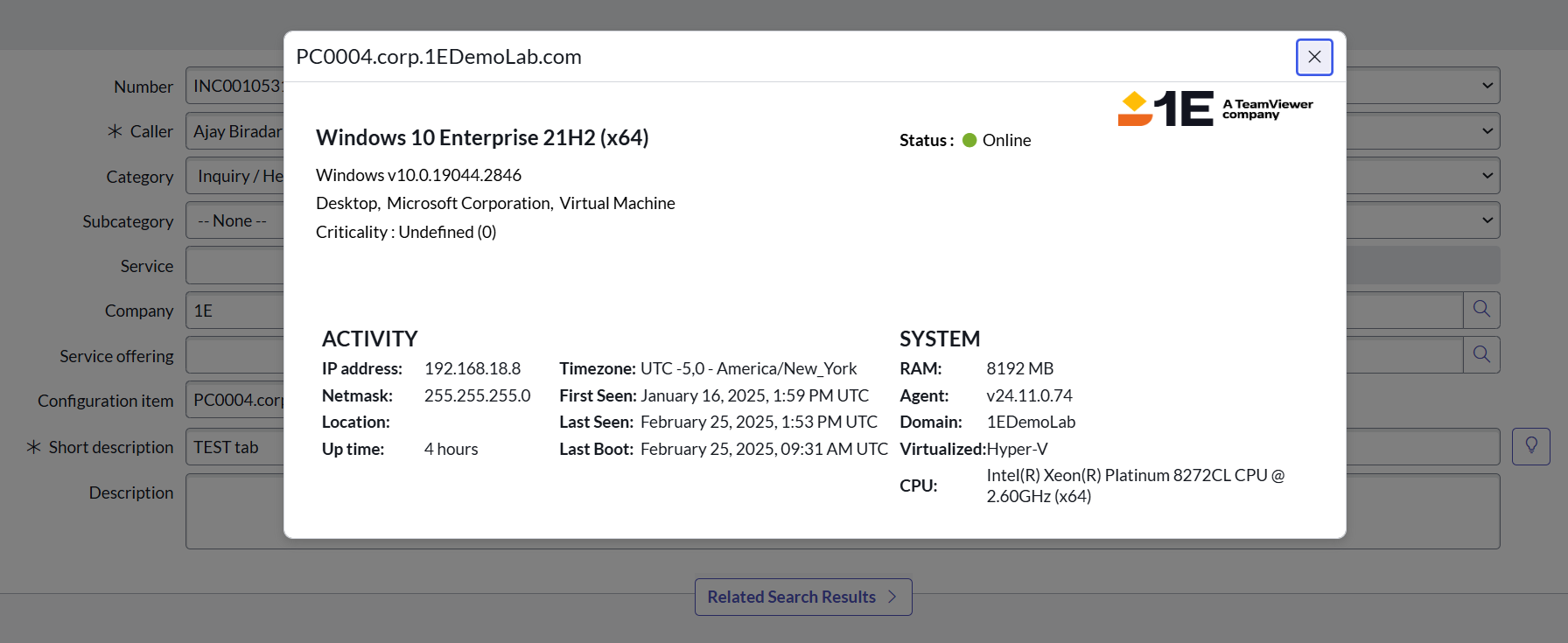
The Device Info icon appears only after it is configured using Incident Form layout setup. The device selected here should match the criteria defined in the x_1e_connect.device_info_ci_criteria property. The default value of this property is sys_class_name=cmdb_ci_pc_hardware^ORsys_class_name=cmdb_ci_computer which states that the selected device class should either be ci_pc_hardware or cmdb_ci_computer. An admin user can update this criterion at any time.
The system property x_1e_connect.DeviceInfoSyncTime accepts an encoded query that is used to filter device information data from the x_1e_connect_device_info table.
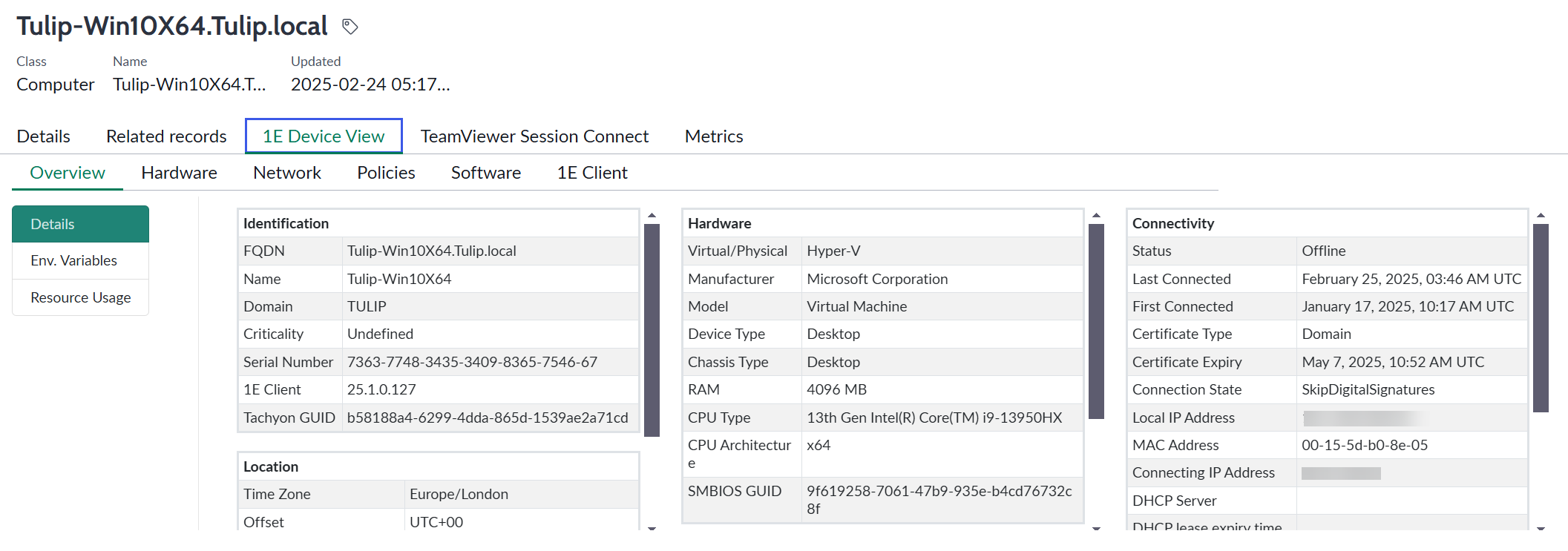
If you click the little button 1E Device View given on the Device Info pop-up screen, it will open the record in the Service Operations Workspace as shown in the picture below. To view this button, set the system property x_1e_connect.device_view_button_visibility value to True.
1E Device Info
To see the details of 1E Device Info, follow the steps below:
-
In your workspace, select any incident from the list which you want to work on. The details of the selected incidents are now displayed in a new tab.
-
Click the 1E Device Info tab. It will display the list of all the devices that have a fully qualified domain name (FQDN) and are from a valid CI class as shown in the picture below. There is also a search box to search for a specific device from the list. There is a refresh button on the side of the search box that allows you to refresh the data in the list. The information icon beside each device will navigate you to that respective device record.
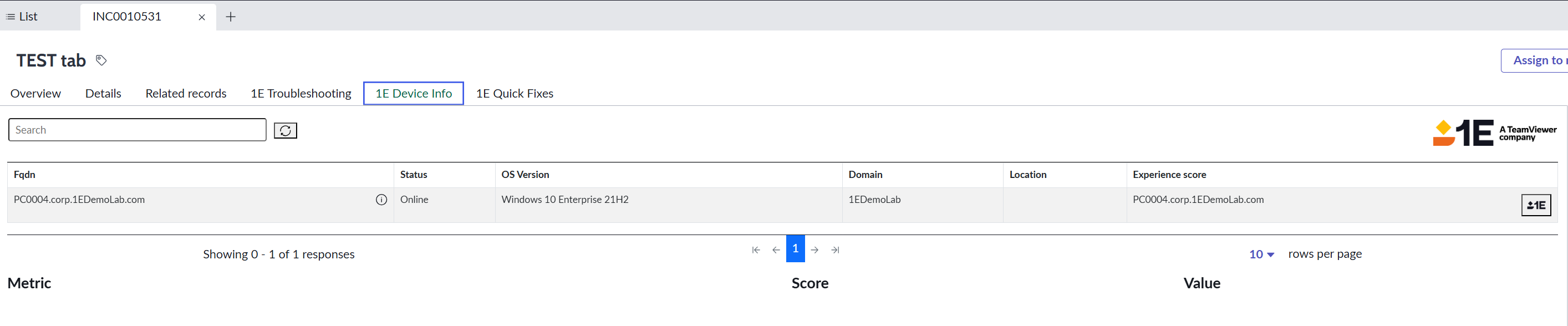
Click any of the fields to see more details about the selected device.
A device from the list of devices will be highlighted in red when either the FQDN of this device is incorrect or 1E is unable to identify it, which means that there is some error while fetching the data for this device from 1E. When you click any of the fields of this device, a pop-up window opens up with a message stating: Data for this device is not available.
1E Device View in Agent and Service Operations Workspace
The 1E Device View tab provides a summarized overview of all the information known about a selected device. It can also retrieve the real-time information about the selected device. Each tab has one or more panels having tiles populated with data from various sources, some by instructions that are run instantly.
To view the 1E Device View tab, open the Incident page and click Details. Click the information icon on the Configuration item field. You can view the below information either from the Incident record or from the Configuration Item (CI) record.
If you re-click each tile, it will fetch the information again.
If an error message appears while fetching this information, it could be for the following reasons:
-
The device is offline
-
Information is not available at that moment
-
An error occurred while fetching the device information
Experience scores
Experience scores in Native UI
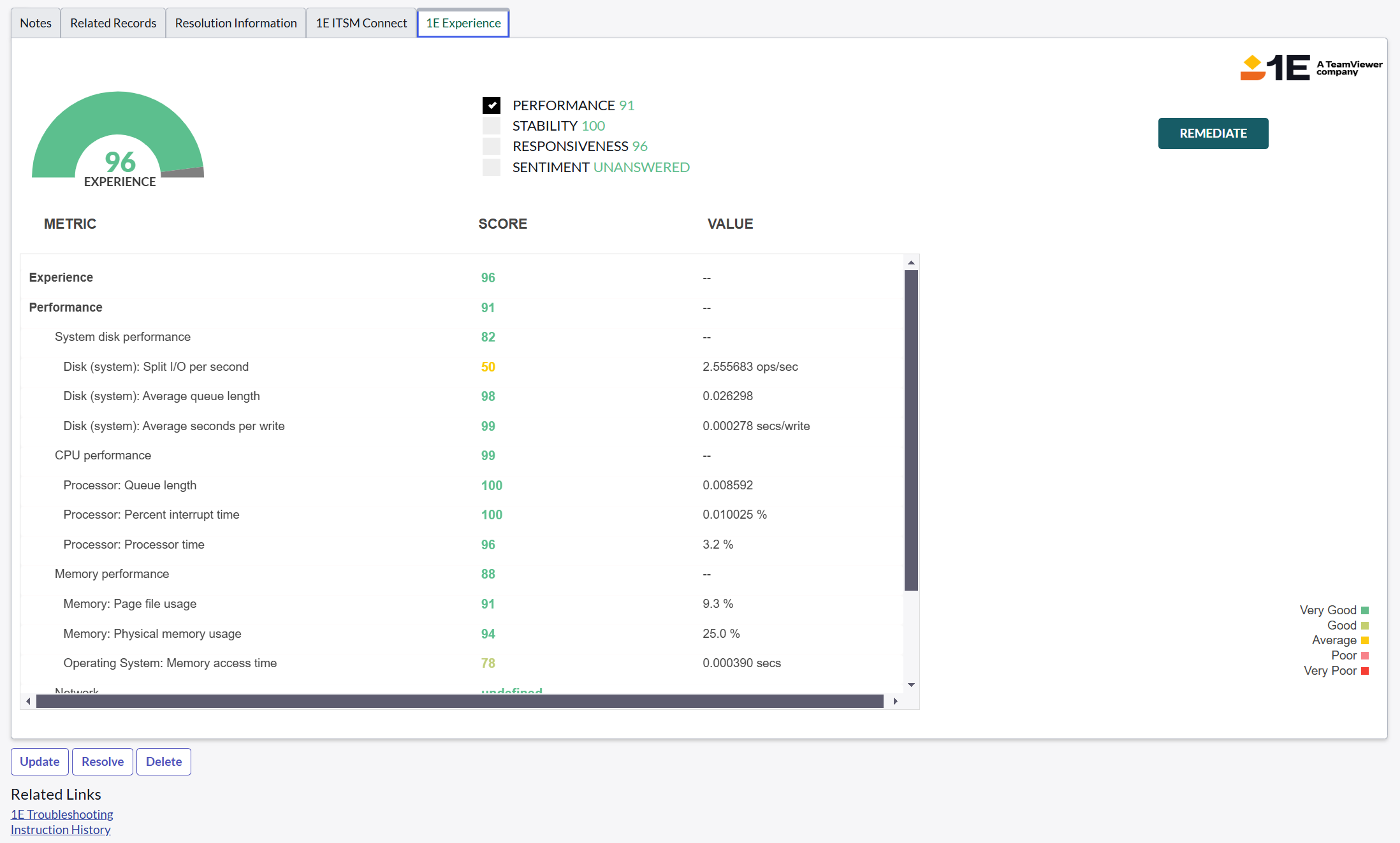
The 1E Experience tab on the incident page shows the Experience Analytics data for the selected device. To display these scores, ensure that the entitlement check has been performed successfully on the App Configuration page and the 1E Experience tab has been configured.
Experience Scores are imported from Experience Analytics. To view Experience Scores, follow the steps below:
-
Navigate to 1E ITSM Connect → Incidents.
-
Select the incident you want to run. Scroll to the bottom of the Incident form and click the 1E Experience tab as shown below.
Experience - Sync Metadata scheduled job
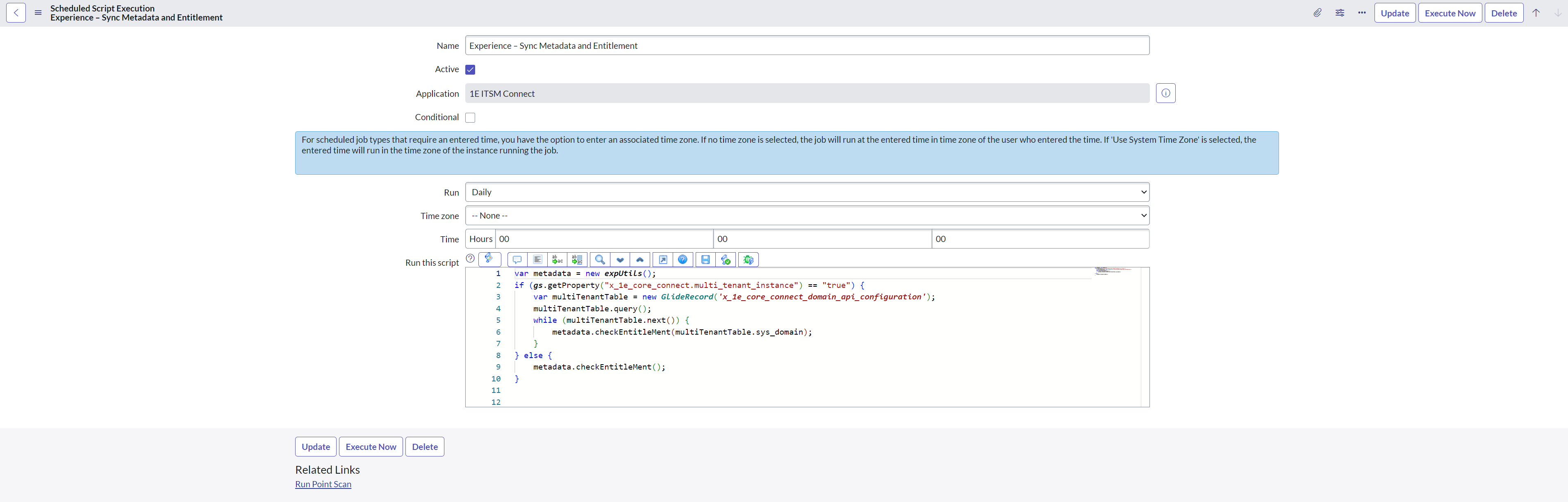
The purpose of this job is to sync meta-data from Experience Analytics to ServiceNow. This meta-data is used to show data on the 1E Experience tab displayed on the incident page. This job is executed on a daily basis at midnight.
To view this job, login to ServiceNow with Global Administrator credentials and navigate to 1E ITSM Connect>Administration>Scheduled Jobs. Select Experience - Sync Metadata and Entitlement to see the details as shown below.
Experience scores in Agent and Service Operations Workspace
These experience scores are imported from Experience Analytics and displays the Experience data for the selected device. To display these scores, ensure that the entitlement check has been performed successfully on the App Configuration page. To view Experience Scores, follow the steps below:
-
In your workspace, select any incident from the list which you want to work on. The details of the selected incidents are now displayed in a new tab.
-
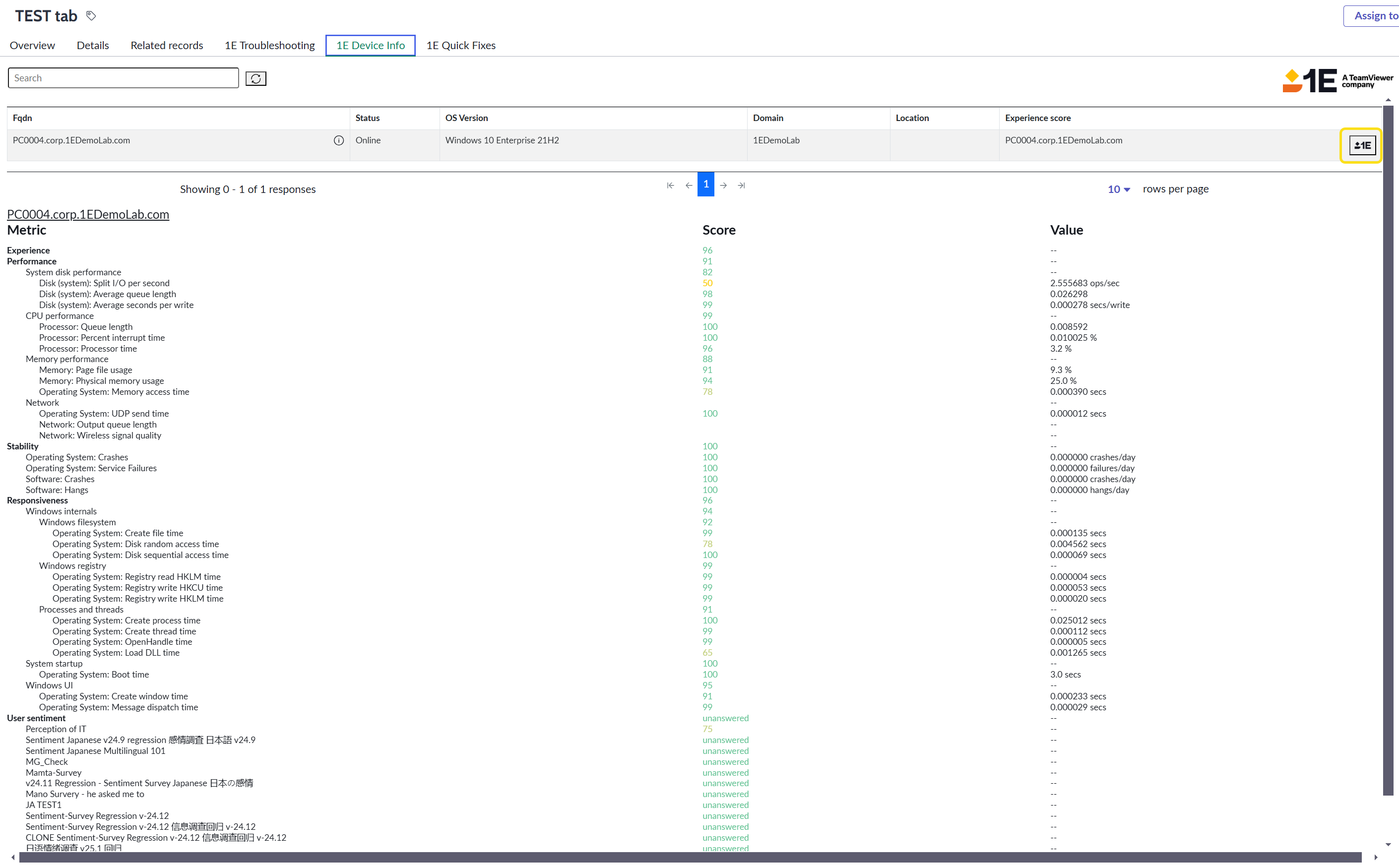
Click the 1E Device Info tab. It will display the list of all the devices that have a fully qualified domain name, Fqdn, and are from the valid Configuration Item (CI) class. Click the Experience score field, as shown in the picture below.
-
The Experience data for the selected device is now displayed, as shown in the picture below.
Experience Trend chart
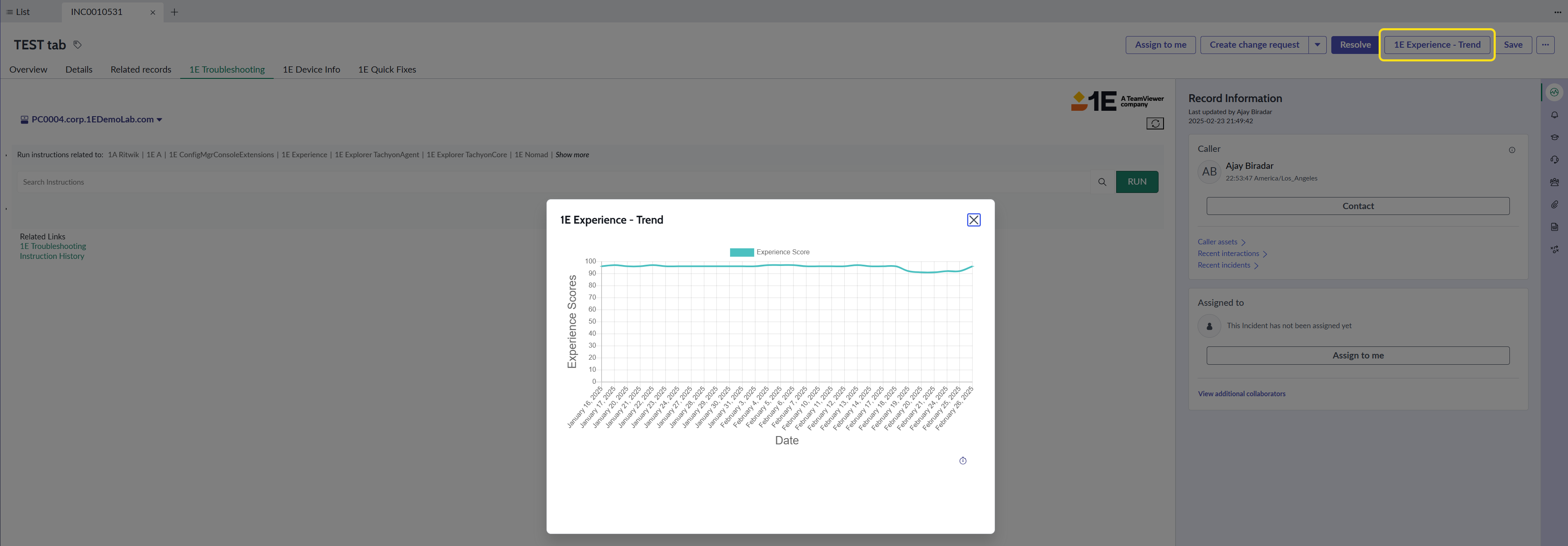
Experience Trend chart fetches the real time Experience Score history for a selected device and shows the experience trend.
To view this trend line chart, click 1E Experience - Trend at the top of the page, as shown in the picture below. Note that this button is visible only when the Configuration Item is populated or there is at least one affected CI.
The trend line chart is displayed only for the selected device on the Configuration Item field.
Remediating issues
When you click the 1E Experience tab to view the experience score for a selected device in Native UI, the REMEDIATE button appears on the right as shown in the picture below.
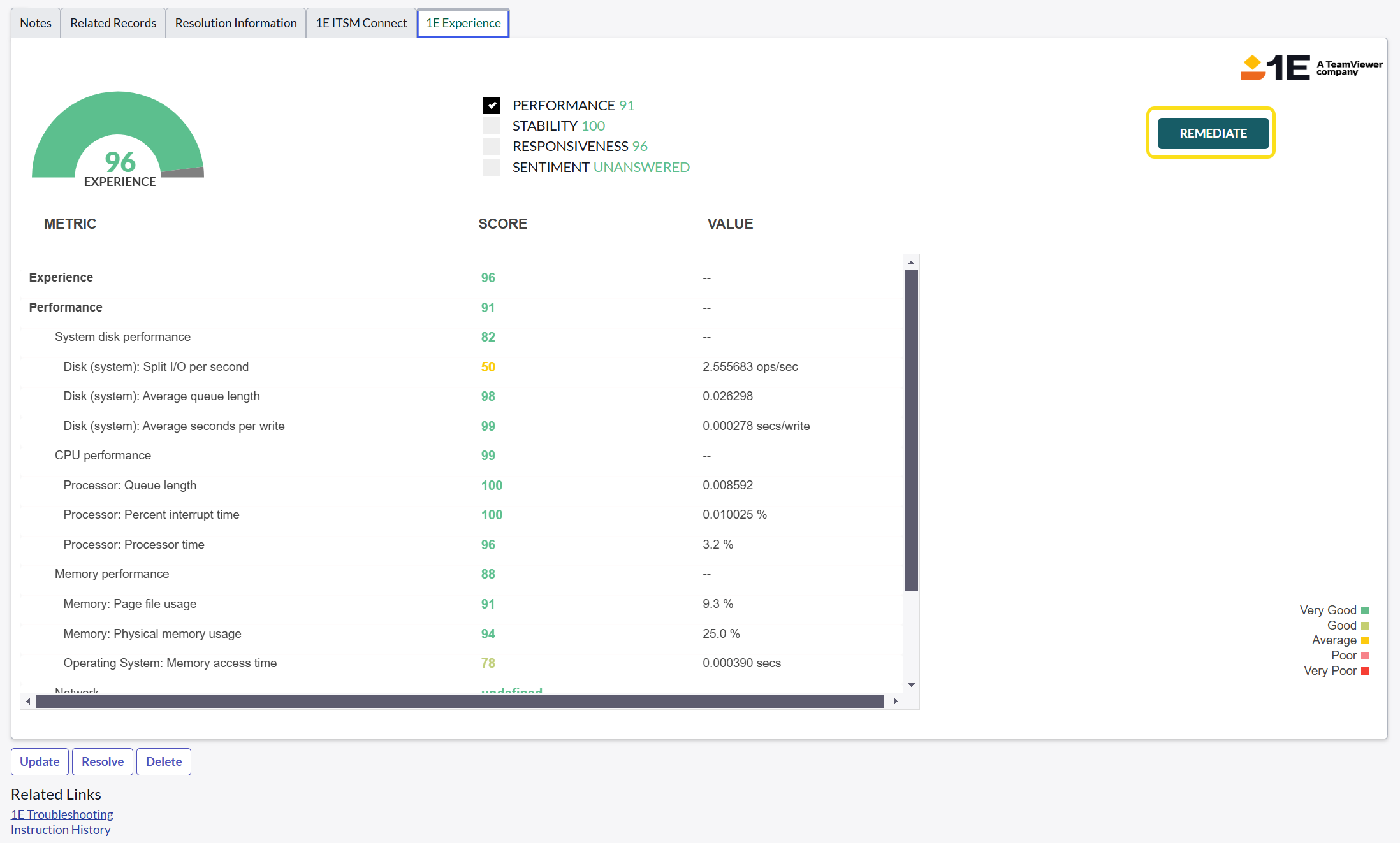
With the help of the REMEDIATE button, you can immediately select and run instructions with the scope set to the selected device. After clicking REMEDIATE it redirects you to the 1E ITSM Connect tab, where you can search for specific instructions and run them on the selected device.