Enhanced Settings
 |
|  |
| 
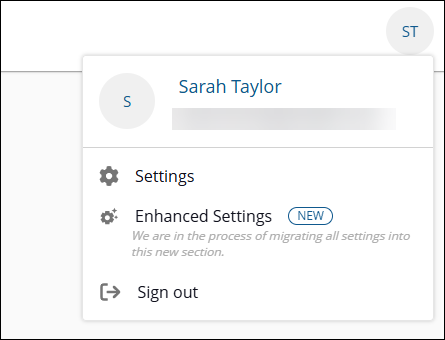
To open this menu, select your avatar, and then choose Enhanced Settings. This takes you to the new UI.
By default, the Enhanced Settings module is visible only to users with the Full Administrator role or to a custom role that includes the Security.Read permission. For more information, refer to Roles and Securables and Roles page.
We are in the process of moving all settings into Enhanced Settings.
The new UI uses modern design principles and includes the following elements:
-
Expandable left-hand and drop-down menu: The menu can be expanded or collapsed using the chevron icon located at the top of the pane.
-
Search: Execute instructions and search for devices using keyboard shortcuts, including those based on their Fully Qualified Domain Name (FQDN) and Insights.
-
Intelligence: A powerful tool designed to enhance your organization's efficiency and decision-making capabilities.
-
Inventory Insights: Devices and Software are available in the left-hand navigation bar.
-
Investigation: Search, run, schedule, review, and manage device instructions directly from the console, including access to instruction history and scheduled tasks.
-
Observability: Ask questions in natural language and instantly generate and customize reports based on your organization’s data.
-
User Engagements: Create user engagements, surveys, and announcements in an appropriate language.
-
Settings: You can access and configure 1E Client certificates, integrations, Identity Provider certificates and Platform settings.
-
Module launcher: You can launch other Platform modules and any Solutions that are included with your license.
-
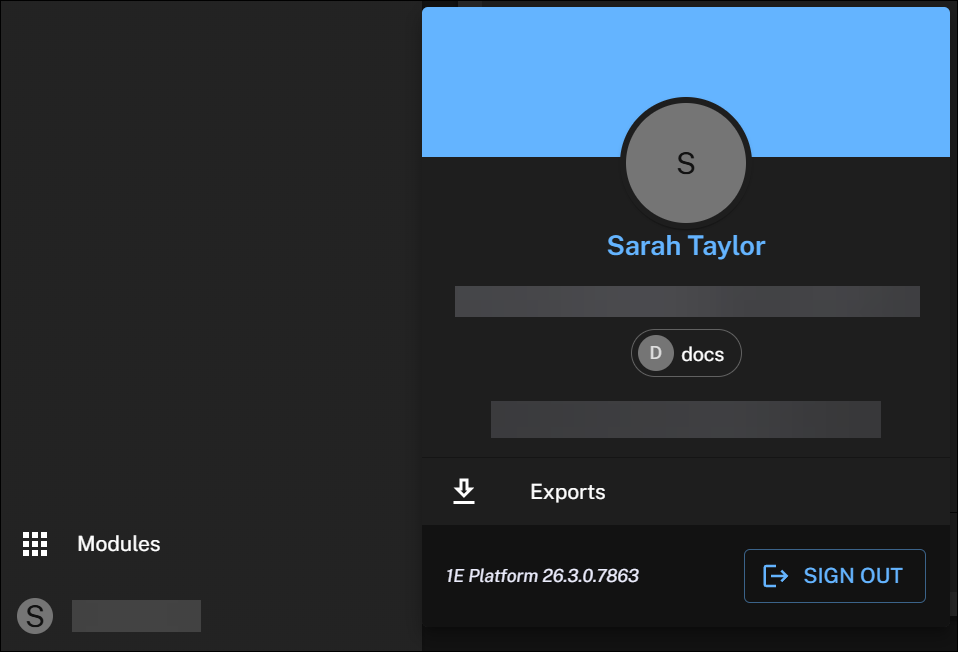
User profile: Click this to manage your exports, check your Platform version, or log out.
Dark mode is only available in the new UI. You can control the system theme using the switcher in Settings. For details refer to Appearance.
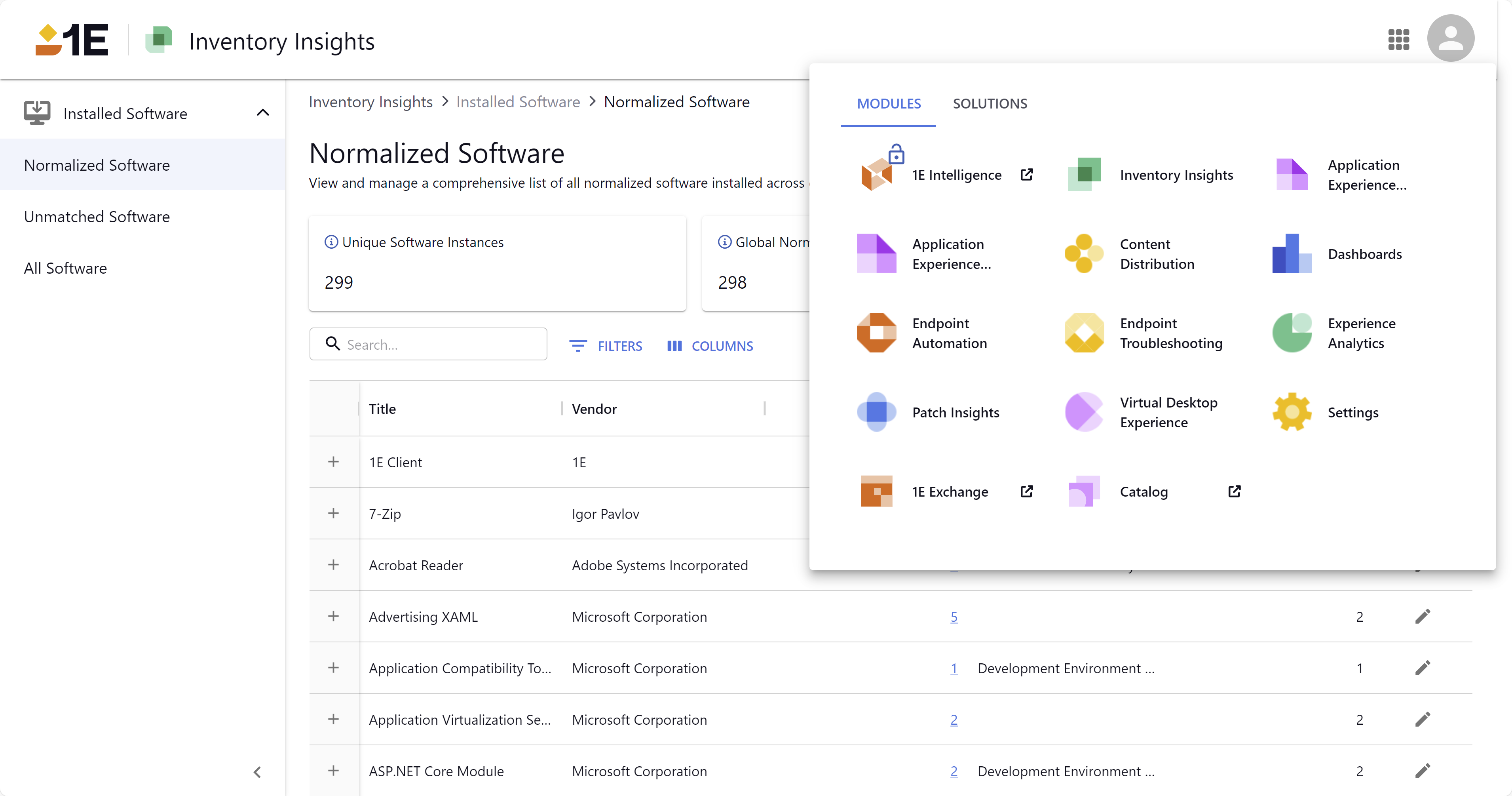
Module visibility is determined by your license.