General
 |
|  |
| 
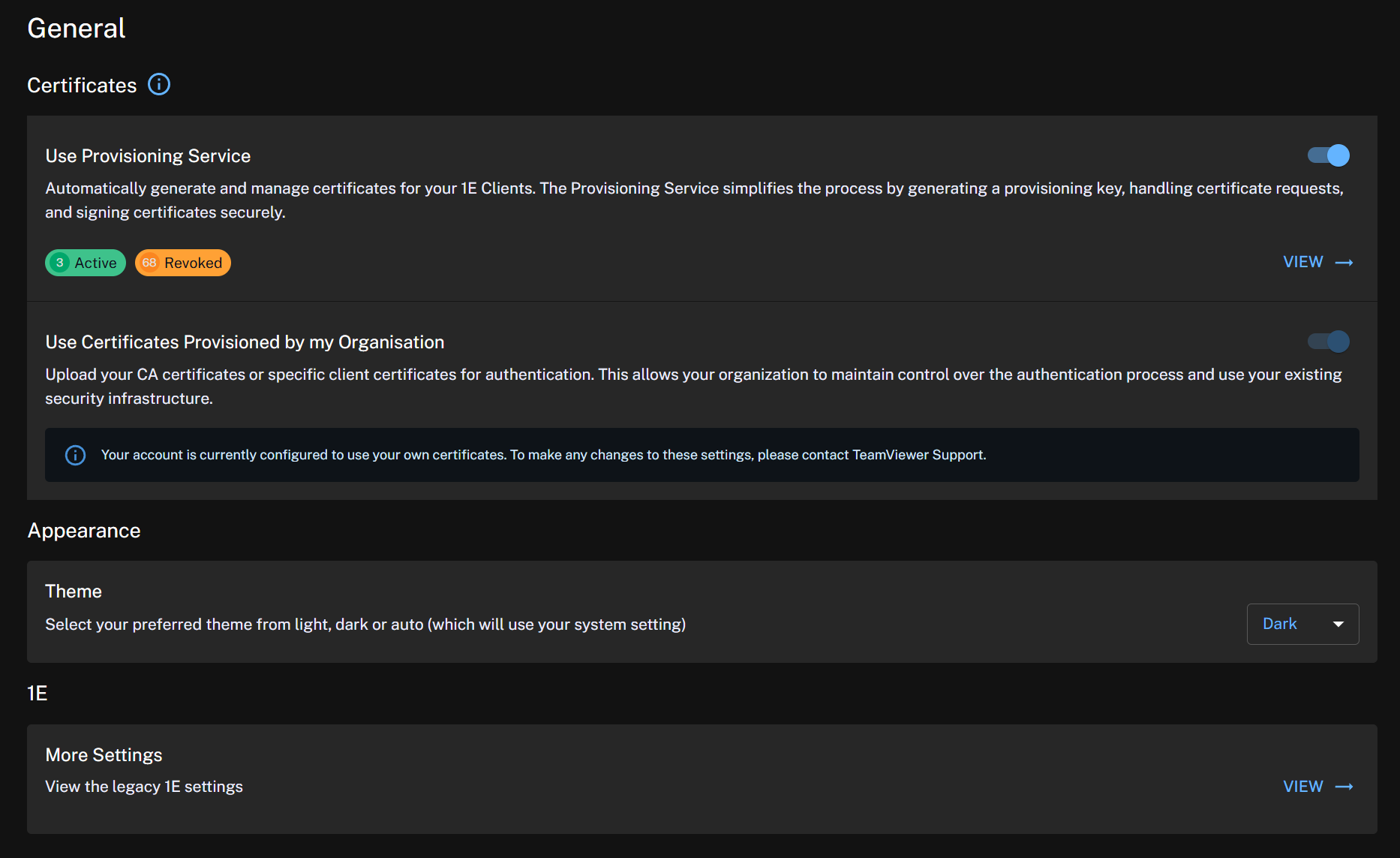
This page explains how to configure 1E Client certificate auto-provisioning, allowing devices to automatically obtain and manage certificates for secure communication with the Platform. It also includes options to adjust the Platform theme and provides a link to Settings in the classic UI.
 Appearance
Dark mode is only available in the new UI. Platform users can control the system theme using the Theme switcher.

Feature Flags
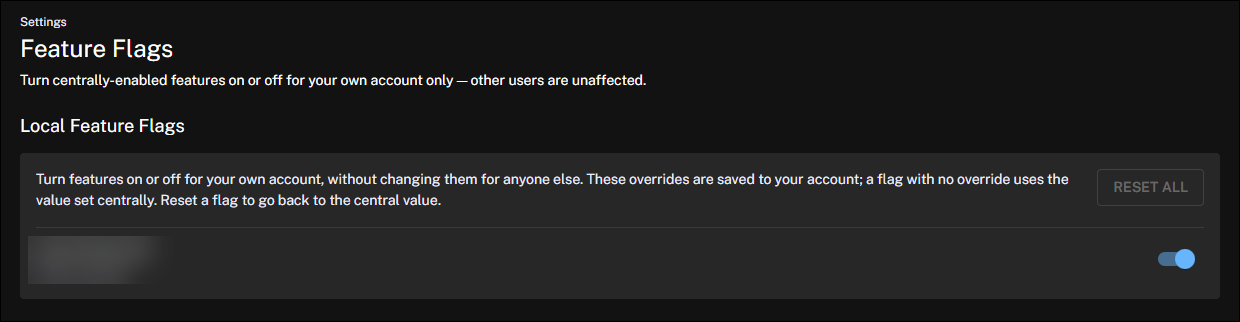
Turn features on or off for your own account. If a newly released feature causes you problems, you can disable it here without affecting other users.

Certificates
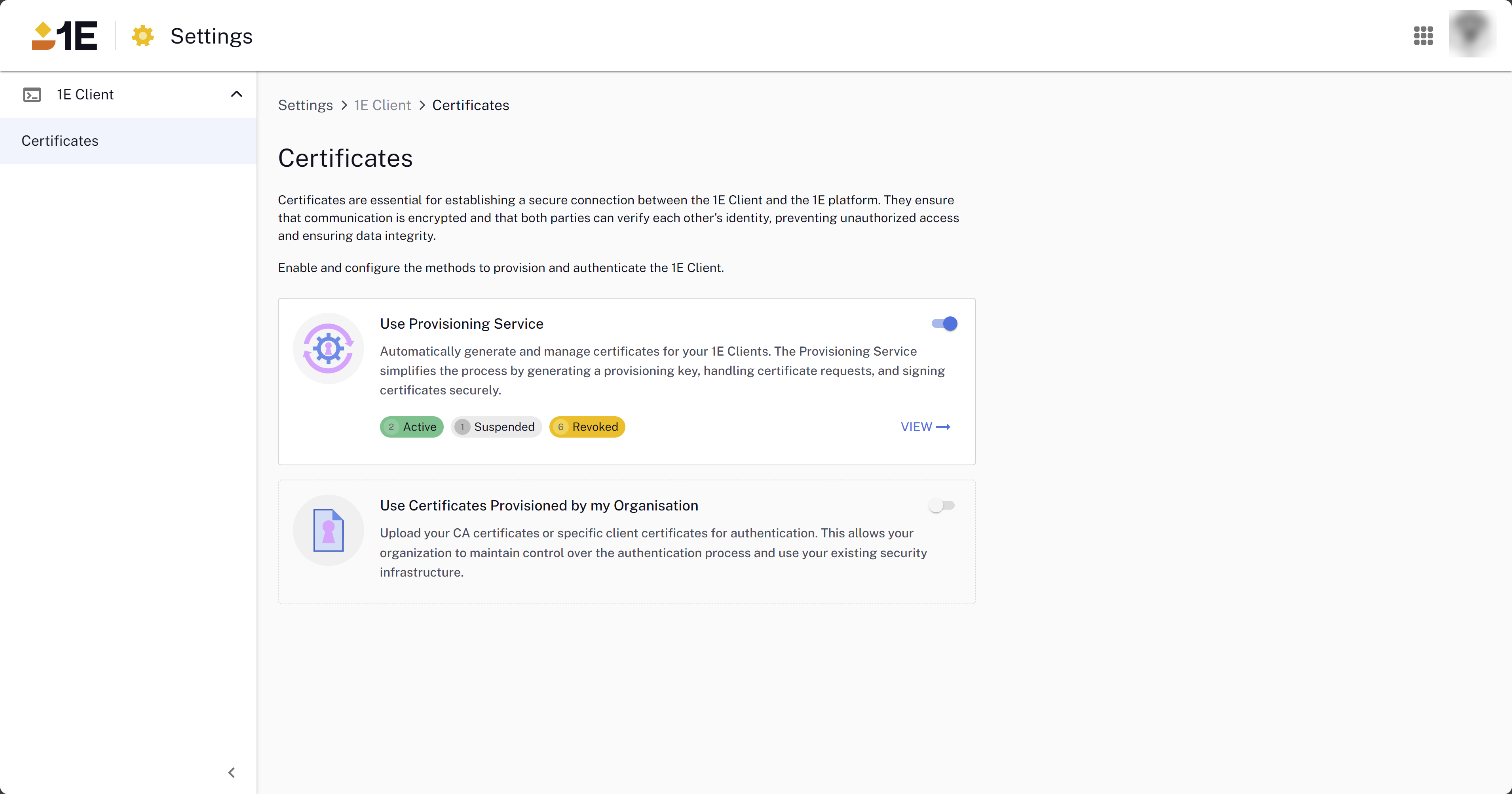
The Settings module contains the Client Certificate Provisioning feature. Certificates are essential for establishing a secure connection between the 1E Client and the DEX Platform. They ensure that communication is encrypted and that both parties can verify each others identity, preventing unauthorized access and ensuring data integrity. The Certificate Provisioning service provides you with an alternative to using your own PKI infrastructure.
For 1E Client requirements related to certificates, integration with Content Distribution, scripting requirements, and firewall ports, refer to Platform client requirements.
Using the Provisioning Service
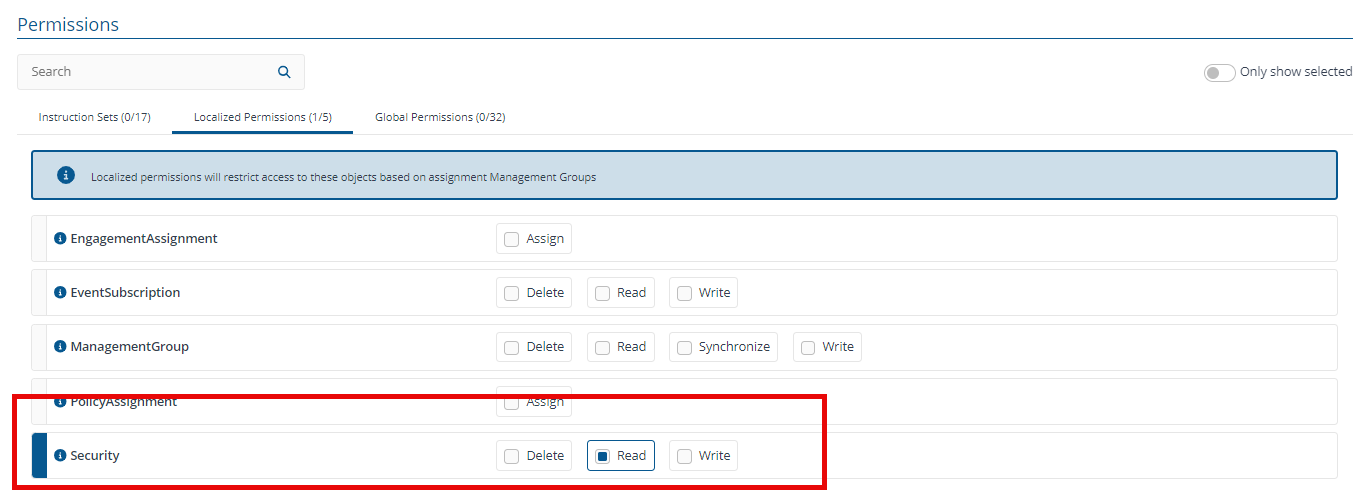
For users with the Security.Read permission, the toggle to enable this feature is grayed out, GENERATE KEY is not visible on the Provisioning Service page, and actions for existing keys, such as revoke, reactivate, or suspend, are not displayed. For details explaining how to configure users, roles, and management groups. For more information, refer to Permissions
If you have an upgraded version of the Platform or use a newly provisioned instance, note the following:
-
Use Provisioning Service: Is disabled by default for both new and existing Platform instances. You will need to manually enable this service using the toggle.
-
Use Certificates Provisioned by my Organisation: Is disabled by default for new Platform instances. You cannot currently change this option (if disabled). To enable the feature, supply TeamViewer with your certificates.
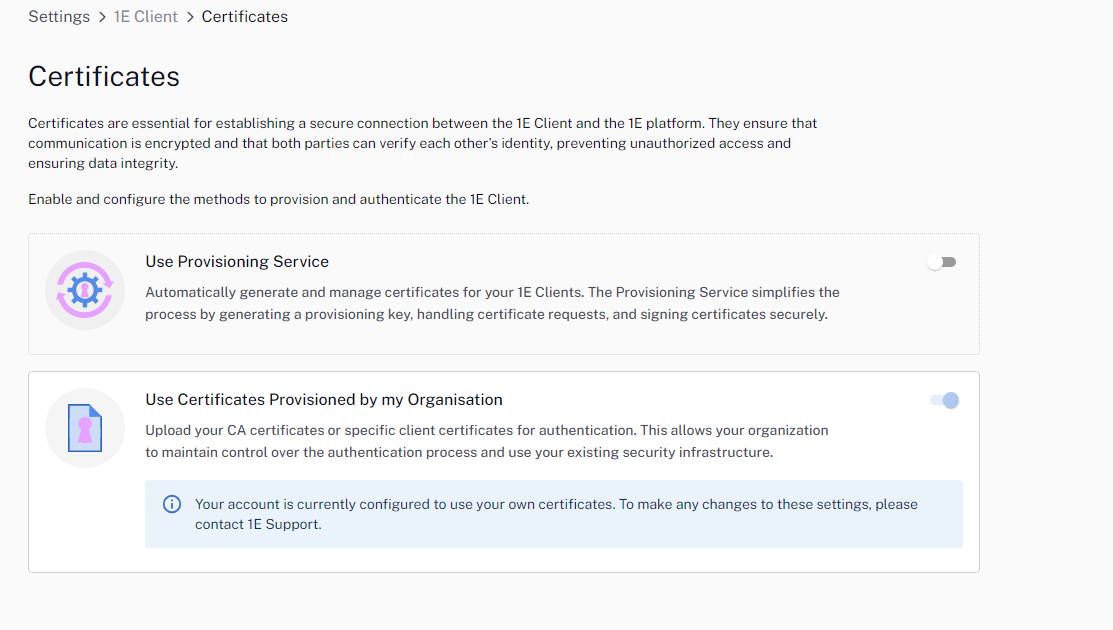
If you have an upgraded instance and previously supplied your own certificates, the feature will be automatically enabled, as shown in the following image. To make any changes to these settings, contact support through the TeamViewer Support Portal.
The 1E Client typically selects the first appropriate client certificate available in the Windows certificate store. If it fails to connect to the Switch with that certificate, it will try other certificates sequentially until a successful connection is made or all options are exhausted. Once a working certificate is identified, the 1E Client records it for future connections to the Switch.
The CA certificate that the Switch loads for a tenant depends on the toggle settings. When you activate the Use Provisioning Service setting and create a provisioning key, this action is independent of the Use Certificates Provisioned by my Organisation setting. The latter toggle cannot be directly modified by end users. It is enabled if the tenant has been pre-configured with one or more existing CA certificates, which are set during tenant provisioning or adjusted post-provisioning by TeamViewer.
For example, if an existing tenant has already provided YourCompany CA certificates (with the second toggle active) and then enables the Use Provisioning Service toggle (activating both toggles), the Switch will accept client certificates issued by ACMECorp as well as those automatically provisioned.
Provisioning key states
As a security admin, when managing the auto-provisioning service, you can activate, suspend, or revoke auto-provisioned certificates to control their usage.
|
State |
Description |
|---|---|
|
Active |
Key is currently active and can be used to issue client certificates. |
|
Suspended |
Key is suspended. When suspended, no client certificates will be issued, but clients with previously issued certificates will be able to connect. However, if the client certificate expires, it will not be able to renew the certificate, and the key will be suspended. Suspension of a key is reversible. When resumed the key will be moved back to the Active state. |
|
Revoked |
Key is revoked. No client certificates will be issued by the Certificate Service, and clients with certificates issued by this key cannot connect. Revoking a key is a permanent operation. The key is no longer usable. |
Provisioning a key
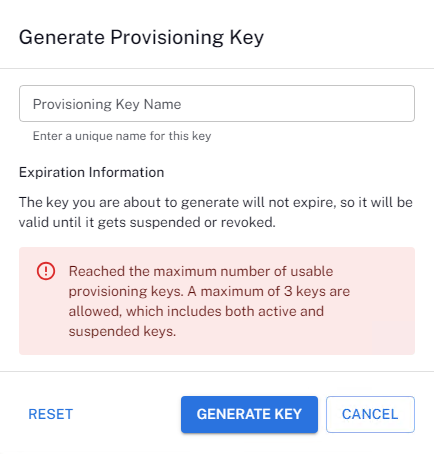
A maximum of three concurrent keys are allowed, which includes both active and suspended keys. Suspended keys are included in the limit because they can be resumed and, once resumed become active. If the limit is reached, you cannot create additional keys. Revoked keys do not count towards the limit because this action cannot be undone, so revoking an active or suspended key allows you to create a new key.
Keys are valid until they are either suspended or revoked.
-
Click GENERATE KEY to start the process.
-
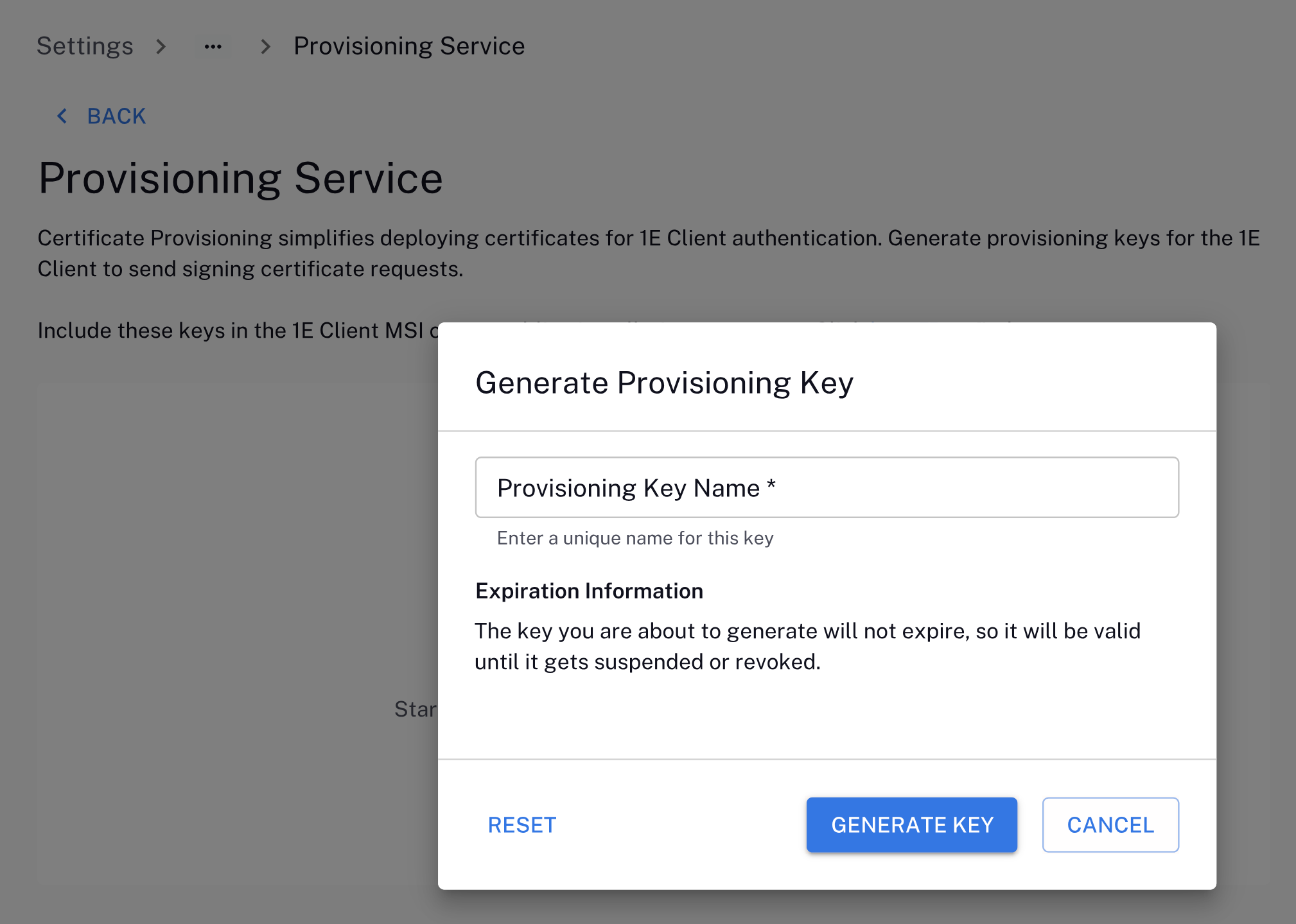
Specify the provisioning key name, keeping the following considerations in mind:
-
Should be unique.
-
Not exceed the name limit of 64 characters.
-
Must start with a letter.
-
Can include alphanumeric characters, spaces and dashes (-).
-
-
Click GENERATE KEY.
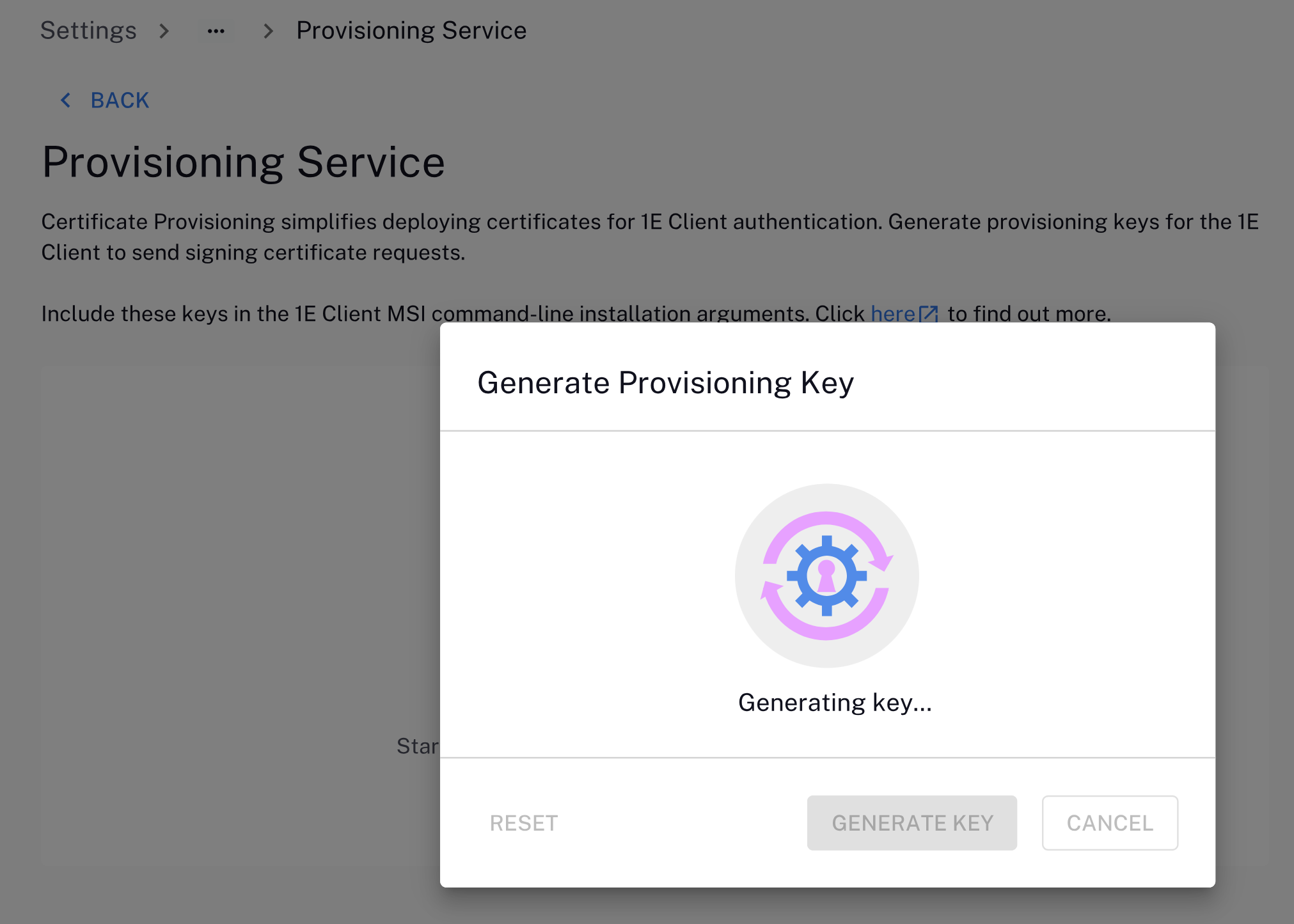
Review the following before continuing:
-
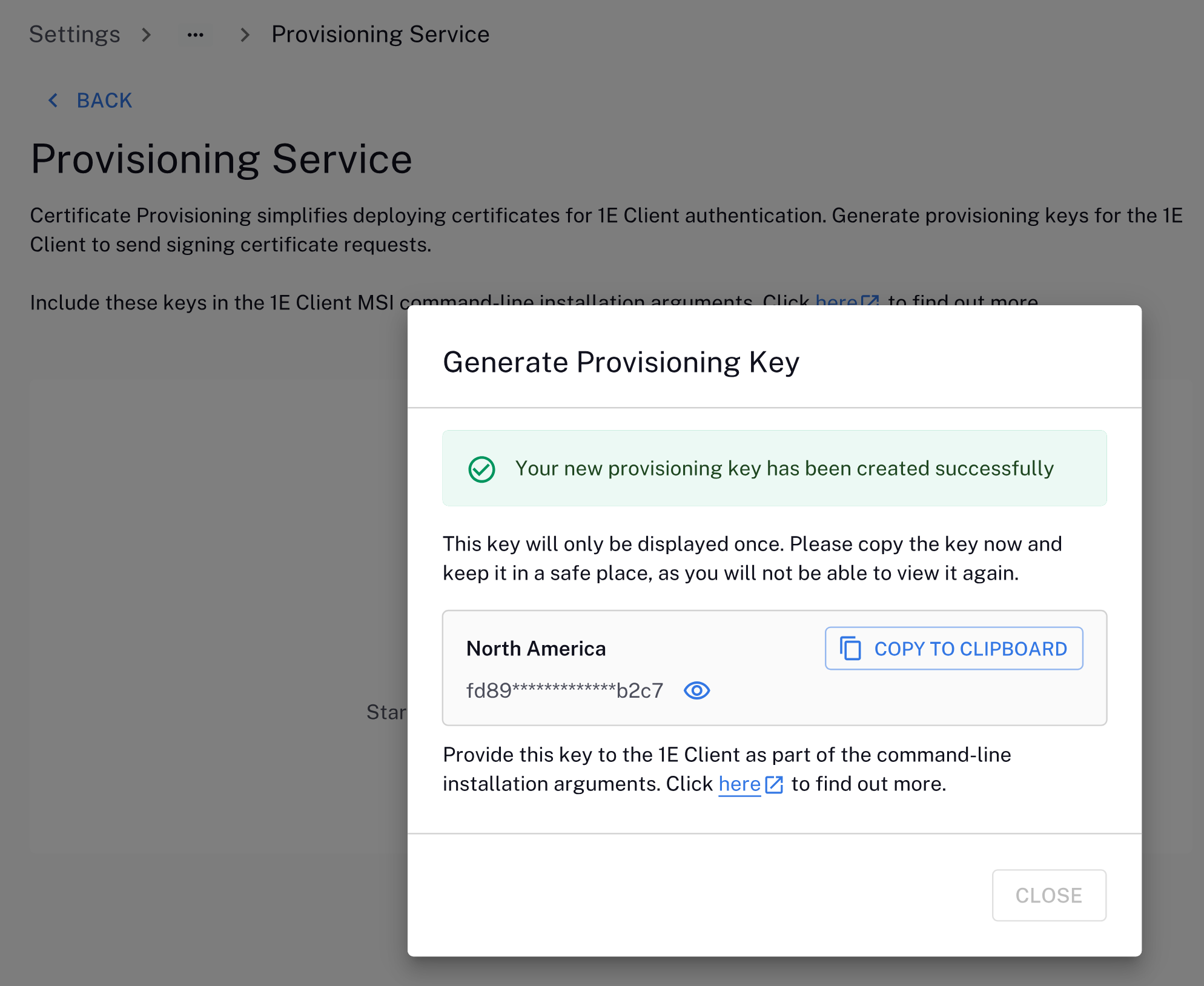
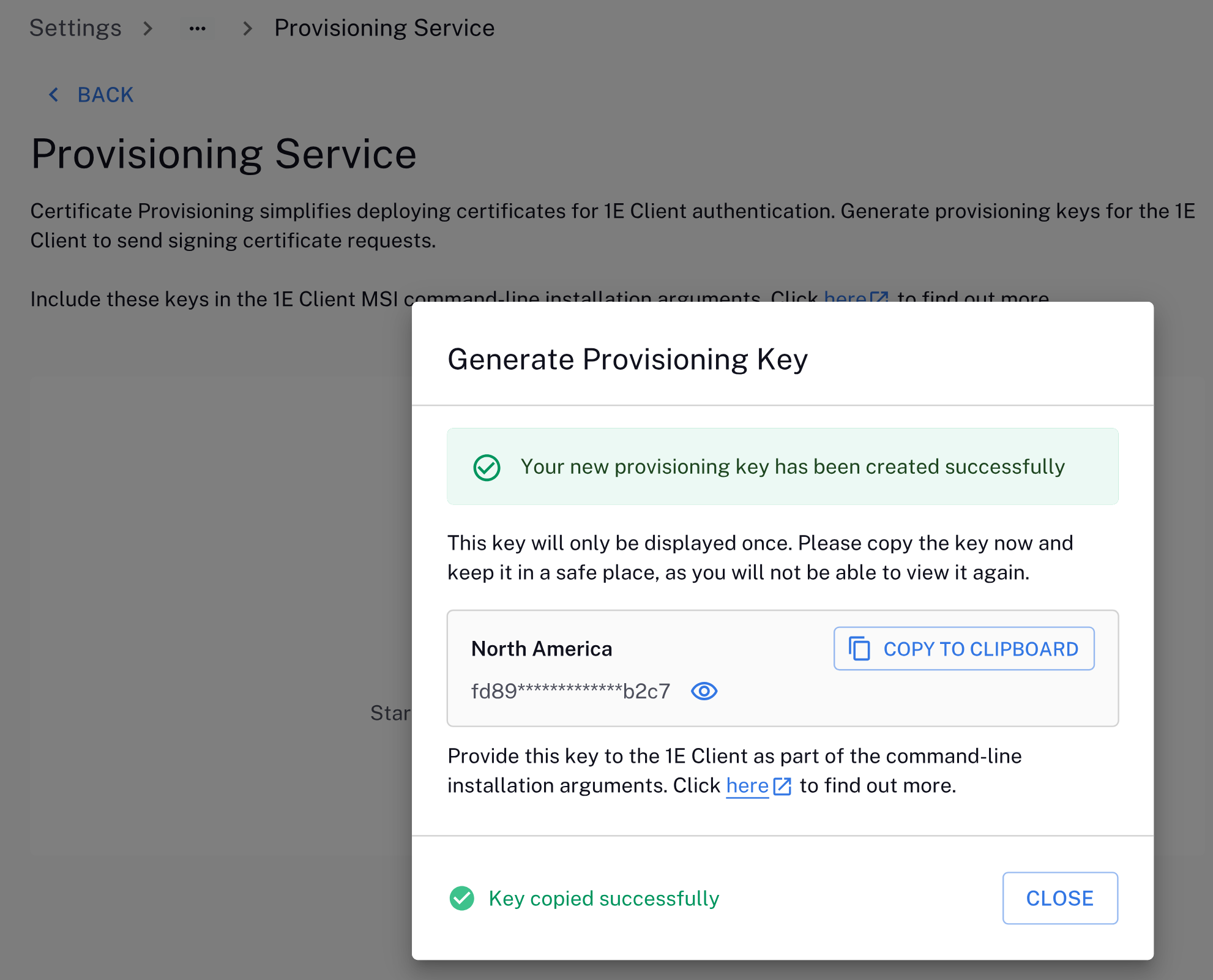
When the key is generated, you must copy it to the clipboard for use in your 1E Client deployment process. You will be unable to view the key again later.
-
CLOSE will not be enabled until you have copied the key.
If you plan to use certificate auto-provisioning as part of your 1E Client deployment:
-
You will need this key during a command-line installation. For more information, refer to Platform client requirements.
-
You will need this key if you are using the Client Deployment Assistant. For more information. refer to Running the wizard
-
-
Copy the new key to the clipboard because it will only be displayed once. Keep the key in a safe place, as you will not be able to view it again.
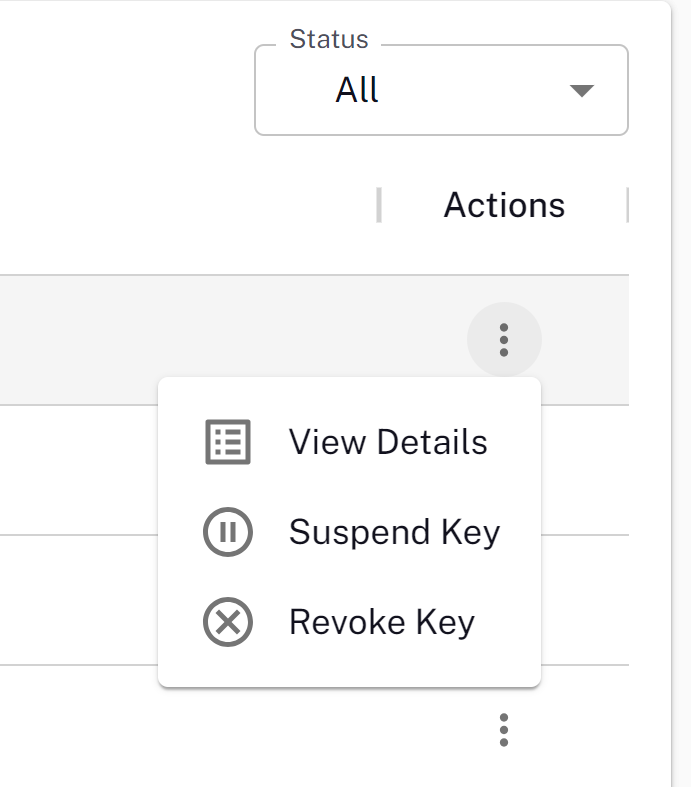
Click the three dots in the Actions column for each provisioning key to view its details, suspend, or revoke it.
Renaming a key
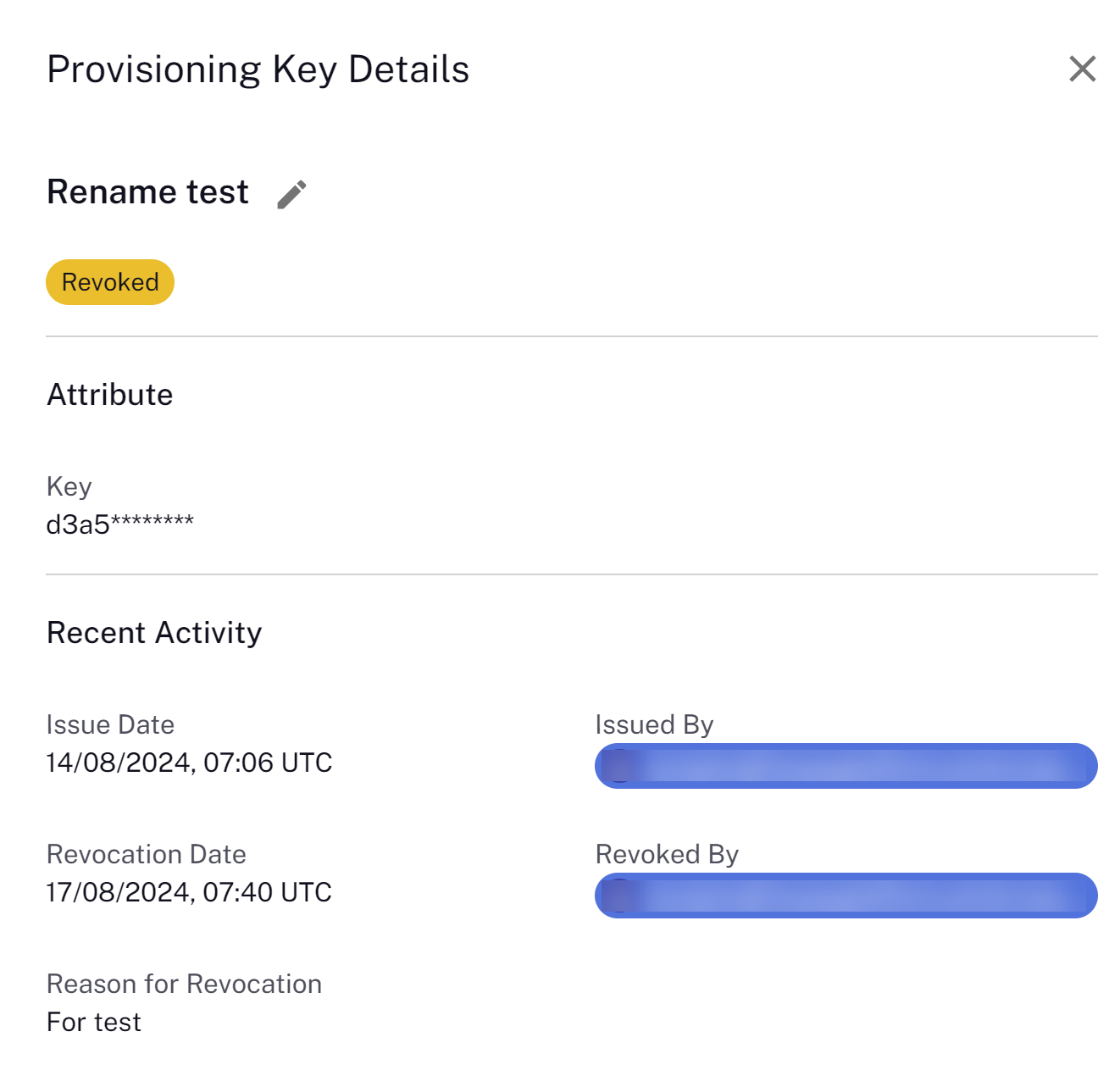
You can rename a provisioned key to enhance key management.
Click the three dots in the Actions column to view its details, and then click the pencil icon next to the key name. The new key name should be unique and not exceed the 64 character limit.
Suspending a key
-
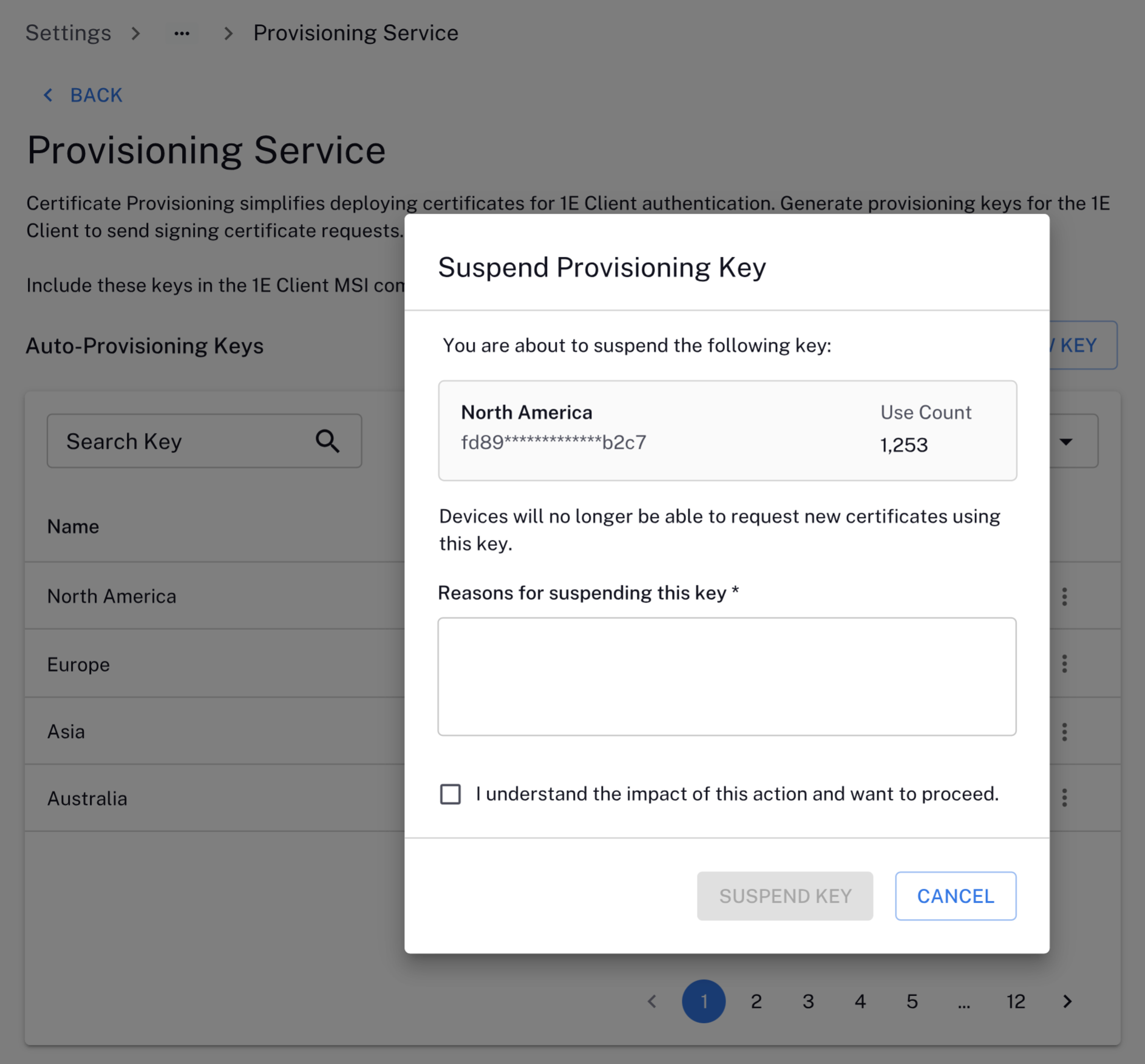
Click the three dots under the Actions column on the Provisioning Service page, and click Suspend key.
-
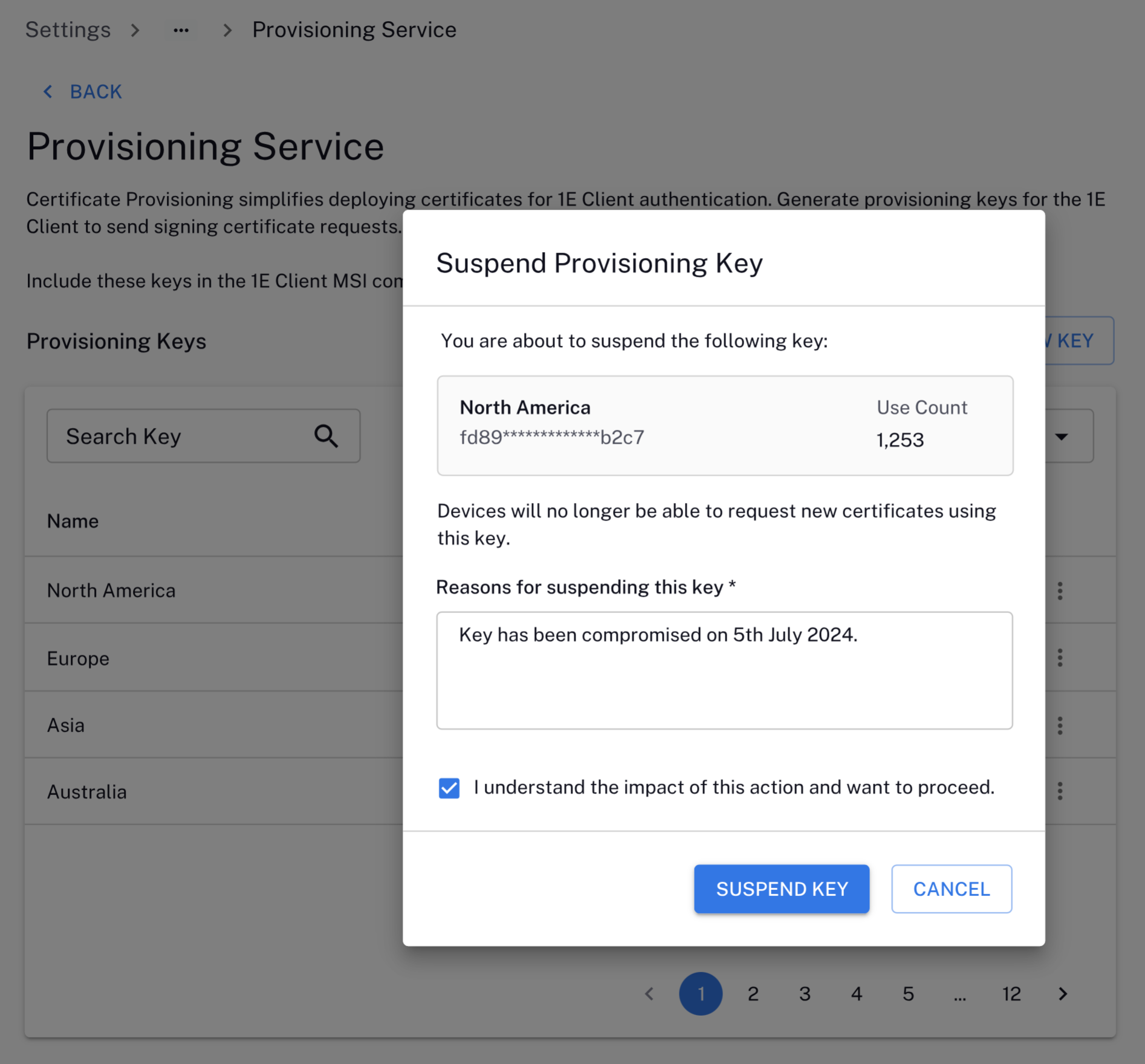
To proceed, you will need to add Reasons for suspending this key, select I understand the impact of this action and want to proceed, and click SUSPEND KEY.
-
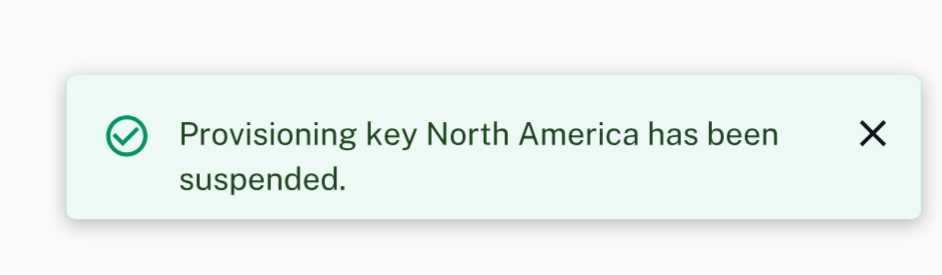
You see the following message confirming the key has been suspended. The Provisioning Keys table will display the new Status for the key.
Reactivating a key
You can only reactivate suspended keys.
-
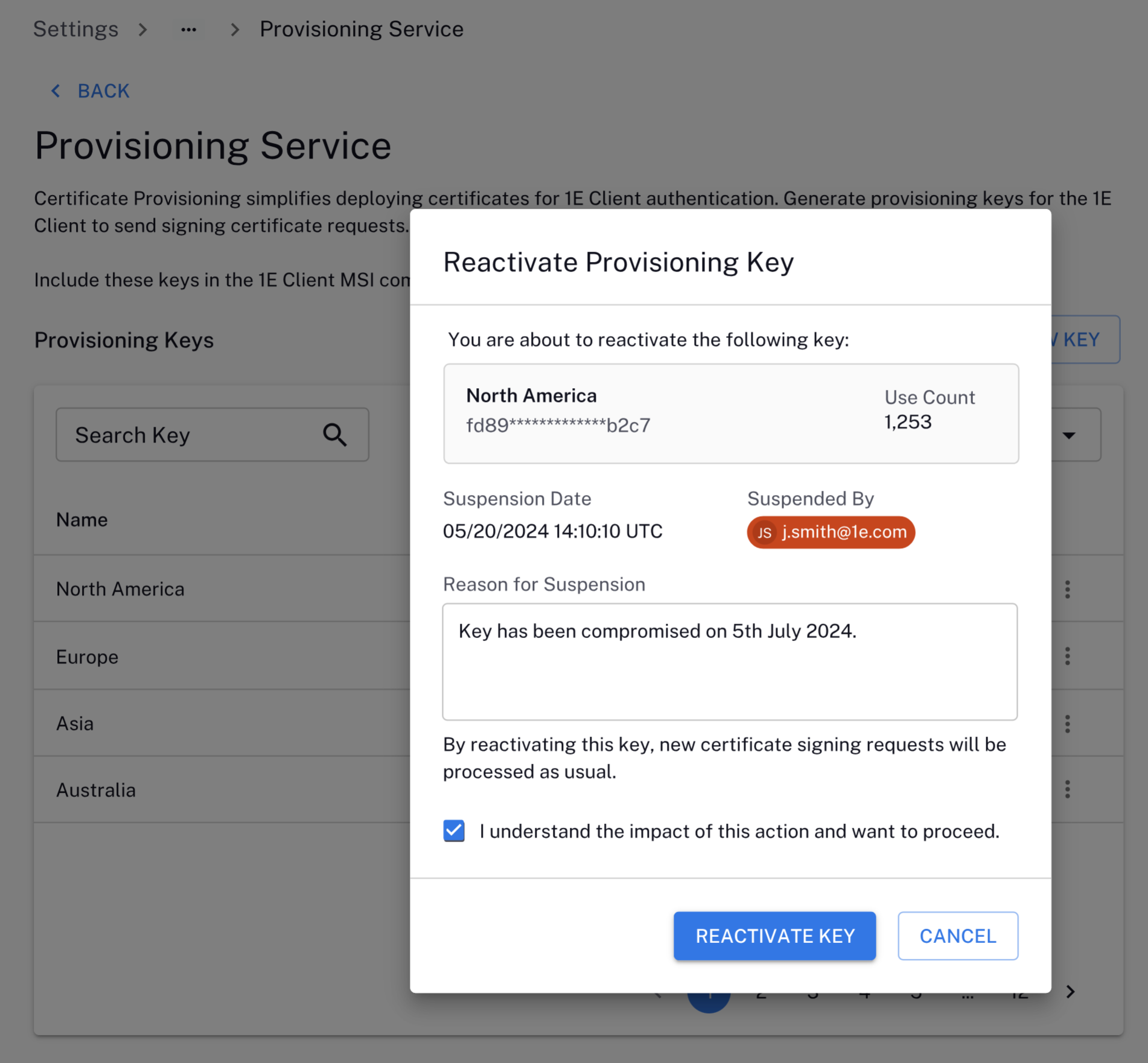
Click the three dots under the Actions column on the Provisioning Service page, and click Reactivate key.
-
To proceed, you will need to select I understand the impact of this action and want to proceed, and click Reactivate Key.
-
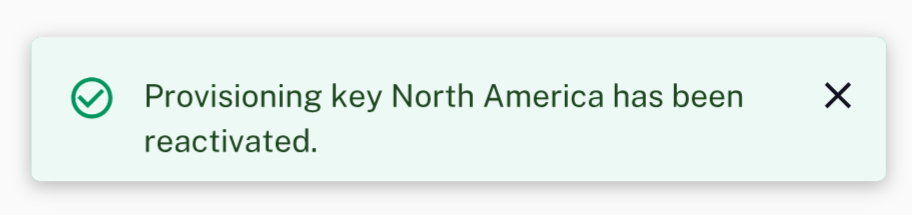
You see the following message confirming the key has been reactivated. The Provisioning Keys table will display the new Status for the key.
Revoking a key
-
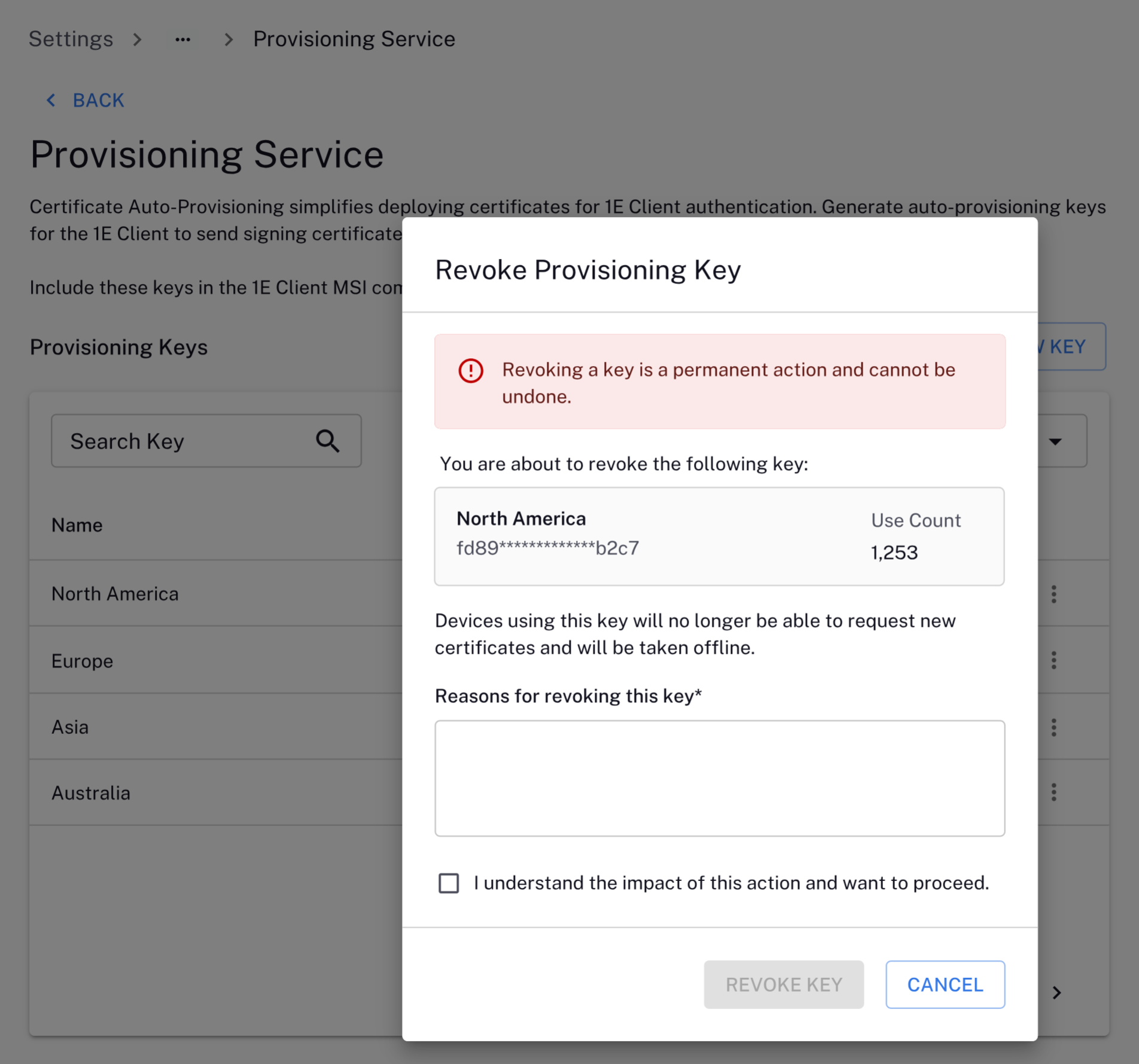
Click the three dots under the Actions column on the Provisioning Service page, and click Revoke key.
-
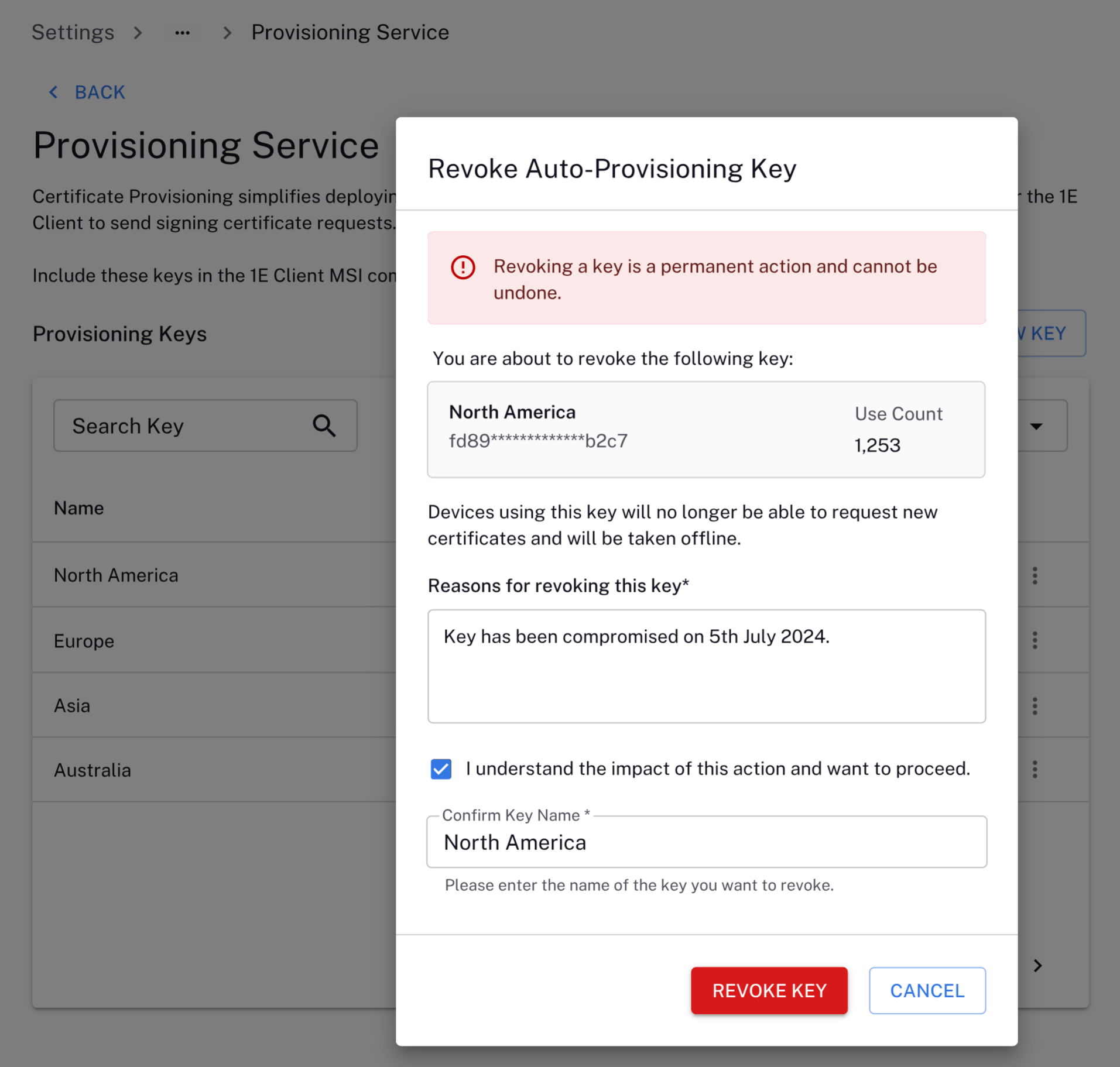
To proceed, you will need to add Reasons for revoking this key, Confirm Key Name (this field is case-sensitive), and select I understand the impact of this action and want to proceed, and click Revoke Key.
Revoking a key is a permanent action and cannot be undone.
-
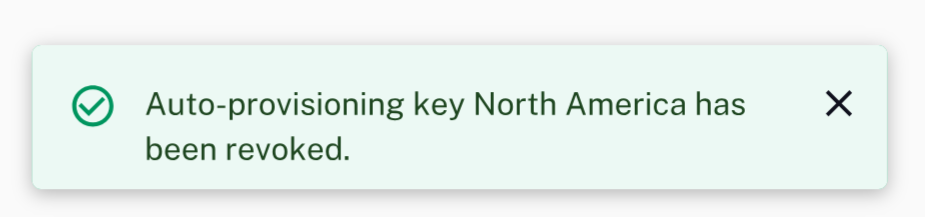
You see the following message confirming the key has been revoked. The Provisioning Keys table will display the new Status for the key.
Disabling the provisioning service
-
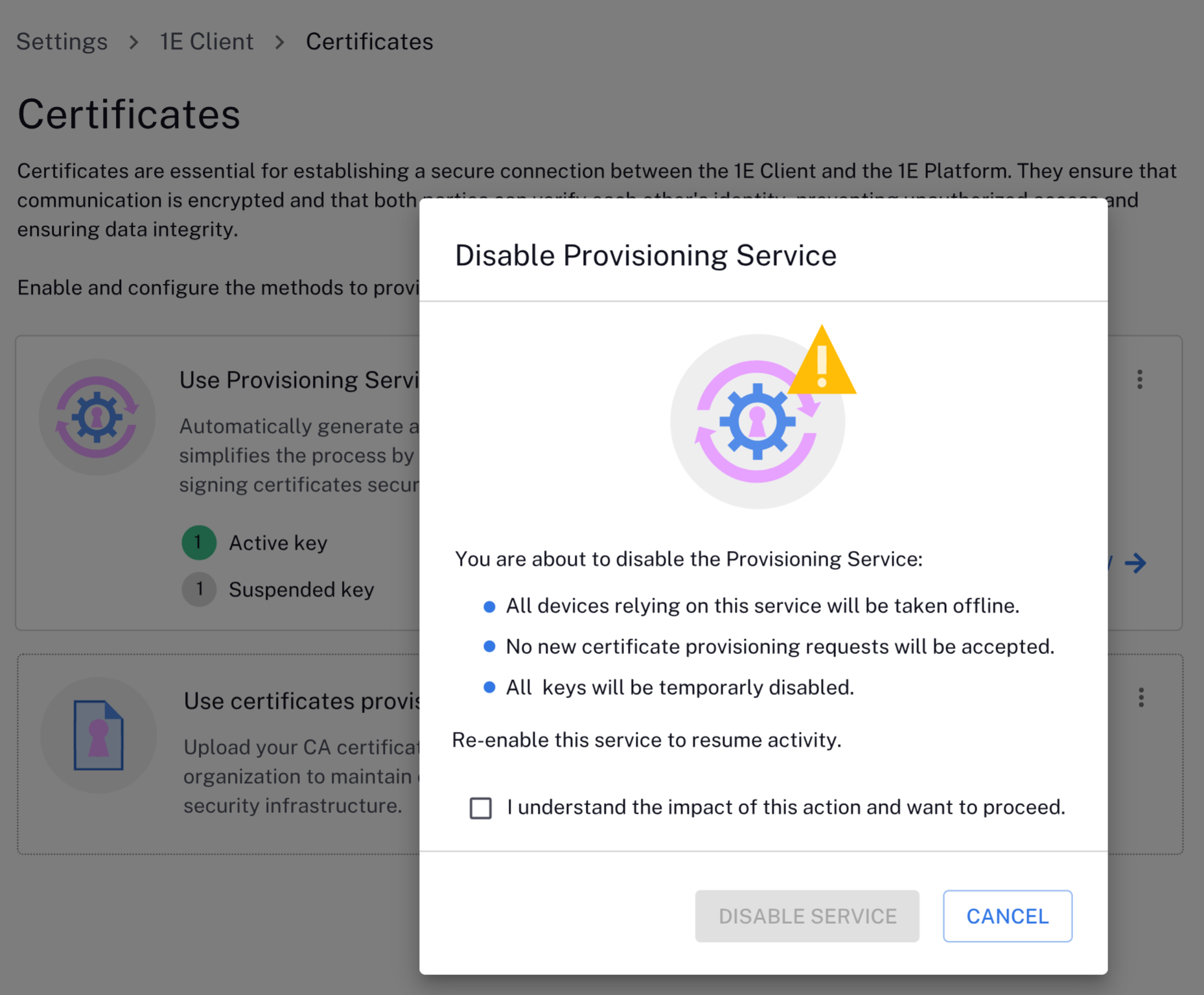
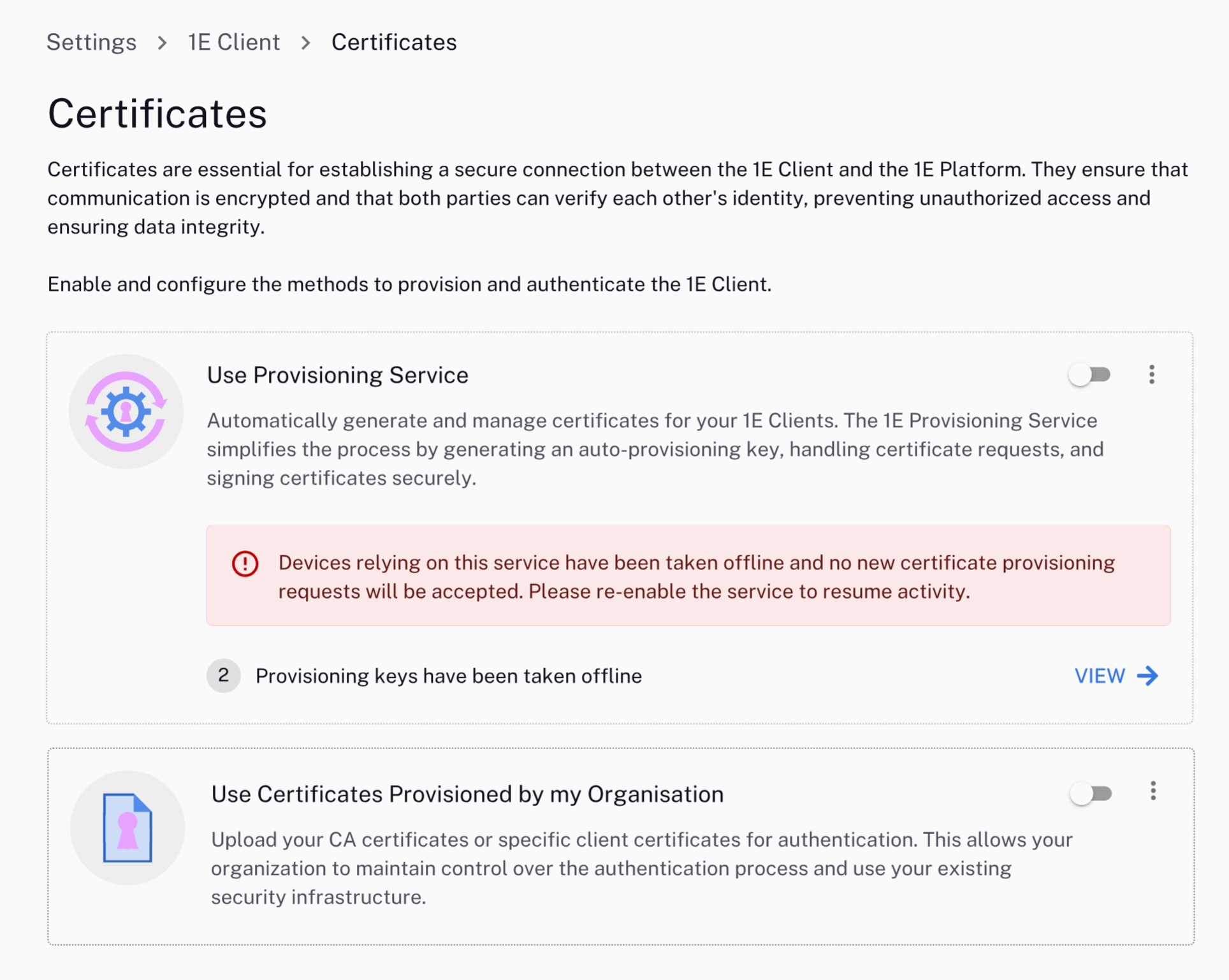
Clicking the Use Provisioning Service toggle will disable the provisioning service with the following actions:
-
All devices relying on the service will be taken offline.
-
No new certificate provisioning requests will be accepted.
-
All keys will be temporarily disabled.
-
-
To continue, select I understand the impact of this action and want to proceed.
Enabling the provisioning service
-
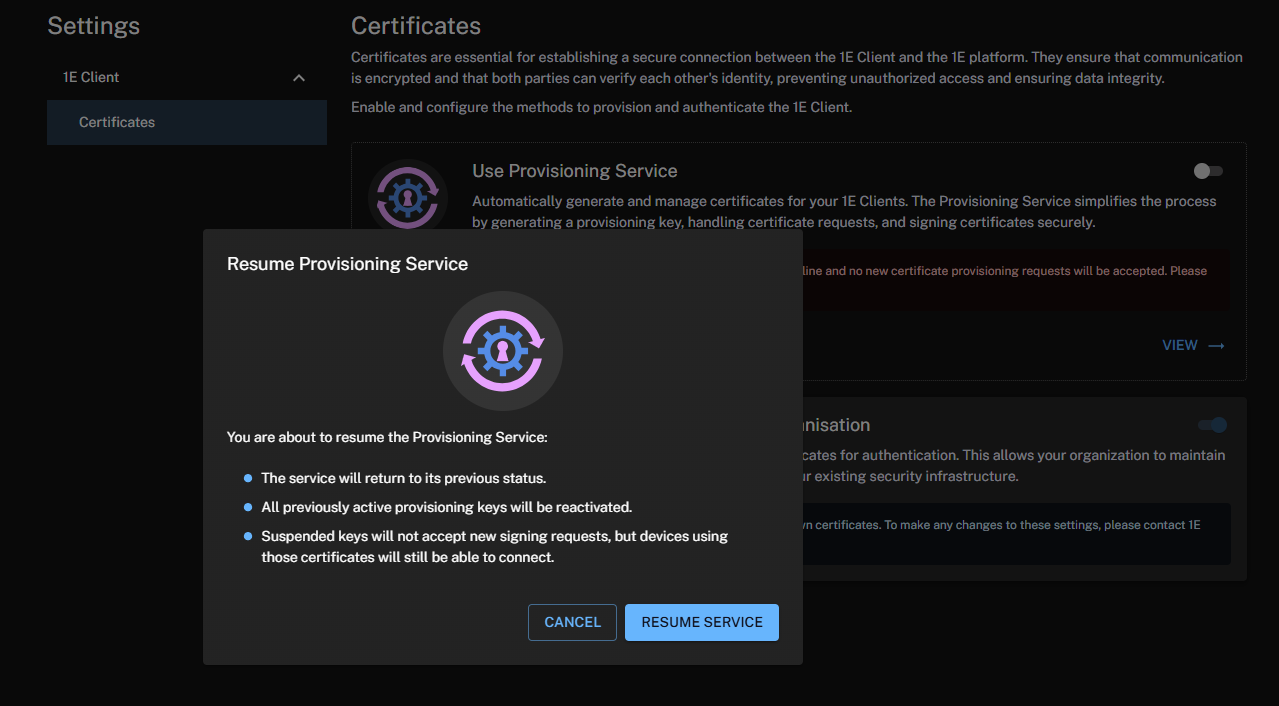
Click the Use Provisioning Service toggle to enable the service.
-
All devices relying on the service will be brought online.
-
New certificate provisioning requests will be accepted.
-
All previously disabled keys will be enabled.
-
Audit log
The Platform records who performed the action, and when it was performed. For suspend, re-activate, and revoke actions, you must provide a reason to be included in the log. The Platform audit log is available to view at Settings > Monitoring > Audit information log. Refer to Monitoring menu.
The Certificate Service saves the following operations to the Audit log:
-
Tenant
-
Issuer certificate
-
Create / Renew
-
-
-
Provisioning feature
-
Enable / Disable
-
-
Provisioning key
-
Created
-
Suspended
-
Re-activated
-
Revoked
-
Renamed
-
Using certificates provisioned by my organization
Enable Use Certificates Provisioned by my Organisation to upload your CA certificates or specific client certificates for authentication. This allows your organization to maintain control over the authentication process and use your existing security infrastructure.
Monitoring
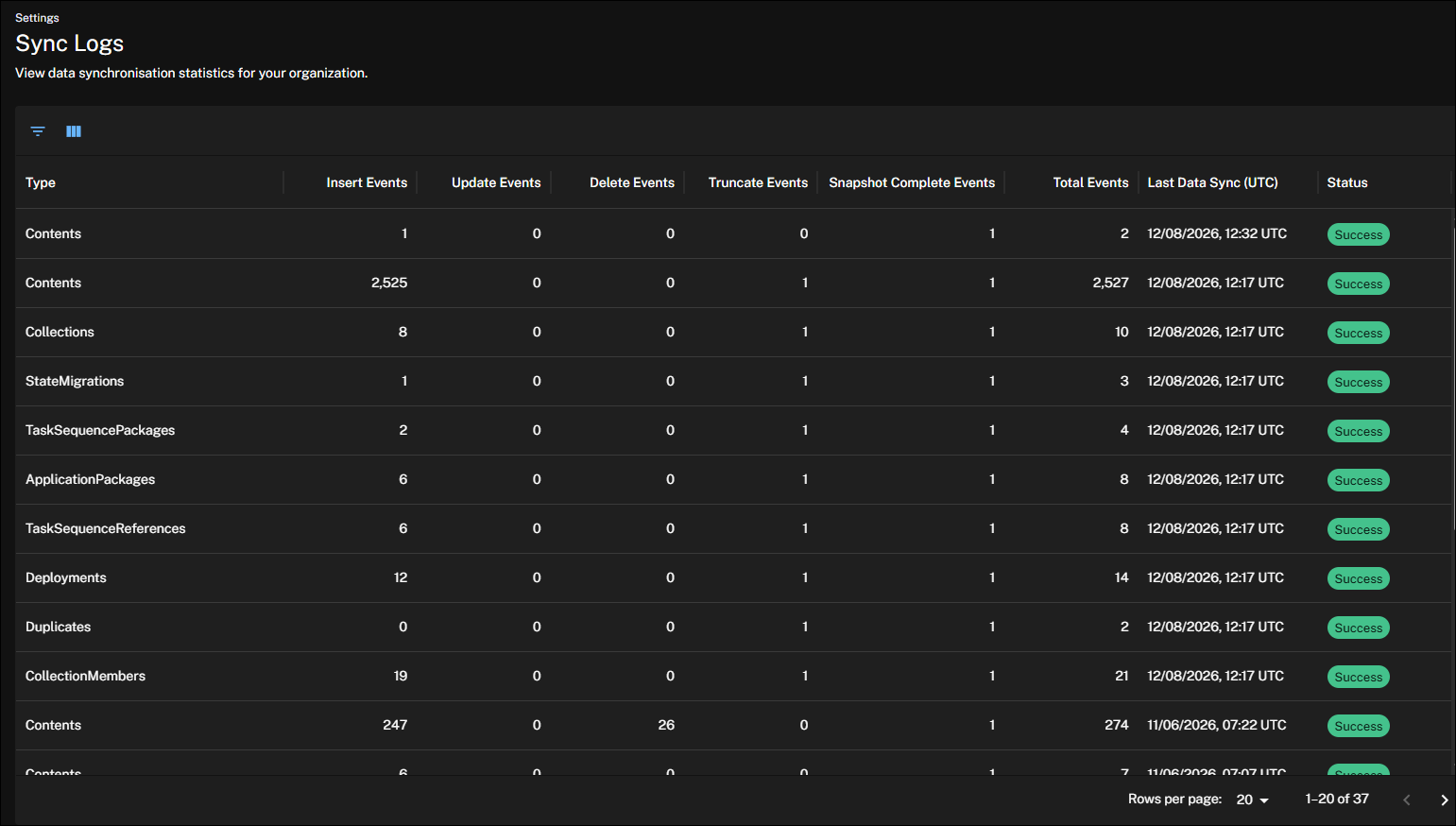
Displays statistics for processed records, allowing you to verify that your data has been uploaded and processed successfully.

Configuration
Click View to access settings not yet migrated to the new UI. Refer to Using Settings.
