Security
 |
|  |
| 
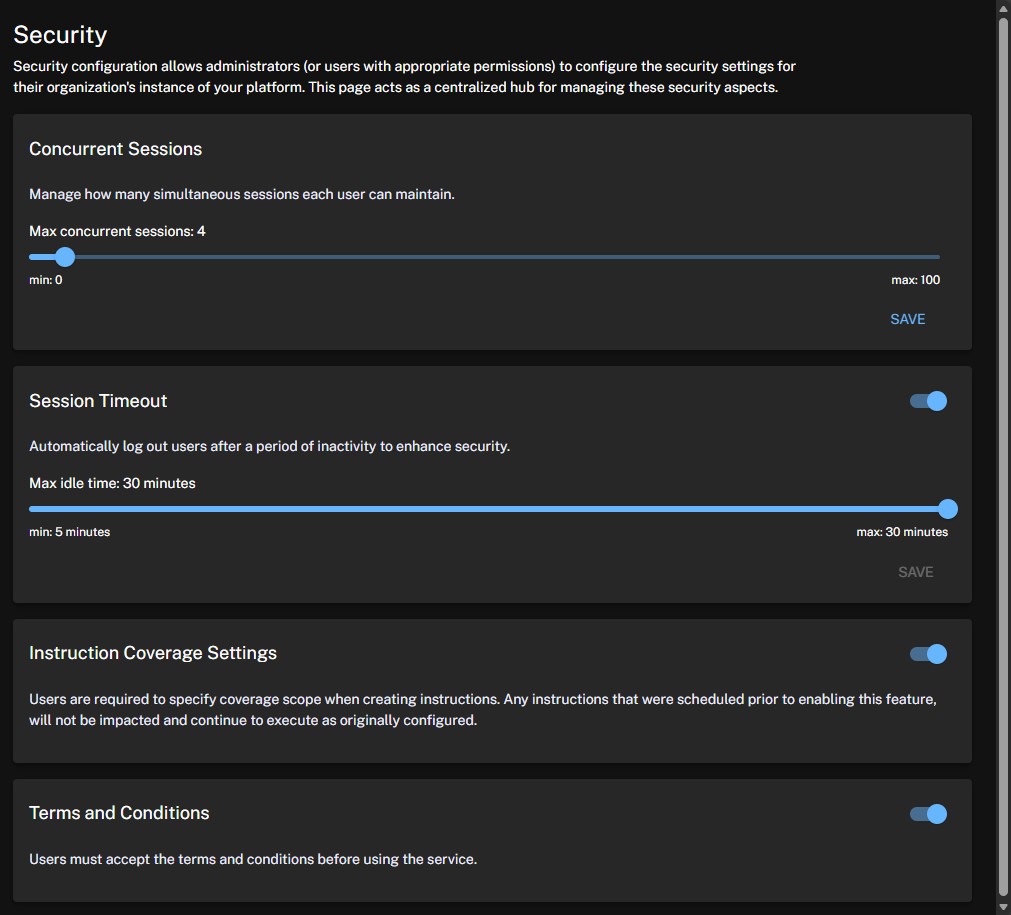
Configure key security settings in the TeamViewer DEX Platform Enhanced Settings, including session limits, timeouts, instruction coverage, and terms acceptance controls.
From the Security age, Full Administrators, and permitted users with the Infrastructure Read/Write permission can configure the Platform’s security settings. This page serves as the central hub for managing those controls.
 Instructions
Instruction Coverage Settings
Instruction coverage helps prevent unintended instructions from running on devices. When enabled, the Platform requires every instruction to include a defined scope before it can be sent for execution. When disabled, instructions without defined coverage are allowed. The default setting is off.
-
To enable this feature, set the toggle, and accept the confirmation by clicking Save.

-
When enabled, a success message confirms the change.


-
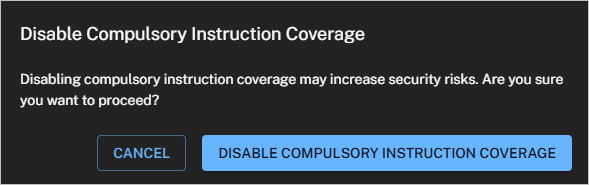
If the Instruction Coverage Settings are subsequently disabled, you will see a confirmation and a reminder that the change may increase security risks.
Security considerations for running instructions
When creating, approving, or importing instructions, you should consider the following security guidelines to reduce the risk of data exposure or unauthorized changes:
-
Protect sensitive business data: Do not create or run instructions that collect sensitive business data that should not be shared outside the organization. Sensitive data can include credentials, authentication tokens, personally identifiable information (PII), internal configuration details, or other proprietary business information. Always review the data an instruction collects or outputs before using it in a production environment.
-
Restrict instruction approval permissions: Limit instruction approval permissions to Tier Zero accounts only. Tier Zero accounts must be restricted to a small set of highly trusted administrators and protected with appropriate access controls and auditing. This helps ensure that only authorized users can approve or deploy instructions that may affect system behavior or data access.
-
Import only authorized instructions: Ensure that only authorized and trusted instructions are imported. Before importing an instruction, verify its source, review its logic and intended behavior, and confirm that it complies with your organization’s security and data-handling policies. Do not import instructions from unknown or unverified sources.
DEX Pack Instructions are available for deployment using the TeamViewer DEX Hub.
To create custom Instruction groups, assign permissions, and control access to Platform actions and automation workflows, refer to Instructions.
DEX Pack Instructions are also available through Hub (Exchange).
AI FeaturesManage AI related features in the Platform.

AI credits
The DEX Platform provides visibility into AI credit consumption, allowing you to monitor how AI features are used across your organization. You can view credit usage, and check your remaining balances from the Reporting and Settings pages, helping you manage AI feature adoption and plan credit top-ups. AI credits refresh monthly, with a limit of one AI credit per licensed endpoint.
AI credit reset occurs every month based on your license and perform the following actions:
-
Calculates the monthly AI credit limit based on the license.
-
Stores the monthly credit limit.
-
Resets the used AI credits.
-
Resets the available credits.
Credit consumption rates
DEX Tia Reporting (ThoughtSpot/Spotter integration):
-
15 AI credits per interaction or query (generating an AI dashboard or complex conversational query report).
DEX Tia Hub (SCALE script automation & builder):
-
5 AI credits for initial script generation.
-
3 AI credits per script update or refinement.
Enabling AI features
You can enable or disable all AI capabilities globally using the Enable AI features toggle, or configure them individually. These settings persist across sessions.
Tia Reporting
Tia Reporting and related Observability features now respect licensing, AI feature configuration, and RBAC permissions, so users only see functionality they are authorized to access. Inaccessible navigation items are hidden, preventing loading and access issues for unauthorized users. Refer to Observability.
Sessions
Concurrent Sessions
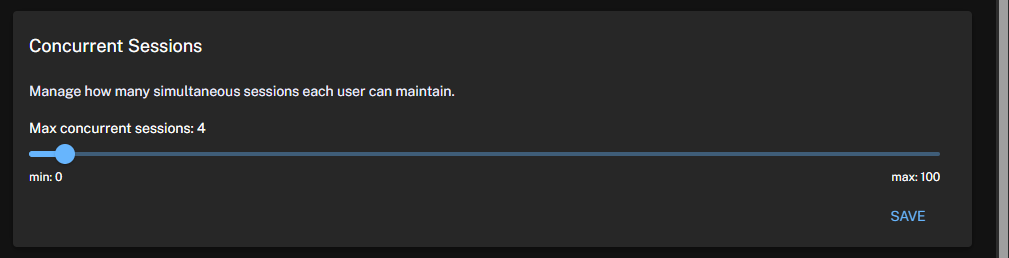
This setting controls how many concurrent sessions a user can be signed in to, either by browser or device. An admin sets the maximum, and the configured limit is shown here.
The effective concurrent sessions range is minimum one, maximum 100.
-
To enable concurrent session, set the toggle and accept the confirmation by clicking Save.

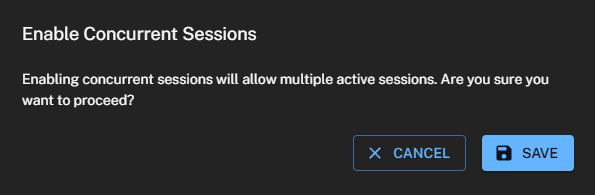
When enabled, a success message confirms the change.

-
Click the Max concurrent sessions number to adjust this setting.

-
To disable the session timeout feature, use the toggle. When you change the concurrent session limit, a confirmation message appears, reminding you that the change affects user access and security, and the concurrent session limit is reset to one.


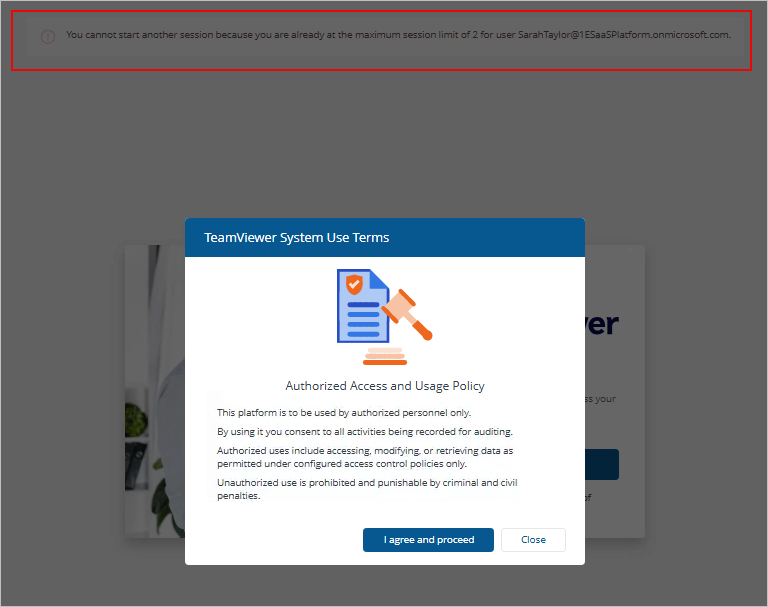
When the concurrent session limit is set to one, the Platform treats the session as active until it is explicitly ended. The session is released only when one of the following occurs:
-
The user signs out properly.
-
The session reaches the configured session timeout.
If the user closes the browser window without signing out, the session remains active until it times out. During this period, the user cannot sign in again because the single allowed session is still in use.
Session Timeout
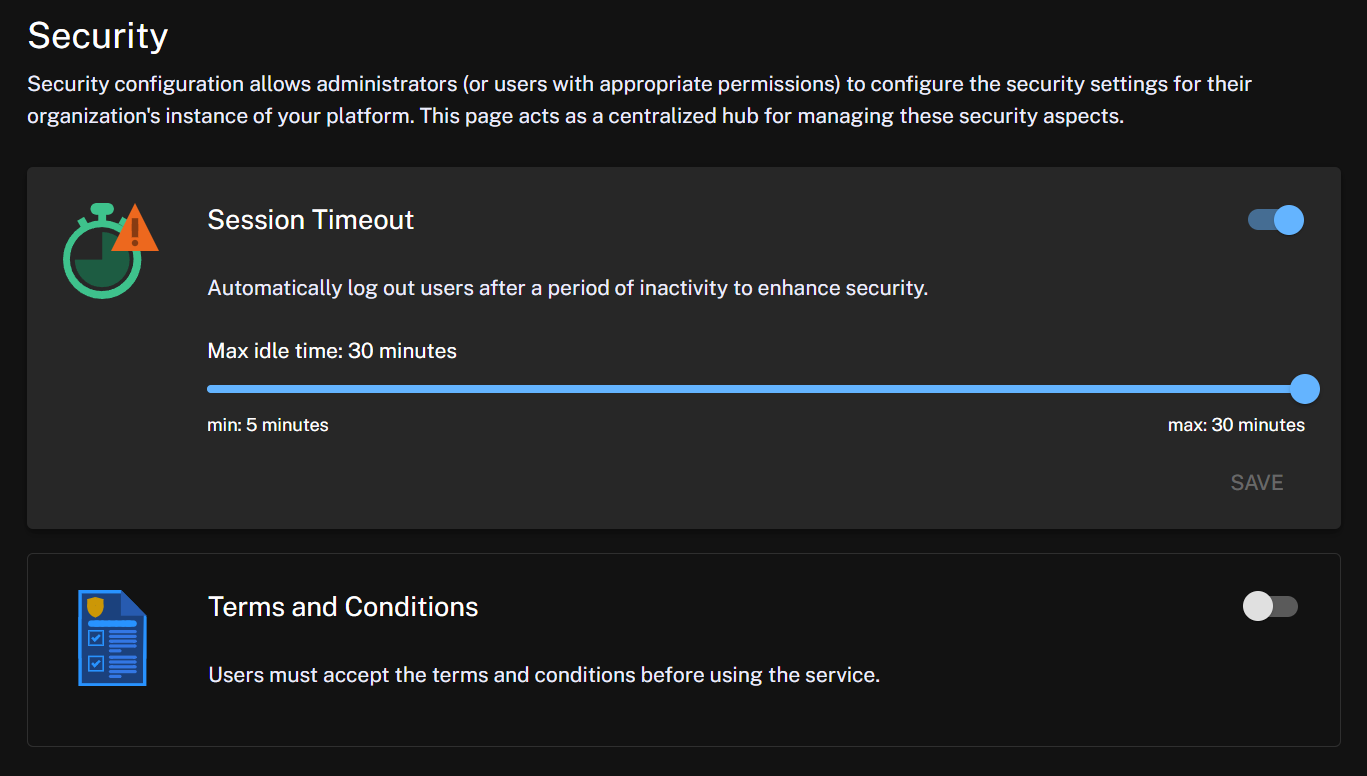
Admins can set the automatic session timeout for idle users, up to 30 minutes.
-
To enable session timeout, set the toggle and accept the confirmation by clicking Save.

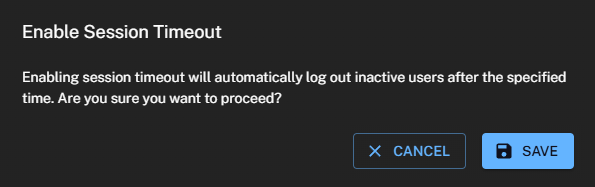
When enabled, a success message confirms the change.

-
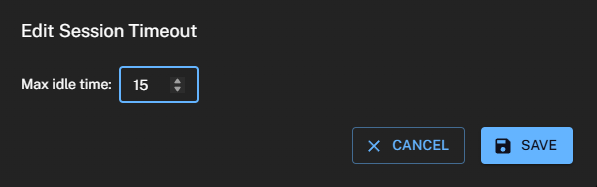
When you first enable the automatic session timeout, the default is 15 minutes. You can set the timeout to a minimum of five minutes or a maximum of 30 minutes. Click the Max idle time to adjust this setting.
-
After the configured period of inactivity, the system signs the user out to enhance security. Before timeout, the user receives a notification with the option to extend the session.

-
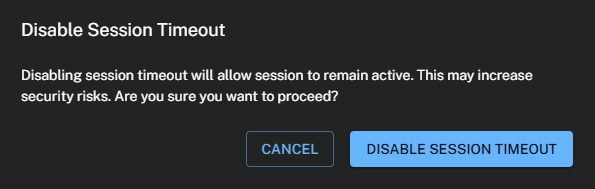
If the session timeout feature is subsequently disabled, you will see a confirmation and a reminder that the change may increase security risks.
General
Terms and Conditions
Enable this setting to show the latest terms and conditions at every sign-in. Users must accept them before accessing the Platform.
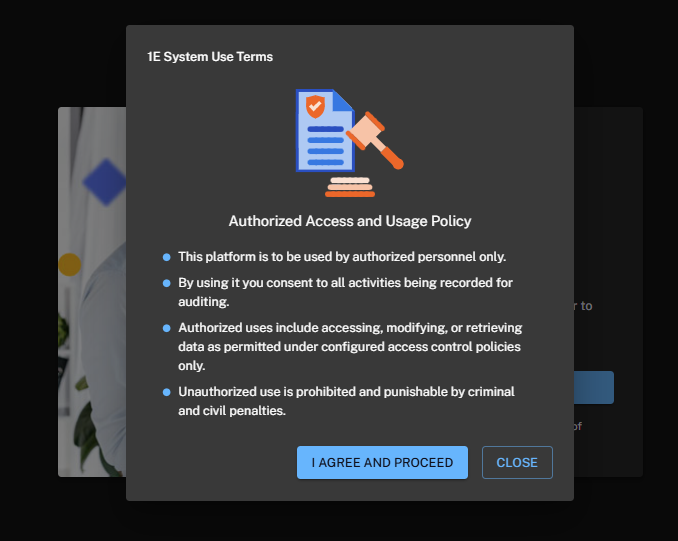
When enabled, a success message confirms the change.

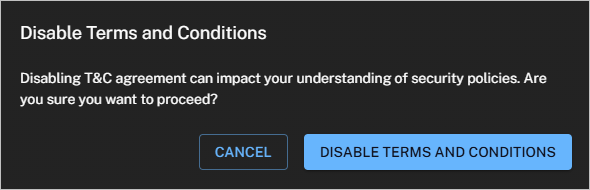
If Terms and Conditions are subsequently disabled, you will see a confirmation and a reminder that the change may impact your understanding of security policies.