Understanding Software Reclaim
 |
|  |
| 
This guide helps you understand how Software Reclaim works. It covers common scenarios and steps to verify configuration, validate data, and ensure that it is working as expected.
Knowing how data is collected, processed, and used by Software Reclaim is key to understanding how the tool works and what is expected behavior.
How data is collected and processed for Software Reclaim
Data is gathered in the form of software inventory and usage data from your devices and is prepared for use in Software Reclaim through a structured and validated pipeline.
Data is refreshed once a day at 12:00 AM UTC on the Platform. It is then pulled by Software Reclaim, where the updated data will be visible by 8:00AM UTC.
-
Data collection from the Client
-
The Client runs on every managed device and continuously monitors application activity, including when executable (.exe) files are launched and how they are used.
-
This usage information is securely transmitted to the TeamViewer DEX Platform on a regular basis, ensuring the system always has up-to-date insights about software behavior on each device.
-
-
Normalization using the Catalog
-
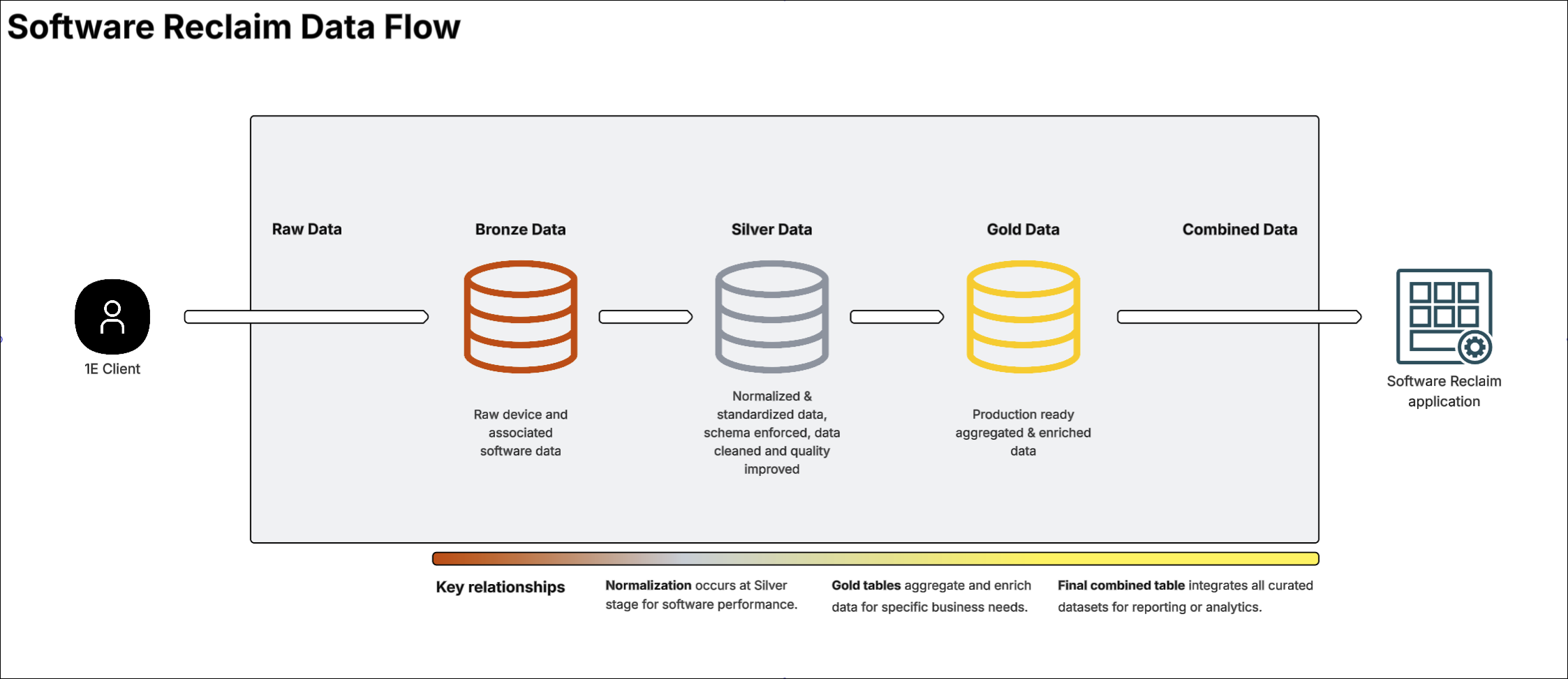
As the data arrives in the DEX Platform, it is passed through the Catalog, where each software item is normalized.
-
This ensures each application is correctly identified by its Vendor, Title, and Version (VTV), even if the inventory varies across versions.
-
This step creates a standardized, accurate record of all software detected across the environment.
-
-
Data processing and aggregation
-
Once normalized, the data is processed and aggregated into consolidated tables.
-
This aggregation step brings together installation and usage information from all devices, ensuring a complete and accurate view of the following:
-
What software is installed.
-
How frequently each application is used.
-
-
This step ensures Software Reclaim has a consistent, accurate view of every installation and its usage.
-
Software Reclaim then pulls this data from the data storage for use in the solution. See diagram below for a visual of the process.
-
Catalog and Inventory Insights
Software Reclaim relies on accurate, normalized software inventory and usage data to correctly identify which products are installed. To enable this, two platform components must be configured: Catalog and Inventory Insights. They are vital for ensuring accurate data in Software Reclaim and this section describes their roles and importance.
Catalog overview
Catalog provides a standardized definition of software products, versions, editions, suites, and match rules. Software Reclaim uses the Catalog to accurately identify installed applications and ensure usage data is attributed to the correct software title.
Why Catalog matters for Software Reclaim
-
Normalizes raw inventory data from endpoints.
-
Ensures Software Usage records map to the correct software product.
-
Enables reclaim rules to target specific products and versions reliably.
-
Prevents misclassification of applications when different installers or naming conventions exist across the environment.
Refer to Understanding Software Reclaim for full details on configuring your mapping, or refer to Catalog for full details.
Inventory Insights overview
Inventory Insights is responsible for collecting, aggregating, and presenting detailed software installation and usage information from endpoints. Software Reclaim uses this data to evaluate reclaim policies and determine whether software is unused or underused.
Why Inventory Insights matters for Software Reclaim
-
Provides normalized inventory data enriched by the Catalog.
-
Supplies historical Software Usage data required for reclaim decisions.
-
Enables dashboards that help administrators identify reclaim candidates.
Refer to Inventory Insights for full details.
Common scenarios
Now you know how data is processed and used, below are the most frequent Software Reclaim scenarios you might encounter when trying to get your data flowing accurately. It also includes the recommended checks to help you identify and fix them quickly.
 Software title not in Software Reclaim
If the software title does not appear in Software Reclaim, the title is likely not normalized.
You need to normalize the software using the Catalog. This normalization step ensures that all software entries are standardized and accurately represented, which can help resolve discrepancies and improve overall software management.
For step-by-step instructions on normalizing the source inventory by using Catalog, refer to Managing match rules.
Unreported software usage
A high number of unreported software titles indicates that software installations are present, but usage data is not being reported. This can affect Software Reclaim accuracy, hide potential savings, and make it difficult to assess true software usage. This section explains the common causes of unreported titles and how to resolve them.
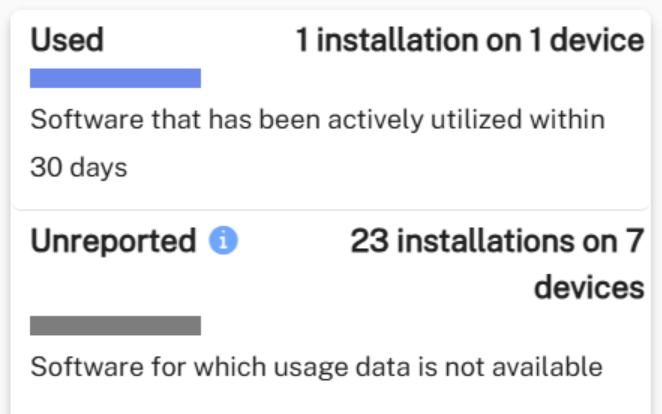
The unreported number relates to the number of unreported installations, not the number of unreported software.
One device can have multiple versions of a particular software on it. For example, software may be updated to the latest version, but the old version of the software may still be on the device and counted in the unreported number.
The most common reason for a high number of unreported software titles is missing or incorrect mapping for the .exe file from which usage is reported by the client.
To manually map executables to software titles:
-
Select Inventory Insights from the TeamViewer DEX homepage.
-
Select Software from the menu on the left.
-
Select Normalized.
-
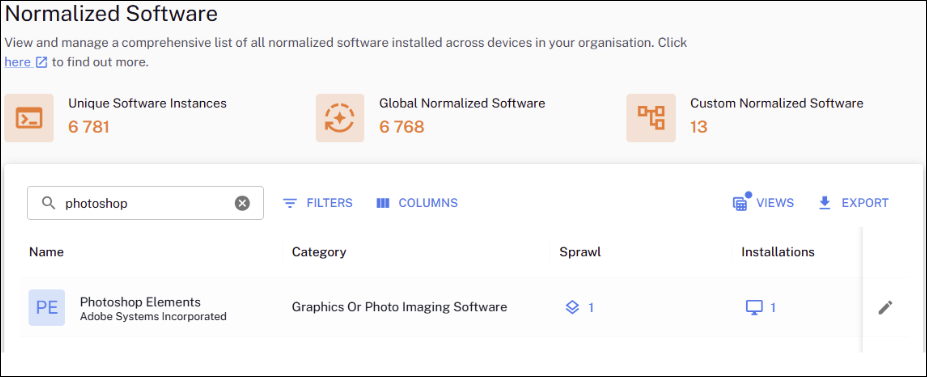
Click the search icon and enter the vendor or title (for example, Photoshop) you want to configure.
-
Click the Edit details icon next to the software (for example, Photoshop).
-
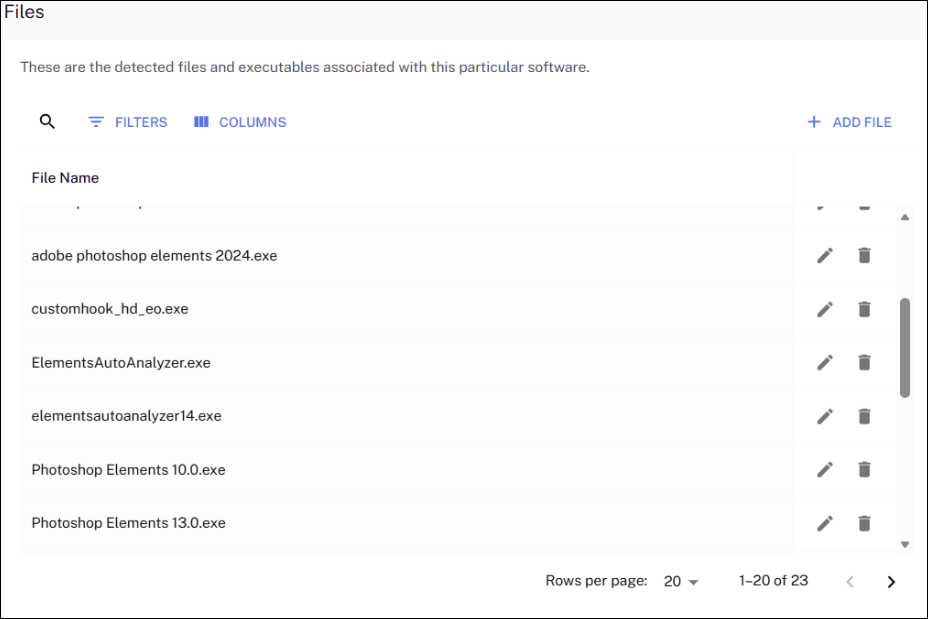
Go to the Files section.
-
If there are no executables listed, click Add File and enter the executable file (for example, photoshop.exe).
-
Click Add.
-
If there are several executables listed, search for the executable file by name (for example, photoshop.exe).
-
If the executable file (for example, photoshop.exe) doesn’t appear, click Add File and enter the executable file (for example, photoshop.exe).
-
Click Add.
-
Click Save at the bottom of the page.
Usage events from this executable file (for example, photoshop.exe) will now be attributed to the software title.
After 24–48 hours, check the Usage Reports for that software title (for example, Photoshop) in Software Reclaim.
If after mapping the .exe file, usage is not reported, confirm that:
-
The Client is installed on the device.
-
The software title is installed.
-
The end user has used the software.
Unreported software titles
A high number of unreported software titles indicates that software installations are present, but usage data is not being captured. This can affect Software Reclaim accuracy, hide potential savings, and make it difficult to assess true software usage. This section explains the common causes of unreported titles and how to resolve them.
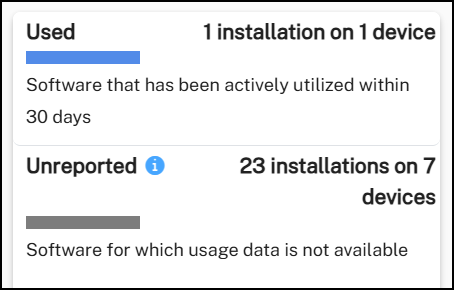
The unreported number relates to the number of unreported installations, not the number of unreported software.
One device can have multiple versions of a particular software on it. For example, software may be updated to the latest version, but the old version of the software will still be on the device and counted in the unreported number.
The most common reasons for this high unreported software titles number are the following:
-
No device usage: A device is not reporting software usage, meaning there is an issue with the client.
- Refer to Verifying - 1E Client to ensure that the client is correctly installed and communicating.
- Them, ensure that the Client service is running, the config file is correct, and the network connectivity to the DEX Platform is intact.
-
No product usage: Catalog mapping for the .exe file (from which usage from the client is reported) and normalized inventory is missing or incorrect.
-
You need to normalize the software using the Catalog. This normalization step ensures that all software entries are standardized and accurately represented, which can help resolve discrepancies and improve overall software management.
-
For step-by-step instructions on normalizing the source inventory by using Catalog, refer to Managing match rules.
-
-
No usage reported: No product activity has been detected on the device since Software Reclaim was enabled.
-
This commonly occurs when the end user installs software on their device before the Client was ever installed.
-
After the Client was installed, the end user never used the software, so no usage could be reported.
-
The best way to troubleshoot this is to reach out to a group of your impacted users and to ask them to open and interact with the relevant software. Then, check back the next day, after the data is refreshed to see if the software still appears as unreported. If it's not, it is likely a client installation issue.
-
Relevant vs. non-relevant software
Relevant software refers to applications that are meaningful from a reclaim- or usage-visibility perspective. These are the titles customers typically want to track because they can impact licensing costs, compliance, or optimization decisions.
Relevant software may include the following:
-
Relevant licensable software: Where reclaiming unused installations can save costs.
-
Relevant non-licensable software: That customers still want visibility into, such as applications important for usage tracking or governance. By default, software will be marked as non-licensable software.
By marking software as relevant, the dashboard focuses only on titles that matter to you, removing unnecessary noise and avoiding clutter from system components or low-value applications. This ensures you see a clear, accurate view of the software that is important for reclaim and optimization purposes.
Configuring the relevant software list
-
Navigate to Software Reclaim.
-
Click the Solution Settings icon from the menu on the left.
-
Click Configure Relevant Software List.
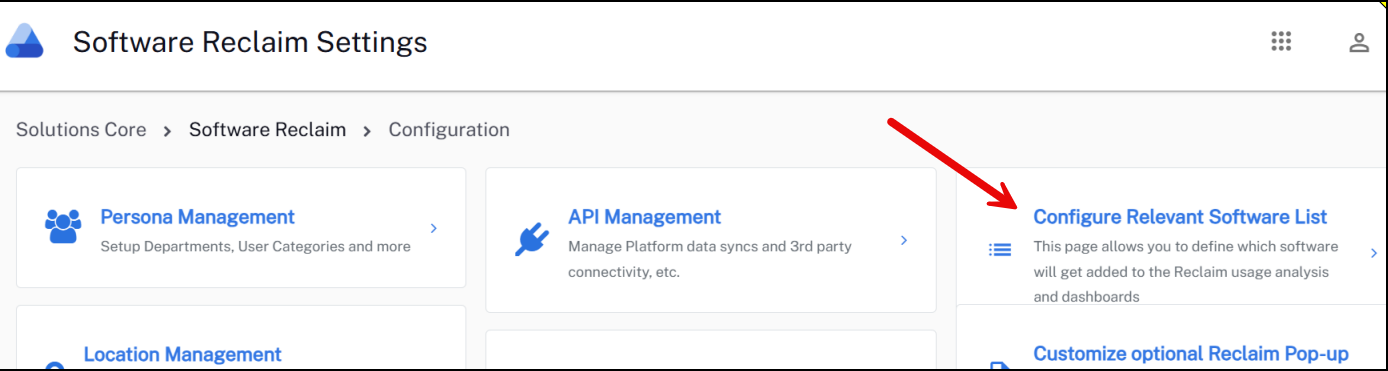
-
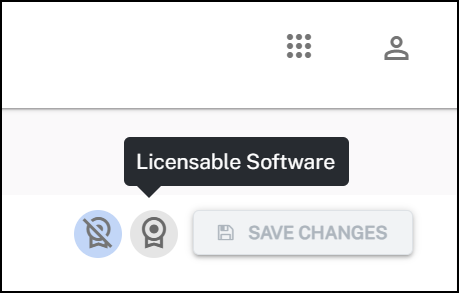
Click the Non-Licensable Software and Licensable Software icons on the top right to show a list of the non-licensable and licensable software, respectively.
-
Select the Is Relevant checkbox next to the Vendor or Title you want to enable creation of Reclaim Rules for.
-
Click Save Changes on the top right.
Your software titles are now marked as Is Relevant and the changes will be reflected in the next daily data refresh cycle.