Devices
 |
|  |
| 
The product formerly referred to as Tachyon has been rebranded as The TeamViewer DEX Platform. Although the new name is implemented in the majority of documentation and user interfaces, references to Tachyon may still appear in specific tools, scripts, or contexts.
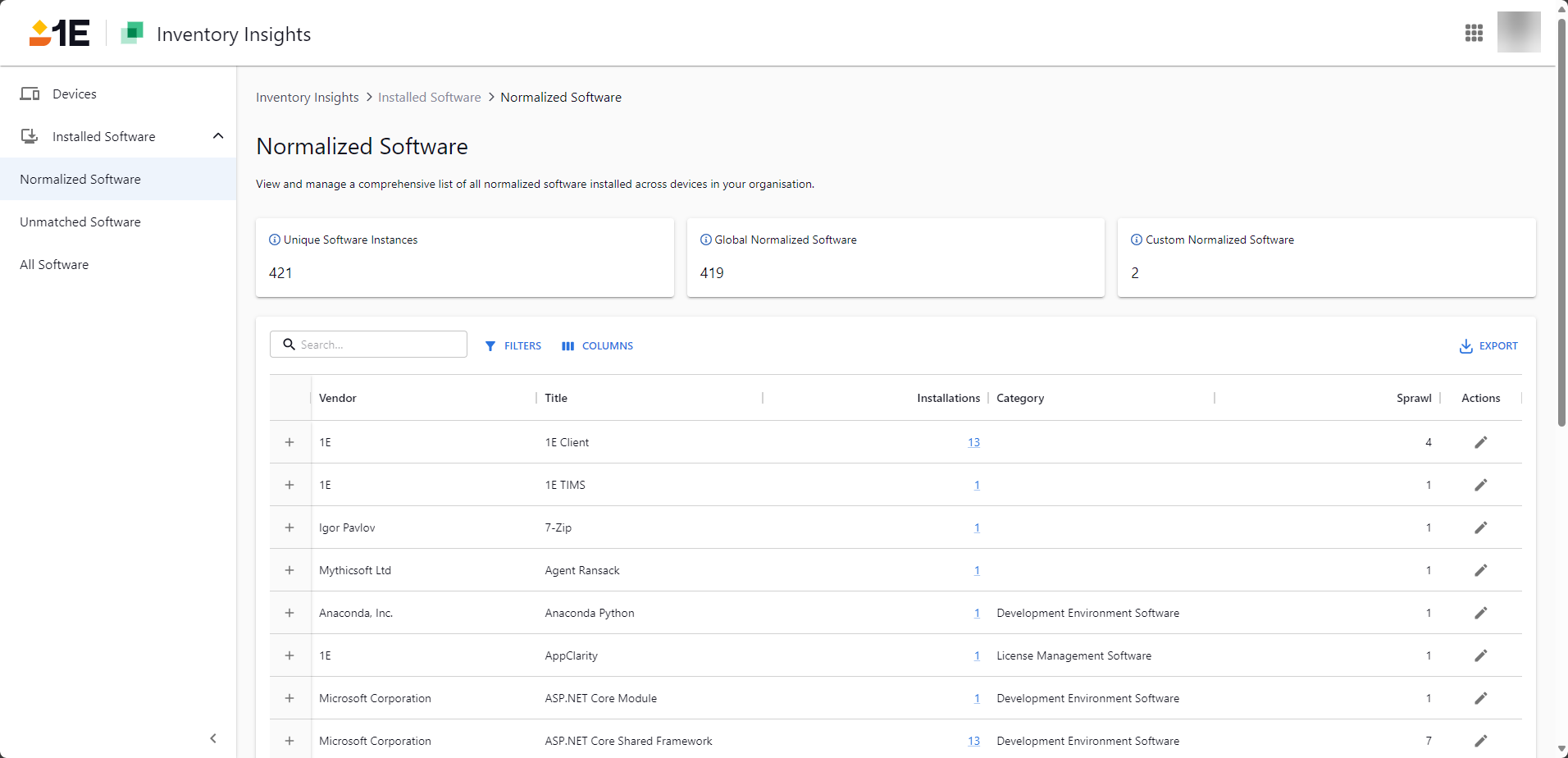
Explore the Inventory Insights Devices page to view real-time device inventory in the Platform. See total, critical, and inactive devices, filter status, run instructions, and drill into detailed device attributes and history for streamlined IT asset visibility and troubleshooting.
Device Inventory is similar to the Devices view in Endpoint Troubleshooting, but has extended features you can use to include all device data. Device inventory is available in both Inventory Insights and Endpoint Troubleshooting.
 KPI cards

At the top of the page, there are KPI cards displaying the following:
- Devices: Total count of different types of devices across manufacturers and operating systems.
- Critical Devices: Devices whose criticality has been assigned as critical.
- Inactive Devices: Devices that have been offline for 30 days or more.
Filtering and columns
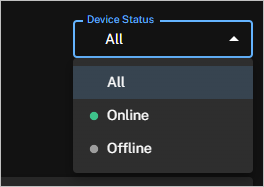
You have the option to filter the page on Device Status as either Online, Offline, or All by clicking the drop-down menu on the top right corner of the page. The list shows real-time, detailed information about all Platform devices in your environment.
Inventory Insights includes tools to help you customize your view and to interrogate your software data, refer to Page toolbar search, filters, columns, delete, export for more details.
Run instructions and view instruction history
You can search for, and run an instruction against a set of devices, from the Devices page. There are two options:
-
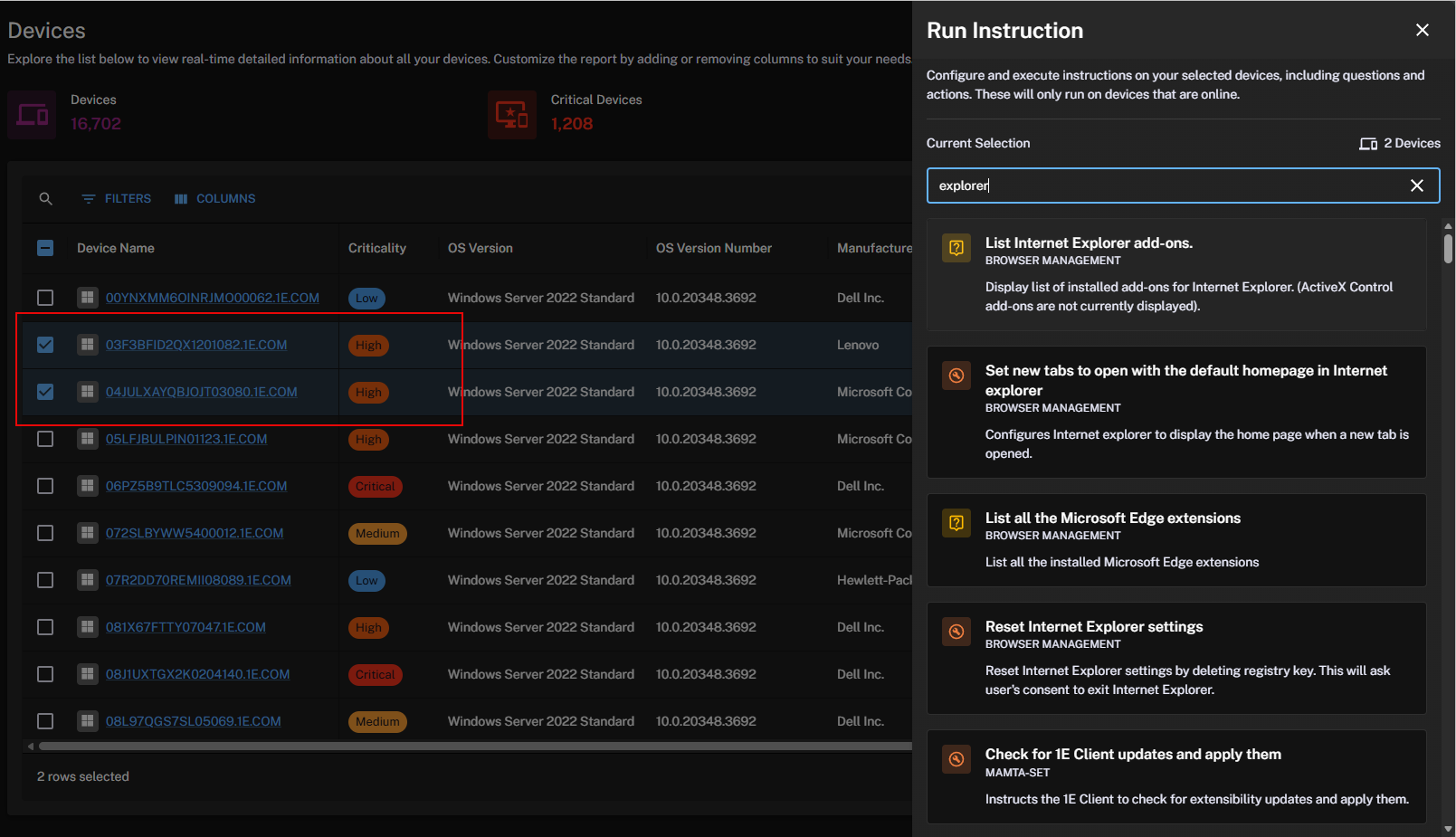
Select one or more devices from the device grid.
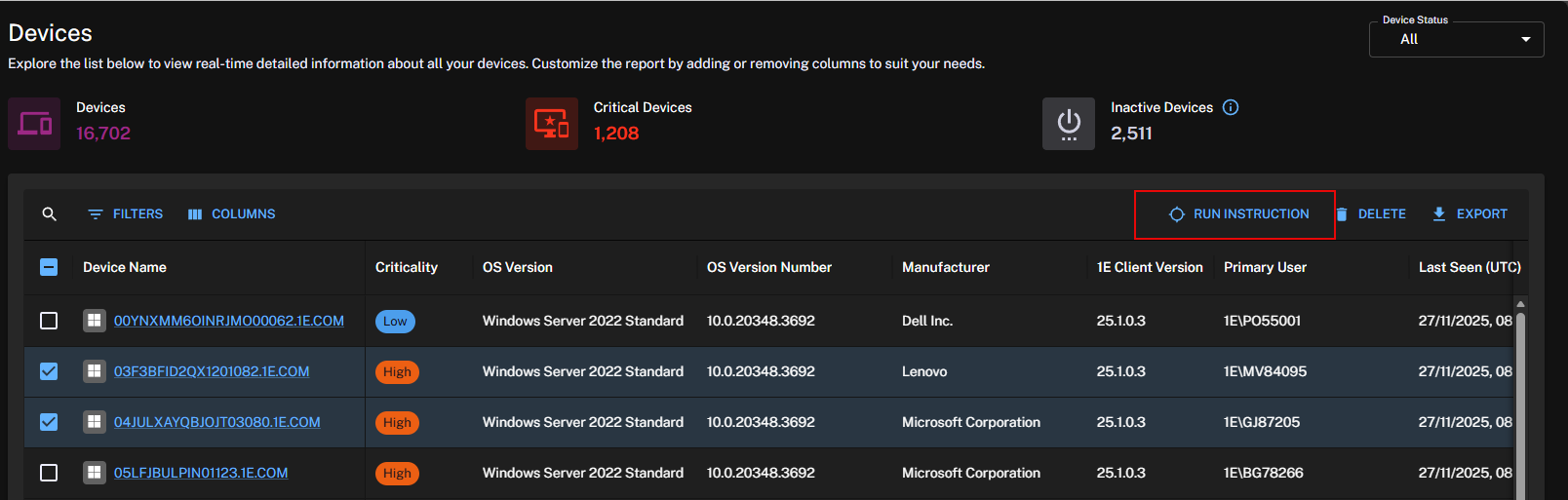
Search for and run the selected instruction from the Run Instruction drawer.
-
Select a device from the Devices page, and click Run Instruction from the Device summary card.
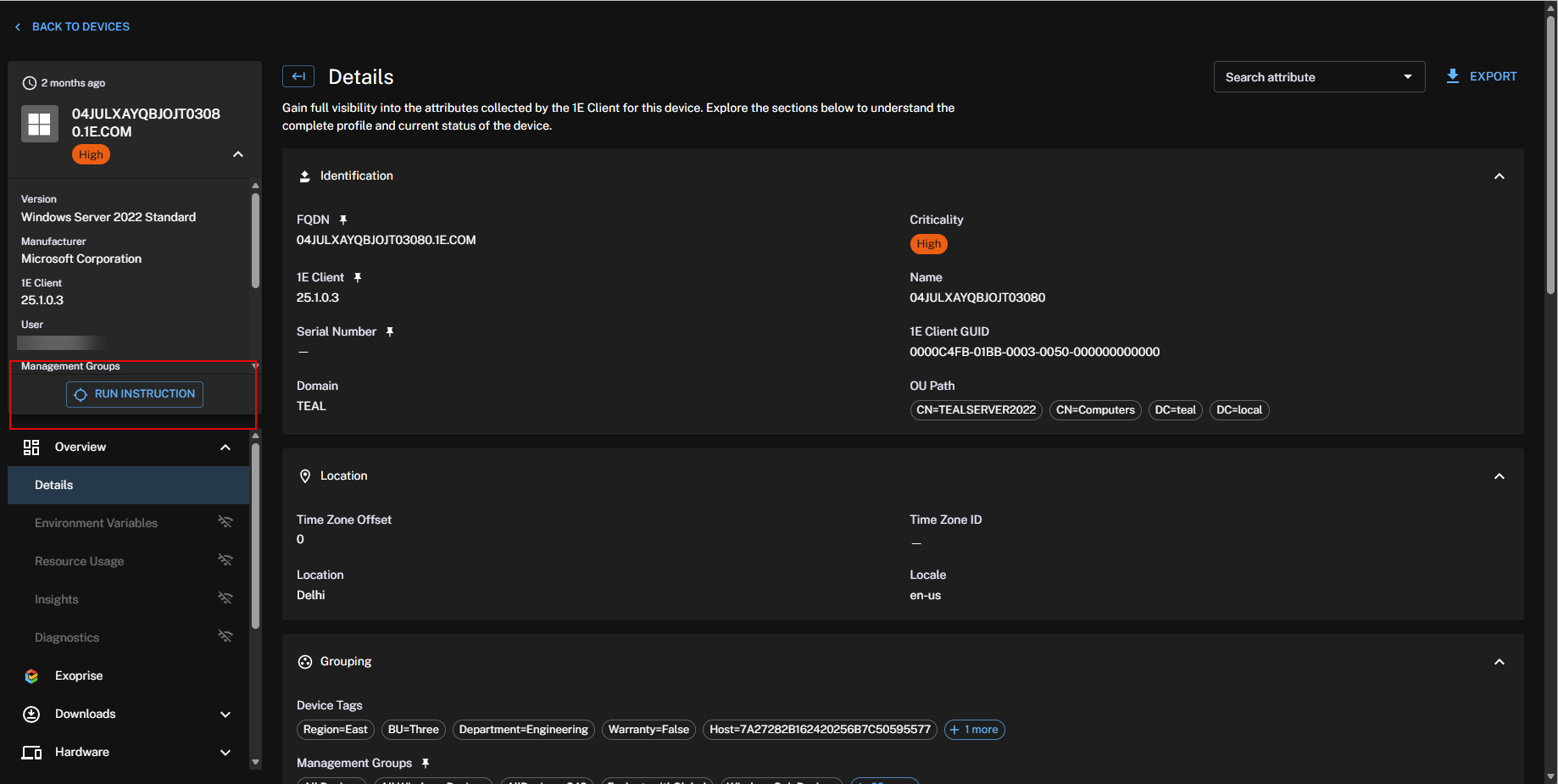
To run the instruction:
-
From the Investigate drawer, search for an Instruction, or choose one from the list.
-
Click an Instruction to configure its parameters. You can configure every parameter except for coverage. If you navigate away after filling out any part of the form, an unsaved changes dialog will appear. When you have finished editing, click Run Instruction.
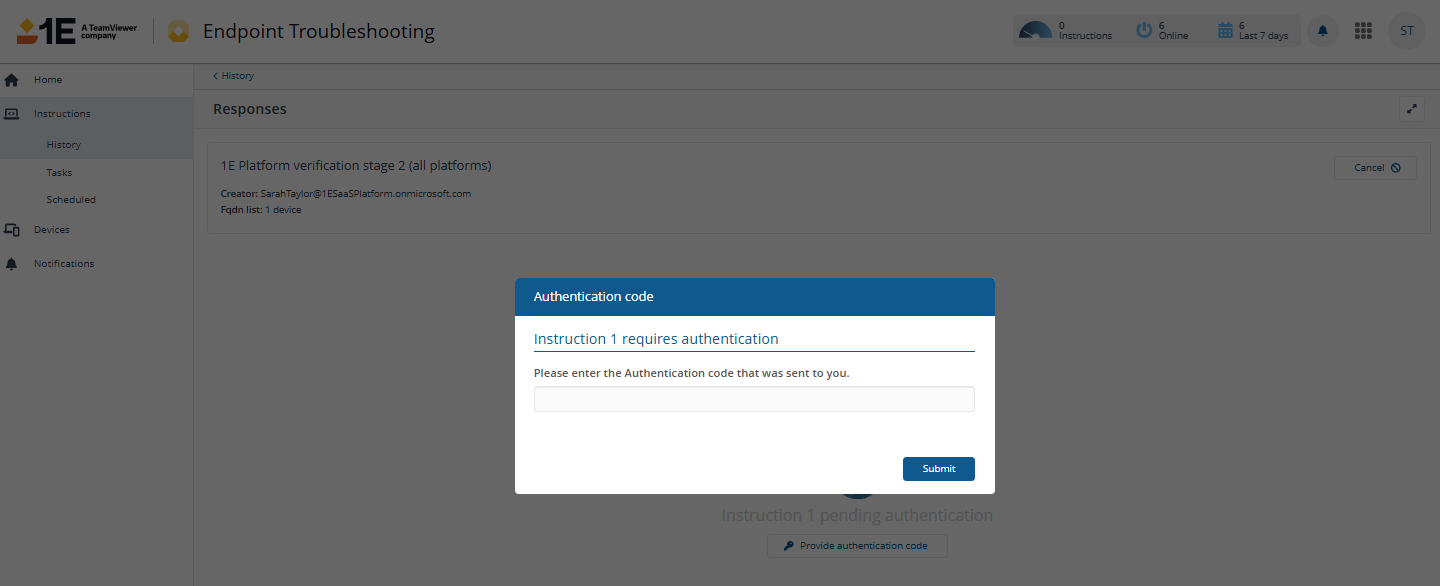
When you run an Action, you will need to follow the approval workflow. Clicking Authentication opens the following page for that Instruction.
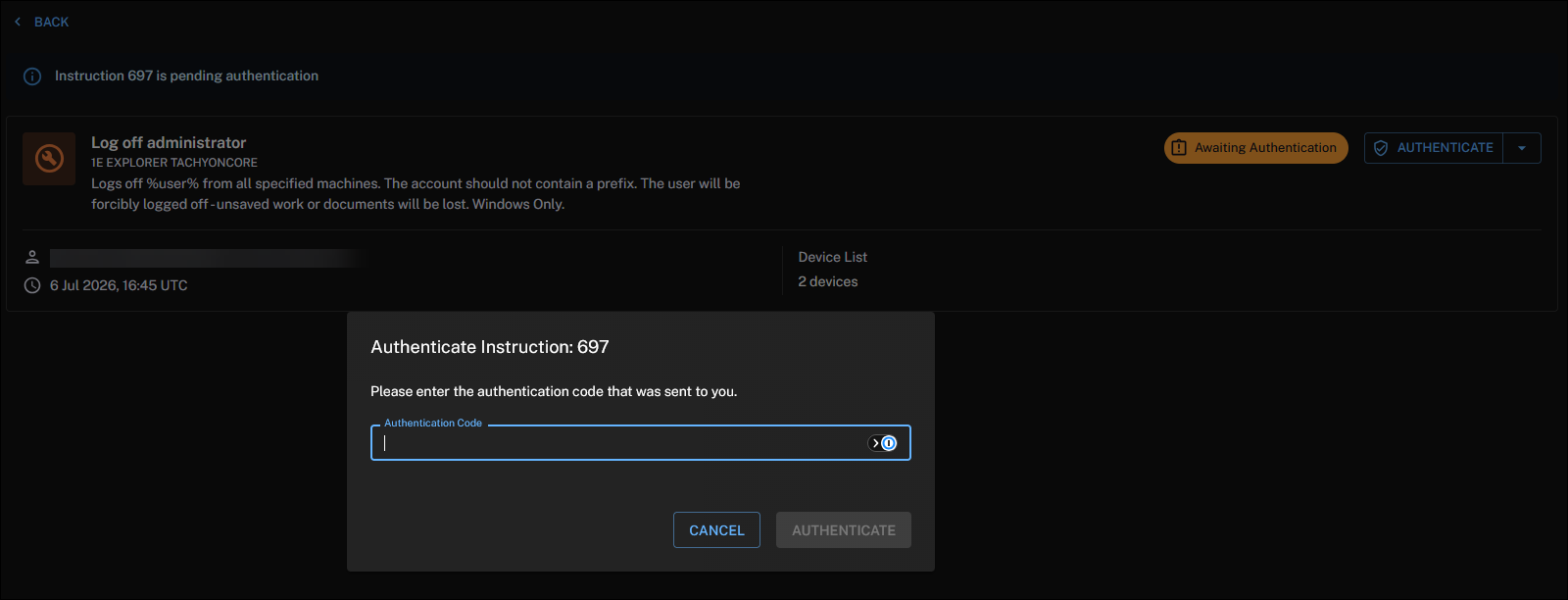
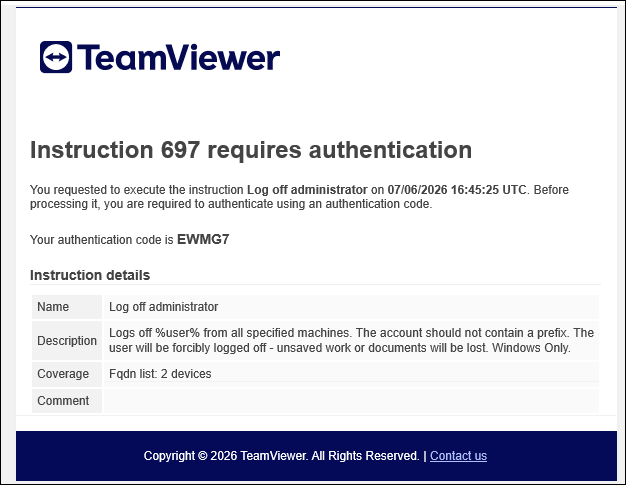
From Investigation > History click the three dots, and then choose Authenticate from the drop-down list. Refer to The action approval workflow.


You can also complete authentication from Endpoint Troubleshooting, refer to The action approval workflow.
-
After the Instruction runs, you will see summary details like Responses, Configuration, and Lifecycle displayed in the Instruction Summary drawer.
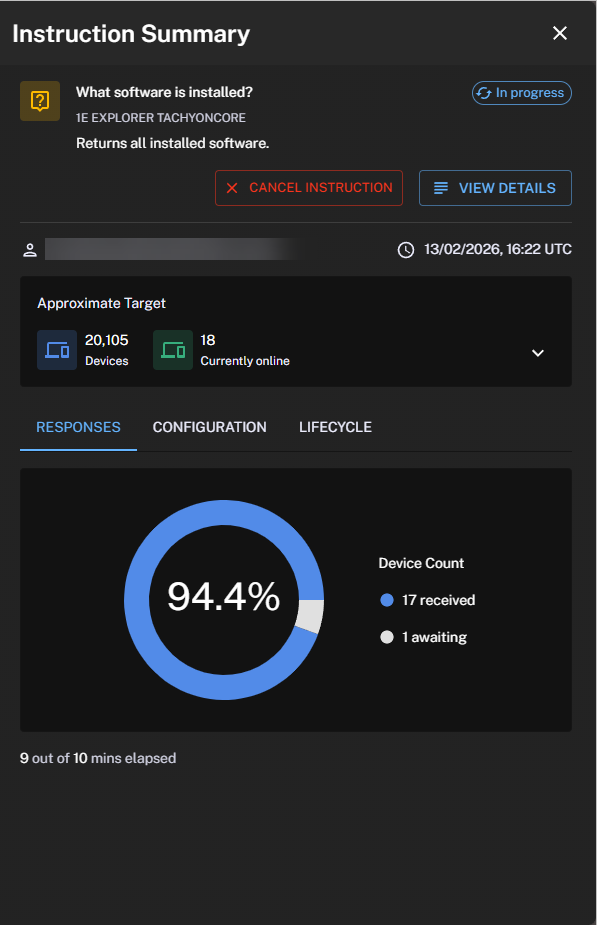
You can also reach Instruction Summary from the Investigation > History, then click Actions > View Details


From the Instruction Summary drawer, you can view instruction responses by clicking View Details.
-
To view progress in Instruction History, click the link in the pop-up Instruction is now running. View it here.
For more information about how to interactively ask questions, run actions, and view responses, and manage operations across all your endpoints in real-time, refer to Endpoint Troubleshooting.
Delete Device
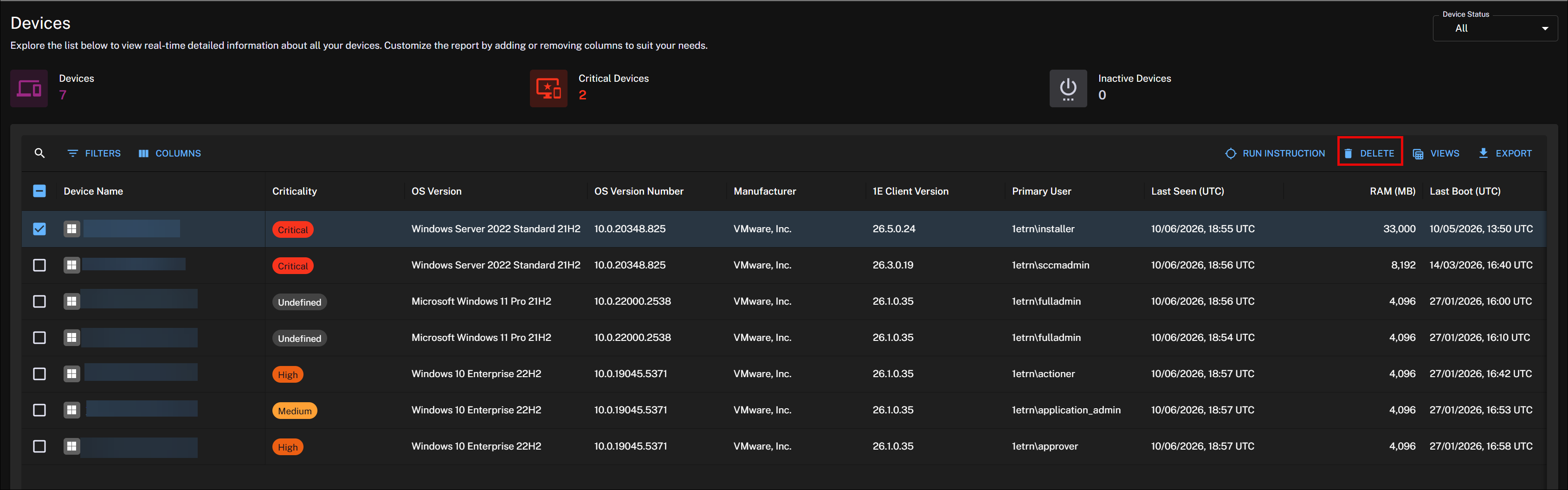
You can delete a device from the device grid using the Delete button. This feature is only available to users with Device Management Delete permission.
-
Select one or more devices from the device grid and click Delete.
-
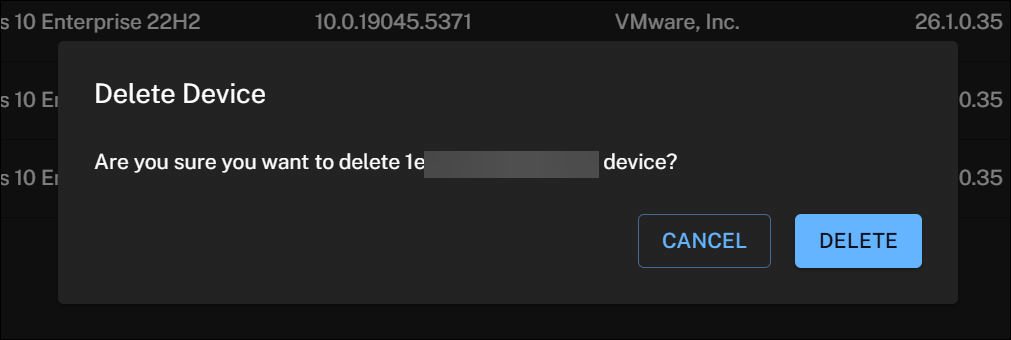
A pop-up message will appear to confirm deletion. Click Delete to proceed..
-
Once done, the device is removed and will no longer be visible after a refresh or relogin.
Device view
Selecting a device from the Devices page opens its Details which includes real-time response information.
Device summary card
Gives you an overview of the current device.
-
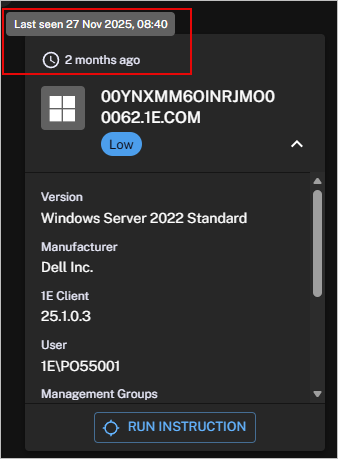
Hover over last seen to view its UTC timestamp.
-
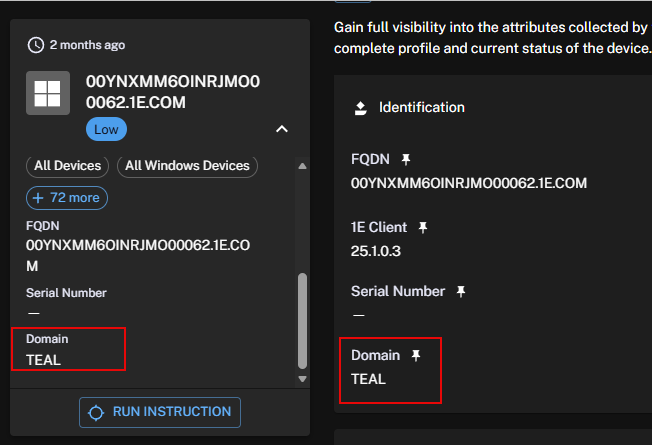
Customize items on the card by pinning them from device Details, hover over an item to reveal its pin.
Device details
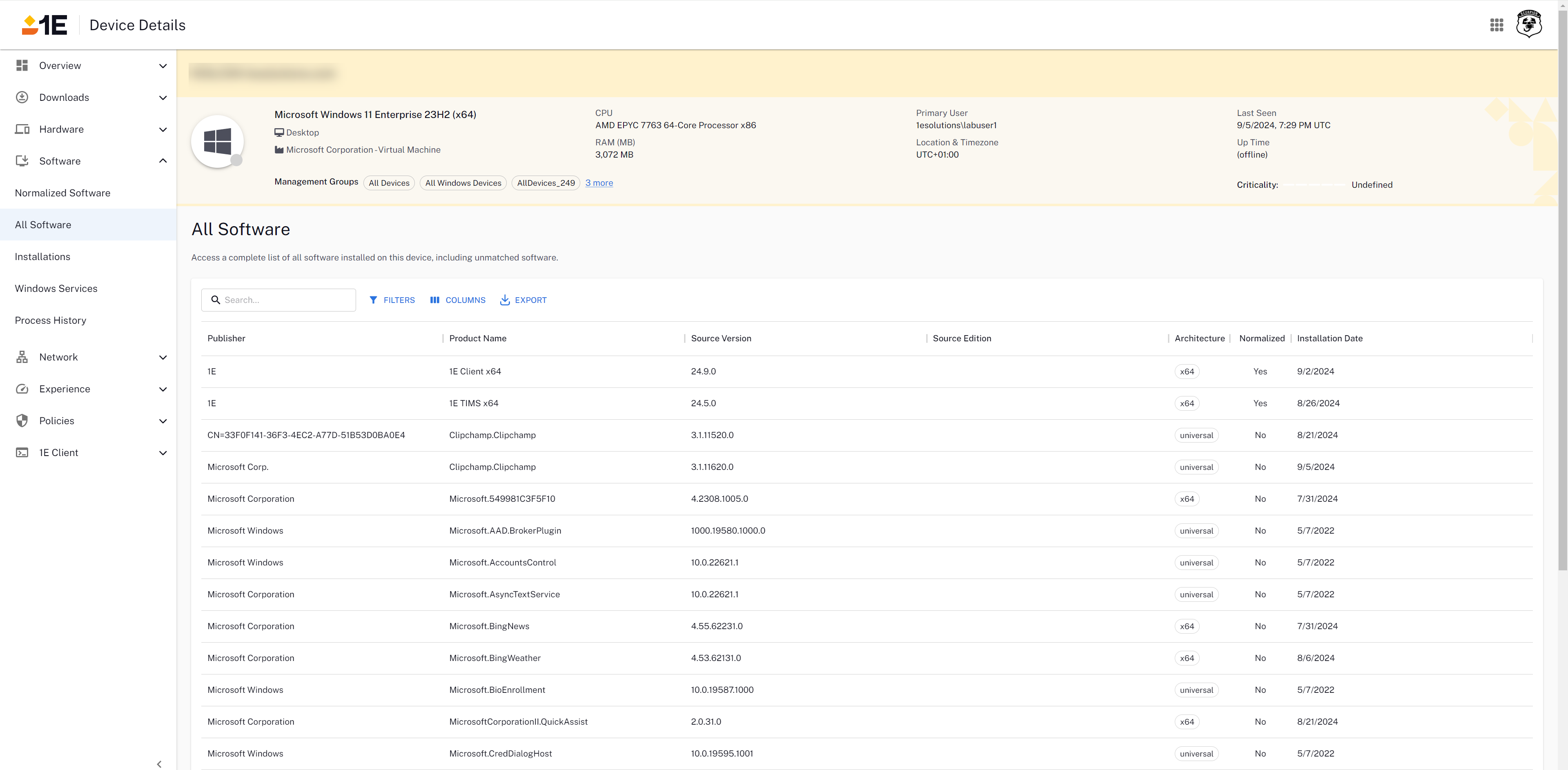
Explore every attribute gathered by the 1E Client for a device. Review each section to get a comprehensive view of the device profile, its current status and export your data. You can personalize the display by collapsing sections with the chevrons on each panel and rearranging them using drag and drop.
Device detail menu items
|
Menu item |
Description |
|---|---|
|
Overview |
|
|
App Network Monitoring |
|
|
Downloads |
|
|
Hardware |
|
|
Software |
|
|
Network |
|
|
Patch Insights |
|
|
Experience |
|
|
Policies |
|
|
1E Client |
|
Diagnostics
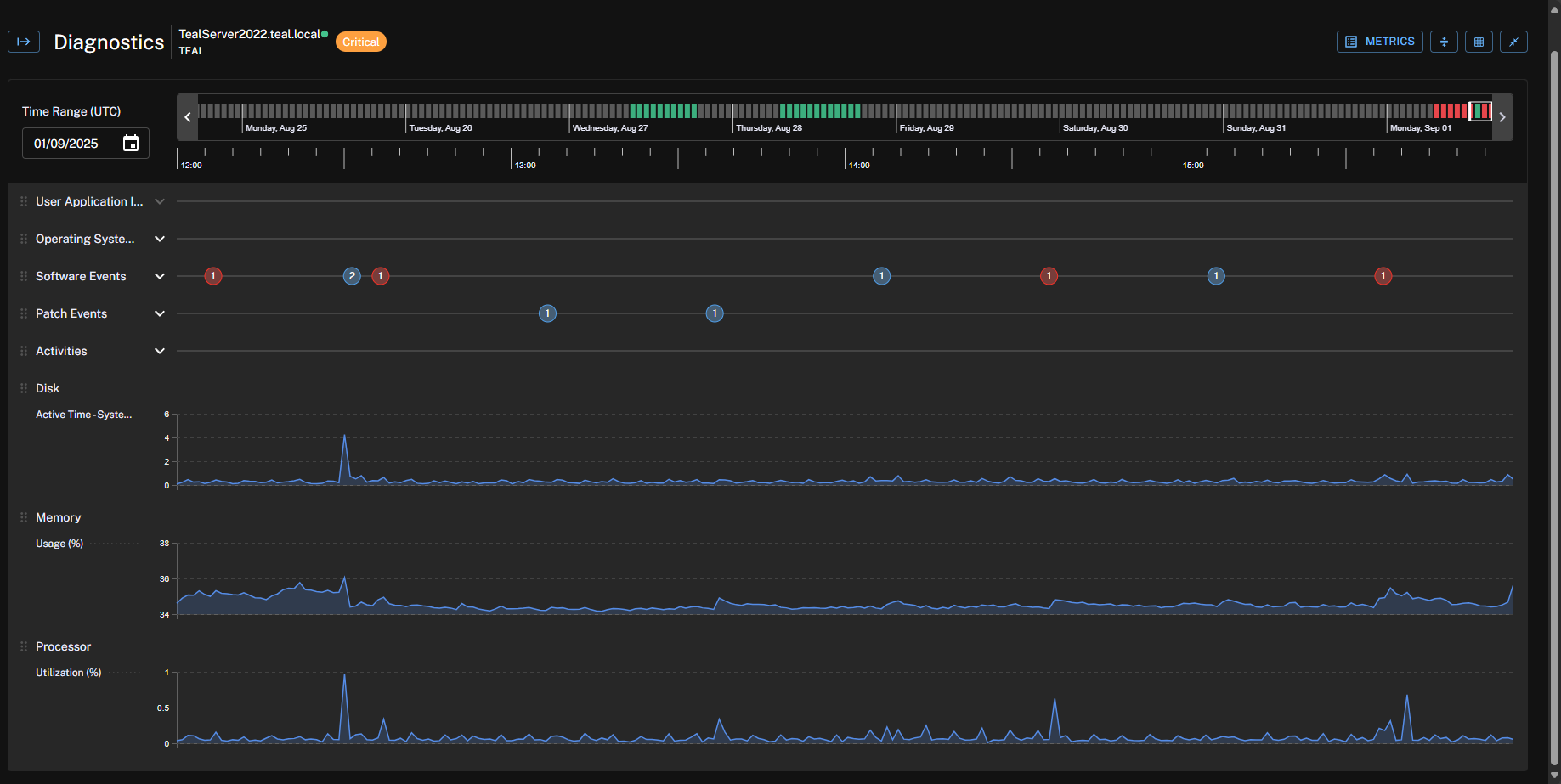
Diagnostics collects minute-level device performance data retained for 14-days, allowing you to investigate issues that occurred in the past, even if they were reported late. This reduces the need for live troubleshooting sessions with end users.
Diagnostics is available for your devices from Device > Overview > Diagnostics.
Configuration
-
Update your license. Diagnostics is a separate licensed feature currently available in the Enterprise and Enterprise+ tier. To find out more about licensing and get the complete Digital Employee Experience Platform, contact your account Team.
-
Check your 1E Client version. 1E Client version 25.3 or above deployed on your target devices.
-
Install the 1E-Tachyon-Platform DEX Pack which includes the following Diagnostics related instructions:
-
1E-TachyonPlatform-Diagnostics-Timeline: Diagnostics device time-line.
-
1E-TachyonPlatform-Diagnostics-EventsAndActivities: Diagnostics device events and activities.
-
1E-TachyonPlatform-Diagnostics-DeviceMetrics: Diagnostics device performance metrics.
DEX Pack Instructions are available for deployment using the TeamViewer DEX Hub.
To create custom Instruction groups, assign permissions, and control access to Platform actions and automation workflows, refer to Instructions.
DEX Pack Instructions are also available through Hub (Exchange).
-
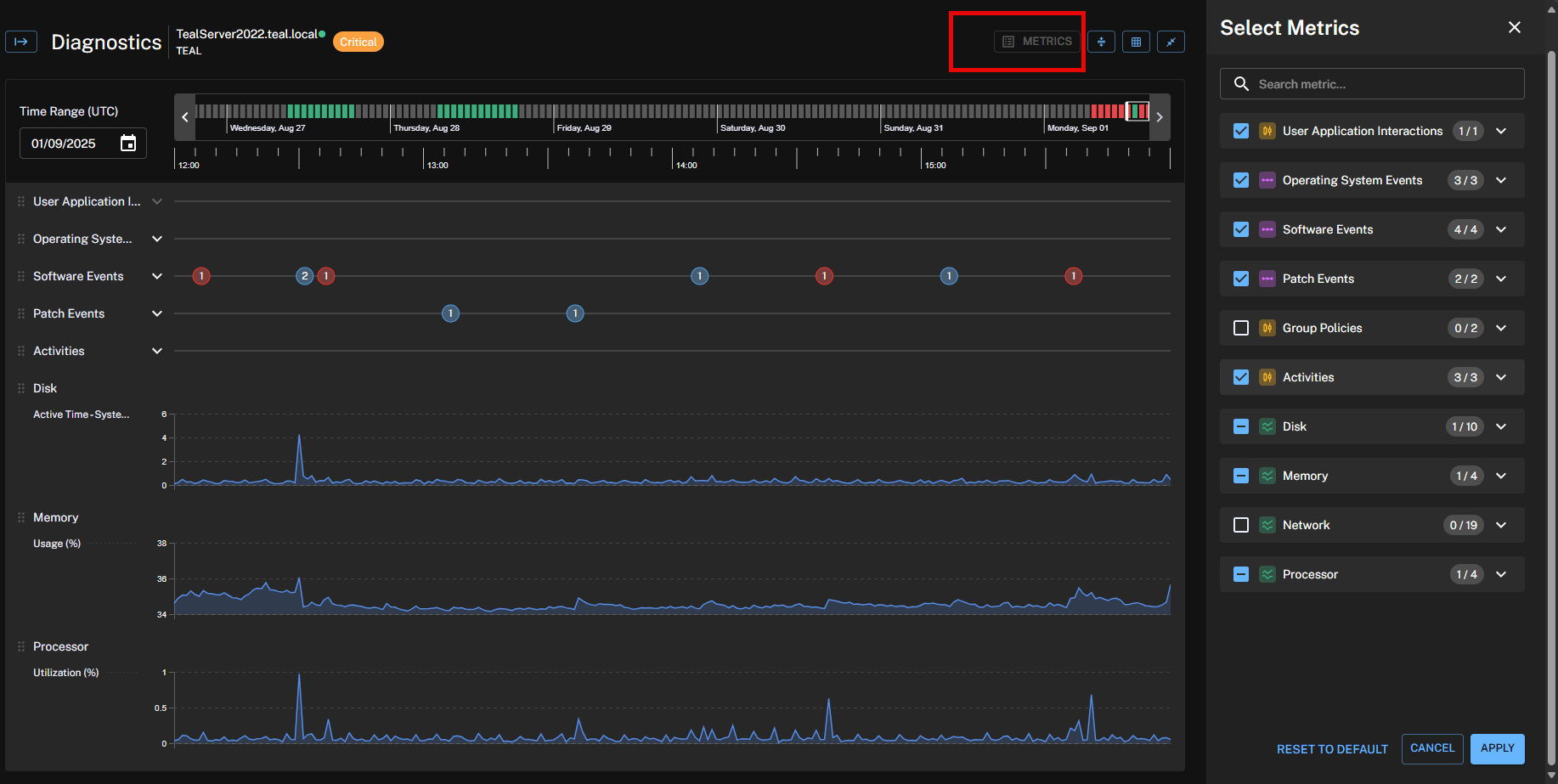
Metrics
The following metrics are available for device diagnostics.
-
CPU Usage & Utilization Trends: Identify spikes and sustained load.
-
Memory Usage: Total, physical, virtual, and percentage used.
-
Disk I/O Metrics: Read/write activity, queue lengths, and free space.
-
Network Activity: Throughput, retransmit rates, Wi-Fi signal quality.
-
Reliability Metrics: Crashes, hangs, service failures, shutdowns, and updates.
-
GPU Utilization (%) and NPU Utilization (%): Collect metrics from devices that have compatible hardware installed. View real-time and historical GPU and NPU data. Use these insights to:
-
Validate that AI-accelerated and graphics-intensive endpoints are correctly provisioned.
-
Proactively troubleshoot performance issues related to GPU/NPU utilization.
-
Support capacity planning for AI and high-performance workloads.
-
Timeline
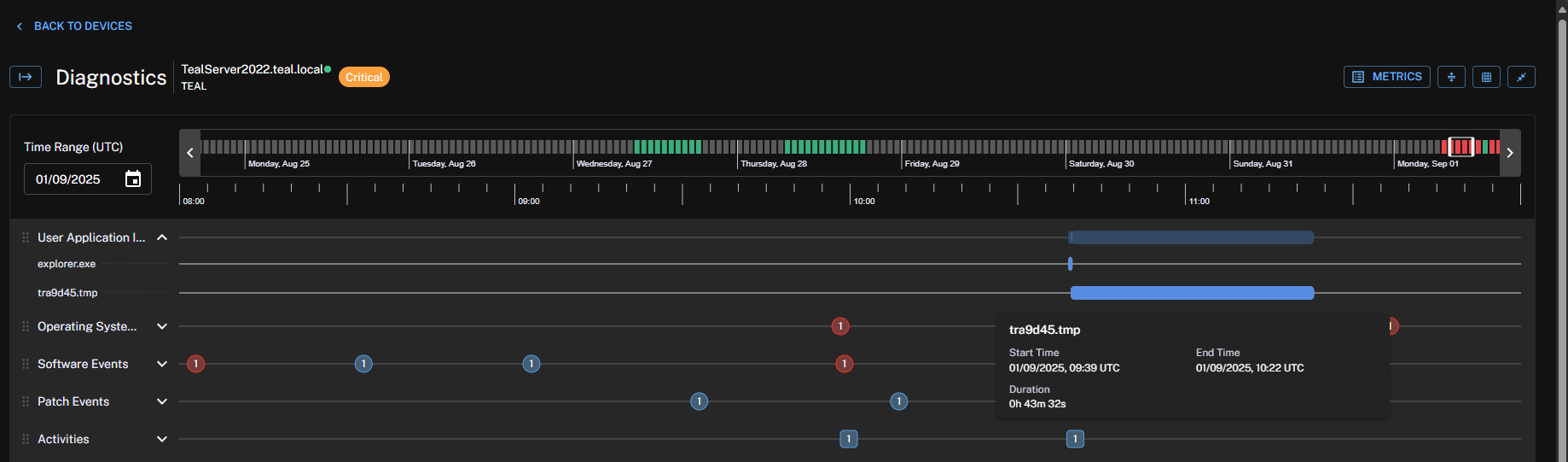
The Diagnostics timeline offers a visual overview of available telemetry across a 14-day period. You can select a four-hour window for deep-dive diagnostics, making it easy to focus investigations on the exact time issues occurred.
-
Green: When the device is online and no events or activities are reported.
-
Grey: Device is offline.
-
Blue: Events and activities have happened related to software, OS, or patch install and uninstall.
-
Red: There has been an OS or software failure, hang, or crash for applications.

User application interaction
Diagnostics captures user-level interactions with applications, for example, when apps are opened and actively used.
-
Correlate user complaints like “Excel was freezing during my work” with system metrics at that time.
-
Provides clarity on whether issues happened during active user activity.
-
Enables better root cause validation for tickets tied to user workflows.
Boot metrics and user logon metrics
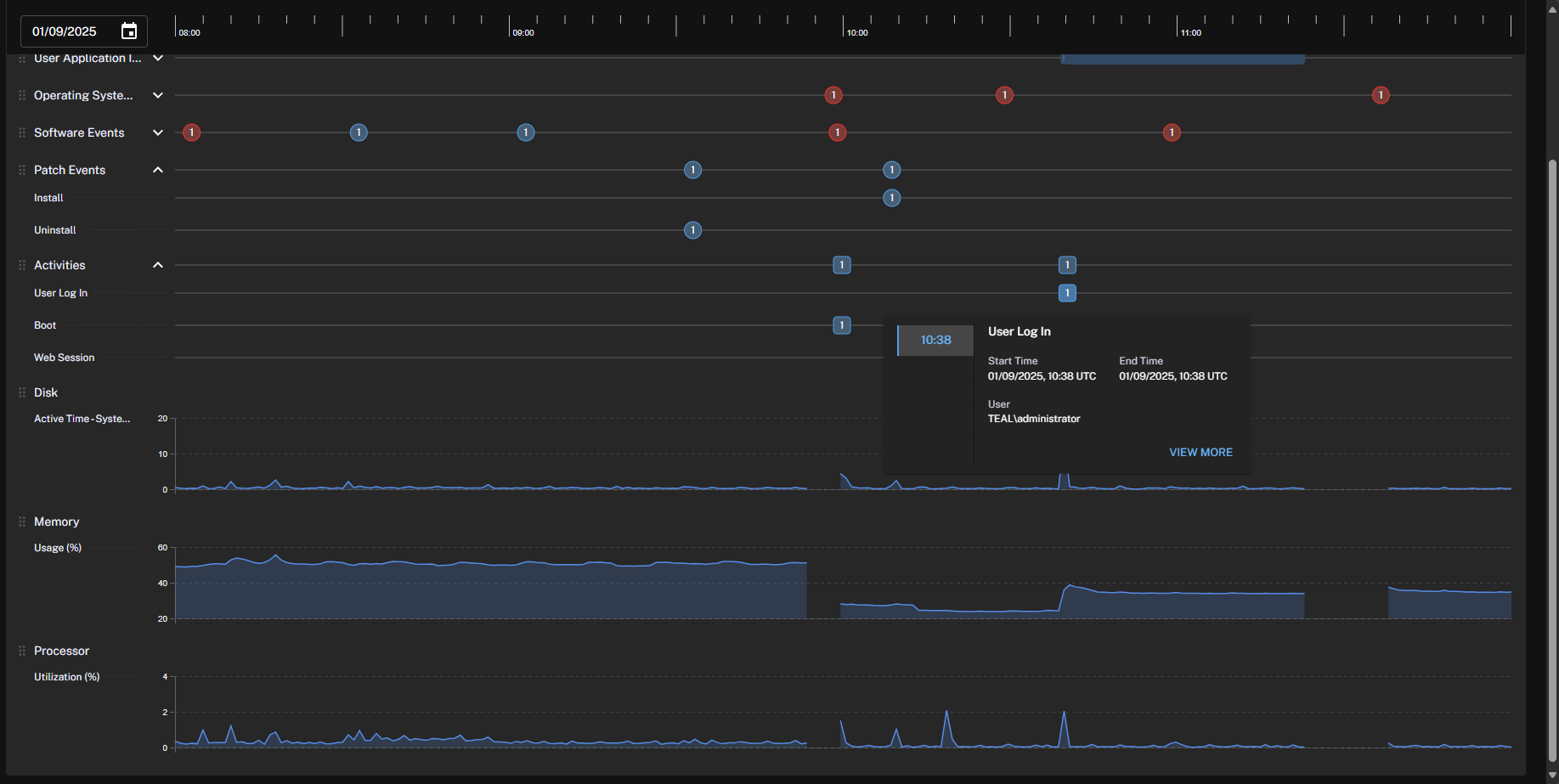
Diagnostics tracks system startup and shutdown performance, including boot duration:
-
Identifies delays in boot processes that impact productivity, for example long startup times on Monday mornings.
-
Logs OS upgrades, group policy application, and patch installations that may affect boot behavior.
-
Allows you to distinguish between device health issues, policy or configuration issues at boot.
-
Helps you respond to common complaints like “my laptop takes forever to start up”.
Application Network Monitoring (ANM)
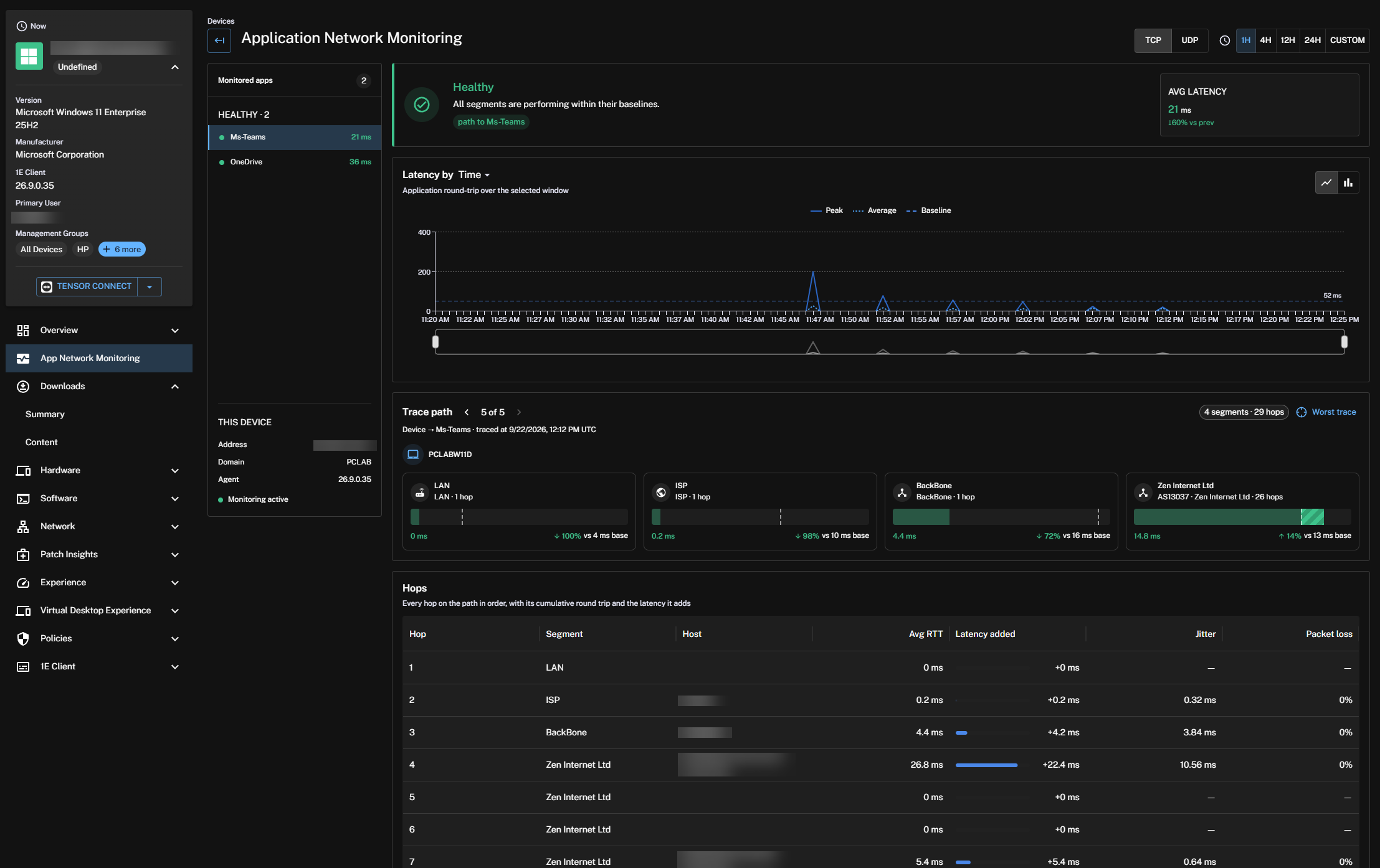
Application Network Monitoring (ANM) for streamed and connected applications, enables you to gain real-time visibility into network health within the DEX Platform.
Prerequisites
Before you enable ANM, make sure all the following prerequisites are met. If any prerequisite is missing, ANM will not operate correctly after it is enabled.
-
ANM is only available to Enterprise Plus customers:
Your tenant license file must include one of the following qualifying entitlements:
-
Option A: An Exoprise license entry.
-
Option B: An Experience license entry with tier = Enterprise Plus.
-
-
Once ANM has been enabled for your tenant, you'll need to install the 1E Clients on each target device. Your target endpoints must be running 1E Client 26.9 or later.
You can use your preferred deployment method, such as Intune or Configuration Manager, to install these clients, refer to 1E Client documentation for 1E Client installation guidance.
For 1E Client 26.9 or later, ANM runs natively in the client, so no additional Exoprise agents, services, or browser extensions are required.
-
Because the ANM module is disabled by default on the 1E Client for version 26.9 and later, you must enable the module before you can use ANM.
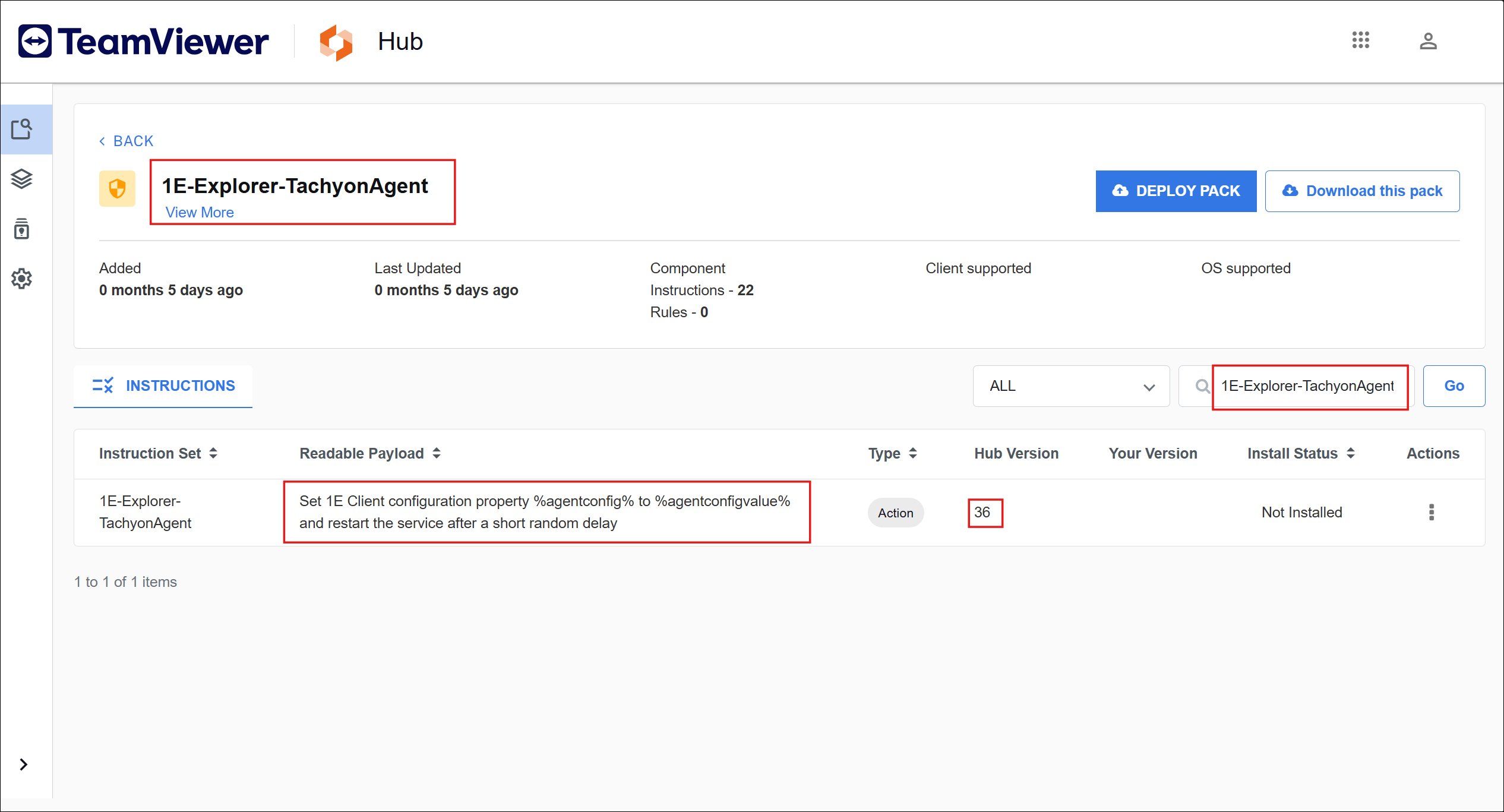
ANM requires a specific instruction version of 1E-Explorer-TachyonAgent-Set1EClientAgentConfig equal or greater than 36.
DEX Pack Instructions are available using the TeamViewer DEX Hub
-
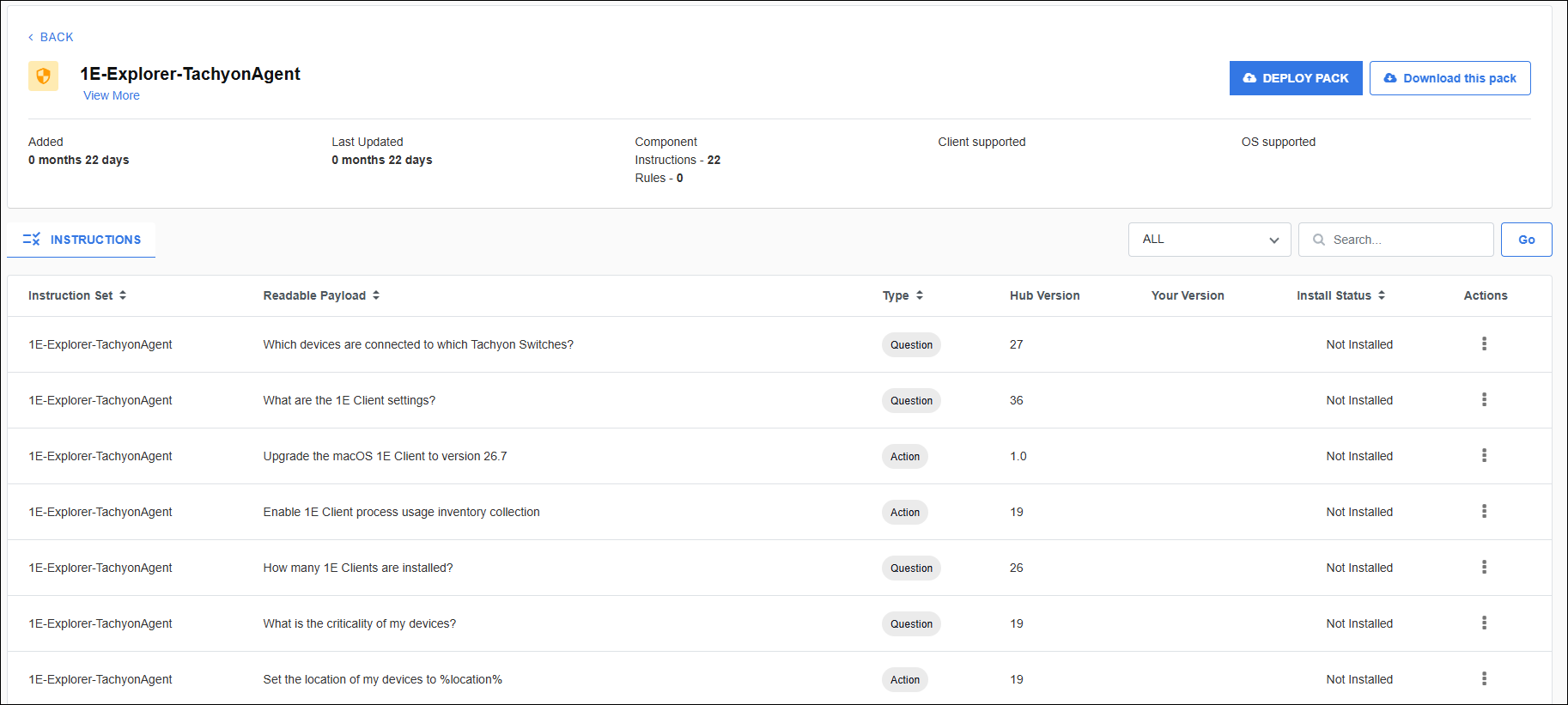
In TeamViewer DEX Hub, search for the 1E-Explorer-TachyonAgent DEX Pack.
-
In the 1E-Explorer-TachyonAgent DEX Pack search for the 1E-Explorer-TachyonAgent-Set1EClientAgentConfig instruction.
-
To enable the ANM module, run the 1E-Explorer-TachyonAgent-Set1EClientAgentConfig instruction from the 1E-Explorer-TachyonAgent DEX Pack against the target device or devices using the following parameters:
-
Parameter 1 (config key): Module.ANM.Enabled
-
Parameter 2 (config value): true
-
-
-
Install the 1E-Tachyon-Platform DEX Pack which includes the following ANM related instructions.
For a walk through focused on the instructions used for ANM, refer to Deploying instructions.
-
1E-TachyonPlatform-ANM-AppNetworkTcpData: Get application TCP network data from ANM.
-
1E-TachyonPlatform-ANM-AppNetworkUdpData: Get application UDP network data from ANM.
-
-
Once the previous steps are complete, you should see Network data for each device from Devices > each-device > App Network Monitoring.
Using ANM
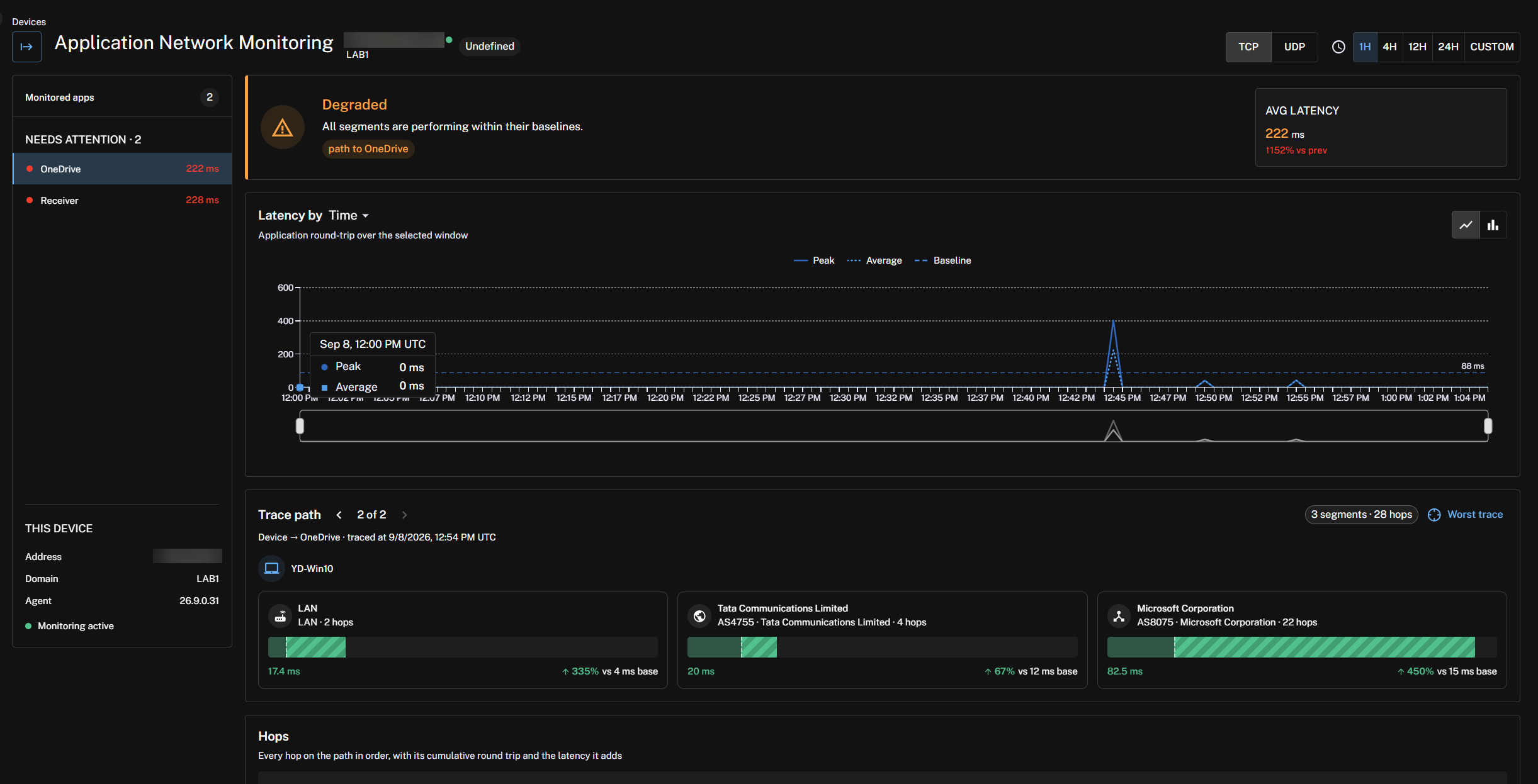
Once enabled, the ANM dashboard offers multiple benefits for your networking team. For more details and context about Service Watch Network Segment Analysis refer to Network Segment Analysis.
ANM currently tracks the following CoreApps:
chrome, excel, firefox, lync, msedge, mspub, onedrive, dropbox, opera,
onenote, outlook, powerpnt, teams, msteams, ms-teams, serviceportalagent,
crestronremoteservice, utsengine, ucprapp, microsoft.skyperoomsystem, visio,
winproj, winword, zoom, slack, ciscocollabhost, atmgr, softphone, box,
ringcentral, mstsc, rdcman, msrdcw, msrdc, citrixworkspaceapp, receiver,
wfica32, cdviewer, pcoip_agent, workspaces, devenv, code, acrobat,
photoshop, illustrator, indesign, afterfx, bridge, adobe media encoder,
brave, iexplore, openvpn, warp-svc, taniumcx, taniumclient, a180ag,
1eclientservice, core.service, cyclanceui, cyoptics, cylancesvc,
clienthealtheval, microsoft.management.services.intunewindowsagent, java,
javaw, toolshell2, tradeweb, bplus64, five9softphone
Application-level insights: Filter and view metrics per streamed/connected app to quickly identify network impact on collaboration performance.
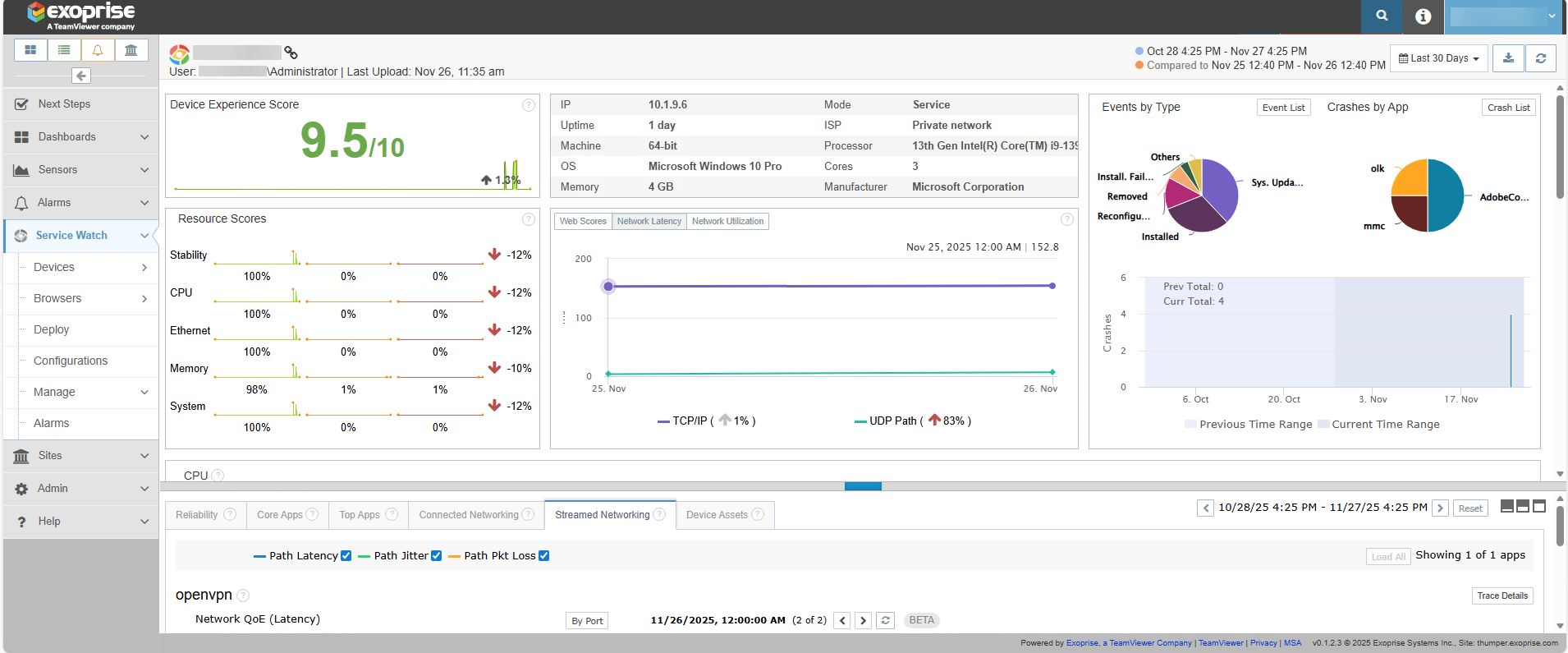
Alternatively, if you are not an Enterprise Plus customer you can access your Exoprise instance directly from the Solutions landing page. From there, you can navigate to the following tabs to view network traffic for your devices:
-
Connected Networking: View TCP traffic.
-
Streamed Networking: View UDP traffic.