Software
 |
|  |
| 
Inventory Insights includes tools to help you customize your view and to interrogate your software data, refer to Page toolbar search, filters, columns, delete, export for more details.
Discover how Inventory Insights helps you analyze and manage software across your organization through detailed inventory data and interactive dashboards. This guide explains how software insights improve asset visibility, support license optimization, and strengthen software management across the Platform.
Normalized Software
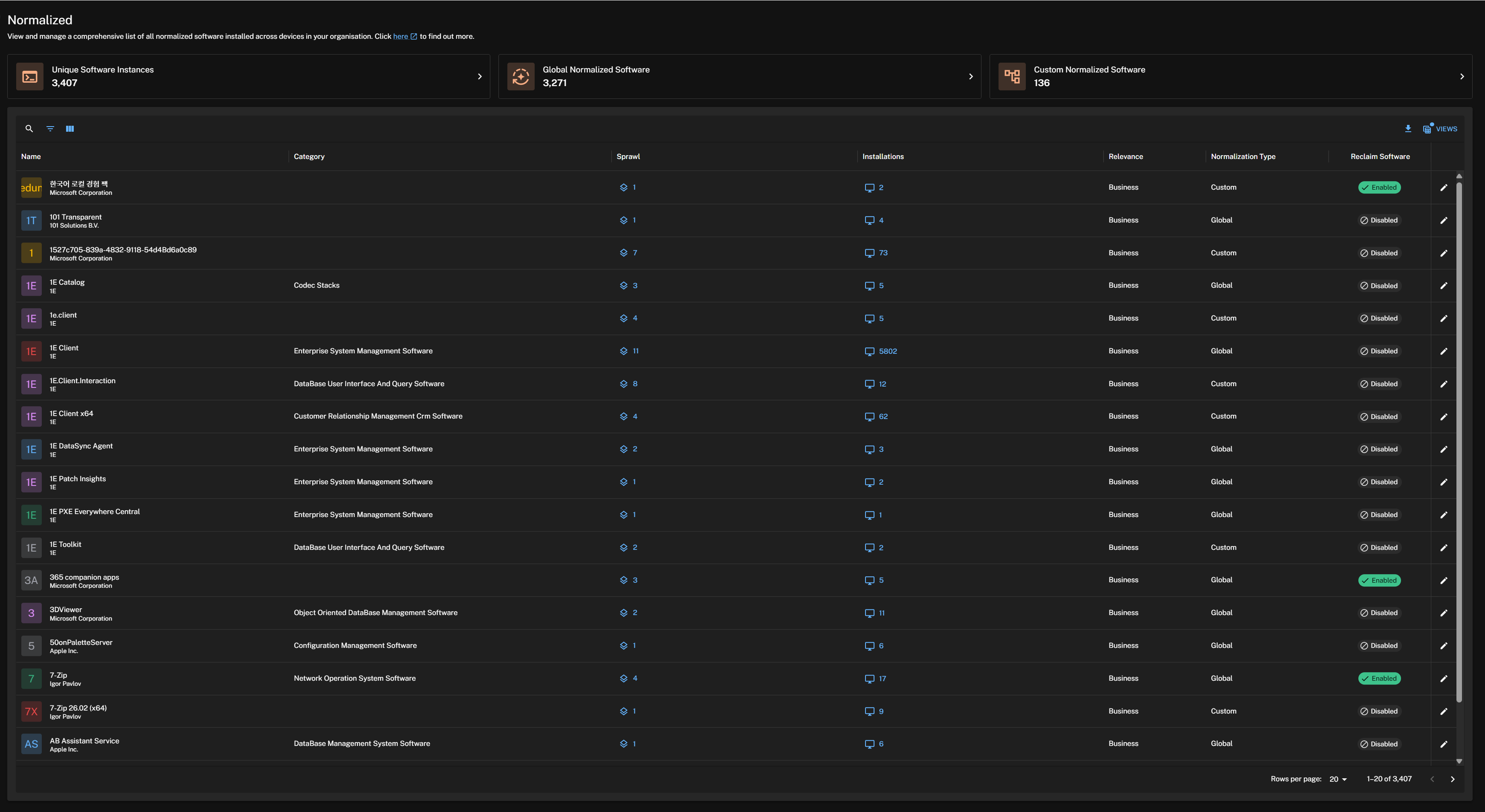
The Normalized Software page enables you to view and manage a comprehensive list of all normalized software installed across every device in your organization. Inventory Administrators have visibility of Name, Category, Sprawl, Installations, Relevance, Normalization Type, Reclaim Software, and Actions.
The page captures vendor, title, edition, and version attributes, which are viewable by clicking software sprawl. These normalized attributes have been standardized using normalization rules created from the Unmatched Software page.
Software data is normalized once a day.
View an instant overview of the following statistics:
-
Unique Software Instances: Total count of distinct software instances, encompassing all vendors installed throughout the organization.
-
Global Normalized Software: Software instances standardized according to the Catalog automated normalization process.
-
Custom Normalized Software: Software instances standardized by custom normalization rules.
-
Normalization Type: Indicates whether the software title has been normalized globally, or customized by your organization. Possible values are Global or Custom. Custom normalized software is matched on vendor and title only (version and edition are not used).
-
Business/Non-Business: Software titles can be categorized as Business or Non-Business to indicate their relevance to your organization. This categorization can be used to filter the Normalized Software list. Use the Business Relevance filter to show only Business or Non-Business software titles in the grid.
-
Reclaim Available: Indicates whether the software title is available for Software Reclaim. Possible values are Yes or No.
You can click a tile to view the corresponding software list below.
Software table
The software table lists normalized software in your estate by vendor title, installations, category, sprawl, relevance, normalized type, reclaim software, and actions.
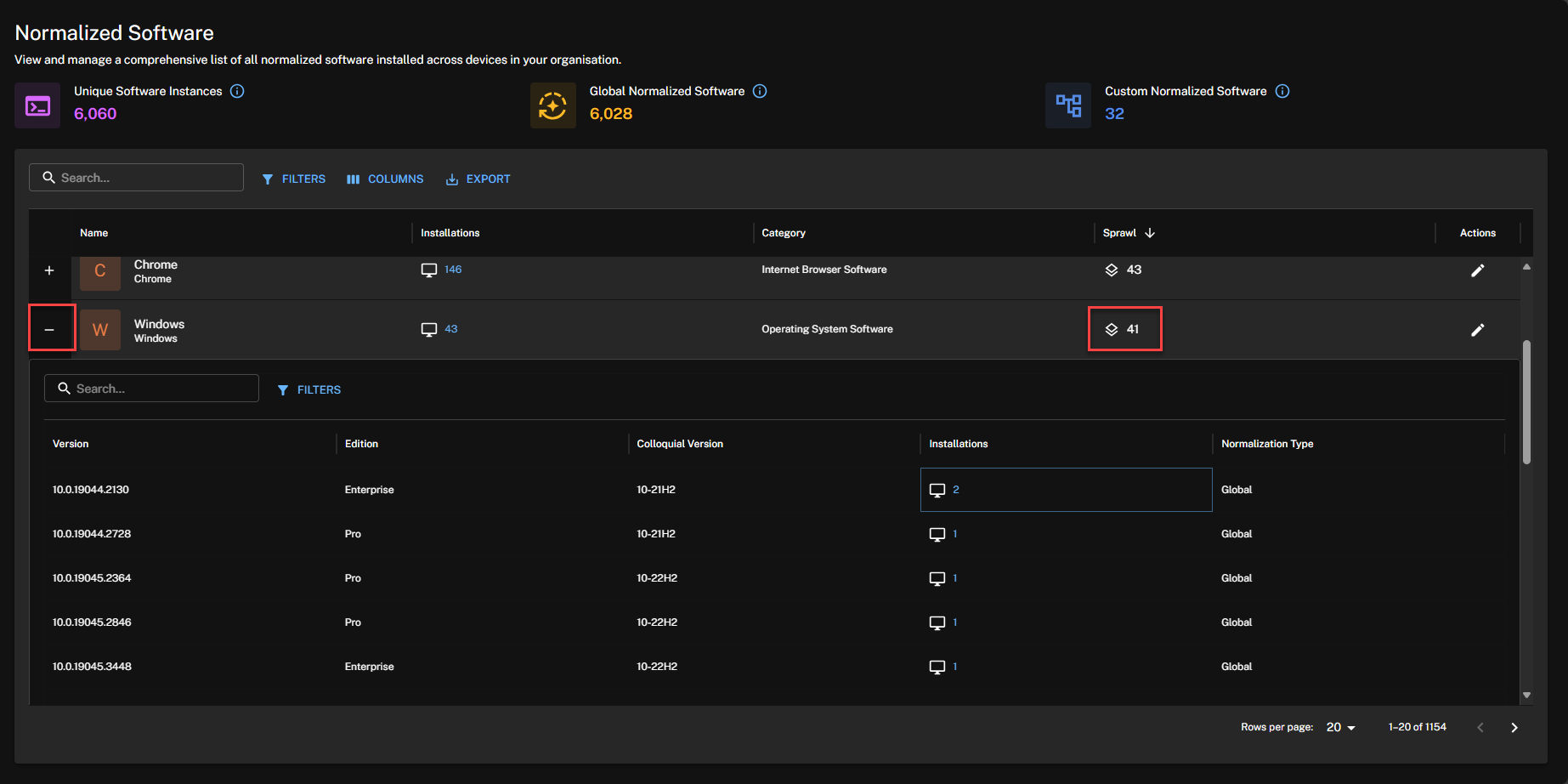
Clicking Sprawl for a vendor title displays the Version, Edition, Colloquial Version, Installations, in a drawer you can search and filter.
Installations drawer
Clicking a software title's Installations count opens the Installations drawer which shows a filterable and exportable list of devices that title is installed on by Device Name, Version, Edition, and Installation Date.
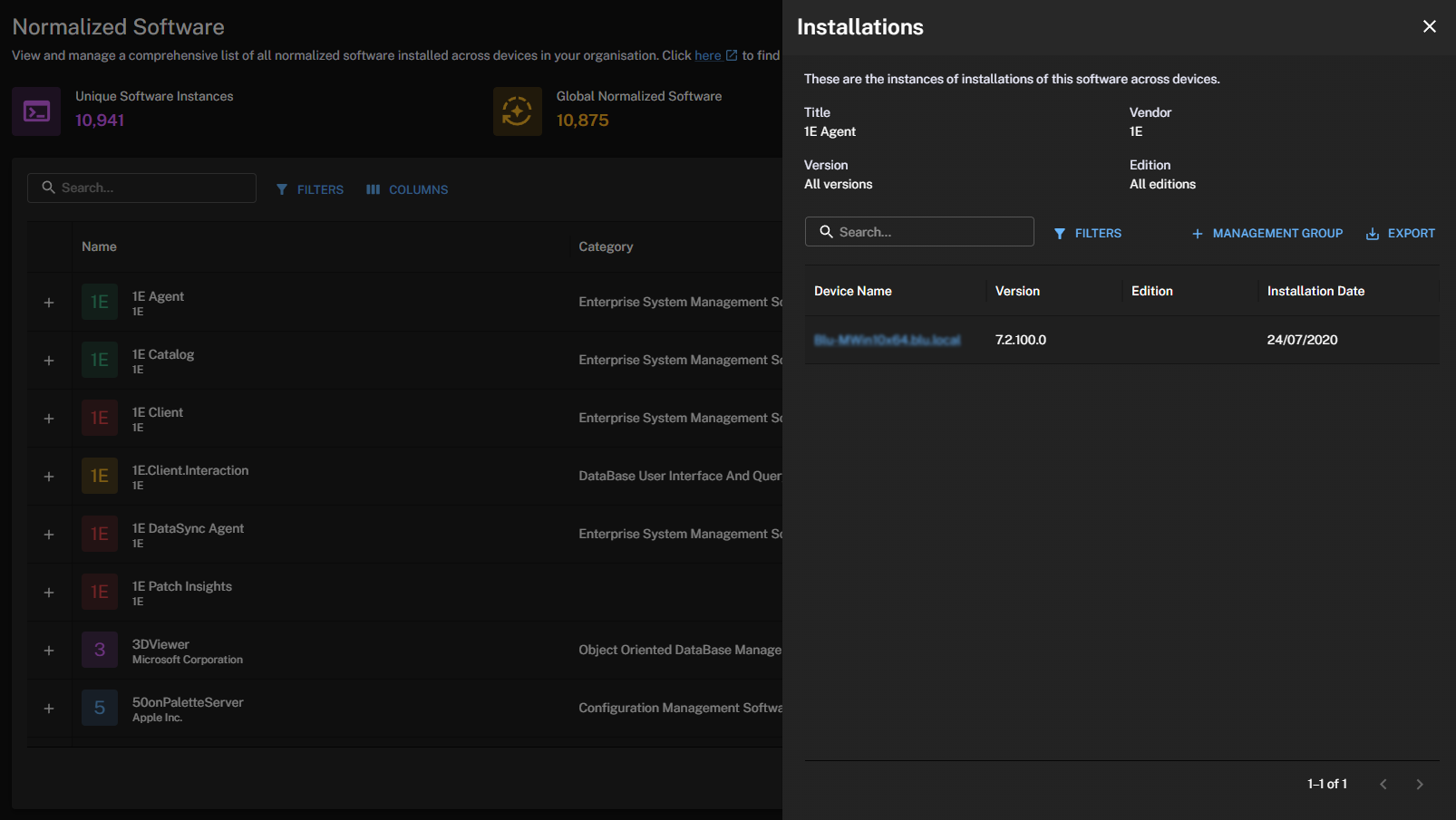
You may see multiple entries with the same application name if different versions are installed on the same device. This is expected behavior, as the results distinguish applications by version while deduplicating entries based on architecture and installation type.
The Installations drawer includes tools to help you customize your view and interrogate your data:
-
Search: A general search field. The software table updates your results as you type.
-
Filters: Filters results by a combination of Column, Boolean Operator, and a free text Value field.
-
Management Group: Opens a pop-up where you can create a new direct-based Management Group based on those devices.
-
Export: Export matching results based on your applied filters in either .CSV or .TSV formats.
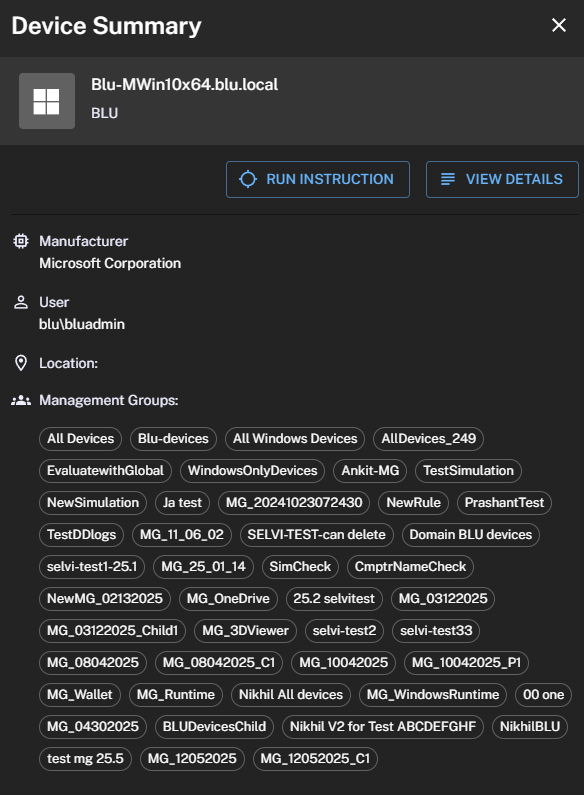
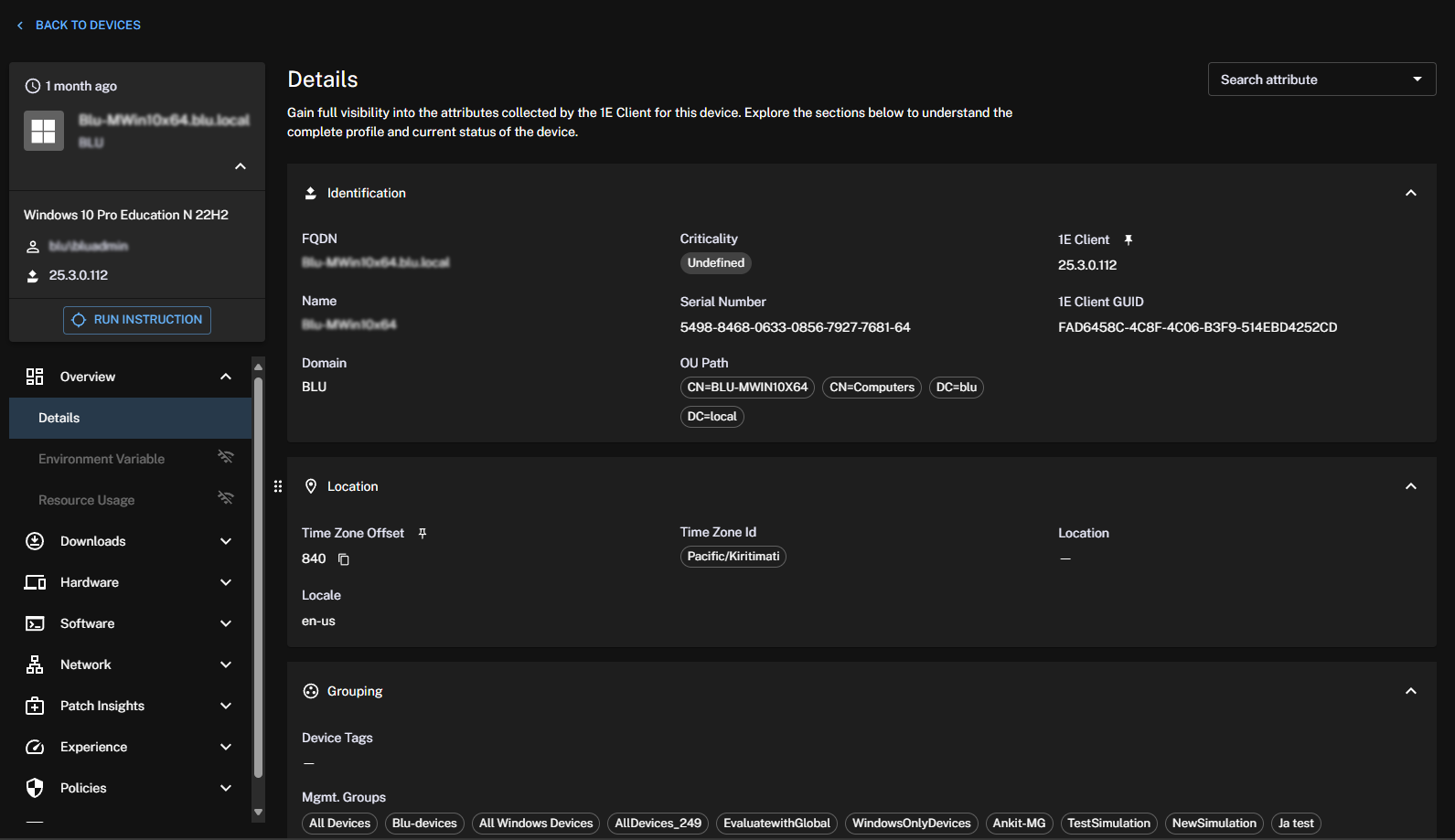
Click the Device Name to open its Device Summary, where you can run instructions against that device. Refer to Home page, questions, and responses, or click to View Details to view the device summary.
Create Management Group
In the Installations drawer, click + Management Group to open a pop-up where you can create a new direct-based Management Group based on those devices.
When you create a Management Group, be aware of the following:
-
Inventory Administrators and Full Administrators can create Management Groups.
-
Only one Management Group can be created for each software rule.
-
Each Management Group name must be unique, and once created, the name cannot be updated.
Once a group is created, it can be managed in Settings > Permissions > Management Groups. Refer to Management Groups for details about how you can use them to group devices and manage the software installed on those devices.
Relevance
This field indicates whether the vendor is classified as business or non-business related. Software such as operating system components may be classified as non-business. This classification helps exclude software that is not business-relevant.
Normalized Type
This field indicates whether a vendor is custom or global normalized.
-
If a vendor is custom normalized, its associated titles and versions are also classified as Custom Normalized.
-
If the vendor and title are global normalized, but the version is custom normalized, then only the version is considered custom normalized, while the vendor and title remain globally normalized.
Reclaim Software
This field indicates whether Reclaim Software is enabled or disabled for a vendor. Only enabled software titles can be reclaimed
Actions
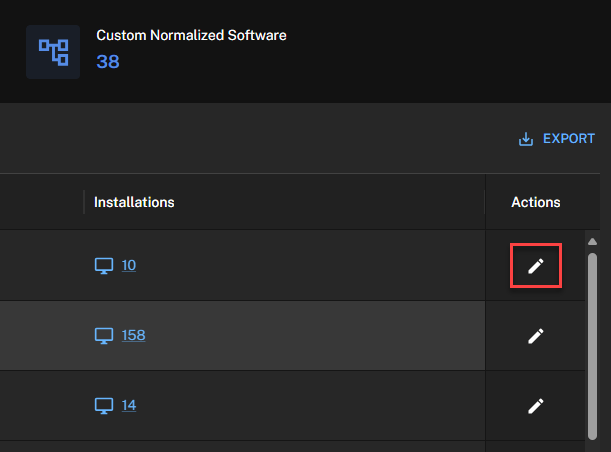
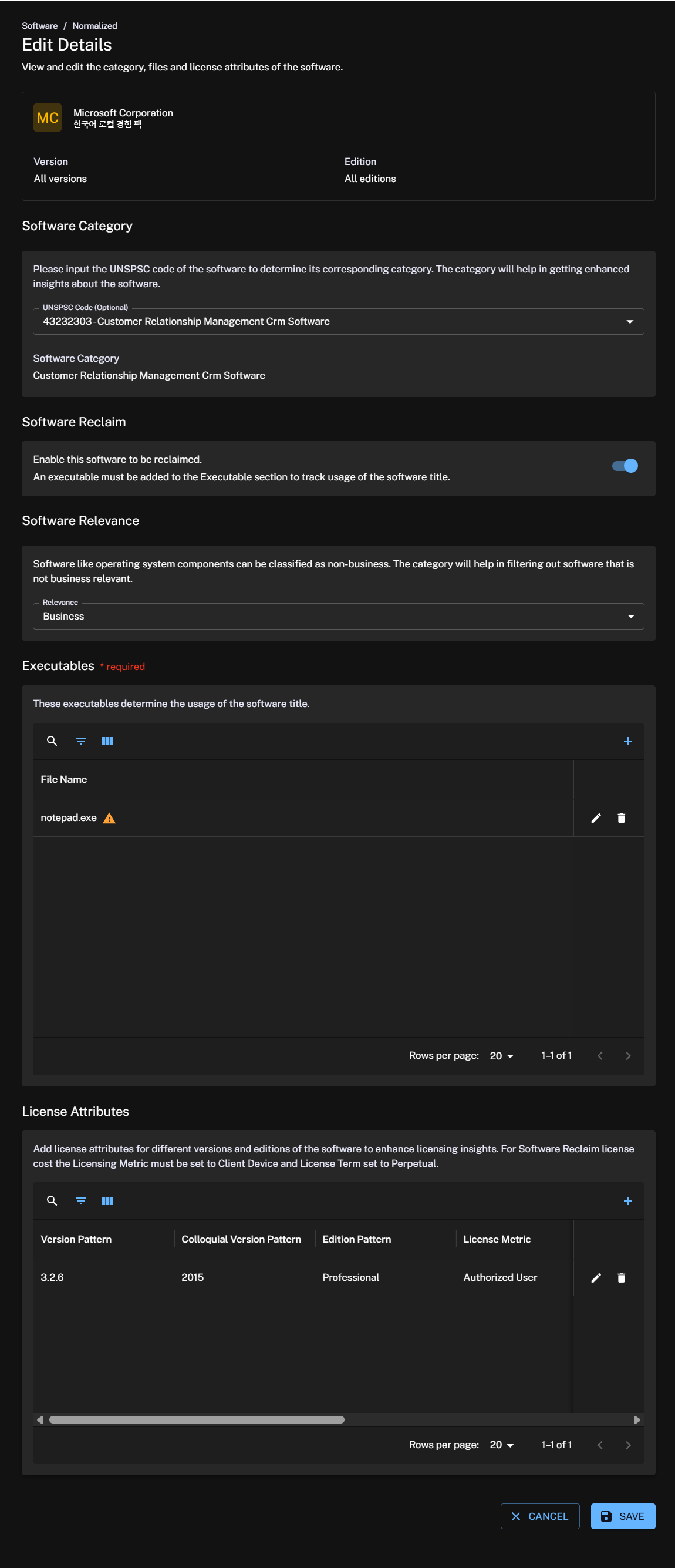
Click Edit details in the Actions column to view and edit the category, reclaim, relevance, executables, and price attributes of software titles.
-
Software Category: Allows you to categorize a software title using its UNSPSC code. For more information, refer to United Nations Standard Products and Services Code (UNSPSC).
-
Software Reclaim: Allows you to enable the software to be reclaimed. An executable must be added to the Executable section to track usage of the software title. All software titles marked as Is Relevant in Software Reclaim will be migrated to software titles in the DEX Platform.
-
Software Relevance: Allows you to classify the software title as business or non-business.
-
Executable: Allows you to remove or add an associated executable.
When an executable is associated with multiple software titles, a warning message is displayed indicating the associated software titles.
If Reclaim Software is set to Enabled, at least one executable must be added. The Save button is disabled until an executable is mapped. If you attempt to save without an executable, the following message is displayed: Please enter an executable. Reclaim software cannot be enabled without adding an executable.
-
Price Attributes: Add price attributes for different versions and editions of the software to enhance licensing insights. For Software Reclaim license cost the Licensing Metric must be set to Client Device and License Term set to Perpetual.
Software Reclaim
Enable this software to be reclaimed. An executable must be added to the Executables section to track usage of the software title.
-
Reclaim Software: Enables the software title for Software Reclaim. Select Enabled to activate reclaim for this title, or Disabled to deactivate it. Software previously marked as Is Relevant in Software Reclaim is automatically migrated to Enabled.
Non-normalized
The Non-normalized page provides you with a list of software titles that were not automatically normalized by the Catalog. The page includes the same search, filters, columns, export features, and Installations drawer as the Normalized Software page.
Click the Installations count to display the Installations drawer where you can create a Management Group. For more information, refer to Create Management Group
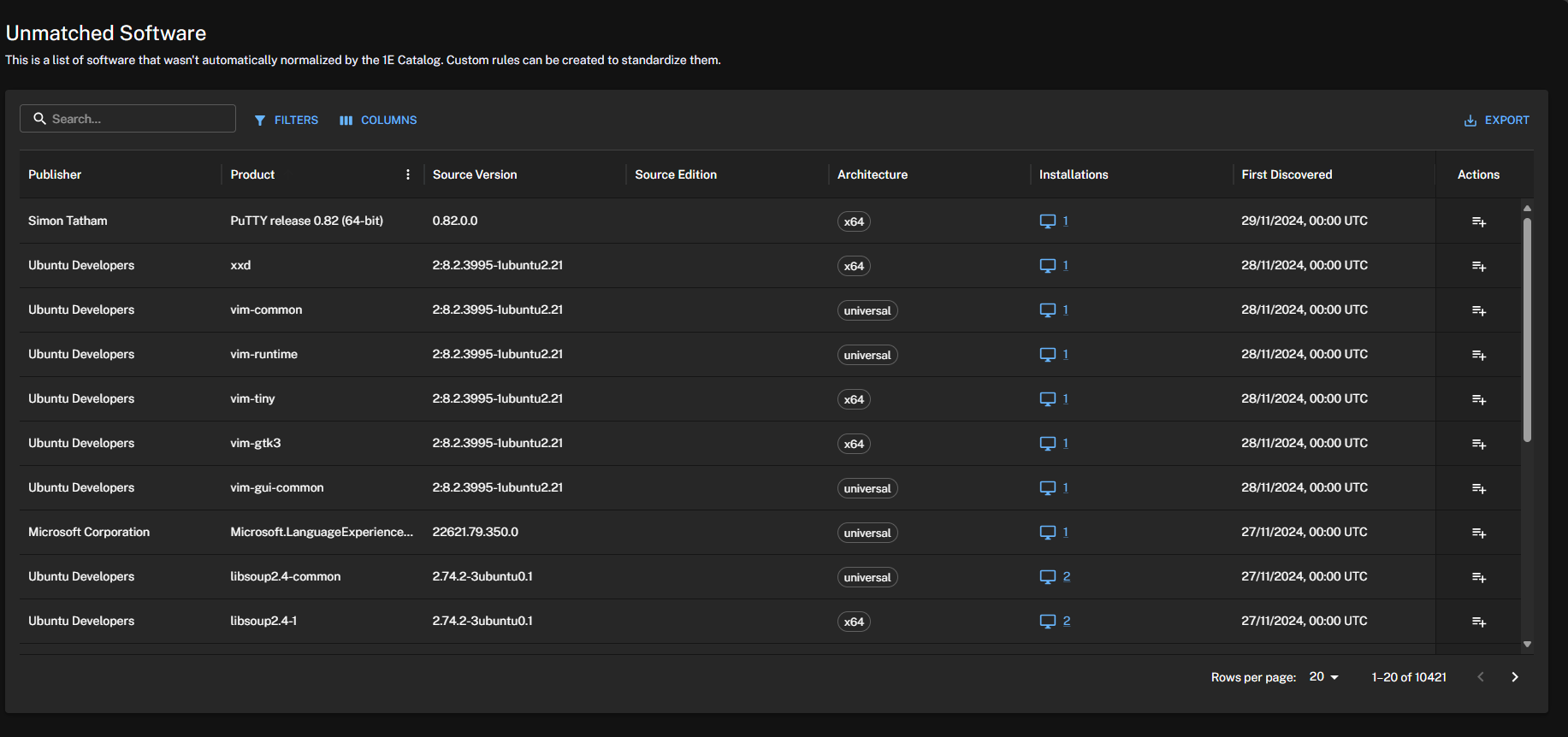
Partially matched software
When creating a software match rule, matched software vendor or title information is populated automatically. Partially matched titles remain listed as non-normalized software, allowing you to review the matched information and complete normalization where required.

Create rule
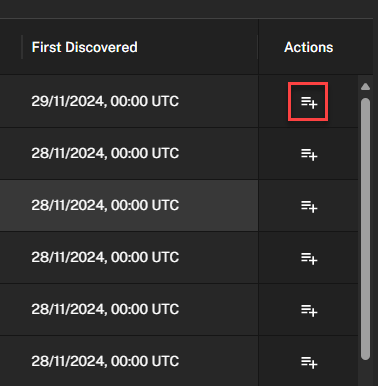
You can create custom rules to standardize unmatched titles by clicking the Create rule icon in the Actions column.
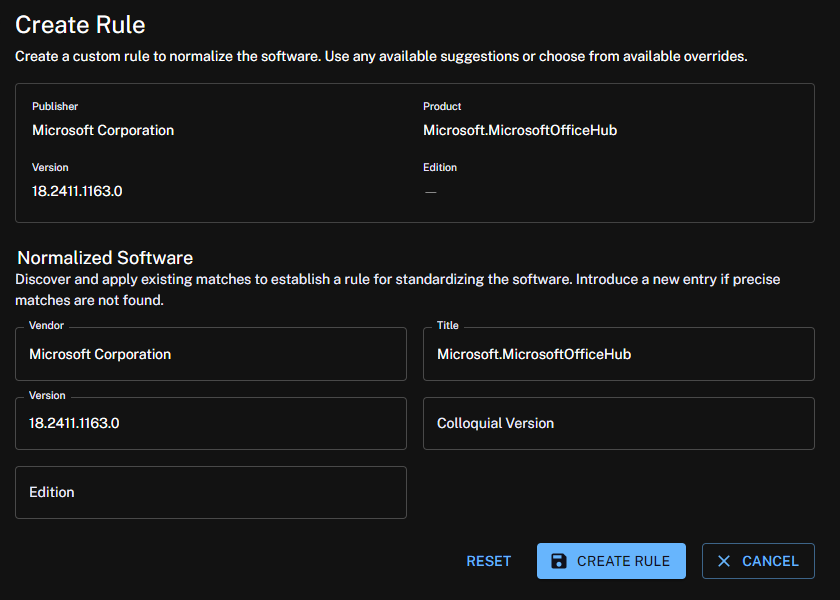
Source details like Vendor, Title, Edition, and Version are used to prefill the Normalized Software section on the Create Rule page. From here, you can create a custom rule to normalize that software title.
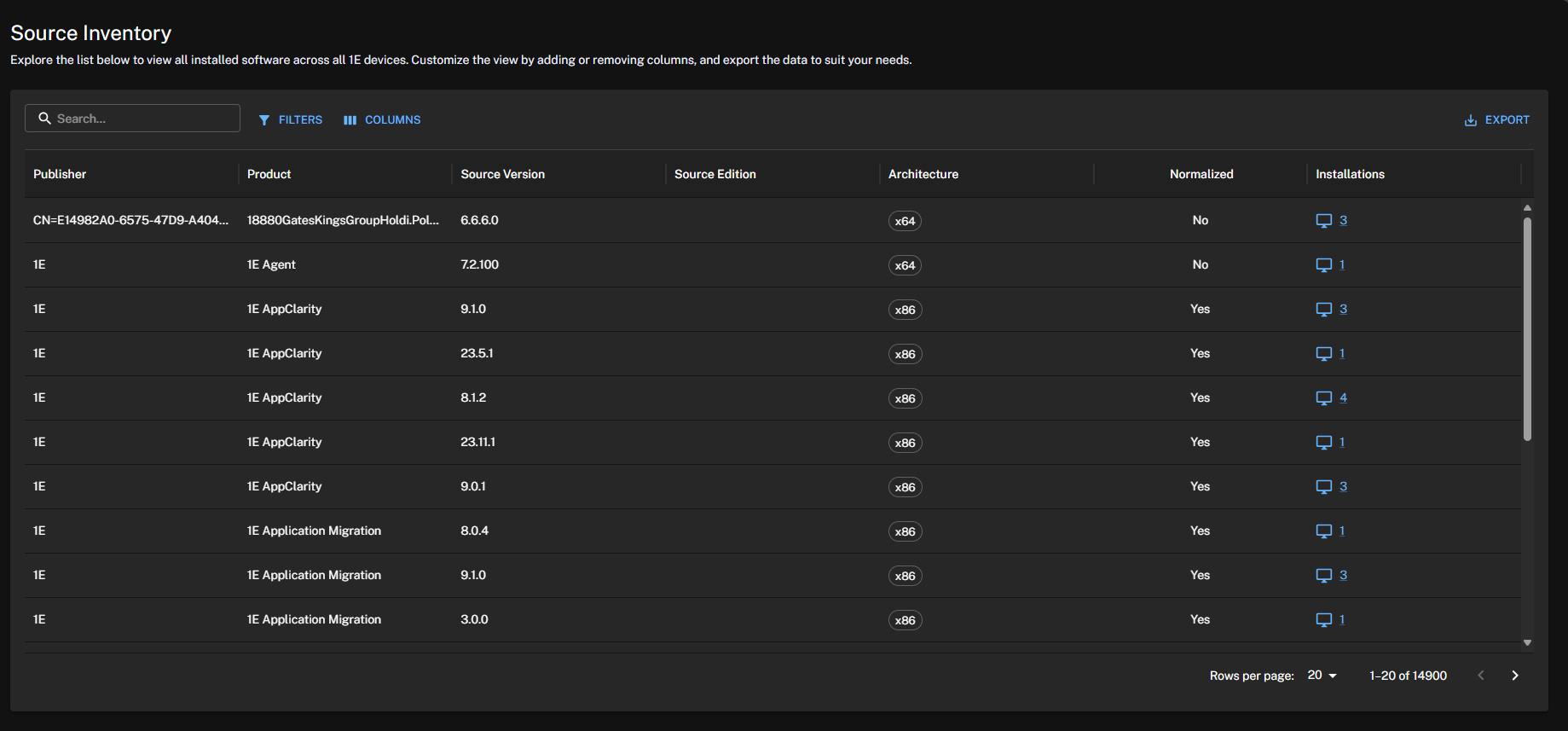
Inventory
Inventory provides a comprehensive list of all software titles within your organization: normalized and unmatched. Inventory Insights users can view each title and identify which ones are normalized across their estate. The page includes the same search, filters, columns, export features, and Installations drawer as the Normalized Software page.
The page displays software with their source (raw) unprocessed attributes, pulled directly from your devices, which are Publisher, Product Name, Source Edition, and Source Version. You can customize the view by adding or removing columns, and export its data to suit your needs.