AI Powered Auto-curation
 |
|  |
| 
AI Powered Auto-curation is not enabled in the platform by default. If you are interested in this feature, contact your 1E Account Team.
You can enable AI Powered Auto-curation either during or after the installation of 1E.
This article describes the AI Powered Auto-curation feature that improves software inventory results. Using AI Powered Auto-curation, you'll be able to increase the total amount of Normalization software in your Inventory repositories. This is done using AI that integrates with the inventory consolidation process. By using AI, your organization will benefit from significant numbers of normalized software and a reduced manual effort needed to normalize software.
Inventory Insights and AI Powered Auto-curation
The Inventory Insights app captures data from different sources, then consolidates, normalizes, and stores it in Inventory repositories. It is also used to view, export, and manage associations.
Inventory Insights uses connectors to capture software, hardware, and other data from sources such as 1E, Configuration Manager, Big Fix, and vCenter where it is consolidated, de-duplicated, and normalized. Normalization uses software and hardware entries in Catalog.
An empty repository called Default Inventory is provided out-of-the-box. You can optionally create additional inventory repositories to partition data by source, time period, or another purpose. To populate a repository, you must use one or more inventory connectors, and either manually sync the data or schedule a sync. For more detail, refer to Repositories page - 1E Server and Schedules page in Settings.
In old versions normalization of software product names was handled by 1E Catalog. This used rules that map source Programs and Features data into an accurate standardized form of Vendor, Title, Version, and Edition (VTVE) fields. These normalized records could then be referred to with the same signature. Although the rules in the 1E Catalog cover the most common software, there is always new software that needs to be manually mapped.
AI Powered Auto-curation normalizes software product names that are not in the 1E Catalog. It first extracts the VTVE from varied raw Programs and Features data by removing excess data and extracting the relevant strings. The AI then standardizes the VTVE fields to a single, accurate form of representation. It also produces a numeric value called the confidence score, this score:
-
Represents how confident the AI is in its prediction.
-
Is set to a high threshold through testing and validation across a large data set.
-
Can be calibrated according to the variety of software data at a customer site to optimize the normalization rate.
-
Is controlled by 1E through collaboration with customers.
AI Powered Auto-curation is used by all Inventory connectors. Refer to Connectors page.
AI Powered Auto-curation uses model files that govern its behavior and, when the feature is enabled, the versions of the files are compared with the versions in the 1E Cloud, and downloaded whenever a new version is made available.
Preparation
Before you enable AI Powered Auto-curation, ensure you've met the additional disk and memory requirements on the 1E web server. The minimum total disk space required for the downloaded AI Package ZIP is approximately 13 GB at installation. This includes:
-
Binary and support files for AI and the directory structure is 8 GB
-
The ZIP file is approximately 5 GB and stored in the Download path - this location is not configurable
-
The ZIP file is then temporarily copied to the Deployment path, and extracted - the ZIP plus extracted files are approx. 13 GB
-
The temporary ZIP is then deleted from the Deployment path, leaving approx. 8GB of extracted files - this location is configurable, as described below
1E Catalog regularly checks it has the latest AI package synced from the 1E Catalog cloud. It downloads the AI Package ZIP (5GB) from the Cloud into the Download path folder.
Whenever the Basic Inventory Consolidation (BIC) process runs, with the AI Engine option enabled, the 1E-AIEngine.exe uses the AI package files to run the AI process.
When the 1E-AIEngine.exe is run, it uses a hash comparison of its current AI package, with the Catalog's ZIP.
-
If the hash is different, it will make a copy of the new ZIP (5GB) to its Deployment path, extract it (8GB), and then delete the ZIP copy
-
If the folder contains the correct AI package, the BIC processes the new inventory data using the package
1E Catalog is included in the 1E Platform zip, and installed by 1E Setup.
 Memory requirements table
|
Distinct Software Titles |
Extra GB RAM for AI engine |
|---|---|
|
1 to 5000 |
17 |
|
10000 |
19 |
|
20000 |
21 |
|
30000 |
24 |
|
40000 |
26 |
|
50000 |
29 |
|
60000 |
32 |
|
70000 |
35 |
|
80000 |
39 |
|
90000 |
42 |
|
100000 |
46 |
|
110000 |
50 |
|
120000 |
54 |
|
130000 |
58 |
|
140000 |
62 |
|
150000 |
66 |
|
160000 |
71 |
|
170000 |
76 |
Values last updated 04 Mar 2022.
The physical memory required for AI Powered Auto-curation is based on the number of distinct software titles in your source data, that AI has to process that do not already have a match in the 1E Catalog. Use the accompanying table as a quick reference for the memory requirements needed by the AI. For virtual machines, the AI Engine action will not work if you're using a dynamic memory configuration. You'll need to allocate dedicated memory.
If you're only using a System Center Configuration Manager connector for your source data, then use the below SCCM database query as a guide for how much extra RAM you need on the web server before installing 1E Platform.
/*SCCM database query to get number of distinct software titles from SCCM database*/
USE [YourSCCMDBName]
GO
SELECT COUNT(*) AS 'Distinct Software Titles'
FROM (
        SELECT DISTINCT DisplayName0 AS Title FROM [v_ADD_REMOVE_PROGRAMS] WITH (NOLOCK)
        UNION
        SELECT DISTINCT [Caption0] AS Title FROM [v_GS_OPERATING_SYSTEM] WITH (NOLOCK)
) AS Titles
After installation, we recommend you use the below SLA-Data database query to double-check memory requirements. You will need to use the SLA query anyway, if you use a 1E connector (for Inventory Insights or Patch Success) either on its own, or with other connectors including SCCM. In this case, use the SLA-Data database query after installation and you have collected your source data.
SQL SLA-Data database query
/*SLA query to get number of distinct software titles from SLA-Data database*/
USE [SLA-Data]
CREATE TABLE #Software
       (
              [SoftwareID]                      INT IDENTITY(1,1) PRIMARY KEY,
              [DataSource]                      NVARCHAR(255) COLLATE DATABASE_DEFAULT,
              [SoftwareIdent]                   NVARCHAR(MAX) COLLATE DATABASE_DEFAULT,
              [SoftwareIdent_Hash]                      VARBINARY(128),
              [Vendor]                          NVARCHAR(MAX) COLLATE DATABASE_DEFAULT,
              [Vendor_Hash]                                 VARBINARY(128),
              [Title]                           NVARCHAR(MAX) COLLATE DATABASE_DEFAULT,
              [Title_Hash]                      VARBINARY(128),
              [Version]                         NVARCHAR(MAX) COLLATE DATABASE_DEFAULT,
              [Version_Hash]                    VARBINARY(128),
              [ColloquialVersion]               NVARCHAR(MAX) COLLATE DATABASE_DEFAULT,
              [ColloquialVersion_Hash]          VARBINARY(128),
              [Edition]                         NVARCHAR(MAX) COLLATE DATABASE_DEFAULT,
              [Edition_Hash]                    VARBINARY(128),
              [NormalizedProductID]             INT
       );
SELECT * FROM #Software
EXEC [usp_ReportDataEx_se] 1, N'Software', N'#Software';

SELECT count(*) AS 'Distinct Software Titles'
FROM
(
SELECT DISTINCT [Title] FROM #Software
) a

DROP TABLE #Software
Enabling AI Powered Auto-curation
You can enable AI Powered Auto-curation either during or after installation of 1E.
Enabling AI Powered Auto-curation during installation of 1E
AI is switched off by default in the 1E Setup, this is because the feature requires additional memory to run correctly.
During 1E setup you'll need to select the Enable AI-based auto-curation checkbox on the SLA and Catalog screen of the 1E Setup wizard. Refer to 1E Server setup and SLA and 1E Catalog
Enabling AI Powered Auto-curation after installation of 1E
You can enable AI Powered Auto-curation after you've installed 1E, but before enabling check these pages for more details on the disk space and RAM requirements: 1E Server setup and SLA and 1E Catalog.
Once you have confirmed the pre requisites to enable AI you should access the Settings > Configuration > Components and toggle the Enabled switch on the AI Engine row.

At the point when you enable AI, a popup will be displayed, shown.

Disabling AI Powered Auto-curation after installation of 1E
You can use the same Enabled toggle on the AI Engine row in the Settings > Configuration > Components page to turn off the AI Powered Auto-curation by sliding it to the left, off position.
SQL Server instances configured for Trusted Connection
-
Extract the utility batch files used to encrypt and decrypt the appSettings section of the provided configuration file.
-
Open a command prompt and navigate to the extracted EncryptDecryptAppSettings folder.
-
Run decryptConfig.bat and provide the Engine folder location in double quotes (for example, C:\Program Files\1E\SLA Platform\Engine). This batch file performs the following actions:
-
Backs up the original SLA.Platform.Engine.exe.config as SLA.Platform.Engine.exe.config.original
-
Stops the SLA Engine Windows service
-
Decrypts the appSettings section in the SLA.Platform.Engine.exe.config file
-
-
Open SLA.Platform.Engine.exe.config, add or update the following key under the appSettings section, and save the file:
Copy<add key="TrustServerCertificateForCatalogAI" value="false" /> -
Run encryptConfig.bat and provide the Engine folder location in double quotes (for example, C:\Program Files\1E\SLA Platform\Engine). This batch file performs the following actions:
-
Encrypts SLA.Platform.Engine.exe.config
-
Starts the SLA Engine Windows service
-
Sometimes the encryption batch file fails to start the SLA Engine Windows service. Ensure that the SLA Engine service is started and running.
Changing the AI Deployment path
The AI feature consists of an 1E-AIEngine.exe and AI model files contained in an AIPackage_<version>.zip.
The minimum total disk space required for the downloaded AI Package ZIP is approximately 13 GB at installation. This includes:
-
Binary and support files for AI and the directory structure is 8 GBl
-
The ZIP file is approximately 5 GB and stored in the Download path - this location is not configurablel
-
The ZIP file is then temporarily copied to the Deployment path, and extracted - the ZIP plus extracted files are approx. 13 GBl
-
The temporary ZIP is then deleted from the Deployment path, leaving approx. 8GB of extracted files - this location is configurable, as described below.
1E Catalog regularly checks it has the latest AI package synced from the 1E Catalog cloud. It downloads the AI Package ZIP (5GB) from the Cloud into the Download path folder.
Whenever the Basic Inventory Consolidation (BIC) process runs, with the AI Engine option enabled, the 1E-AIEngine.exe uses the AI package files to run the AI process.
When the 1E-AIEngine.exe is run, it uses a hash comparison of its current AI package, with the Catalog's ZIP.
-
If the hash is different, it will make a copy of the new ZIP (5GB) to its Deployment path, extract it (8GB), and then delete the ZIP copy.
-
If the folder contains the correct AI package, the BIC processes the new inventory data using the package.
|
Name |
Default path |
Purpose |
|---|---|---|
|
Download path |
C:\ProgramData\1E\Catalog\CatalogSynchronization\PredictionModel |
This path is not configurable. |
|
Deployment path |
C:\ProgramData\1E\SLA Platform\AI |
This path is configurable using the SQL script described below. |
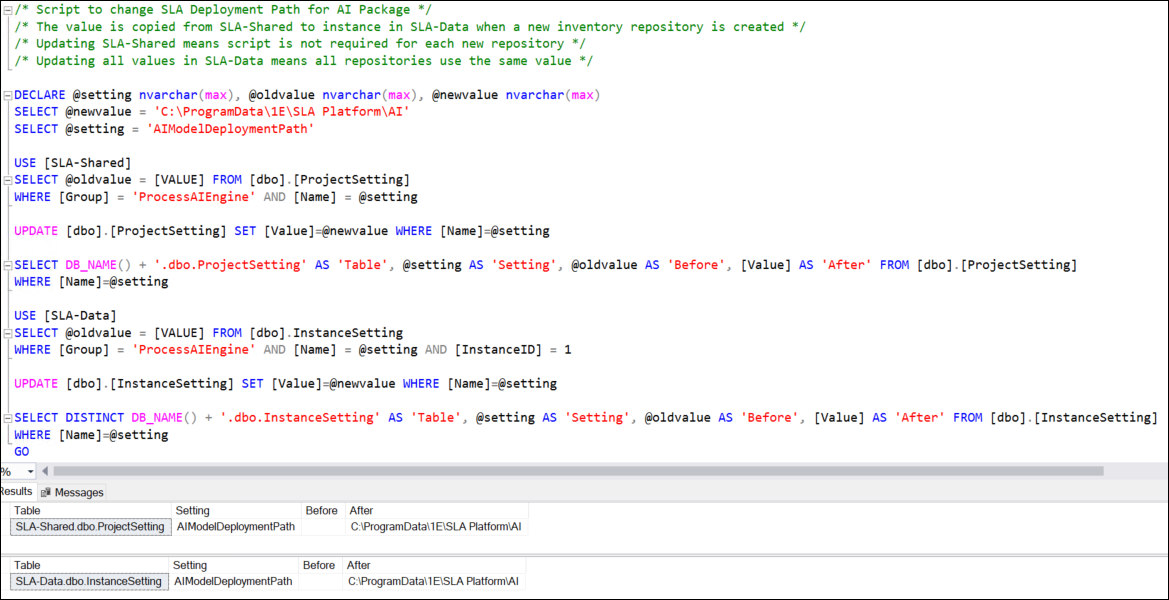
SQL script to configure AIModelDeploymentPath setting
/* Script to change SLA Deployment Path for AI Package */
/* The value is copied from SLA-Shared to instance in SLA-Data when a new inventory repository is created */
/* Updating SLA-Shared means script is not required for each new repository */
/* Updating all values in SLA-Data means all repositories use the same value */

DECLARE @setting nvarchar(max), @oldvalue nvarchar(max), @newvalue nvarchar(max)
SELECT @newvalue = 'C:\ProgramData\1E\SLA Platform\AI'
SELECT @setting = 'AIModelDeploymentPath'

USE [SLA-Shared]
SELECT @oldvalue = [VALUE] FROM [dbo].[ProjectSetting]
WHERE [Group] = 'ProcessAIEngine' AND [Name] = @setting

UPDATE [dbo].[ProjectSetting] SET [Value]=@newvalue WHERE [Name]=@setting

SELECT DB_NAME() + '.dbo.ProjectSetting' AS 'Table', @setting AS 'Setting', @oldvalue AS 'Before', [Value] AS 'After' FROM [dbo].[ProjectSetting]
WHERE [Name]=@setting

USE [SLA-Data]
SELECT @oldvalue = [VALUE] FROM [dbo].InstanceSetting
WHERE [Group] = 'ProcessAIEngine' AND [Name] = @setting AND [InstanceID] = 1

UPDATE [dbo].[InstanceSetting] SET [Value]=@newvalue WHERE [Name]=@setting

SELECT DISTINCT DB_NAME() + '.dbo.InstanceSetting' AS 'Table', @setting AS 'Setting', @oldvalue AS 'Before', [Value] AS 'After' FROM [dbo].[InstanceSetting]
WHERE [Name]=@setting
GO
Verifying AI Auto-curation is working
The process for downloading the latest AI Package is described in Changing the AI Deployment path. You can review the Catalog sync progress in the following logs located at: C:\ProgramData\1E\Catalog\
Catalog.Integration.UI.log
Catalog.UpdateService.log
A successful sync should be similar to this example Catalog.UpdateService.log
[Info] T11 2020-01-31 15:45:48.567: Syncing AI Package with cloud
[Info] T11 2020-01-31 15:45:48.756: Downloading AI Package version 1.3.0.700 with cloud of size 4804685823 from url  api/sync/aiengine?Version=1.3.0.700
[Info] T11 2020-01-31 15:45:48.772: Indexes re-creation started after Sync.
[Info] T12 2020-01-31 15:58:25.929: Indexes are created successfully after Sync.
[Info] T5 2020-01-31 16:30:47.930: Download complete. Comparing file hash..
[Info] T5 2020-01-31 16:31:07.120: Successfully synced AI Package version 1.3.0.700 with cloud
When enabled, a new action called Process AIEngine is created. This is automatically run after the Sync Data action for a supported connector. The sync time for the Process AIEngine action depends on the number of distinct software records being processed, hardware and environment configuration. AI Powered Auto-curation is used by all Inventory connectors. Refer to the Connectors page.
You can see the Process AIEngine action in Settings > Monitoring > Process log
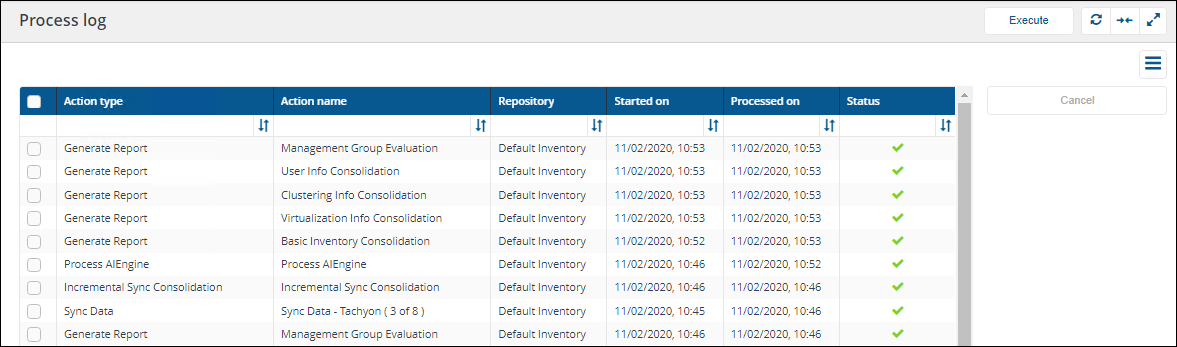
You can review its progress using the Engine.log located at C:\ProgramData\1E\SLA Platform\, in the log, you should see something similar to this example:
2020-03-31 08:46:25.0274 INFO  Action Process AIEngine starting! Jobs: 1/5
2020-03-31 08:46:25.0274 INFO  ID=612d1b08-7eb7-4bf1-9c23-46dea29d9b6d Starting action: 11065
2020-03-31 08:46:25.0274 DEBUG  [HubConnection] Adding notification '11065' to queue. Queue count:3.
2020-03-31 08:46:25.0274 INFO  Folder's available in PreProcessAsync: output- True, input- True, tempDir- True, training- True
2020-03-31 08:46:25.0500 INFO  Catalog web address: http://LAB.LAB.local/CatalogWeb/
2020-03-31 08:46:25.0704 INFO   Is higher version False, localVersion 1.3.0.700, serverVersion 1.3.0.700
2020-03-31 08:46:25.0704 INFO  serverFileDetails.Base64filehash 0x853E29401B209301C9F9C4D381202C931816C871, modelFileDetails.Base64filehash 0x853E29401B209301C9F9C4D381202C931816C871
2020-03-31 08:46:25.0724 INFO  Condition for download before checking: False
2020-03-31 08:46:25.0724 INFO  Saving Model file hash (0x853E29401B209301C9F9C4D381202C931816C871) and version (1.3.0.700)
2020-03-31 08:46:25.1124 DEBUG  [HubConnection] Notification sent '11064'
2020-03-31 08:46:25.1484 DEBUG  [HubConnection] Adding notification '0' to queue. Queue count:2.
2020-03-31 08:46:25.1484 INFO  Folder's available in ProcessAsync: output- True, input- True, tempDir- True, training- True
2020-03-31 08:46:25.1504 INFO  Folder's available in Before Invoking AI EXE: output- True, input- True, tempDir- True, training- True
2020-03-31 08:46:25.1504 DEBUG  [HubConnection] Notification sent '0'
2020-03-31 08:46:25.1504 INFO  process started - 9636process name is 1E-AIEngine
2020-03-31 08:46:25.1504 INFO  in wait for exit async
2020-03-31 08:46:25.1504 INFO  In Read Async
2020-03-31 08:46:25.1724 DEBUG  [HubConnection] Notification sent '11065'
2020-03-31 08:46:25.1967 DEBUG  [HubConnection] Notification sent '0'
2020-03-31 08:51:05.5709 INFO  Folder's available in After Invoking AI EXE: output- True, input- True, tempDir- True, training- True
2020-03-31 08:51:05.5709 INFO  AI process completed with exit code: 0
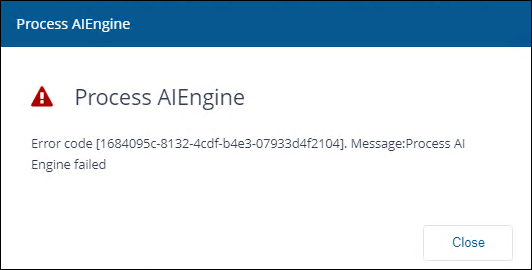
If you see a red warning triangle in the Process log, this indicates a problem. The most common reason for the Process AIEngine to fail is due to insufficient memory when it runs, refer to Memory requirements table.
In this example, clicking on the red warning triangle displays an error message explaining that the Process AIEngine has failed.

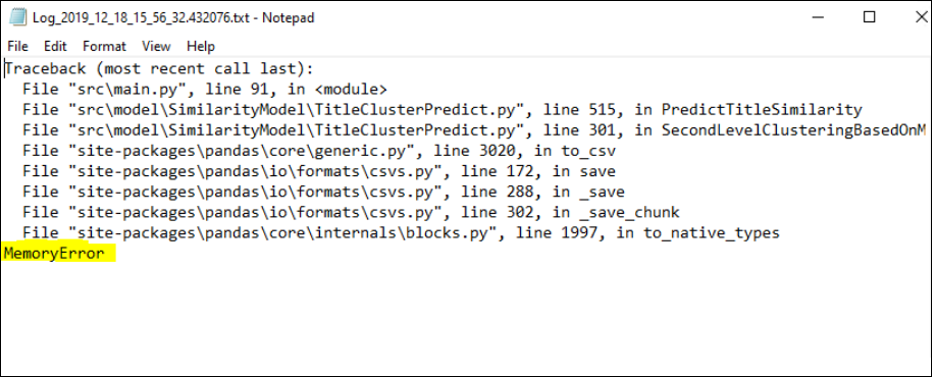
You can review the AI logs at: C:\ProgramData\1E\SLA Platform\AI\Log_*.txt
The picture shows an example of a failure logged due to insufficient memory. Log_*.txt
If the AI processing step does fail, the overall inventory consolidation will not. In the event of a failure, the AI processing step is skipped, making sure the rest of the process takes place as expected.
Differences in SLA Inventory screens when AI Powered Auto-curation is enabled
The SLA Inventory UI screens differ if AI Powered Auto-curation is enabled or disabled. The process of setting up connectors, creating inventory repositories and running the basic inventory consolidation remains the same.